
Purpose: Set up the preset reasons to choose from when voiding an item or order (e.g. Wrong Items!). For: owners, managers.
Before you start: voiding an item on the POS requires a reason (see 1.4.4 How to void an item); when voiding a whole order you can also tap a preset reason (see 1.4.5 How to void an unpaid order, 1.4.6 How to void a paid order).
Steps #
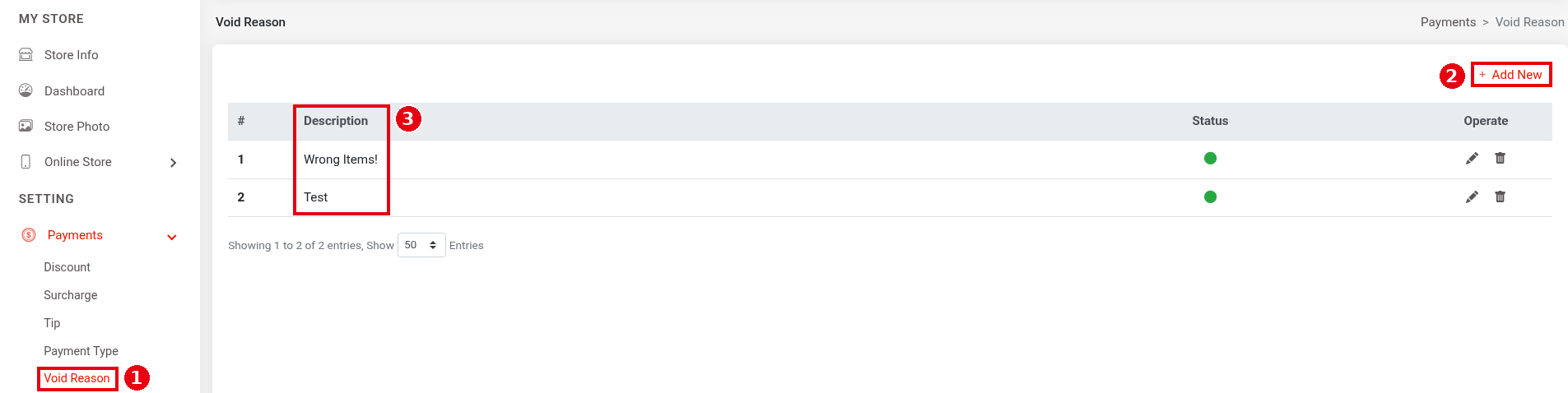
1. In the Backoffice left menu, click Payments > ① Void Reason. The list’s columns are #, ③ Description, Status and Operate; the demo store has Wrong Items! and Test. Click ② + Add New to add a reason.
2. Fill in ④ Description (English) and Description (中文) (the reason text, required), leave ⑤ Enable on, and ⑥ click Save.

Notes / FAQ #
-
The reason text shows in the red banner at the top of a voided order (e.g. VOID – Jay – Test; see 1.4.5 How to void an unpaid order).
-
Make reasons specific (e.g. “wrong dish served”, “guest cancelled”) so reports are easier to read later.


