
Purpose: Choose whether the online store takes delivery and pick-up orders and which payment options it accepts, and set the delivery minimum, delivery charge, free-delivery threshold, delivery range and estimated times. For: owners, managers.
Before you start: these settings are under Online Store > Store Setting. The price table you choose in Price Type must already exist and be enabled under Menu > Price Table (see 3.6.1 How to build a new menu from scratch (setup order)), or online item prices show as $0.00. Pick-up and delivery orders that staff enter on the POS use the settings under Service (step 5).
Steps #
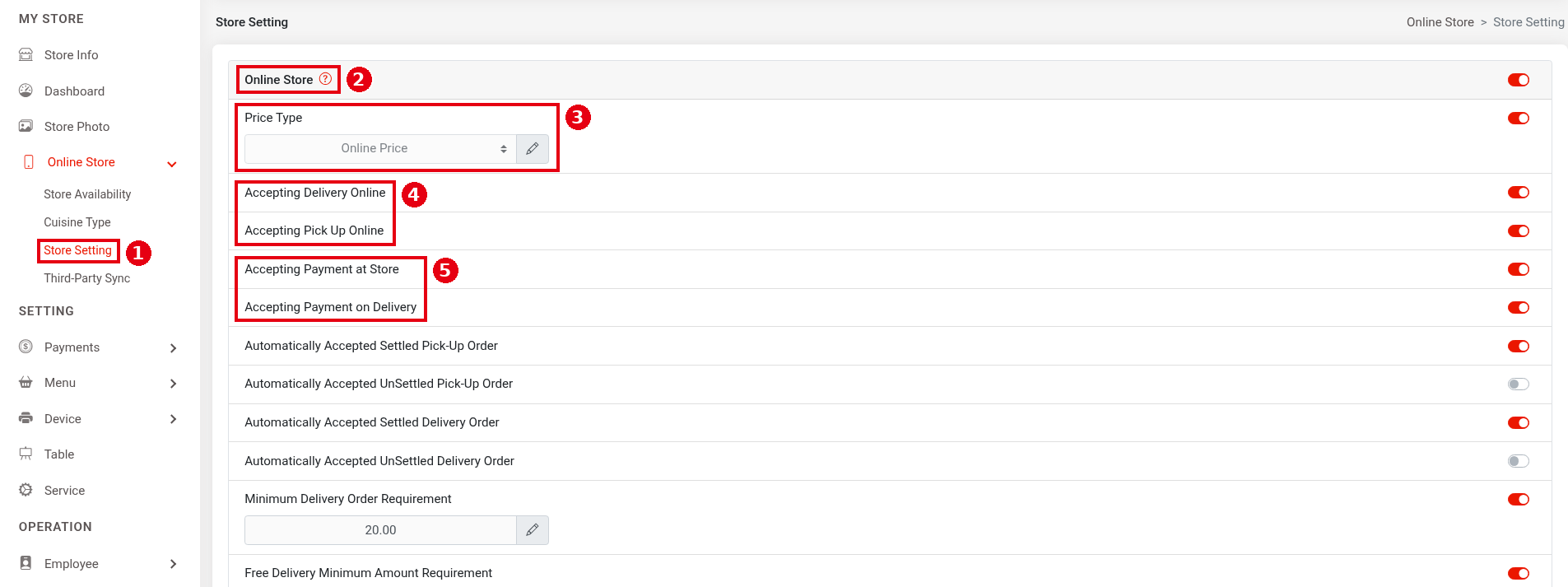
1. In the Backoffice left menu, click Online Store > ① Store Setting:
-
② Online Store: the master switch for the online store service.
-
③ Price Type: the price table the online menu uses (Online Price in the screenshot); click the pencil icon to choose.
2. Choose the order types and payment options you accept (switches):
-
④ Accepting Delivery Online (accept online delivery orders) and Accepting Pick Up Online (accept online pick-up orders).
-
⑤ Accepting Payment at Store: when on, pick-up customers can choose Payment at Store at checkout. Accepting Payment on Delivery: when on, delivery customers can choose Payment on Delivery at checkout.
3. Set the delivery and pick-up rules. Turn on the switch on the right, then click the pencil icon to edit:
-
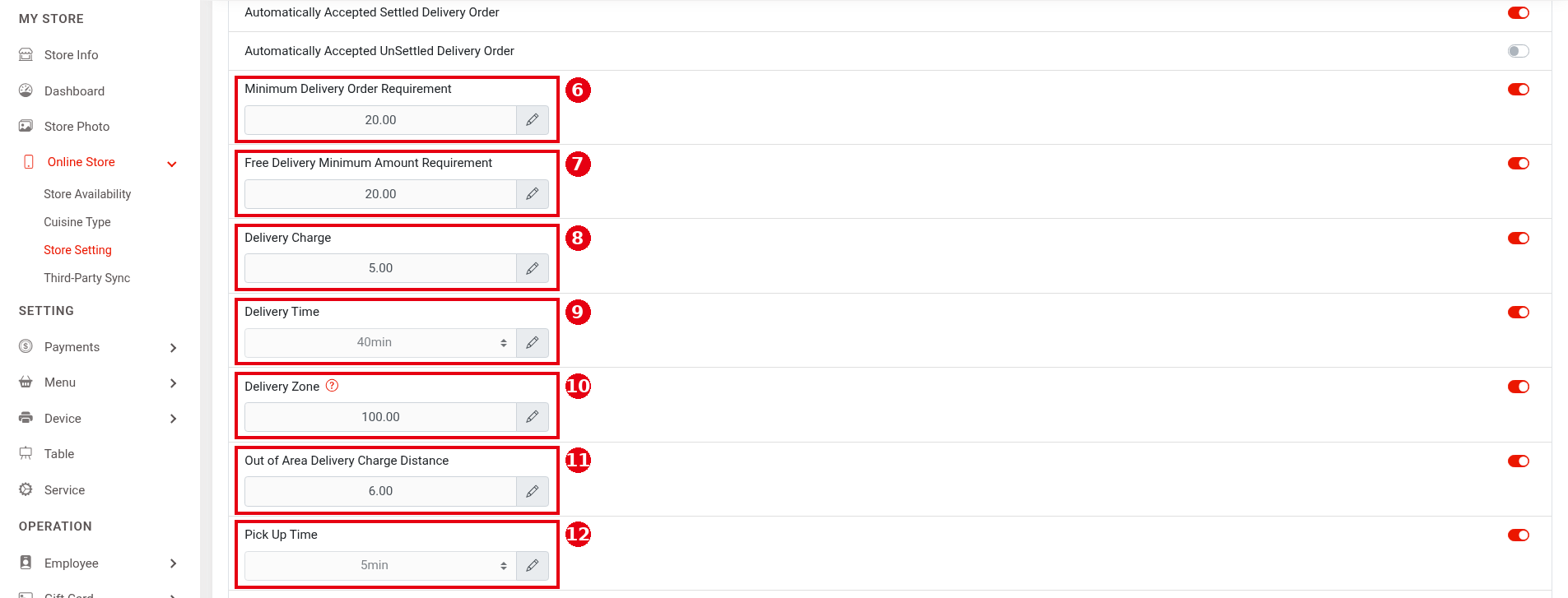
⑥ Minimum Delivery Order Requirement: the minimum order amount for delivery.
-
⑦ Free Delivery Minimum Amount Requirement: orders at or above this amount get free delivery.
-
⑧ Delivery Charge: the delivery fee. It isn’t charged when the order qualifies for free delivery.
-
⑨ Delivery Time: the estimated delivery time (dropdown), shown to guests on the online store.
-
⑩ Delivery Zone: the delivery range, in miles (called Delivery Area Limit in the old official docs). Addresses beyond it are charged the extra fee in ⑪.
-
⑪ Out of Area Delivery Charge Distance: despite “Distance” in the name, this is an amount: the extra fee charged when the address is beyond ⑩.
-
⑫ Pick Up Time: the estimated pick-up time (dropdown), shown to guests on the online store.
This part is being reworked and will change in the next release.
4. Other options (switches):
-
⑬ Price Range: the old docs’ Show Price Level; shows a price level on the online platform.
-
⑭ Order Policy Confirmation: when on, guests must confirm the order policy when ordering online (official website docs, old version). Turning the switch on shows an input box where you enter the policy text.
-
⑮ Accepting Dine In Online: when on, online ordering gets a Dine In option.
-
⑯ Payment by Cash Only: when on, the customer can only choose Payment at Store.

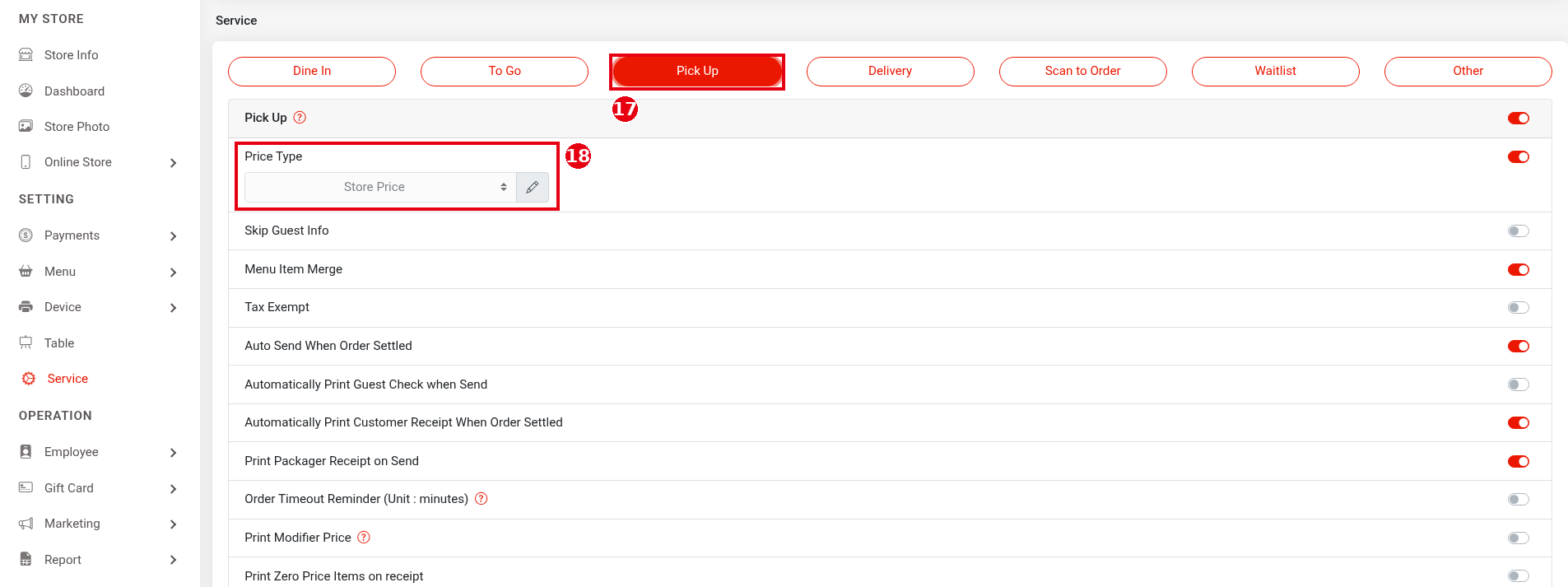
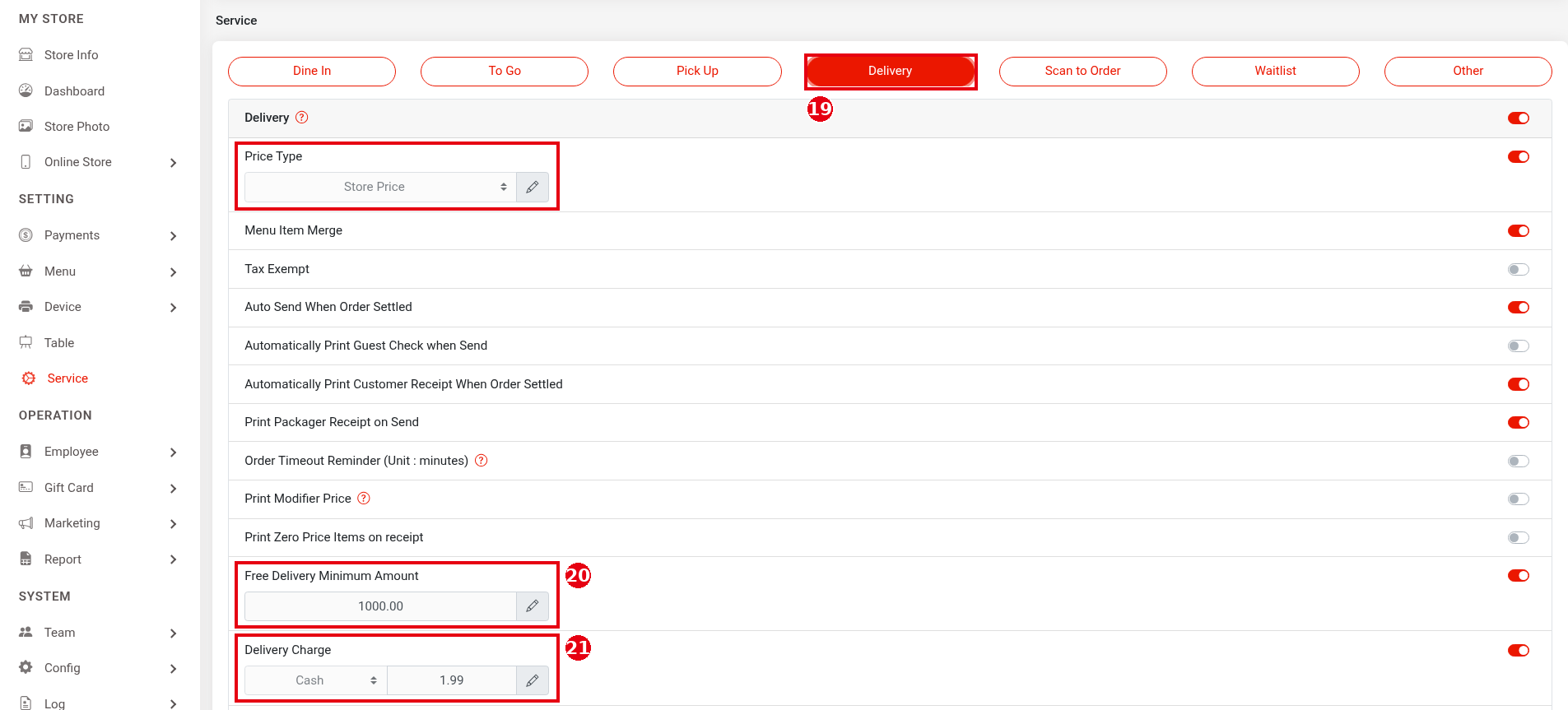
5. Pick-up and delivery orders on the POS: the ⑰ Pick Up and ⑲ Delivery tabs on the Backoffice Service page each have their own ⑱ Price Type (Store Price in the screenshot), plus switches such as Menu Item Merge, Tax Exempt, Auto Send When Order Settled, Automatically Print Customer Receipt When Order Settled and Print Packager Receipt on Send. Pick Up also has Skip Guest Info, and Delivery also has ⑳ Free Delivery Minimum Amount and ㉑ Delivery Charge (the delivery fee, added automatically to POS delivery orders; the dropdown offers a fixed amount, Cash, or a percentage; Cash, 1.99 in the screenshot). See 2.5.2 How to configure To Go, Pick Up and Delivery settings for these settings and 3.3.4 How to set up automatic printing of checks, receipts and packager tickets for automatic printing. The online store settings and the Service > Pick Up / Delivery settings don’t affect each other.
Notes / FAQ #
-
If online item prices show $0.00, check that ③ Price Type is on with a price table selected, and that the price table is enabled (see 3.6.1 How to build a new menu from scratch (setup order), 4.3.1 Why do item prices show $0.00?).
-
Which categories and items show online is set with the channel options on menu categories and items (see 2.3.8 How to schedule items and choose where they appear, 2.3.4 How to create and sort menu categories, 2.3.5 How to add menu items); if something doesn’t show, see 4.3.2 Why isn’t an item showing on the Kiosk or online?.
-
For online store hours, see 2.9.1 How to set online store availability and hours; for auto-accept, see 2.9.3 How to set up auto-accept and new order notifications.


