
Purpose: Let the guest choose a tip and sign on the customer display when paying. For: cashiers, servers. Hardware: a customer display (with a VP3350 reader (the older VP3300 is still available for purchase but not recommended) that has tip selection / signature capture turned on, the tip and signature are also done on the customer display).
Confirmed facts #
-
Customer display payment flow: the guest chooses a tip first, then pays. After the guest taps a payment method there is no extra confirmation; the system sends the payment request straight to the card terminal.
-
The VP3350 reader supports Tip Selection and Signature Capture, which can be turned on or off as the merchant needs.
-
Tips are percentage-based with an optional minimum tip: if the percentage tip is lower than the minimum, the minimum is used. The tip base is set in the back office under Service > Other > Tip Calculation Mode (see 2.4.3 How to set up tip options, minimum tip and tip base), with three options: Order Total, Subtotal, and Subtotal + Discount + Surcharge (i.e. before tax) (see 1.2.10).
Steps #
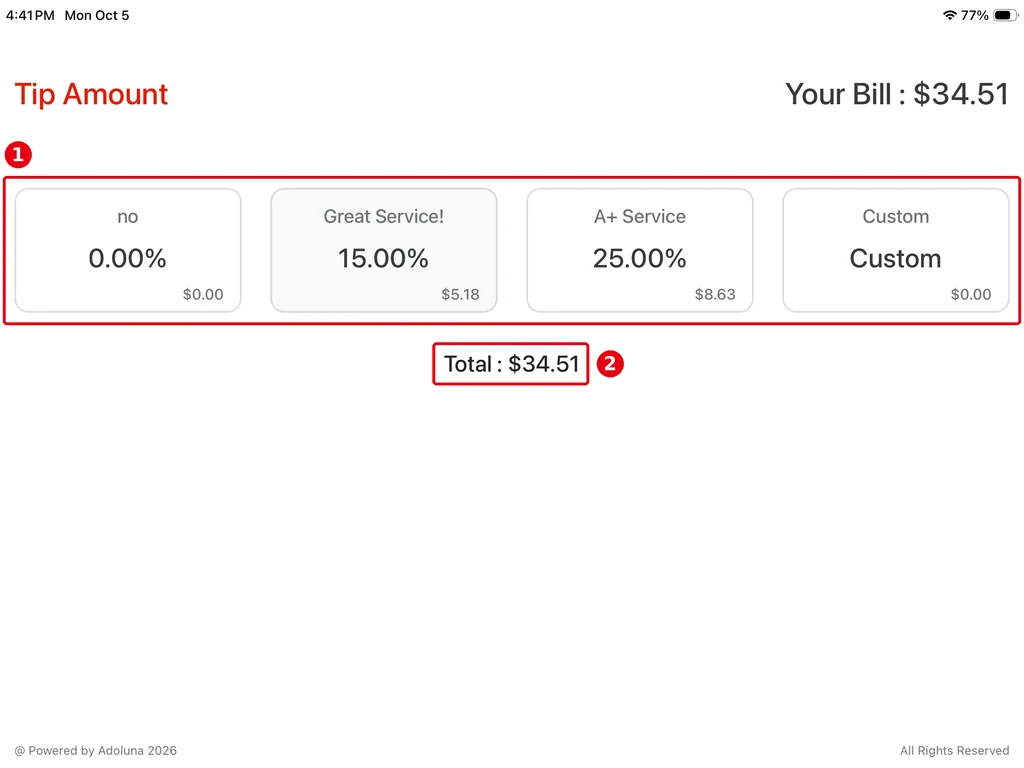
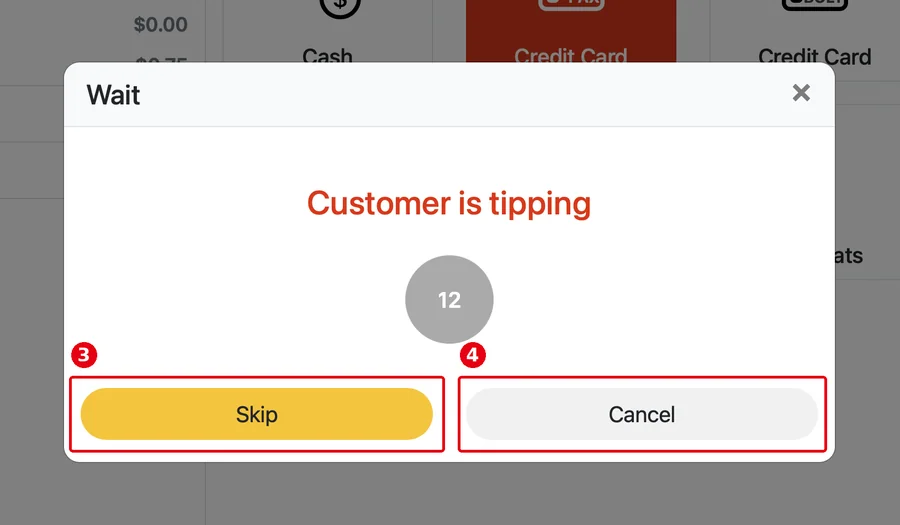
1. After the cashier starts a card payment on the POS, the customer display shows tip selection: ① the tip options and ② Total. At the same time the POS shows a Wait dialog with Customer is tipping; the cashier can tap ③ Skip to skip the tip or ④ Cancel to cancel.
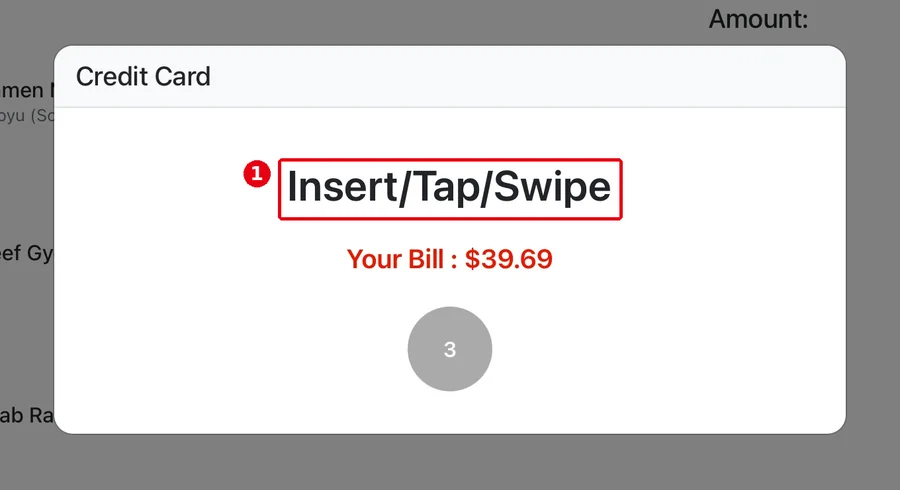
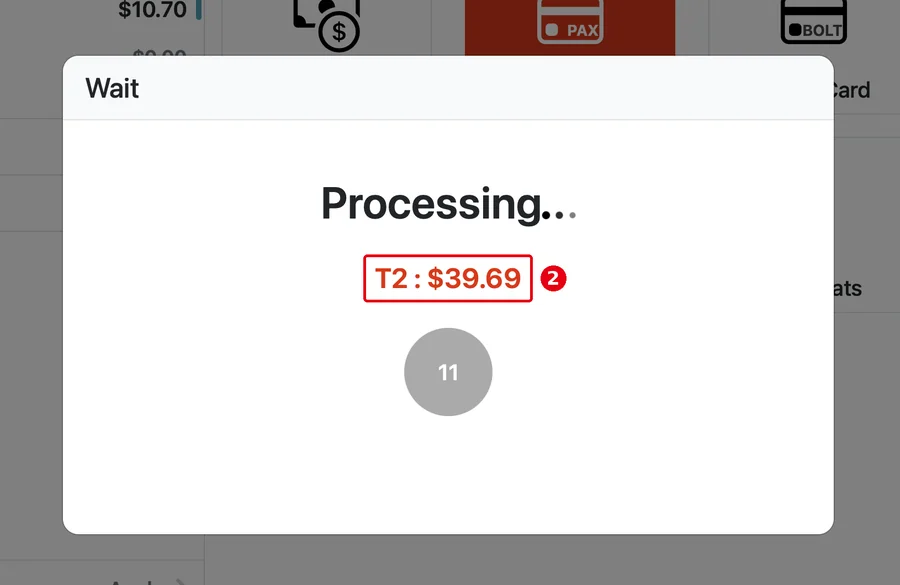
2. After the guest picks a tip, the customer display shows the ① Insert/Tap/Swipe prompt; the POS shows Processing… with ② the charge amount (including tip).
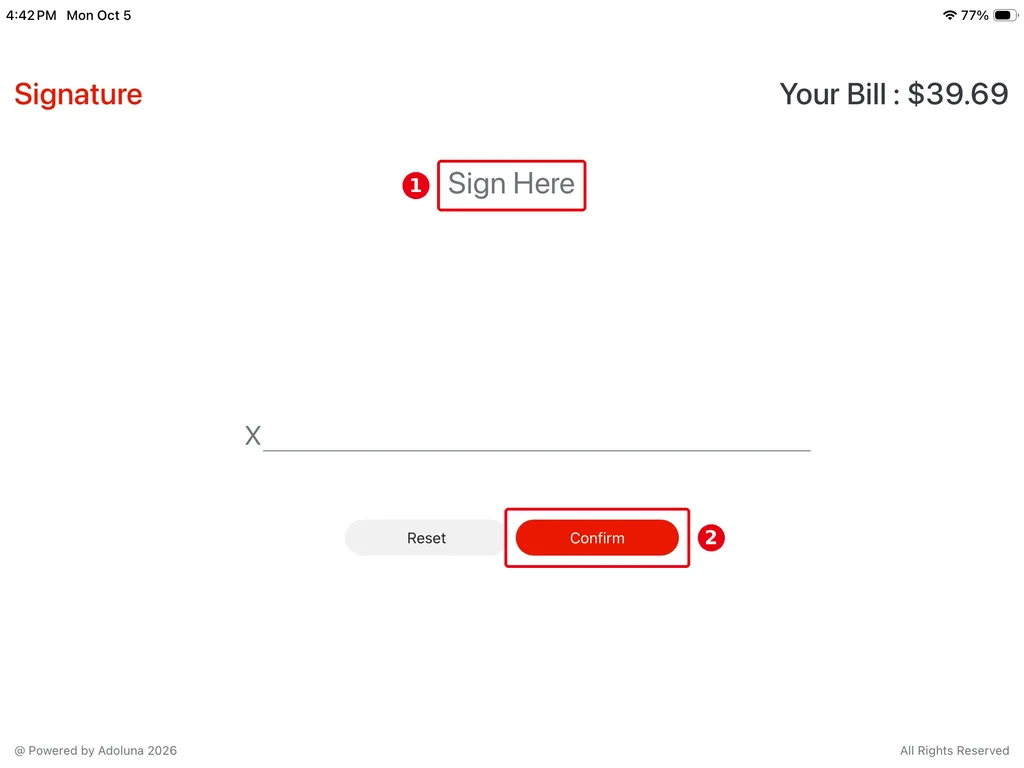
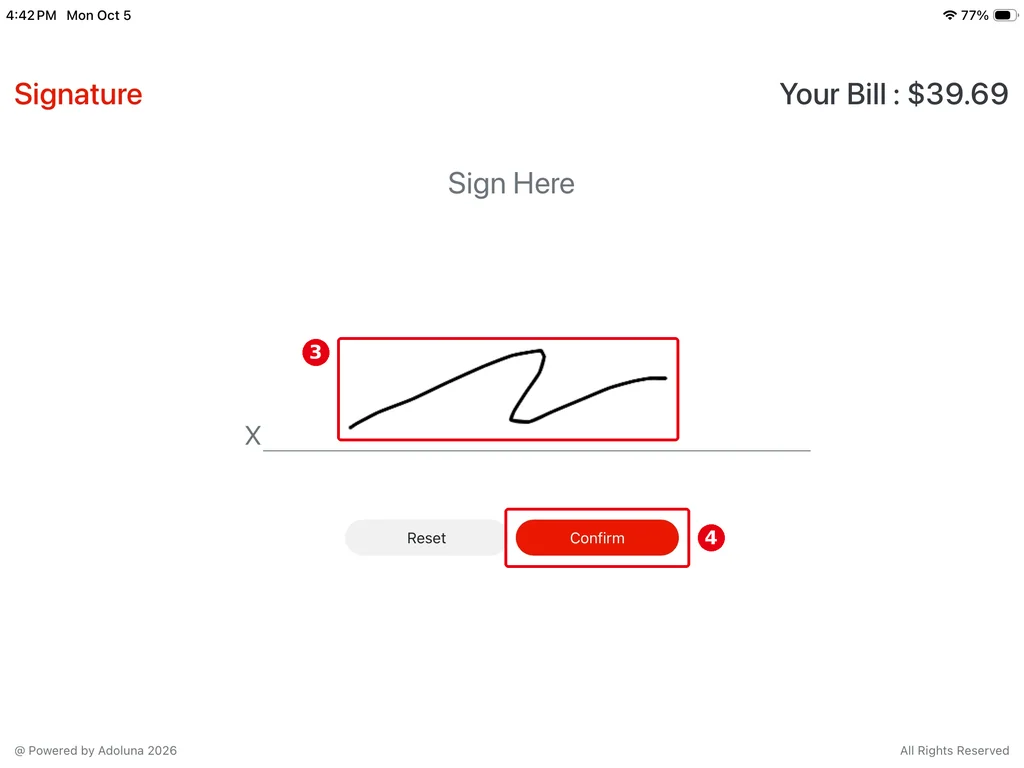
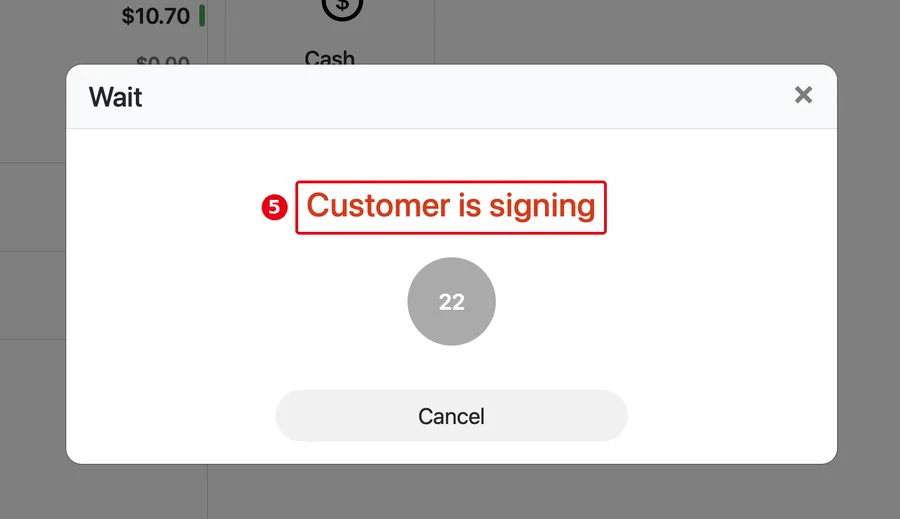
3. After the card is presented, the customer display goes to signature: ① Sign Here, then tap ② Confirm. Once signed you see the signature (③) and tap ④ Confirm again. The POS Wait dialog shows ⑤ Customer is signing.
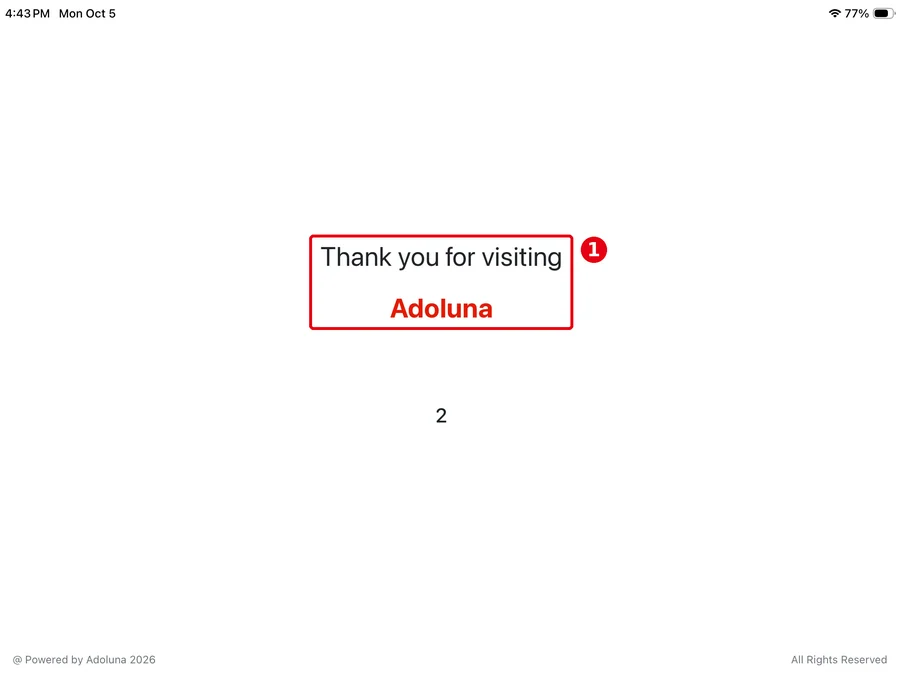
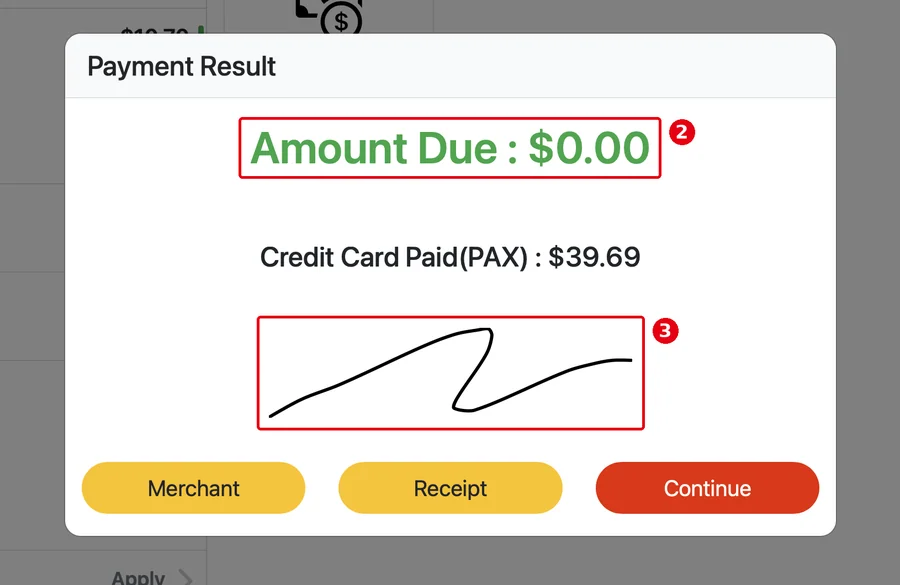
4. When done, the customer display shows ① Thank you; the POS Payment Result shows ② Amount Due : $0.00 with the guest’s signature ③.
Notes / FAQ #
-
Any device can be the customer display: install Adoluna POS on it and choose Customer Display when binding the device. With Enable Cloud Connection on in the Backoffice it connects over the internet (cloud) and doesn’t need to be on the same network as the POS; with it off it goes through the Local Server (see 3.5.1 How to set up the customer display). Sunmi dual-screen devices are also supported and show the customer display on the second screen without a separate Customer Display install.
-
The tip options on the customer display are set in the back office under Payments > Tip (see 2.4.3 How to set up tip options, minimum tip and tip base; for how tips are calculated, see 1.2.10 How to add an order-level discount, charge or tip).
-
With a VP3350, the tip and signature are done on the customer display; this is set in the back office under Devices > POS.
-
For staff adding a tip on the POS, see 1.2.10.


