
Purpose: When item prices show $0.00 on the POS, Kiosk or online, find out why and fix it. For: managers, Adoluna onboarding staff.
Common causes and fixes #
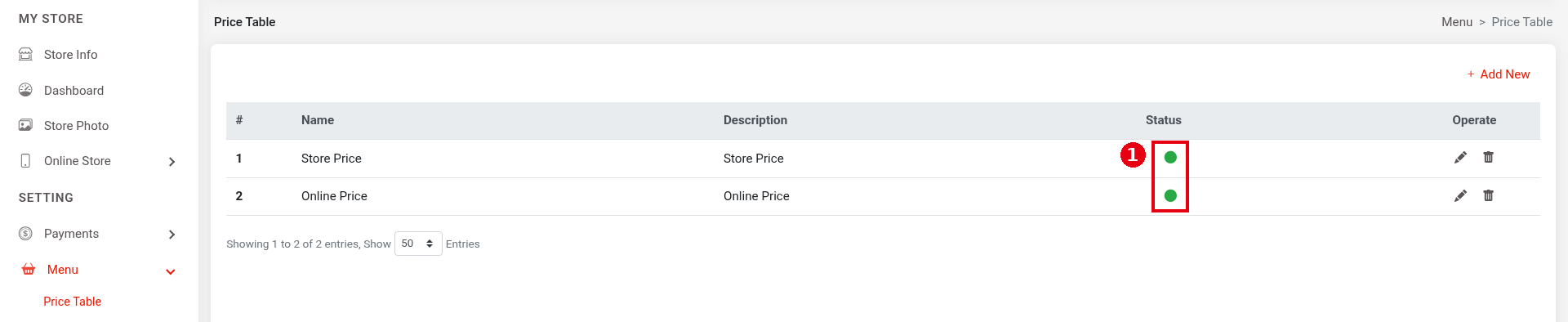
1. The price table isn’t enabled: in the Backoffice under Menu > Price Table, ① Status should be a green dot. If it isn’t, click the pencil icon, turn on Enable and save (see 2.3.1 How to set up price tables).
2. An order type on the POS has no price table: in the Backoffice under Service, check ② Price Type on each order type tab (Dine In, To Go, Pick Up, Delivery, etc.). The switch on the right must be on and a price table selected (see step 4 of 2.3.1 How to set up price tables, 3.6.1 How to build a new menu from scratch (setup order)).

3. The online store has no price table: check ③ Price Type under Online Store > Store Setting (see 2.9.2 How to set online pick-up and delivery rules).

4. The item has no price in that price table: open the item’s edit page and, under ④ Price, check the amount in the row for the price table that channel uses (see 2.3.5 How to add menu items). This is most common when items were created before the price table was added; fill in the prices one by one on each item’s edit page in the Backoffice (don’t use Excel import; see 2.3.12 How to import and export the menu with Excel).

5. The discount price is $0.00: a Discount Price of $0.00 makes the item free. If you don’t want a discount price, clear it with × (see 2.3.10 How to set a discount price on an item).
6. The modifier or forced modifier price is simply $0.00: modifier Operate prices and forced modifier choice Price both default to $0.00; enter a price if it should cost something (see 2.3.6 How to set up modifiers, 2.3.7 How to set up forced modifiers and default choices).
7. The item has Prompt for Price on: its price is entered when ordering (see 2.3.5 How to add menu items). These items don’t show $0.00 on the menu, so a $0.00 price isn’t caused by this switch.
8. After fixing, refresh the POS (see 4.4.3 How to refresh or restart the POS) and send a test order to check (see 3.6.2 How to run a go-live test (test orders, printing, cards, Batch)).
Notes / FAQ #
-
Building the menu in the order price tables → tax tables → menu groups → categories → items avoids most $0.00 problems (see 3.6.1 How to build a new menu from scratch (setup order)).
-
Buffet prices are set in the buffet menu (see 2.3.13 How to set up an All You Can Eat (buffet) menu).


