
Purpose: Record and export simple income and expense entries in the Backoffice (for example supplier payments or reimbursements), filtered by account and category. For: owners, managers.
Before you start: Bookkeeping is at the bottom of Report in the Backoffice left menu. On a small screen, scroll down after expanding Report to see Bookkeeping.
Steps #
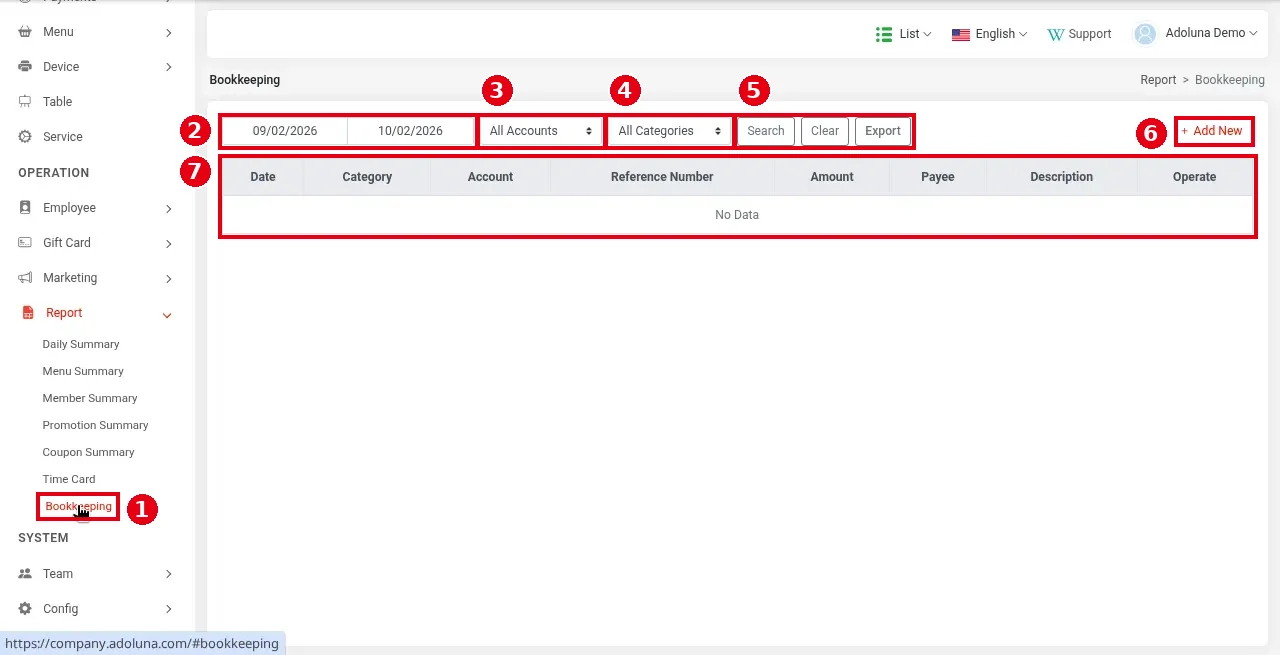
1. In the Backoffice left menu click ① Report > Bookkeeping to open the list:
-
② choose the date range (09/02/2026 to 10/02/2026 in the screenshot);
-
③ filter by account (All Accounts);
-
④ filter by category (All Categories);
-
⑤ Search, Clear to reset, Export to Excel;
-
⑥ + Add New to add an entry.
The list ⑦ has the columns Date, Category, Account, Reference Number, Amount, Payee, Description and Operate. The demo store has no entries (No Data).
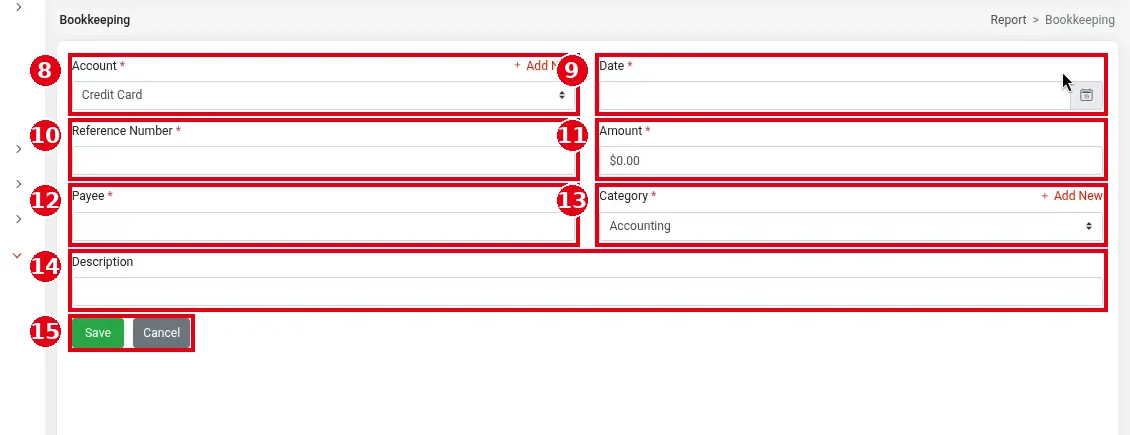
2. Click ⑥ + Add New and fill in:
-
⑧ Account* (Credit Card by default); click + Add New on the right to create an account;
-
⑨ Date*;
-
⑩ Reference Number*: a reference or cheque number;
-
⑪ Amount*;
-
⑫ Payee*;
-
⑬ Category* (Accounting by default); click + Add New on the right to create a category;
-
⑭ Description.
Click ⑮ Save (or Cancel).
3. To edit or delete an entry, use its Operate column in the list (official docs: the pencil icon edits and the bin icon deletes).
Notes / FAQ #
-
Bookkeeping is a simple record of income and expenses; it isn’t linked to POS sales. For sales figures, see 2.11.1 How to read the Dashboard and 2.11.2 How to run the Daily Summary report.


