
Purpose: Clock in, start/end a break and clock out. For: all staff.
Steps #
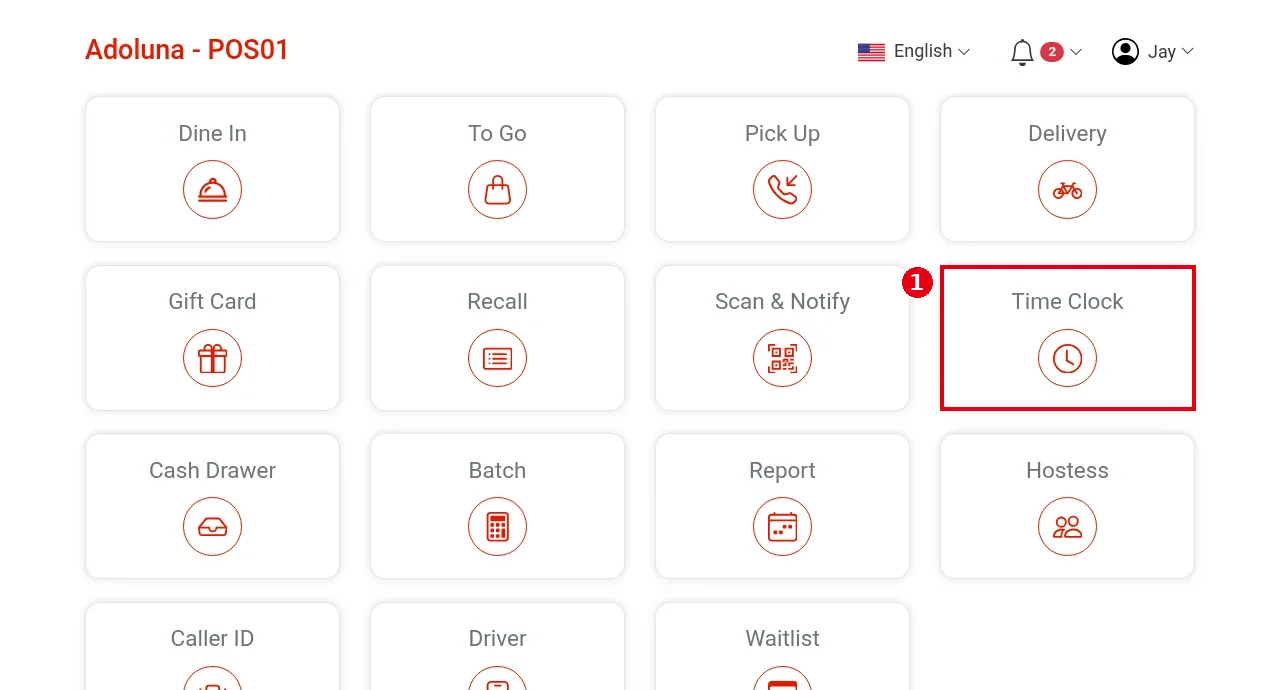
1. On the home screen tap Time Clock (see 1.1.2 How to find your way around the POS home screen).
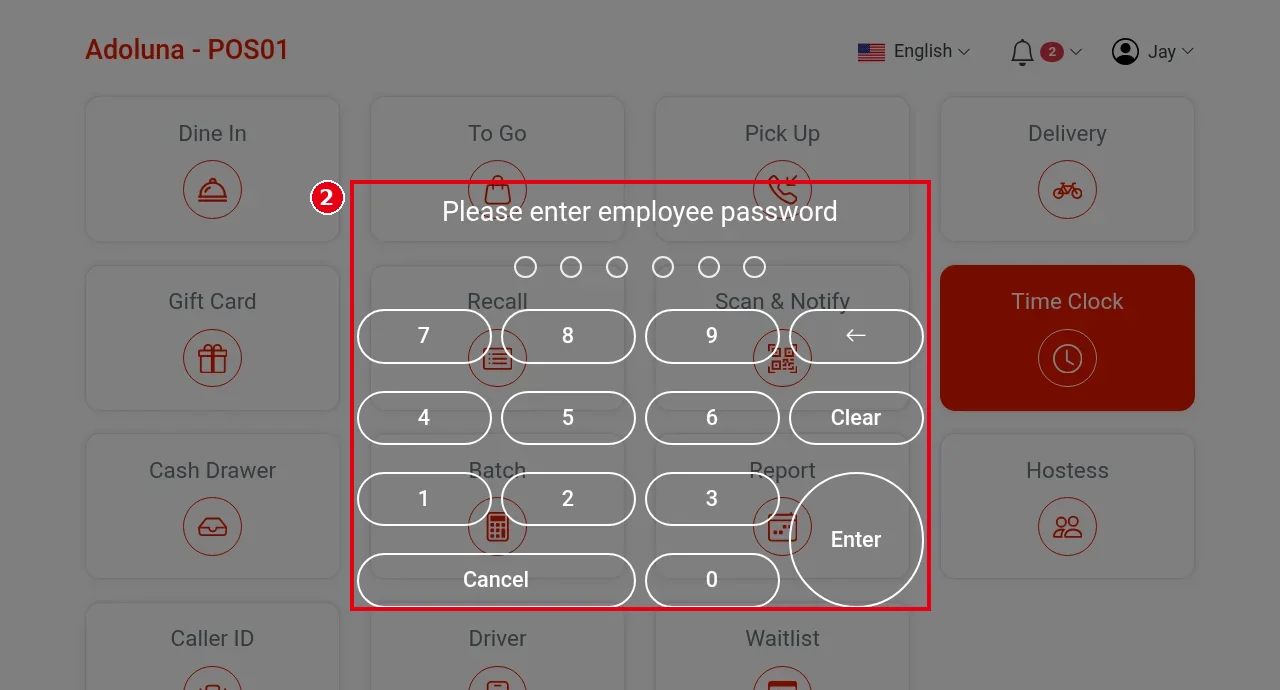
2. Please enter employee password opens. Enter the password of the employee who is clocking, then tap Enter (Clear clears, Cancel goes back). The punch is recorded for the employee whose password was entered, not for whoever is logged in to the POS (e.g. the POS is logged in as Jay; after entering Sophia‘s password it shows Welcome Sophia). No manager password is needed.
3. The Clock screen shows Welcome and the employee’s name. An employee who is on the clock sees three buttons: Break (yellow, start a break), Clock Out (red) and History (punch history, see 1.5.2 How to view your time card history).
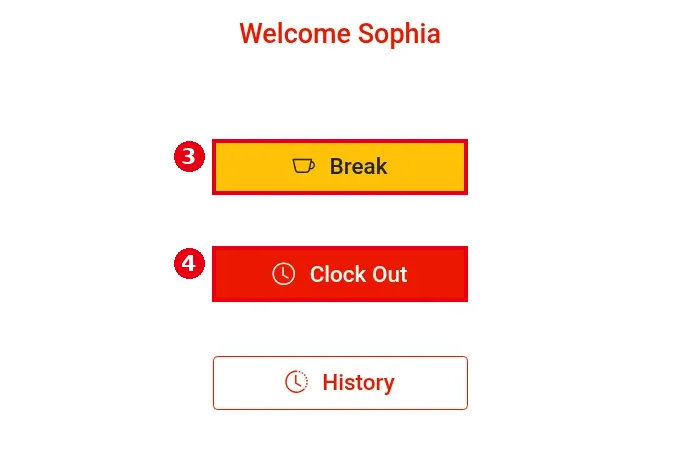
4. To start a break, tap Break. The break starts at once, with no confirmation, and the button changes to End Break.
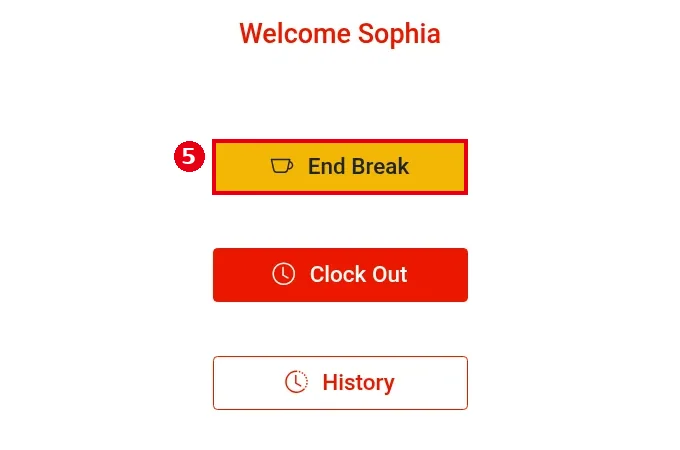
5. To end the break, open Time Clock again, enter the password and tap End Break. The break ends at once and the button changes back to Break.
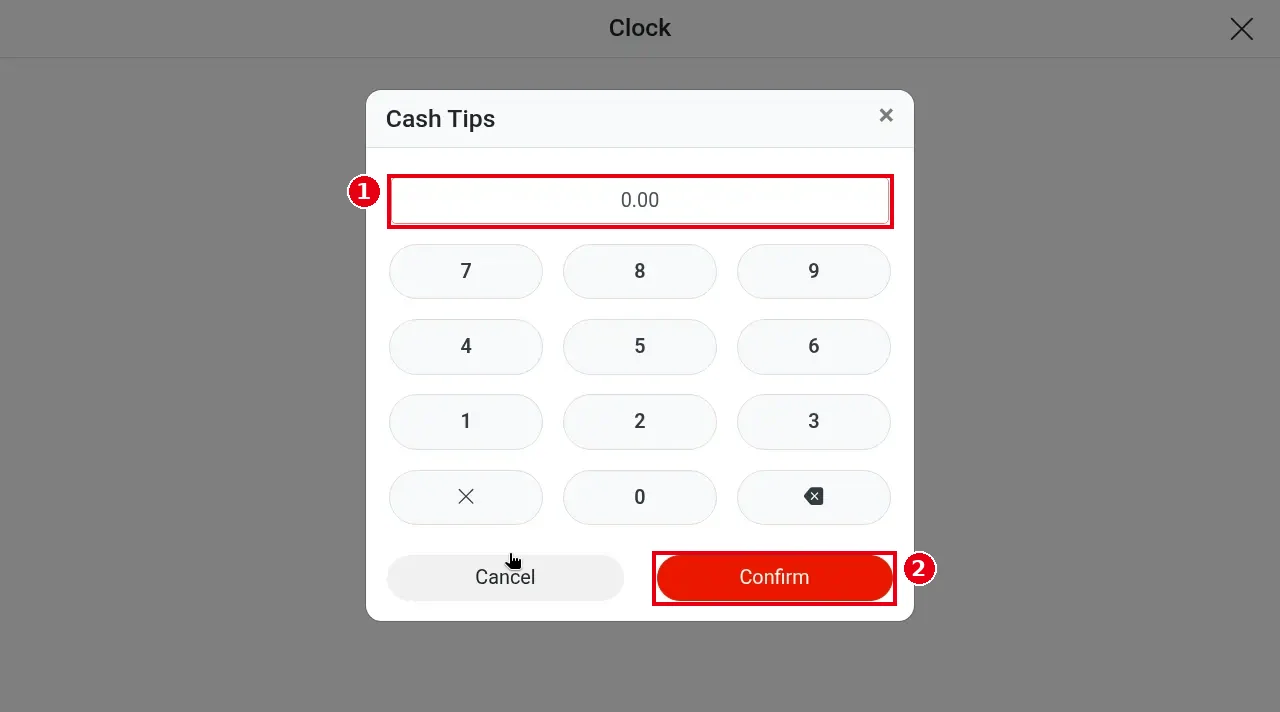
6. To clock out, tap Clock Out. You are clocked out at once, with no confirmation. If Report Cash Tip is turned on for this employee in the back office, a Cash Tips box pops up at clock-out: enter the shift’s cash tips in ① with the keypad and tap ② Confirm. Confirm can’t be tapped while the amount is 0.00. Employees without it (e.g. Sophia in the demo) are not asked for tips. The screen then shows only Clock In and History.
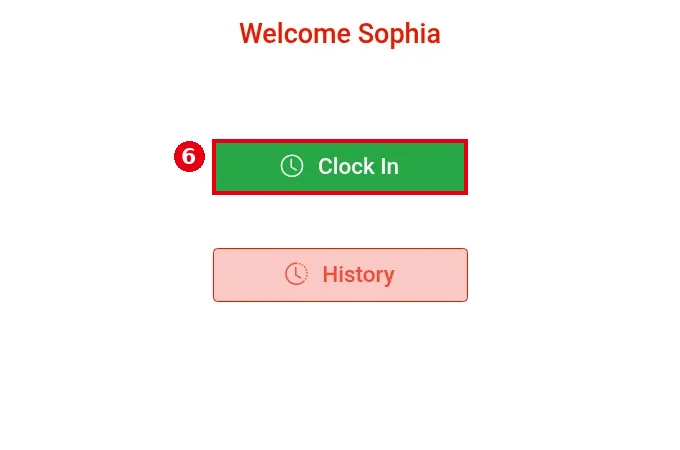
7. To clock in, an employee who is not on the clock sees Clock In; tap it to clock in at once. The screen changes back to Break / Clock Out / History.
Notes / FAQ #
-
Break, End Break, Clock Out and Clock In all take effect immediately without confirmation, so check before tapping. If you tap Clock Out by mistake you can tap Clock In right away, but this creates a new punch.
-
Break time is not counted as hours: in the Time Card report a break splits the day into two entries (e.g. 18:21:31–19:32:33, then after the break 19:32:48–19:33:01); see 1.5.2 How to view your time card history.
-
Before clocking out, finish your own cash-drawer close-out and end-of-day tasks (see 1.5.7 How to close out the day (end-of-day checklist)).
-
Cash-tip entry at clock-out is turned on per employee with the Report Cash Tip switch in the back-office employee profile. When it’s on, an input box pops up at clock-out, and the amount shows under Cash Tips in the clock history and the Time Card (see 1.5.2 How to view your time card history).
-
An employee can clock out even with open orders or a cash drawer that hasn’t been cashiered out; the system doesn’t block it.


