
Purpose: Create coupons for guests and check how many were issued and used. For: owners, managers.
Before you start:
-
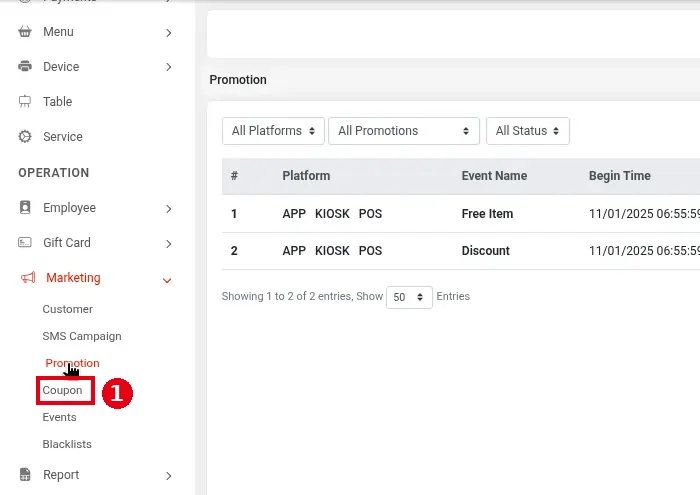
The Backoffice left menu has Coupon under ① Marketing. When the screenshots were taken on 2026-10-02, clicking Coupon showed the Promotion page instead; on a re-check on 2026-10-03, Coupon opened normally with an empty list (No Data), and the + Add New form opened too. The official website has no coupon docs, so this article only covers what was seen on the demo Backoffice; no coupon was actually saved.
-
Each order can use only one promotion or coupon (official release notes).
Virtual coupons work for online orders only; offline coupons work for online orders, the Kiosk and the POS. Release Count in the report: online coupons are claimed by customers themselves, and offline coupons are handed out by the store.
Steps #
1. In the Backoffice left menu click ① Marketing > Coupon, click + Add New and fill in:
-
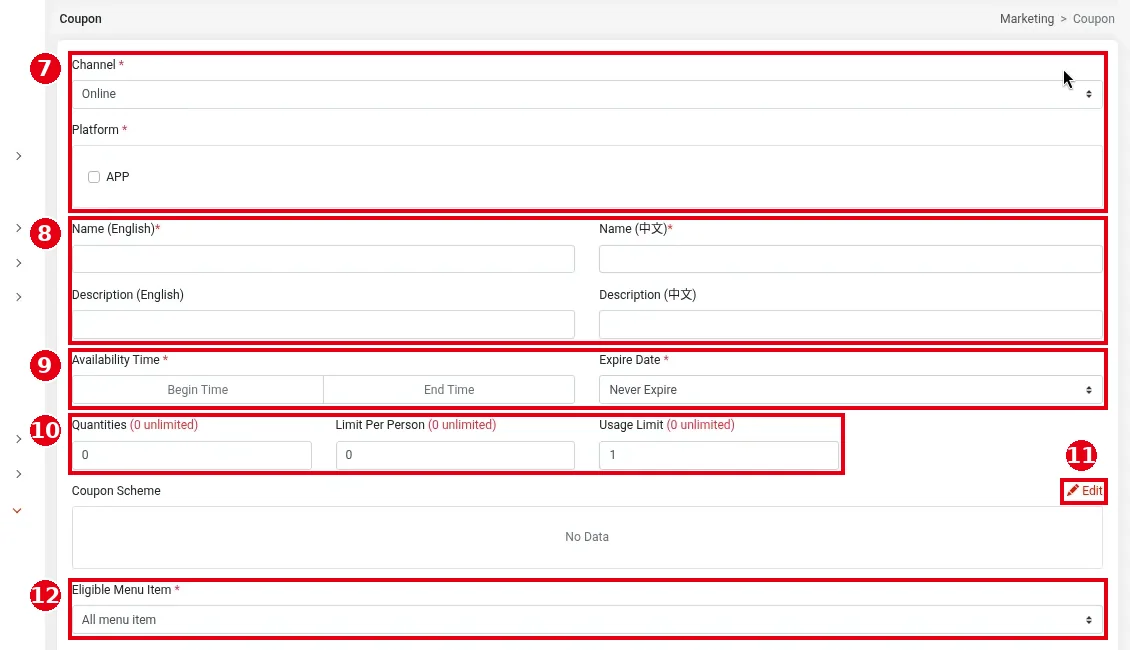
⑦ Channel*: Online or Offline; Platform*: tick the platforms. Online only offers APP (the screenshot shows Online); for Offline, see below.
-
⑧ Name (English)* and Name (中文)*: the coupon name; Description (English) and Description (中文).
-
⑨ Availability Time*: the start and end time (Begin Time, End Time); Expire Date* (Never Expire by default).
-
⑩ Quantities, Limit Per Person and Usage Limit: limits, where 0 means no limit (Usage Limit defaults to 1).
-
⑪ Coupon Scheme: click Edit to set the offer (see “Setting the offer” below).
-
⑫ Eligible Menu Item*: the items it applies to (All menu item by default).
Then click Save (or Cancel).
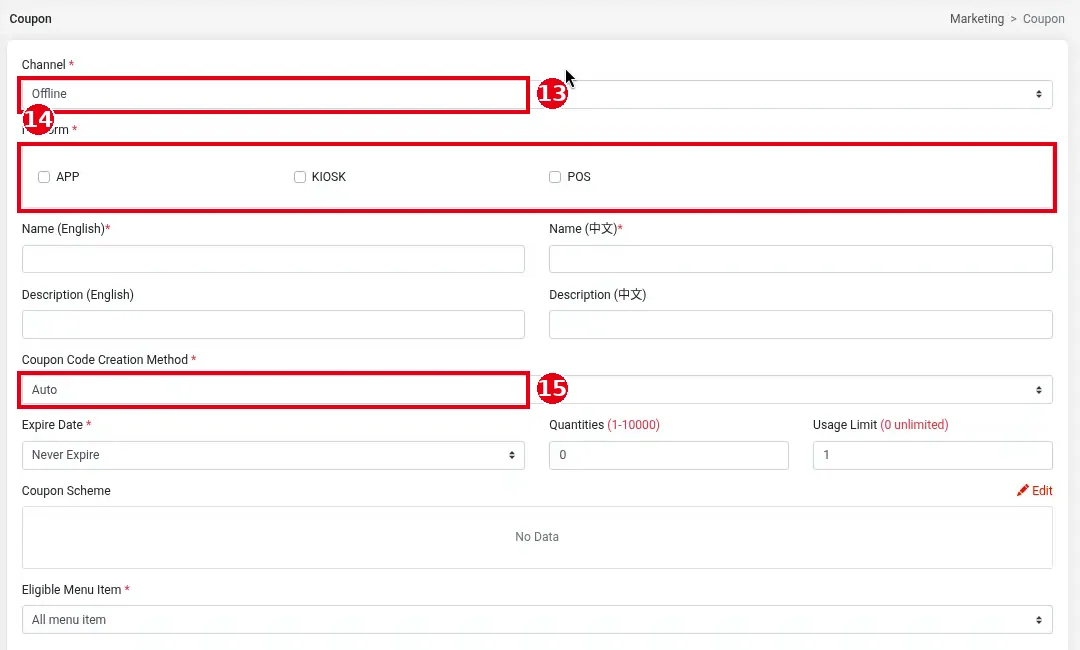
With ⑬ Channel set to Offline, ⑭ Platform offers APP, KIOSK and POS, and ⑮ Coupon Code Creation Method* appears: Auto (the system generates the codes) or Custom (your own codes); Quantities ranges from 1 to 10000. Both channels have Expire Date (Never Expire, By Schedule, By Days) and Eligible Menu Item (All menu item, Included in specific menu items, Excluded from specific menu items).
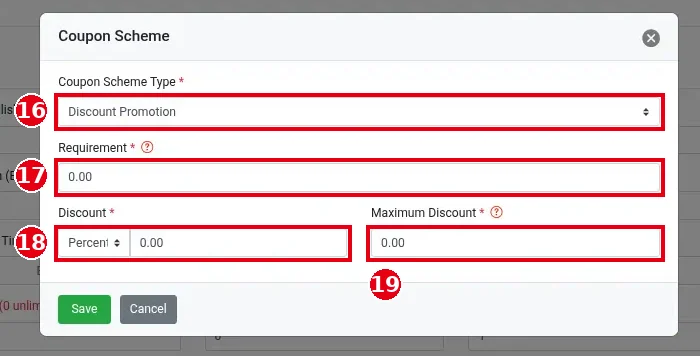
Setting the offer: click Edit next to ⑪ Coupon Scheme to open the Coupon Scheme window:
-
⑯ Coupon Scheme Type*: Discount Promotion (spend-based discount, the default), Menu Item Promotion (item special price) or Second Item Discount, the same types as promotions (see 2.12.2 How to create a promotion).
-
⑰ Requirement*: the amount the order must reach.
-
⑱ Discount*: choose Percent or Cash on the left and enter the value on the right.
-
⑲ Maximum Discount*: the most the discount can be.
Click Save (or Cancel). In the 2026-10-05 test the form was only opened; no coupon was saved.
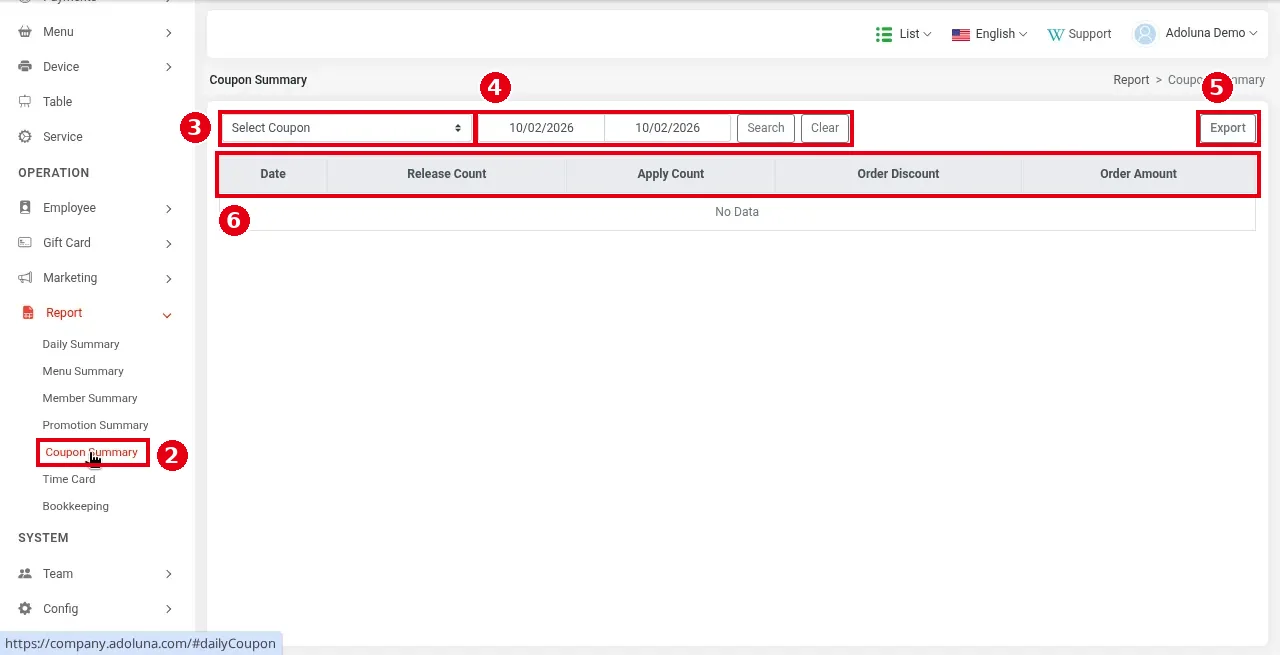
2. To check results, click ② Report > Coupon Summary in the left menu, choose the coupon in ③ (Select Coupon), choose the date range in ④ and click Search (Clear resets), and ⑤ Export to export. The columns ⑥ are Date, Release Count (issued), Apply Count (times used), Order Discount and Order Amount.
Notes / FAQ #
-
For spend-based discounts, menu item special prices and other promotions, see 2.12.2 How to create a promotion.


