
Purpose: Add an item that is not on the menu by typing its name and price. For: servers, cashiers.
Steps #
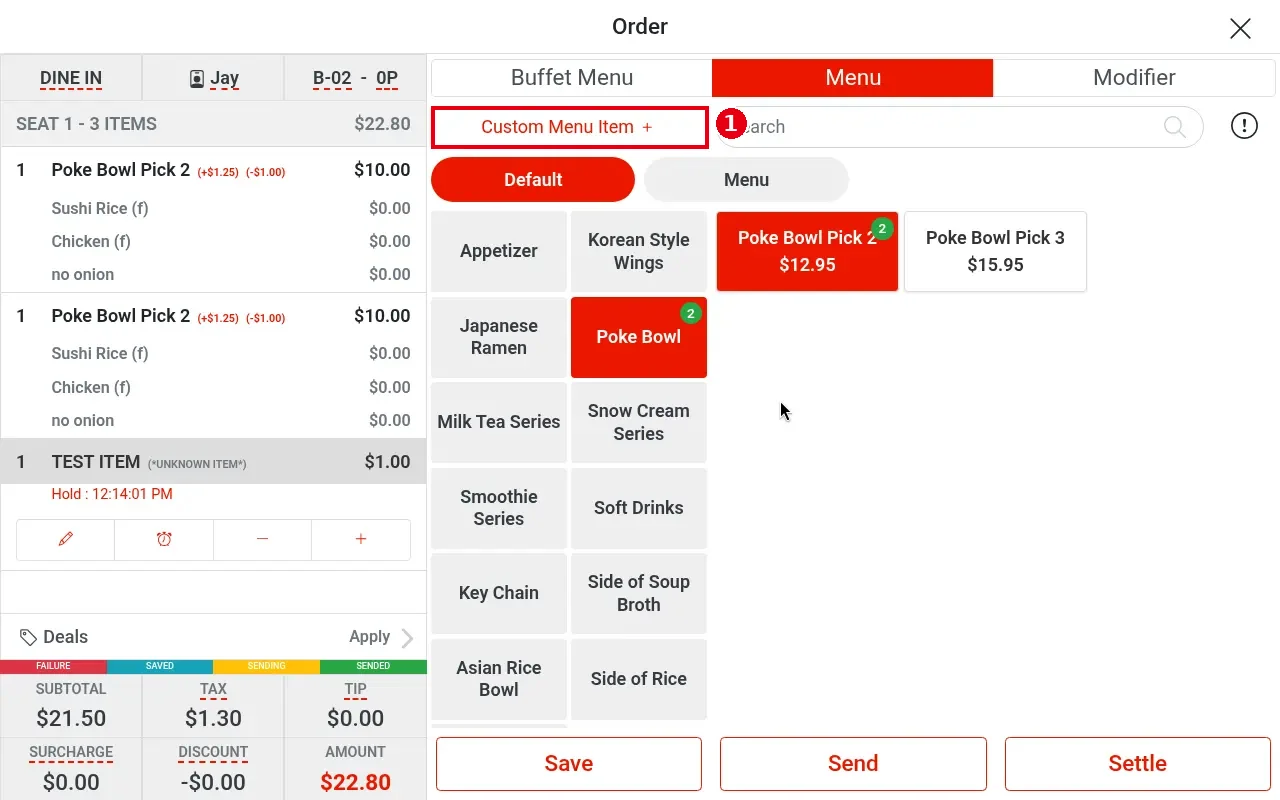
1. On the Menu tab tap Custom Menu Item +.
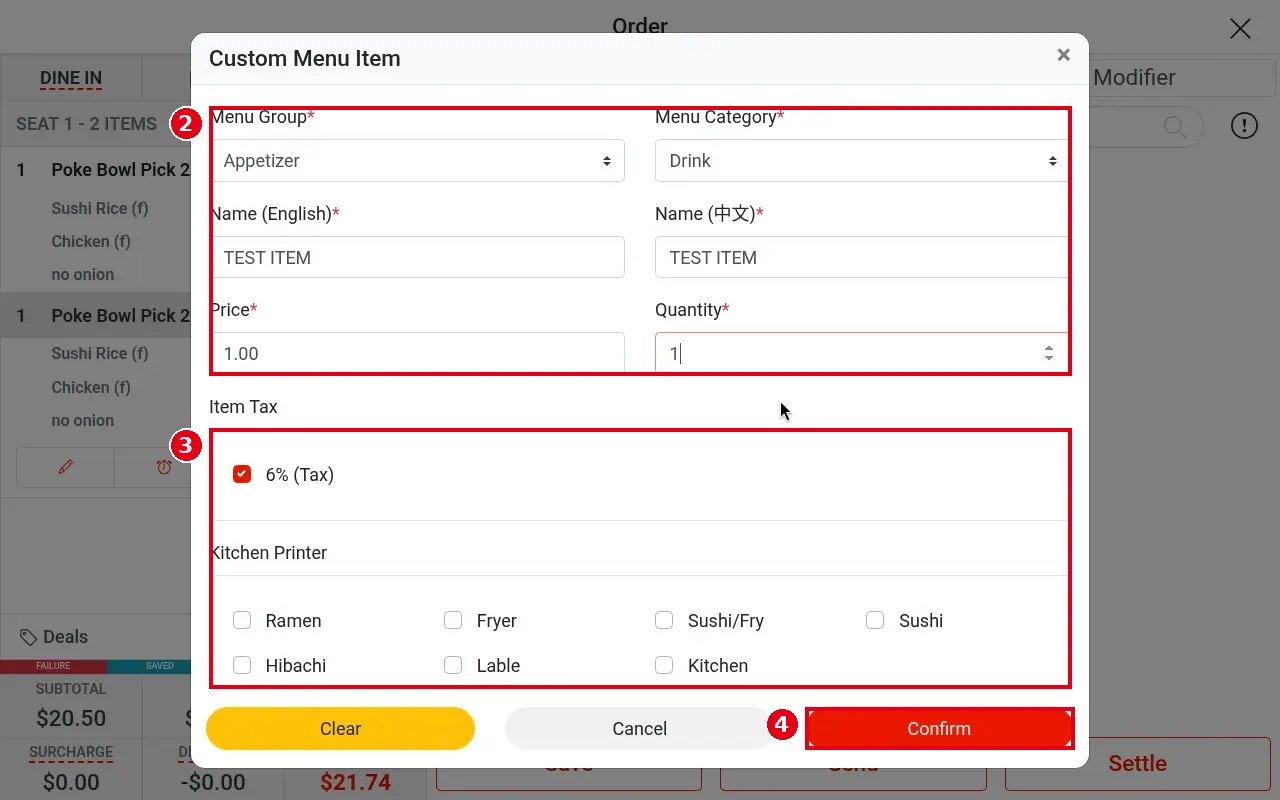
2. Choose Menu Group* and Menu Category*, and fill in Name (English)*, Name (中文)*, Price*, Quantity* (e.g. TEST ITEM, 1.00, 1).
3. Under Item Tax tick the tax (e.g. 6% (Tax)); under Kitchen Printer tick the kitchen printer(s) to print to (demo store: Ramen, Fryer, Sushi/Fry, Sushi, Hibachi, Lable, Kitchen).
4. Tap Confirm.
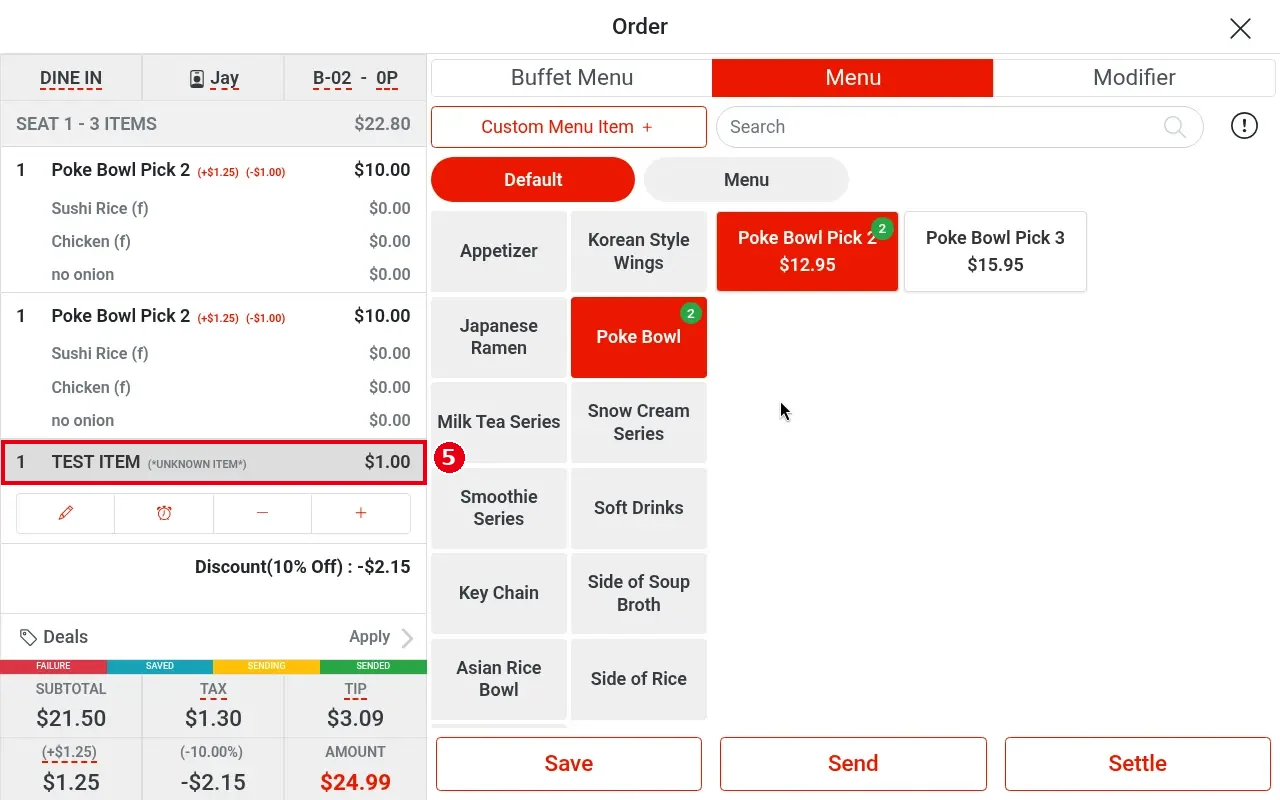
5. The item is added with (*UNKNOWN ITEM*) after its name (e.g. TEST ITEM (*UNKNOWN ITEM*) $1.00).
Notes / FAQ #
-
(*UNKNOWN ITEM*) marks a custom item so it can be told apart from menu items.
-
Both English and Chinese names are required.
-
If no Kitchen Printer is ticked, no kitchen ticket is printed.
-
A custom item is not in the system menu, which is why (*UNKNOWN ITEM*) appears after its name. A custom item added without choosing a kitchen print department (Kitchen Printer) is not sent to the kitchen when you tap Send; it stays SAVED and no error appears (see 1.2.12 How to save, send and settle an order).
-
The Menu Group and Menu Category you choose affect reporting, so pick the ones that fit the item.


