
Purpose: Set the price table, auto send and printing, free delivery minimum, delivery charge and more for To Go, Pick Up and Delivery orders. For: owners, managers, Adoluna onboarding staff.
Before you start: Options these three tabs share with Dine In (Price Type, merging items, Tax Exempt, auto send and printing, Order Timeout Reminder, Print Modifier Price, Print Zero Price Items on receipt, Tip Pooling (%), staying on the ordering page after save or send, opening a new order after settling, Print Other Department Menu Item) are explained in 2.5.1 How to configure Dine In service settings. They have no table, cleaning, guest count, automatic gratuity or buffet settings. Each order type’s switches are set separately and take effect immediately.
Steps #
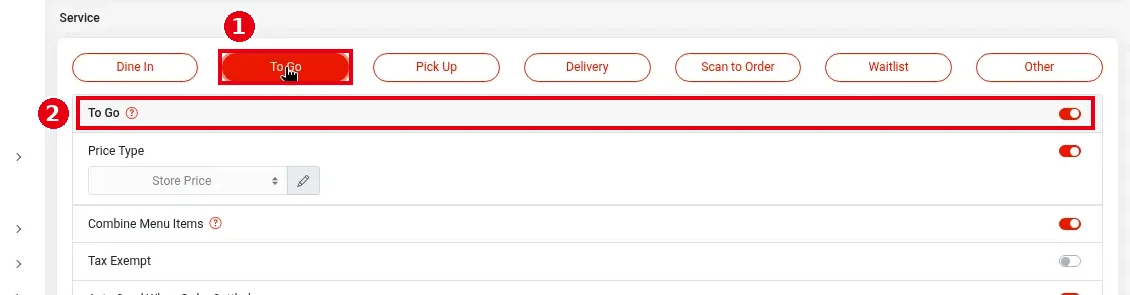
1. In the Backoffice left menu, click Service and choose the ① To Go tab. ② To Go turns the To Go service on or off. In the demo store, To Go automatically prints guest checks, receipts and packager tickets (see 3.3.4 How to set up automatic printing of checks, receipts and packager tickets), and Tip Pooling (%) is off.
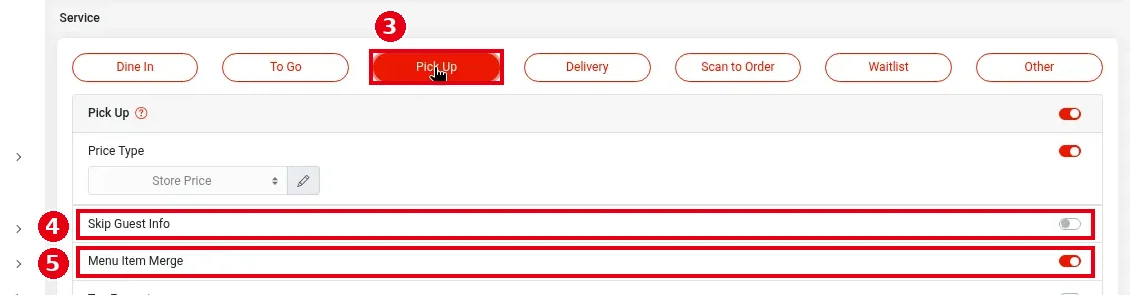
2. Choose the ③ Pick Up tab. Pick Up has one more option than To Go:
-
④ Skip Guest Info: when on, staff aren’t asked for customer details when starting a Pick Up order (see 1.2.3 How to take a phone pick-up order).
-
⑤ Menu Item Merge: on the Pick Up and Delivery tabs, the item-merging option has this name; on Dine In and To Go it’s Combine Menu Items. They’re the same feature with different names.
3. Choose the ⑥ Delivery tab. Delivery turns the Delivery service on or off.

4. Scroll down. Delivery has two more options:
-
⑦ Free Delivery Minimum Amount: orders at or above this amount get free delivery (1000.00 in the screenshot); click the pencil to change it.
-
⑧ Delivery Charge: the delivery fee. Choose the type in the dropdown on the left: a percentage or a fixed amount (Cash, i.e. a fixed amount, in the screenshot) and the amount on the right (1.99), then click the pencil. Orders that reach the free delivery minimum aren’t charged. POS delivery orders add this fee automatically. It is set separately from the delivery charge under Online Store > Store Setting, which applies to online orders.

Notes / FAQ #
-
For starting To Go and Delivery orders on the POS, see 1.2.2 How to start a to-go order and 1.2.4 How to take a delivery order.
-
Pick Up and Delivery rules for online orders are set separately under Online Store (see 2.9.2 How to set online pick-up and delivery rules).
-
For Scan to Order, see 2.6.2 How to set up Scan to Order.


