
Purpose: When a regular wants “the same as last time”, copy the items from a past order. For: order-taking staff.
Steps #
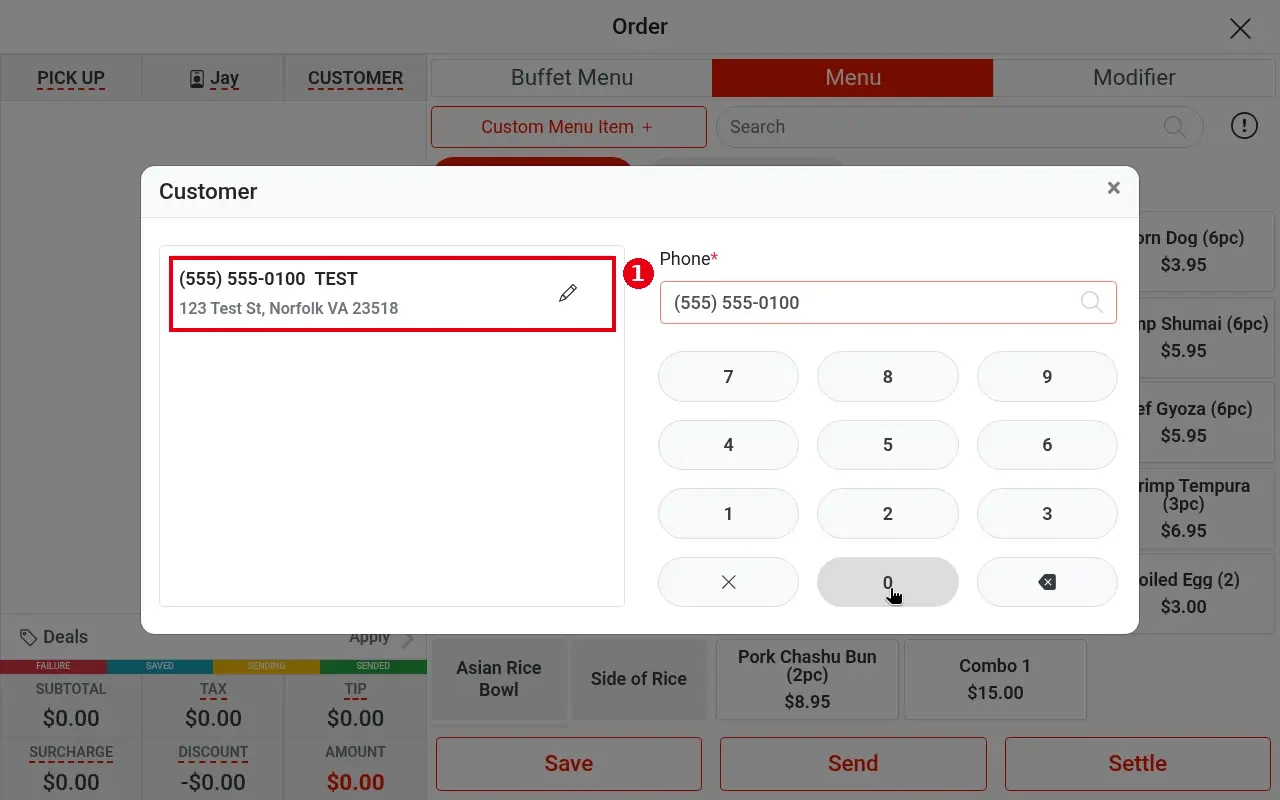
1. Start a Pick Up (or To Go / Delivery) order, enter the phone number in the Customer window and tap the match (e.g. (555) 555-0100 TEST).
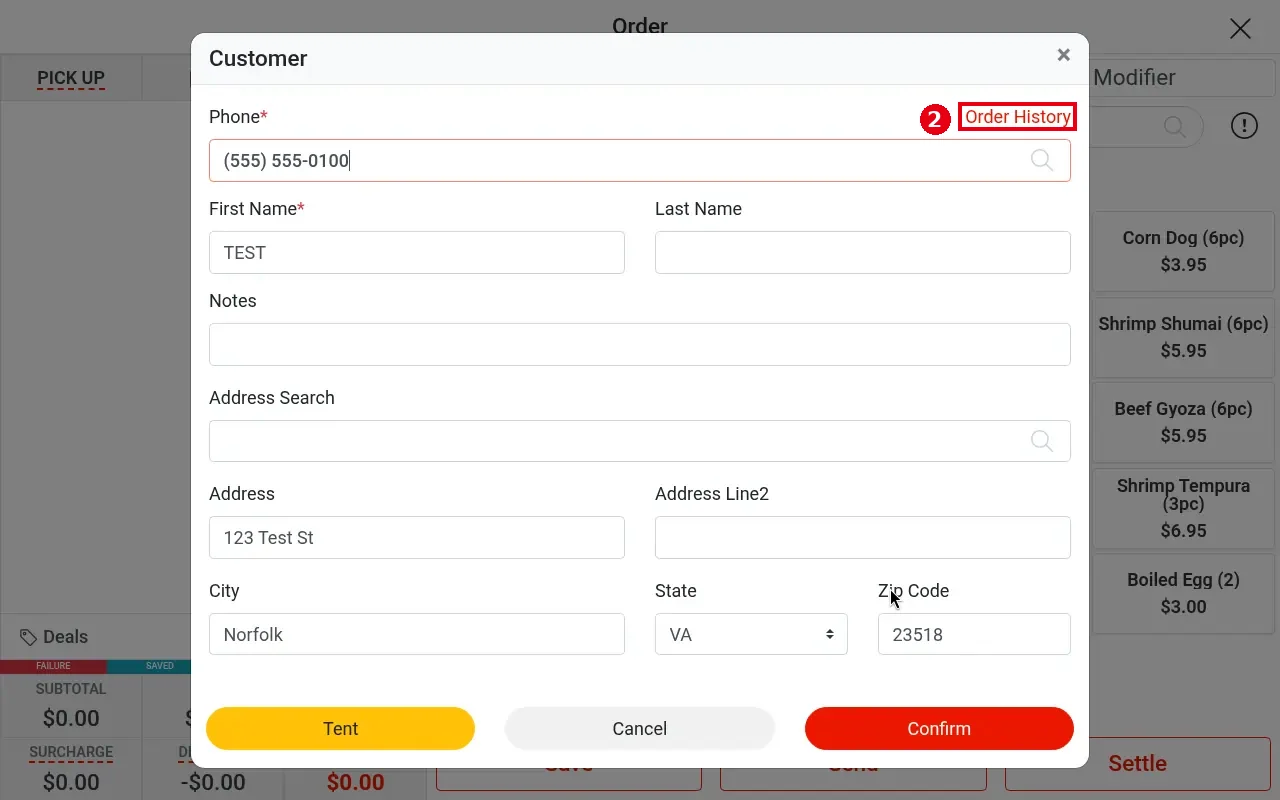
2. In the customer window tap the red Order History link at top right.
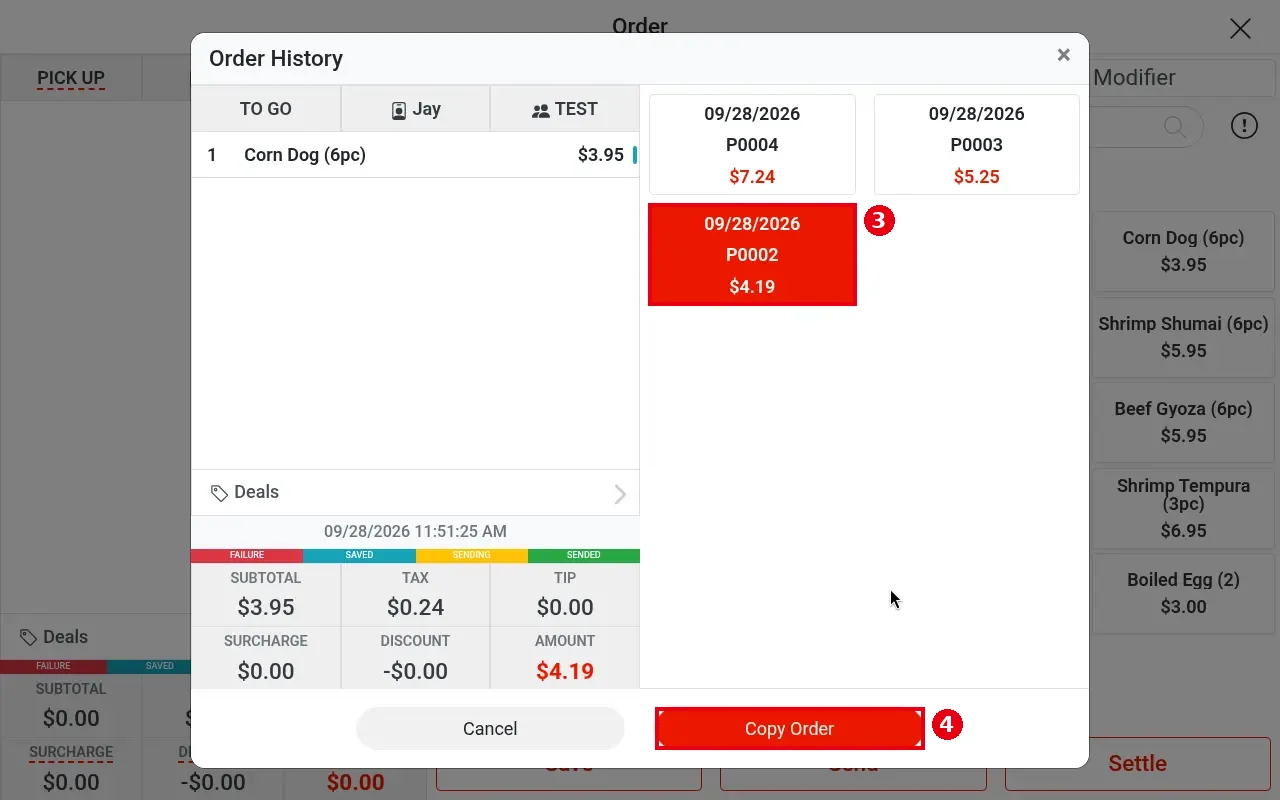
3. The customer’s past orders appear on the right as cards (date, order number, amount). Tap one (e.g. P0002); its items show on the left.
4. Tap Copy Order (Cancel to go back).
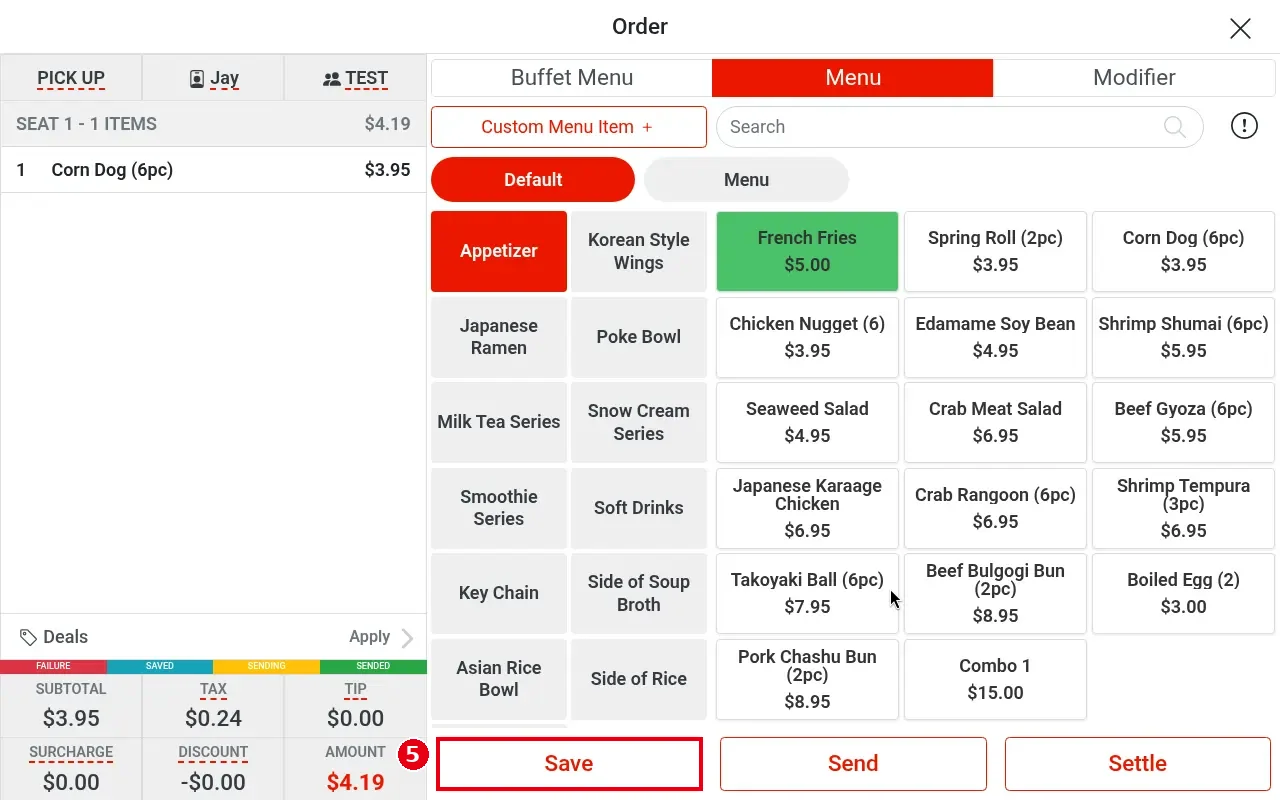
5. The items are copied into the current order (e.g. Corn Dog (6pc)). Check them and tap Save; a new order number is created (e.g. P0006).
Notes / FAQ #
-
The copy takes the type of the order you are in: P0002 was TO GO, it was copied into a Pick Up order and saved as new order P0006 ($4.19). The original order is unchanged.
-
Unpaid orders also appear in the history (P0002–P0004 were unpaid).
-
The copy keeps each item’s modifiers; items are re-priced at current prices; items that have been deleted or are out of stock are not copied; discounts and notes are not copied.


