
Purpose: Get to know the areas and buttons of the POS home screen. For: all front-of-house staff.
Screen overview #
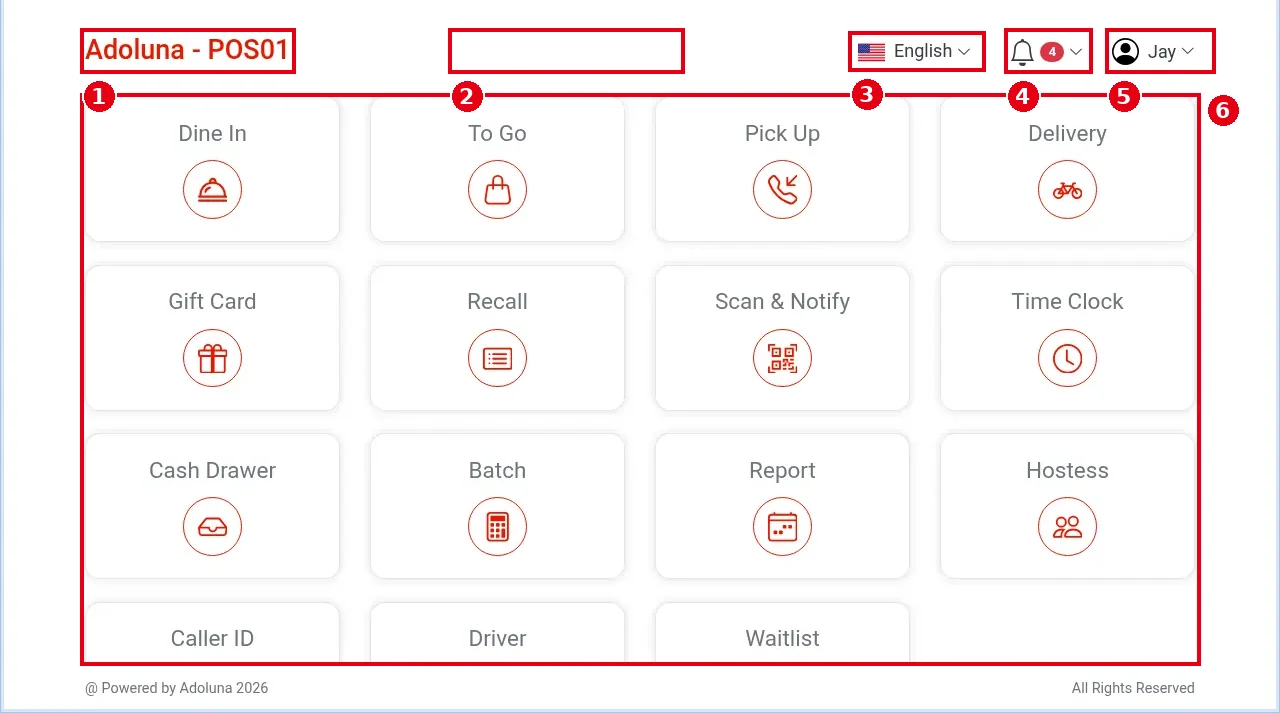
1. Top left: store name and this POS station’s name (e.g. Adoluna – POS01).
2. Top middle: local service status. When this POS is not connected to the store’s local service (Local Server), a red Local Service Offline shows here; when the connection is fine nothing shows (as in this screenshot).
3. English: change the display language (see 1.1.3).
4. Bell: notification center; the red number is the unread count (see 1.1.4).
5. Employee name (e.g. Jay): the logged-in employee; tap for Refresh or Logout (see 1.1.1). Before login this is a gear icon.
6. Function buttons: tap to open a function. The demo store shows 15 buttons:
| Button | Used for | Article |
| Dine In | Dine-in orders (pick a table) | 1.2.1 |
| To Go | To-go orders | 1.2.2 |
| Pick Up | Phone pick-up orders | 1.2.3 |
| Delivery | Delivery orders | 1.2.4 |
| Gift Card | Gift cards | 1.11.1 |
| Recall | Find orders | 1.4.1 |
| Scan & Notify | Scan the QR code on an order to text the customer that it is ready (see note below) | 1.12.2 |
| Time Clock | Clock in / out | 1.5.1 |
| Cash Drawer | Cash drawer | 1.5 |
| Batch | Credit card batch | 1.6 |
| Report | Reports | 1.5.6 |
| Hostess | Table status | 1.7 |
| Caller ID | Caller ID | 1.12.1 |
| Driver | Delivery drivers | 1.10.1 |
| Waitlist | Waitlist | 1.7 |
Notes / FAQ #
-
On a small screen (e.g. a 1280×800 browser window) the last row (Caller ID, Driver, Waitlist) is below the fold; scroll down to see it.
-
Scan & Notify: the back office can be set to print or show a QR code on orders. If the device has a barcode scanner connected, staff scan the QR code and the system texts the customer that the order is ready for pickup. No text is sent if the order has no phone number, or if the customer’s number has unsubscribed from texts. For an unsubscribed number the system shows “This number is unsubscribed from text updates. Reply START to (866) 370-0007 to resume.” The customer must reply START to (866) 370-0007 to receive texts again.
-
Buttons can differ by store: for each POS, the back office can set the button order, which buttons are hidden, and how many buttons show per row. Hidden buttons go into a More button (the demo store hides none, so there is no More). Where to set it: back office > Device > POS > tap the edit button for the device > set Home Page Layout to Custom.
-
When Local Service Offline shows, devices that connect over the store network (IP) don’t work: printers and PAX card terminals. The cash drawer won’t open either, so you can’t take cash. The VP3350 (the older VP3300 is still available for purchase but not recommended) and Clover Go 3 card readers connect directly to the POS device and are not affected. What staff should do:
-
Check whether the local server has lost power or its network cable is loose.
-
If power and cable are fine, the local server may be frozen: power it off and restart it.
-
Wait about 3 minutes after the restart, then tap Refresh in the employee-name menu at top right of the POS.
-
If Local Service Offline still shows, contact the technical team.
-
-
When the store’s internet is down, the whole POS stops working: no orders, printing or cash, and card payments, online orders and third-party orders all stop too (see 4.4.1 What to do when the Local Server is offline).
-
When printing fails: if the printer is offline, the system shows a print-failure warning within 5 seconds; if the local server is offline, the system keeps trying for the printer timeout set in the back office. If the printer or local server comes back within 30 minutes, kitchen tickets reprint automatically; other receipts must be reprinted by hand. Print failures are listed in the notification center (see 1.1.4).
-
In the Chinese UI the buttons read: 堂吃 (Dine In), 外带 (To Go), 自取 (Pick Up), 外送 (Delivery), 礼品卡 (Gift Card), 调单 (Recall), 扫码&通知 (Scan & Notify), 考勤打卡 (Time Clock), 钱箱 (Cash Drawer), 过账 (Batch), 报表 (Report), 带位 (Hostess).


