
Purpose: Before closing the batch, check that the transactions on the card terminals match the card payments in the POS, and find and fix any that don’t. For: managers, cashiers.
Steps #
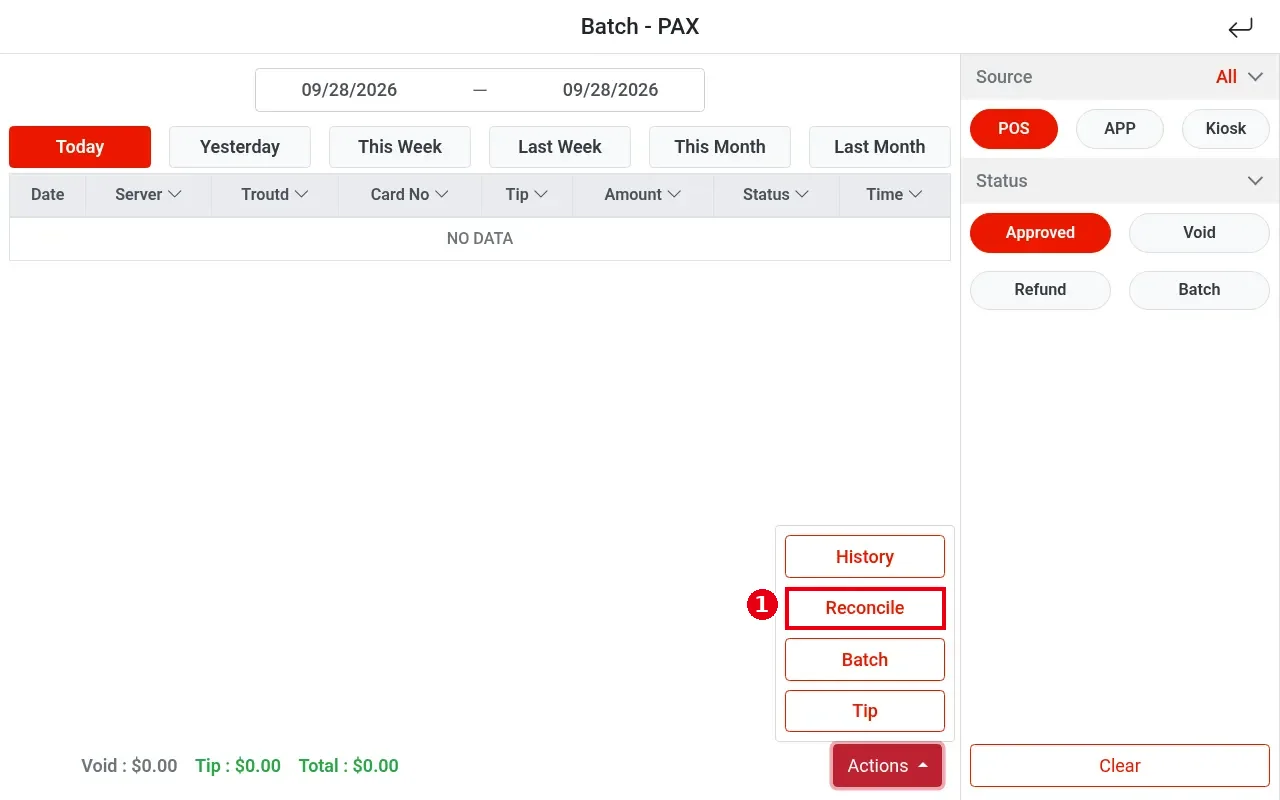
1. On the home screen tap Batch, choose Batch – PAX (see steps 1–2 of 1.6.1 How to add credit card tips in bulk), then tap Actions > Reconcile at the bottom right.
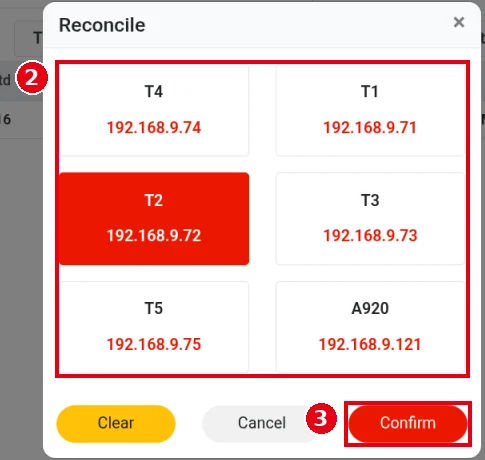
2. The Reconcile window ② lists the store’s card terminals with their IP addresses (e.g. T4 192.168.9.74, T1 192.168.9.71, A920 192.168.9.121). No terminal is selected by default.
3. Tap the terminal to reconcile; it turns red when selected (e.g. T2). Clear clears the selection; Cancel closes.
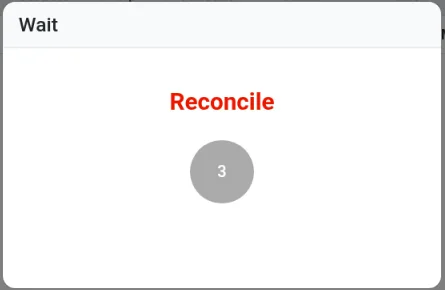
4. Confirm becomes available once a terminal is selected. Tap ③ Confirm to start reconciling; a Wait window (Reconcile) shows while the POS waits for the terminal.
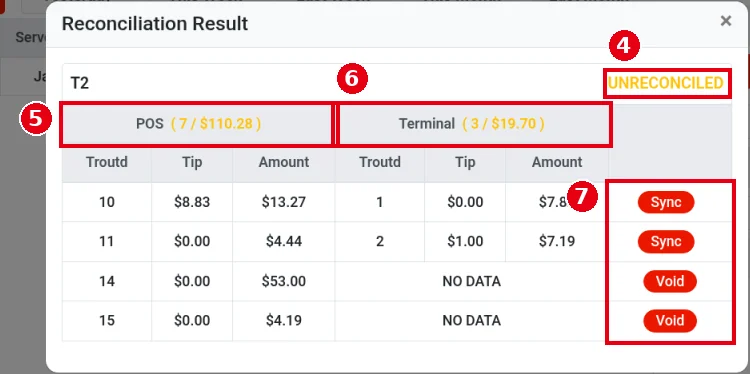
5. When reconciliation finishes, Reconciliation Result opens: one section per terminal, with the result at the top right (④ yellow UNRECONCILED when it doesn’t match). ⑤ POS on the left is the transactions recorded in the POS system; ⑥ Terminal on the right is the transactions on the card terminal. Each heading shows the count and amount (e.g. POS ( 7 / $110.28 ), Terminal ( 3 / $19.70 )). Each row lists Troutd, Tip and Amount for both sides, with NO DATA where one side has no matching transaction. ⑦ The last column holds the action buttons: in this example, rows with a transaction on both sides show Sync, and rows with NO DATA on the terminal side show Void (see the notes below). In the 2026-01 release notes these columns were called Cloud and Local.
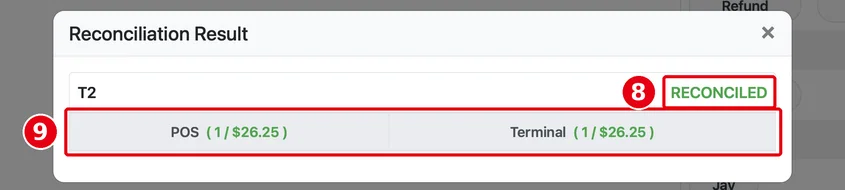
When everything matches, the result at the top right is a green ⑧ RECONCILED, and POS and Terminal show the same count and amount (⑨ e.g. POS ( 1 / $26.25 ), Terminal ( 1 / $26.25 )), with no transaction rows to fix. This is the result of a manual reconcile (Actions > Reconcile). When you close the batch (Actions > Batch), the system reconciles automatically first: if everything matches, no reconciliation result is shown and batching starts straight away (see 1.6.3 How to close a credit card batch); mismatched transactions must be fixed first.
Notes / FAQ #
-
The Sync and Void buttons (from the release notes and our test):
-
Sync: according to the release notes, it matches a terminal transaction to the right POS order (for a transaction on the terminal but not in the POS, the POS side shows Select Order; pick the order, then tap Sync). In our test, Sync appeared on rows with a transaction on both sides that don’t match (e.g. POS 10 $13.27 against terminal 1 $7.82). Tapping Sync on such a row makes the terminal’s record win, and it does change the payment record on the POS order.
-
Void: appears on rows with a transaction in the POS but not on the terminal (NO DATA). According to the release notes, Void voids that payment record on the POS order, and you then take the payment again; a transaction on the terminal but not in the POS can also be voided on the terminal with Void. Tapping Void on a POS-only row (terminal NO DATA) voids that payment, so the order goes back to unpaid and must be paid again.
-
-
Closing the batch (Actions > Batch) reconciles first by default: if everything matches, no reconciliation result is shown and the batch goes straight ahead; mismatches must be fixed first. The Reconcile window has no Bypass Reconciling option; it appears only in the batch window (see 1.6.3 How to close a credit card batch).
-
The reconciliation result and how to handle mismatches are described under 信用卡交易对账功能 (card transaction reconciliation) in 新功能与修复 (Chinese release notes, update of January 9, 2026).
-
For reconciliation mismatches or a failed batch, see 4.1.3 What to do when a batch fails or doesn’t reconcile.


