
Purpose: Sign in to the Adoluna Backoffice (Store Portal) in a browser on a computer or tablet to change menus, prices, employees and other settings. For: owners, managers, Adoluna onboarding staff.
Before you start: The Backoffice address is company.adoluna.com. Backoffice accounts (email or mobile number + password) are separate from POS employee passcodes: employees sign in to the POS with a 4–6 digit passcode (see 1.1.1 How to log in and out of the POS), while Backoffice accounts are managed under Team > Administrator (see 2.1.3 How to manage Backoffice users (Team)).
Steps #
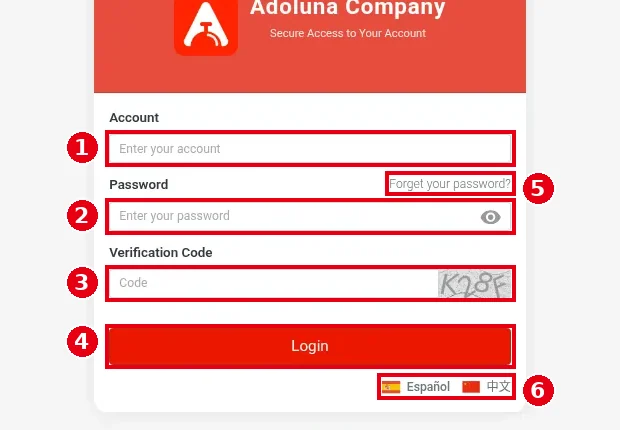
1. Open company.adoluna.com in a browser. The Adoluna Company sign-in card appears (Secure Access to Your Account).
2. Enter your details:
-
① Account: your Backoffice account, i.e. the email or mobile number entered when the account was created.
-
② Password: your password. The eye icon on the right shows or hides it.
-
③ Verification Code: type the code shown in the picture on the right.
3. Click ④ Login.
-
⑤ Forget your password?: click here if you forgot your password. It opens the Reset Password page (see “Forgot your password” below).
-
⑥ Español / 中文: switch the sign-in page language.
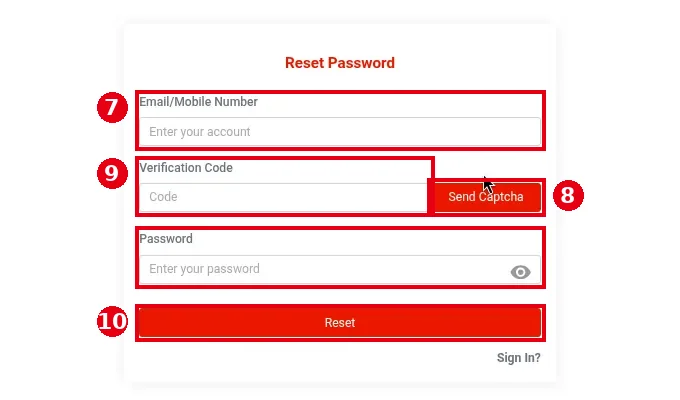
Forgot your password: on the sign-in page click ⑤ Forget your password? to open the Reset Password page:
-
⑦ Email/Mobile Number: enter your Backoffice account’s email or mobile number.
-
⑧ Click Send Captcha to get a verification code. It goes to the email or mobile number you entered in ⑦.
-
⑨ Enter the code in Verification Code and your new password in Password.
-
Click ⑩ Reset. Sign In? takes you back to the sign-in page.
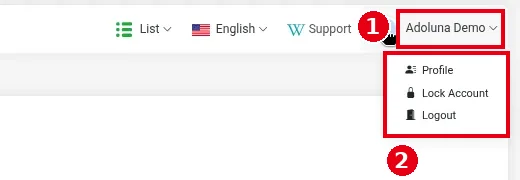
4. To sign out, click your account name ① at the top right (Adoluna Demo in the screenshot) and click Logout in menu ②. The same menu also has Profile and Lock Account. Lock Account locks the screen; it doesn’t disable the account. For Profile, see step 5.
5. To change your details or password, click Profile in the menu under your account name at the top right.
⑪ Personal Information tab: ⑫ you can change First Name*, Last Name*, Nickname, Contact, Gender, Date Of Birth, Address, Address 2, City, State and Zip Code, then click ⑬ Save.
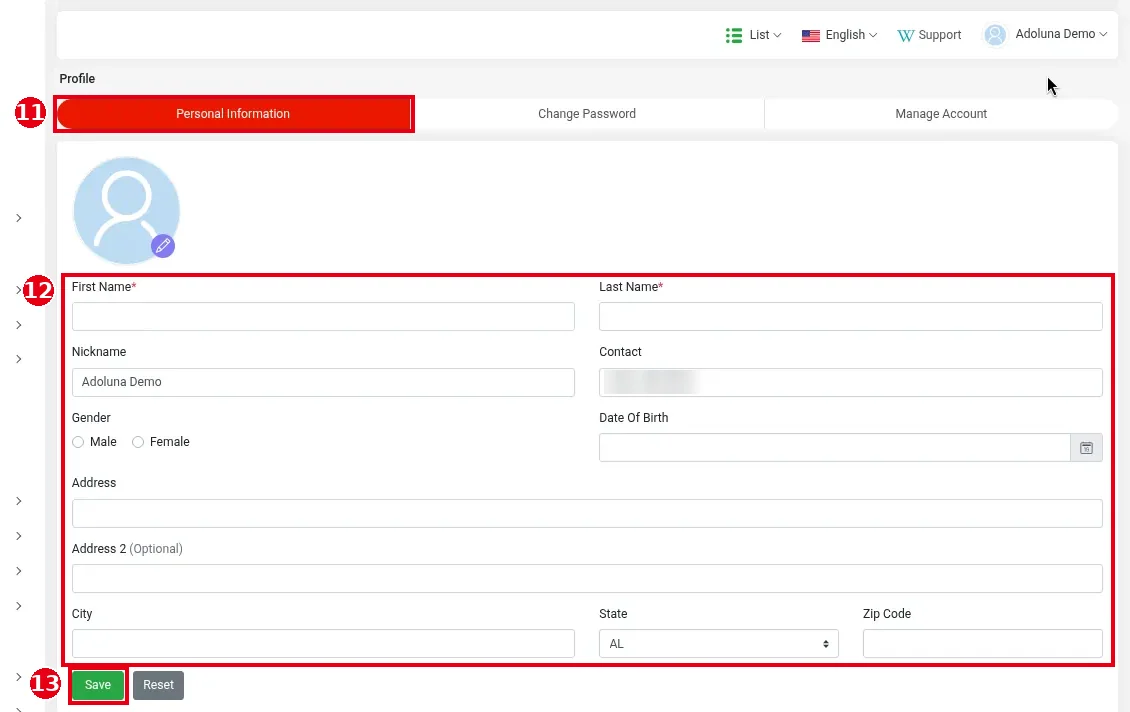
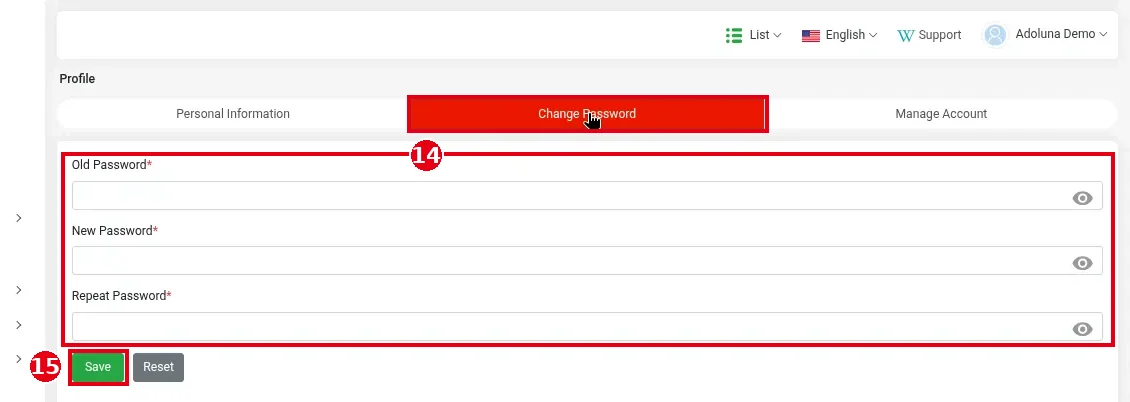
⑭ Change Password tab: enter Old Password*, New Password* and Repeat Password*, then click ⑮ Save. You can change your own Backoffice password here.
Notes / FAQ #
-
When a Backoffice account is created, the system sends the password to the account’s email or mobile number (see 2.1.3 How to manage Backoffice users (Team)).
-
On a shared computer, click Logout when you’re done.
-
For the menus and where each setting lives, see 2.1.2 How to navigate the Backoffice.


