Purpose: Find, edit and delete customer records (name, phone, address, notes) in the Backoffice, and export them when needed. For: owners, managers.
Before you start: Customer records are mostly created on the POS when taking pick-up and delivery orders (see 1.2.3 How to take a phone pick-up order, 1.2.4 How to take a delivery order); online-order customers also appear here. The Backoffice is where you view and edit them in one place. Customer names, phone numbers and addresses are blurred in the screenshots.
Steps #
1. In the Backoffice left menu click ① Marketing > Customer. The list columns are #, Name, Telephone, Address and Operate.
2. To find a customer, choose the search type on the left of ②: Telephone or Name, type in the box on the right and click ③ Search (Clear resets it).
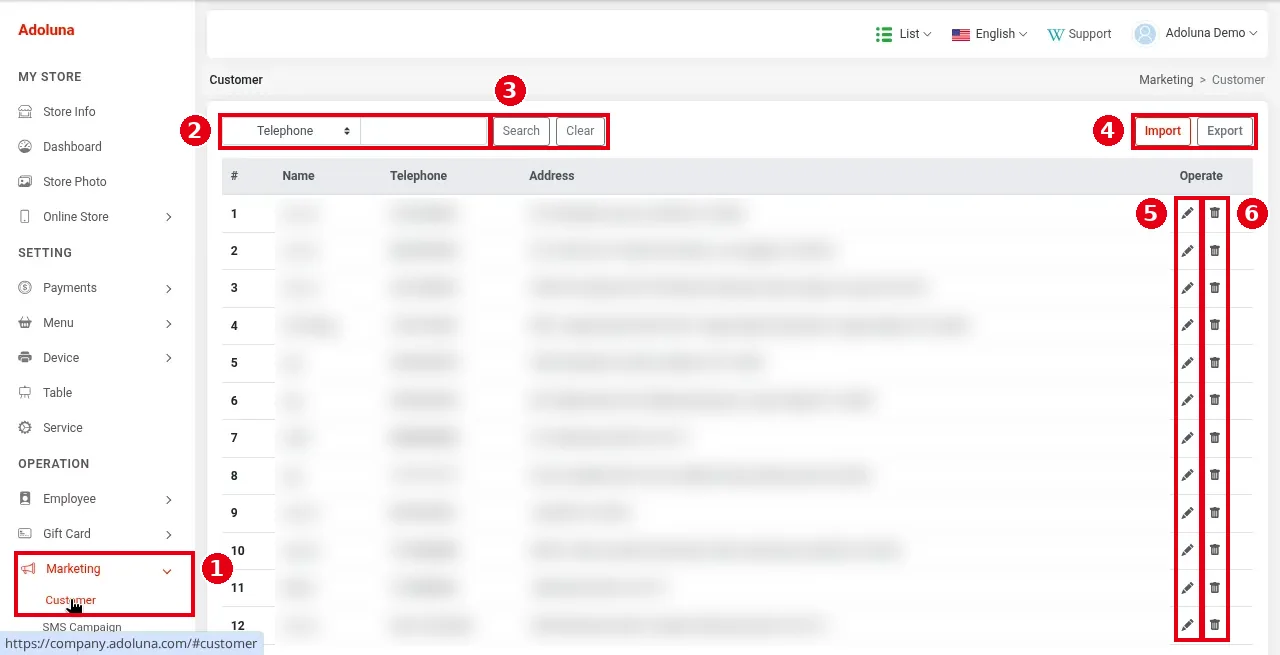
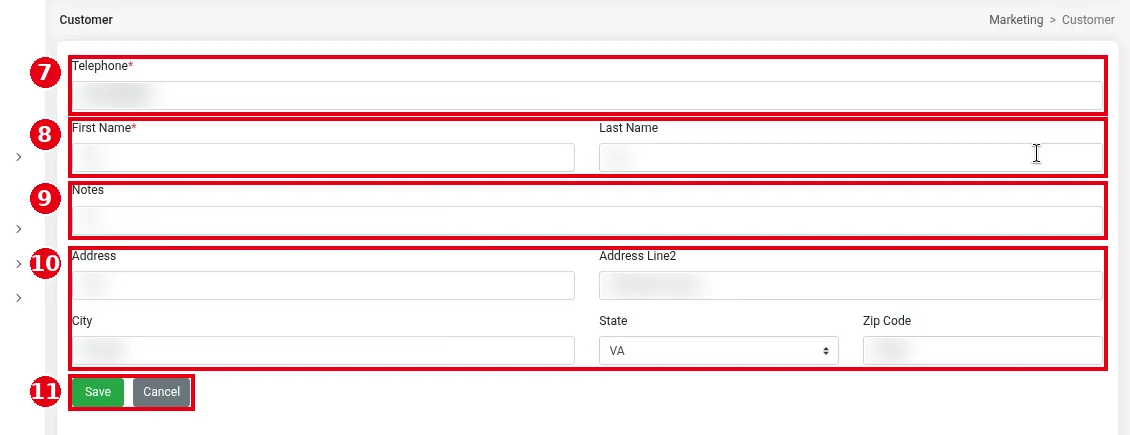
3. To edit, click the customer’s ⑤ pencil icon to open the form:
-
⑦ Telephone* (required).
-
⑧ First Name* (required) and Last Name.
-
⑨ Notes.
-
⑩ Address: Address, Address Line2, City, State, Zip Code. Delivery orders use this address.
Click ⑪ Save (or Cancel).
4. To delete, click the ⑥ bin icon.
5. To export, click Export in ④ to download the customer records as an Excel file. Import in ④ imports customer records (official docs: the import file must use the same format as the exported file). Merchants shouldn’t import with Excel themselves for now; contact Adoluna first if you need a bulk import.
Notes / FAQ #
-
Customer records can also be edited on the POS: when taking an order, tap the pencil icon on the result row in the Customer window (see 1.2.3 How to take a phone pick-up order).
-
⑨ Notes show on the POS and are printed on the receipt.
-
Customer phone numbers are also used by Caller ID (see 1.12.1 How to use Caller ID to take phone orders) and marketing texts (see 2.12.4 How to send marketing SMS).
-
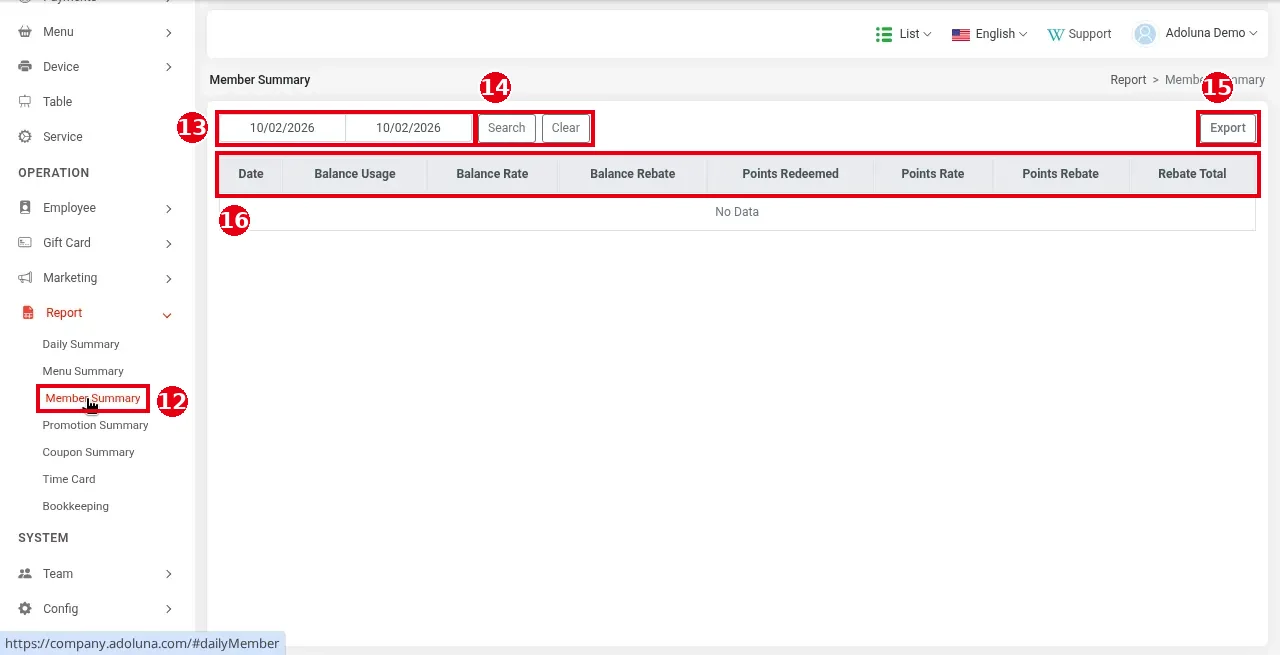
Member summary: in the left menu click ⑫ Report > Member Summary, choose the date range in ⑬, click ⑭ Search (Clear resets) and ⑮ Export to export. The columns ⑯ are Date, Balance Usage, Balance Rate, Balance Rebate, Points Redeemed, Points Rate, Points Rebate and Rebate Total. The demo store had no data that day (No Data). The member system (balance and points) isn’t available for single stores yet; it’s currently only for chains and is set up at https://brand.adoluna.com.