
Purpose: Split the bill evenly by number of guests (Split Even). For: cashiers, servers.
Note: Split Even only prints split slips by number of guests; it does not split the order. To let guests pay separately, use Split (see 1.3.7 How to split a check by item).
Steps #
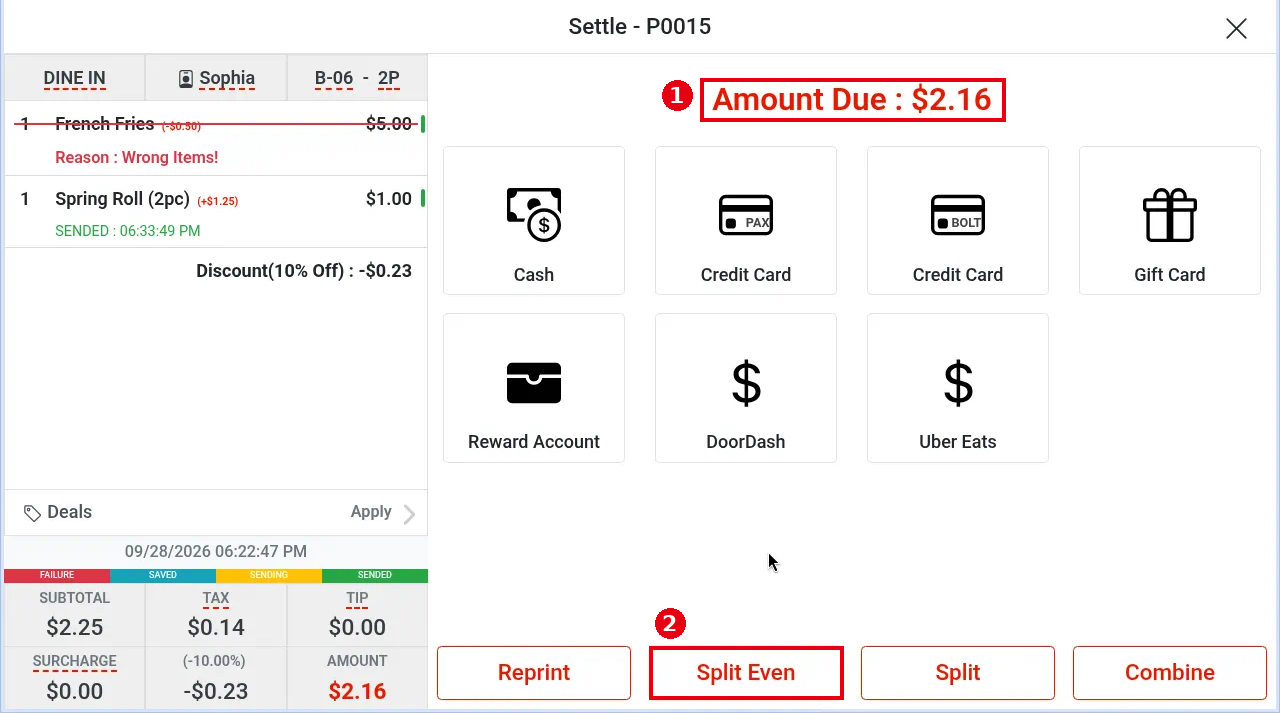
1. Open the order’s Settle screen (see 1.2.12; e.g. P0015, ① Amount Due : $2.16) and tap ② Split Even at the bottom.
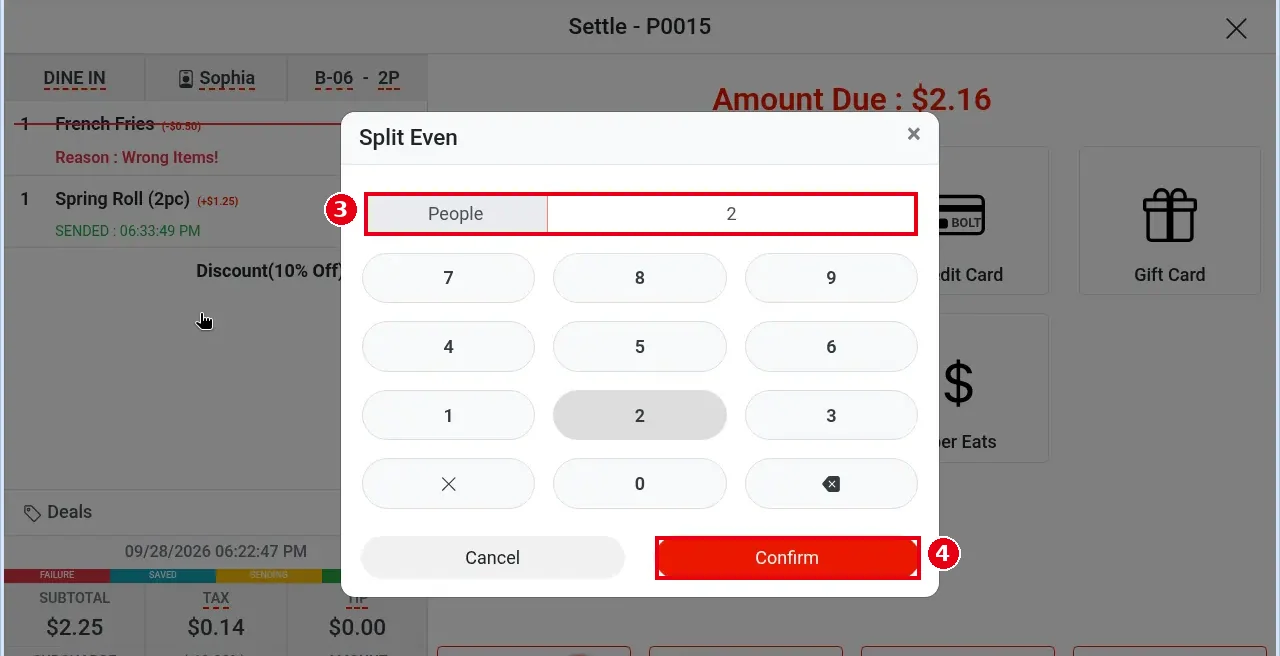
2. The Split Even window opens. Enter the number of guests in ③ People (e.g. 2) and tap ④ Confirm (Cancel to go back).
3. What we saw in testing:
-
after confirming, split slips were printed;
-
the order was not split into separate orders, and Amount Due on the Settle screen still showed the full $2.16;
-
a single cash payment of $2.16 then paid the whole order (⑤ Amount Due : $0.00, Cash Paid : $2.16).
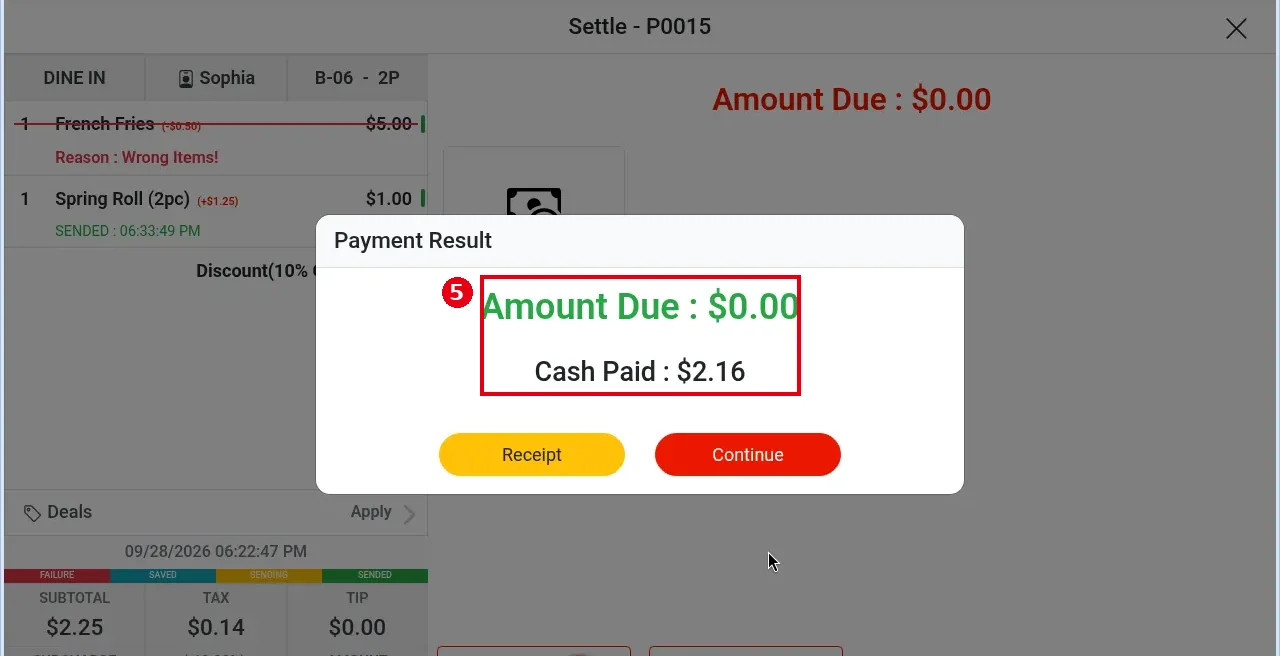
What Split Even does: it only prints split slips by number of guests; it does not split the order or change Amount Due. To let guests pay separately, use Split (see 1.3.7 How to split a check by item).
Notes / FAQ #
-
If each guest needs a separate order, split by item with Split (see 1.3.7).
-
To take several payments on one order, see 1.3.5.


