
Purpose: Add value to a customer’s existing gift card. For: cashiers, managers.
Before you start: The POS has no separate reload button. To reload, tap Custom to open the Gift Card Sales window, enter the customer’s existing card number and the amount to add, confirm and take payment (tested on the demo with card 990001). The same card can be reloaded more than once (demo card 1234 has several +$10.00 and +$20.00 entries). Reloading normally keeps the expiry date; it changes only if the template or settings used for the reload change the expiry.
Steps #
1. On the home screen tap Gift Card.
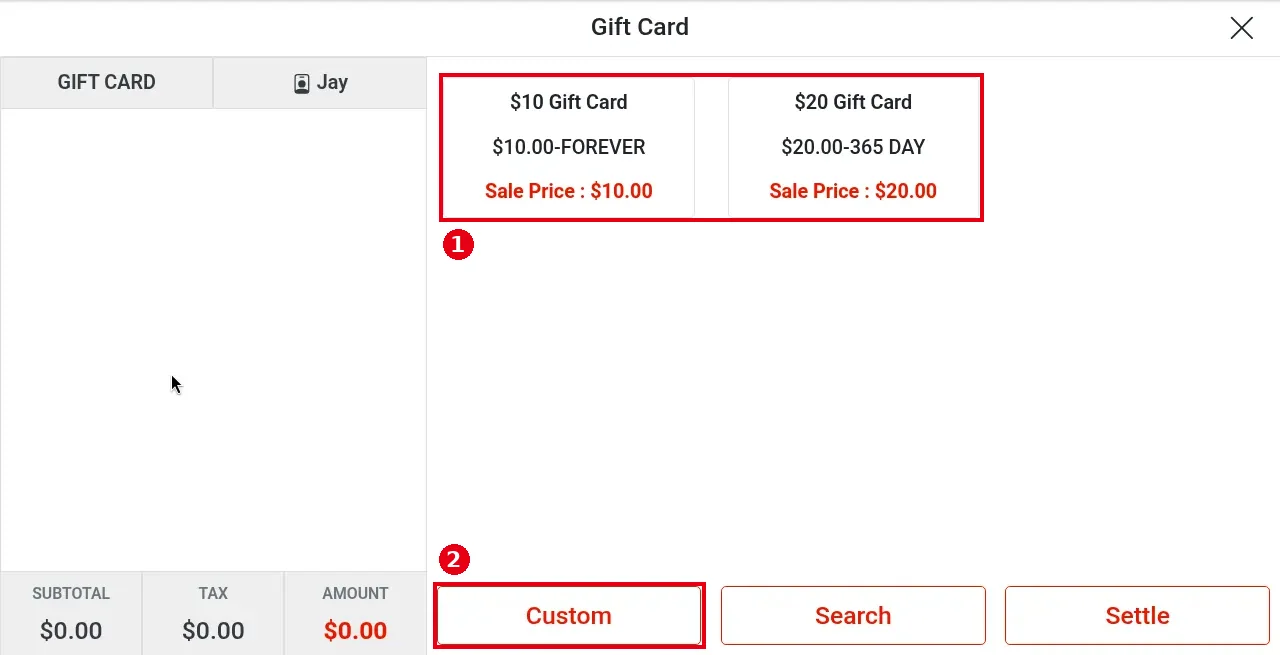
2. Tap ② Custom (① are the templates for selling a new card; see 1.11.1 How to sell a gift card).
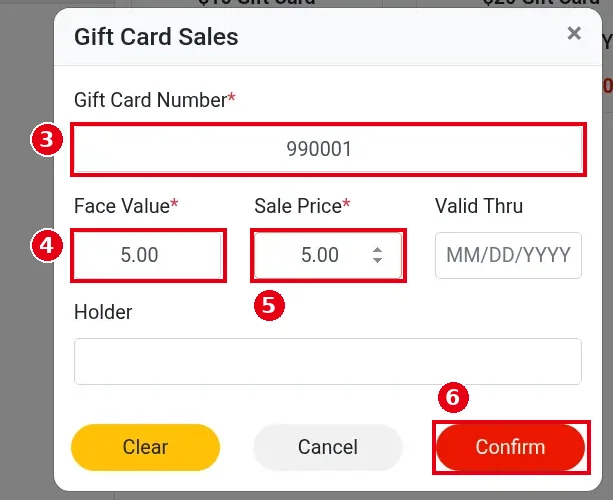
3. In the Gift Card Sales window: swipe or type the customer’s existing card number in ③ Gift Card Number* (e.g. 990001); enter the amount added to the card in ④ Face Value* and what the customer pays in ⑤ Sale Price* (e.g. 5.00 for both); Valid Thru and Holder can be left blank. Tap ⑥ Confirm.
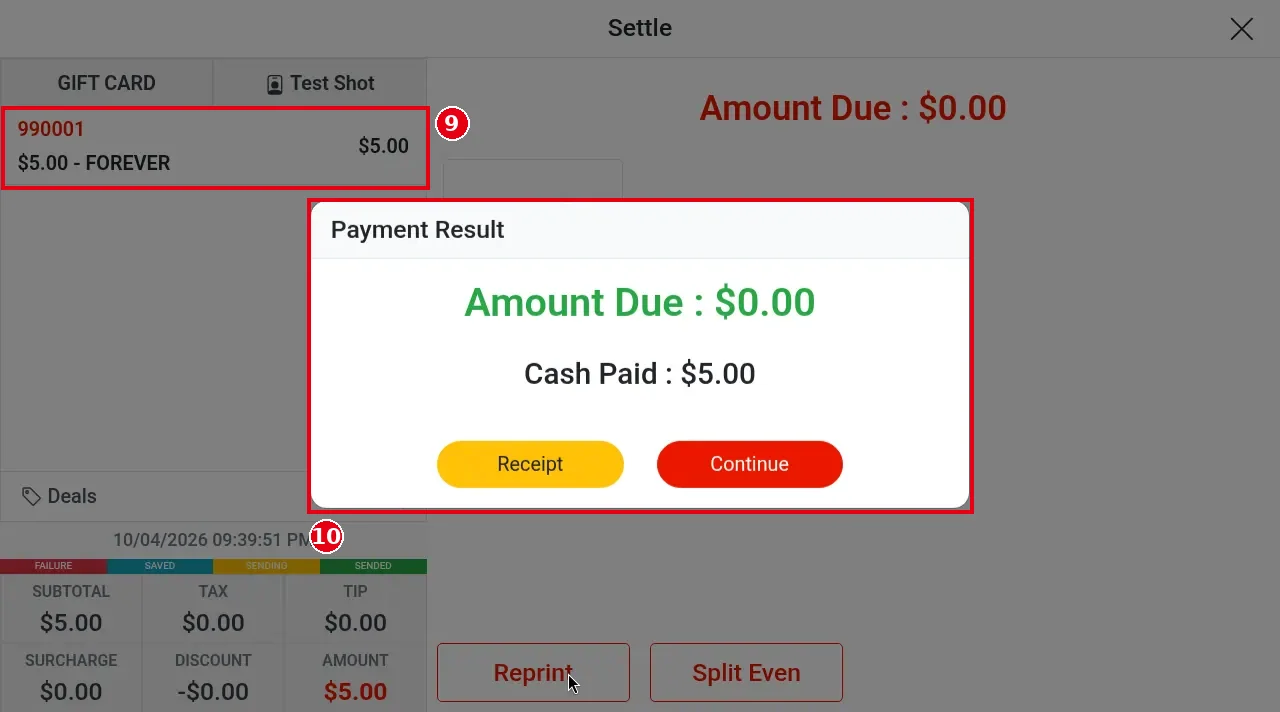
4. Tap Settle to take payment, as in steps 5–6 of 1.11.1 How to sell a gift card. When payment is done, ⑨ on the left shows the card and the reload amount (e.g. 990001 / $5.00 – FOREVER), and ⑩ Payment Result shows Amount Due : $0.00 and the amount paid (e.g. Cash Paid : $5.00).
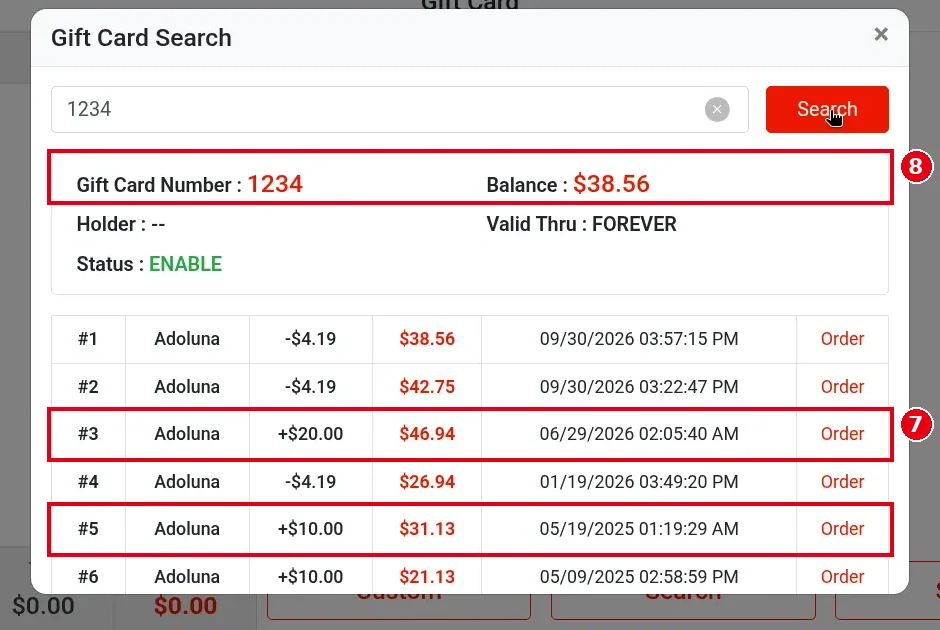
5. To check, look the card up with Search (see 1.11.2 How to check a gift card balance). Search needs a manager passcode (the demo employee Test Shot doesn’t have that permission). The history has a new ⑦ + entry and ⑧ Balance has gone up by that amount.
Notes / FAQ #
-
A frozen (disabled) or expired card can’t be used or reloaded (updated 2026-10-05); check its status in the Backoffice first (see 2.10.2 How to view, export and freeze gift card records).
-
Reloads also appear in the card’s transaction history under Gift Card Records in the Backoffice (see 2.10.2 How to view, export and freeze gift card records).


