
Purpose: See daily totals by payment type, plus tax, surcharges and discounts, in the Backoffice and export them to Excel (for example for your accountant). For: owners, managers.
Steps #
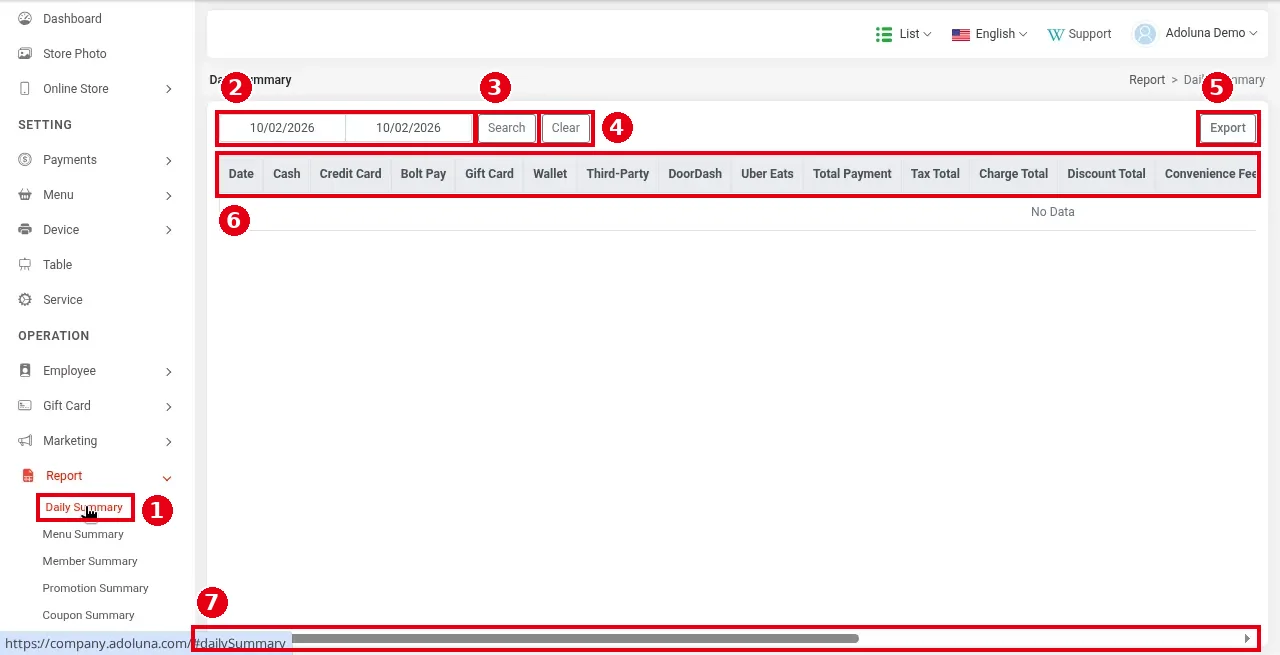
1. In the Backoffice left menu click Report > ① Daily Summary.
2. Choose the start and end dates in ② and click ③ Search (④ Clear resets the filters).
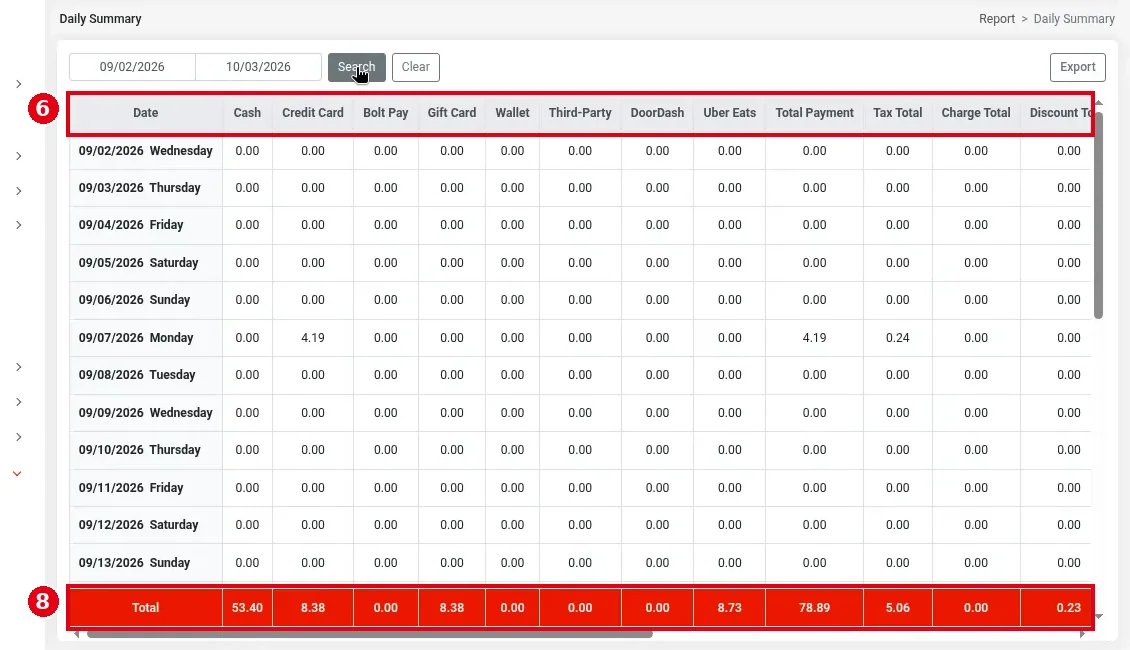
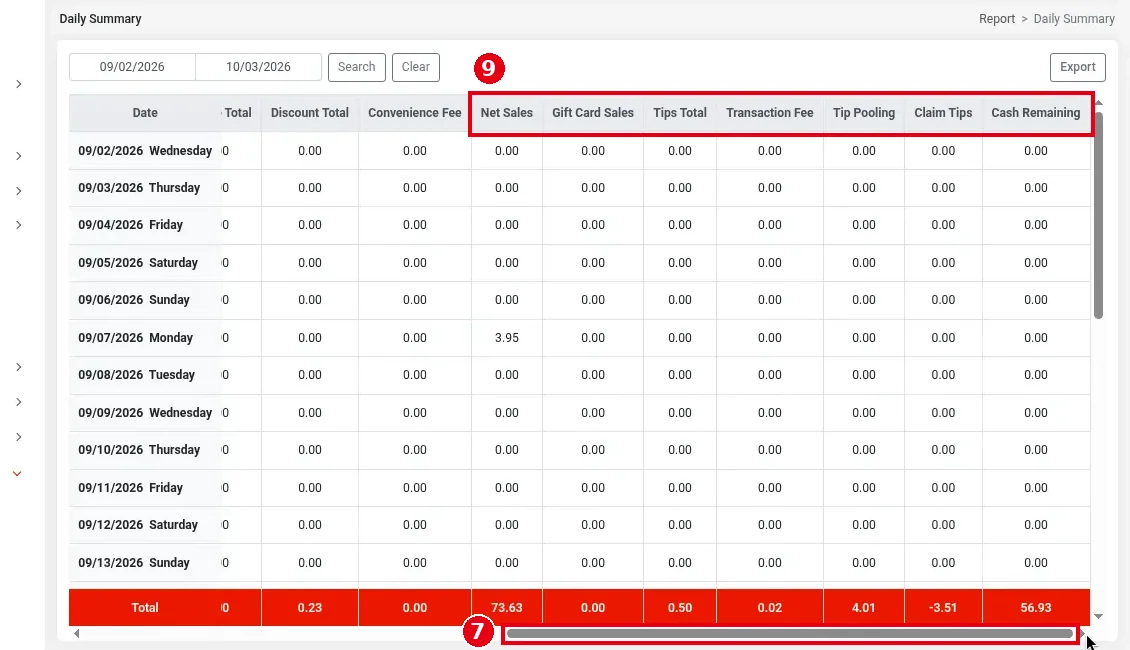
3. ⑥ There’s one row per day; the Date column shows the date and the day of the week. From left to right the columns are Cash, Credit Card, Bolt Pay, Gift Card, Wallet, Third-Party, DoorDash, Uber Eats, Total Payment, Tax Total, Charge Total (surcharges), Discount Total and Convenience Fee, then ⑨ on the right Net Sales, Gift Card Sales, Tips Total, Transaction Fee, Tip Pooling, Claim Tips and Cash Remaining. ⑧ The red Total row at the bottom is the total for the dates. The table is wide; drag scrollbar ⑦ at the bottom to see the columns on the right. If there are no sales for the dates, it shows No Data.
4. Click ⑤ Export to download the results as an Excel file.
The left side of the table (⑥ column headers, ⑧ Total row), and ⑨ the columns on the right after dragging scrollbar ⑦:
Notes / FAQ #
-
The Daily Summary groups by business day (Start Time, see 2.2.1 How to set up store info), not calendar day. Wallet is payment from the member account balance.
-
Net Sales: sales excluding tax and tips = subtotal − refunds − gift cards sold − discounts + surcharges; the exact calculation depends on the Backoffice Tax Calculation setting (see 1.5.6 How to view, print or email POS reports and 2.2.2 How to choose the tax calculation method). Gift card sales are not sales; they are shown separately in the Gift Card Sales column.
-
Tips Total: the sum of tips across payment types, including tips added when a guest pays for a meal with a gift card (a gift card purchase can’t carry a tip) and tips on Third-Party payments. Transaction Fee: credit card tips (the tips under Credit Card and Bolt Pay) × the rate the store has set (e.g. 3%); each store can set its own rate. Tips on other payment types, such as Third-Party, are not included.
-
Tip Pooling: the total tip pool (see 2.5.4 How to set up tip pooling). Claim Tips: the tips owed to staff = Tips Total − Transaction Fee − Tip Pooling (see 2.8.5 How to edit or add time card records).
-
Cash Remaining: the cash left in the drawer after paying all claimed tips to staff in cash = cash taken (cash amount + cash tips) − Tips Total + Transaction Fee + Tip Pooling, which is the same as cash taken − Claim Tips. It can be negative when the card tips paid out in cash are more than the cash taken.
-
Sales include orders in the date range that are still unpaid, and exclude earlier orders that were paid within the range (the same rule as the POS Settlement report; see 1.5.6 How to view, print or email POS reports).
-
Convenience Fee can only be set up by Adoluna in its admin back office. It can be set separately for online orders, Kiosk, POS and Scan To Order orders, as a percentage or a fixed amount. To set it up, contact Adoluna.
-
Third-Party is third-party platform orders that come in through Deliverect; DoorDash and Uber Eats are custom payment types the store created itself, tendered by hand on the POS (see 1.3.4 How to settle with a custom payment type). See 4.7.2 How do third-party sales and tax show in reports? for details.
-
For the POS daily report (Settlement), see 1.5.6 How to view, print or email POS reports; for the end-of-day routine, see 1.5.7 How to close out the day (end-of-day checklist).


