
Purpose: View the balance and sales record of every gift card in the store, export them to Excel, and freeze or unfreeze a card (for example when a customer reports it lost). For: owners, managers.
Steps #
1. In the Backoffice left menu click Gift Card > ① Gift Card Records.
2. To search, choose the search field at the top left ②: Account (card number) or Holder, type the value and click Search (Clear resets it).
3. List ④ has the columns #, Gift Card Number, Balance, Holder, Valid Thru, Sale Status (e.g. Sold), Sale Time, ⑤ Status (a green dot means usable) and Operate.
4. To export, click ③ Export at the top right to download the records as an Excel file. (Import is for importing PIN gift cards; see 2.10.3 How to import PIN gift cards.)
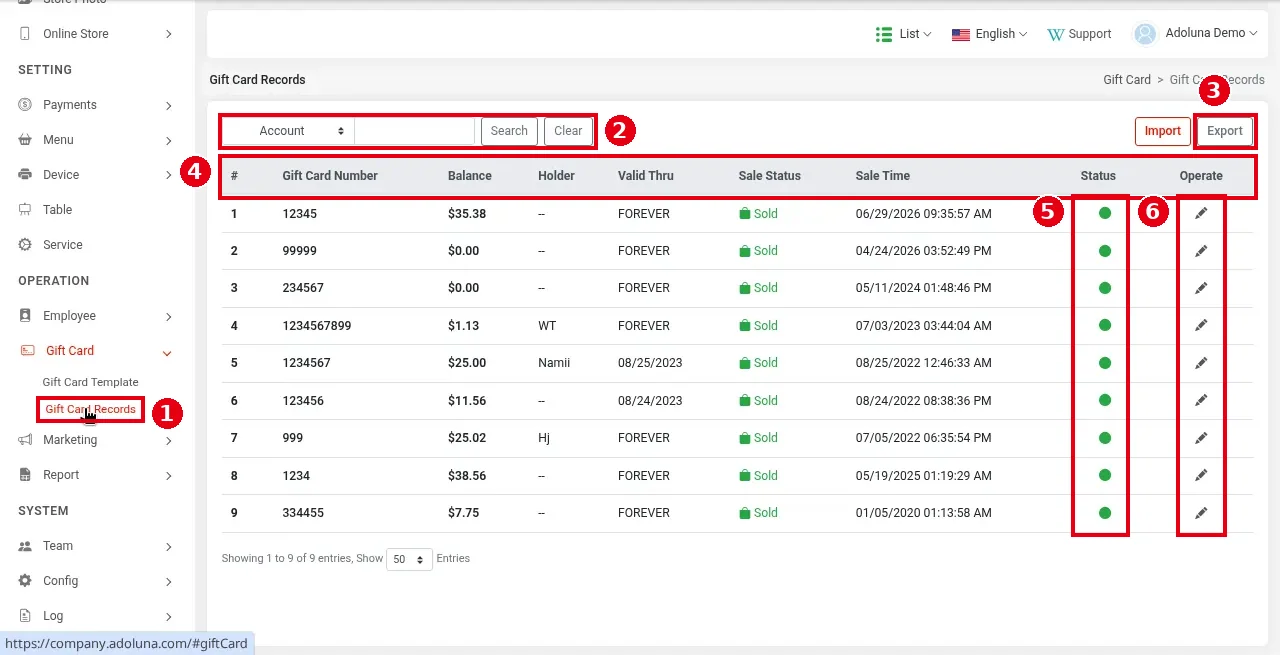
5. To view the details or freeze/unfreeze a card, click its ⑥ pencil icon to open the details:
-
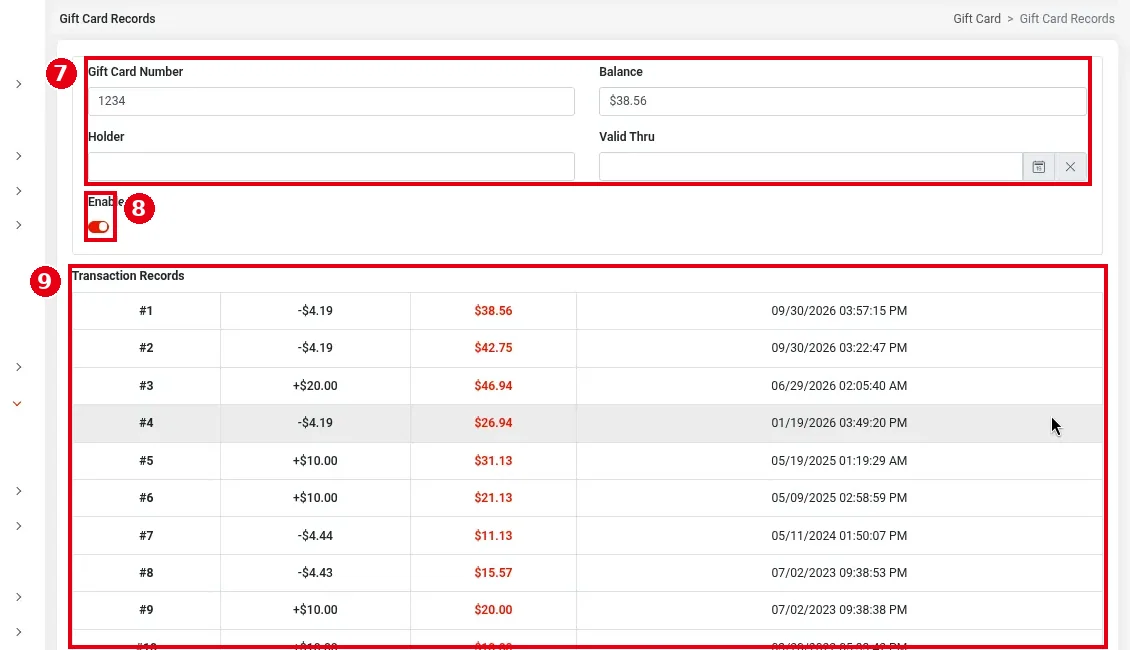
⑦ Card details: Gift Card Number, Balance, Holder and Valid Thru (pick a date with the calendar icon on the right; × clears it).
-
⑧ Enable switch: red means on. The current version has no separate “freeze” button, only this switch.
-
⑨ Transaction Records: the card’s history. Each row shows the number, the amount (+ for a sale or reload, – for spending), the balance after the transaction (in red) and the time.
-
At the bottom of the page click Save (or Cancel).
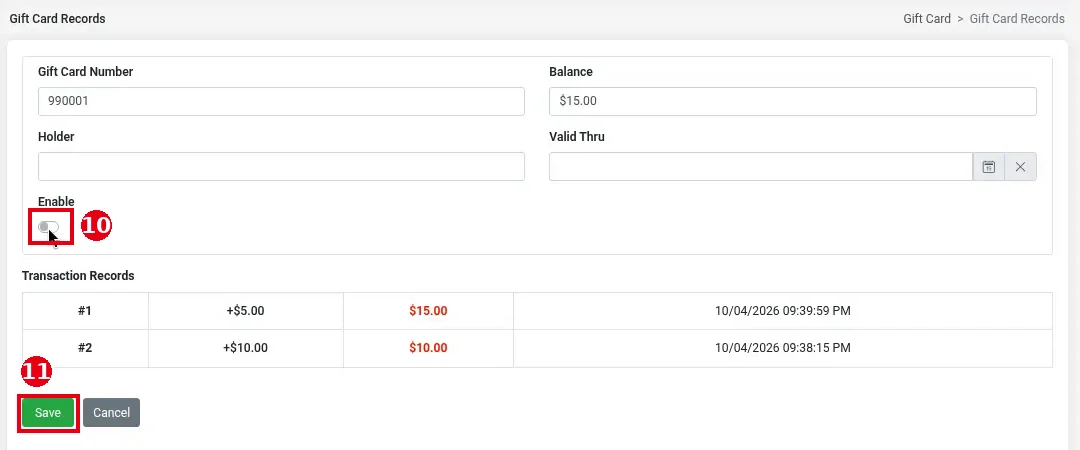
To disable (freeze) a card, turn ⑩ Enable off on the details page (it turns grey) and click ⑪ Save.
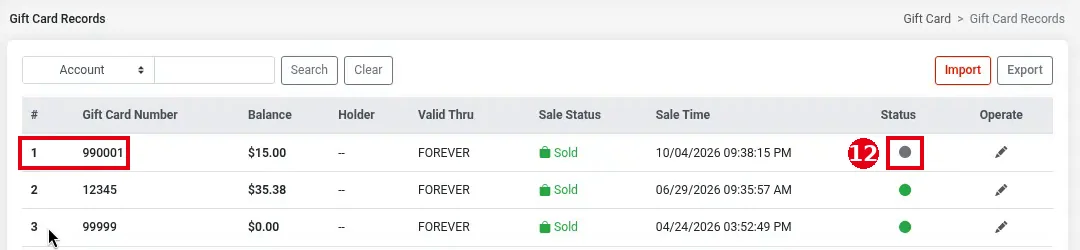
Back in the list, the card’s ⑫ Status dot turns grey (usable cards have a green dot). To enable it again, open the details, turn Enable back on and save; the dot turns green again. (Tested 2026-10-05 on card 990001, which was re-enabled afterwards.)
Notes / FAQ #
-
A disabled (frozen) card can’t be used to pay at the POS or be reloaded (updated 2026-10-05) (to look a card up at the POS, see 1.11.2 How to check a gift card balance).
-
To check a balance at the POS see 1.11.2 How to check a gift card balance; to sell or reload at the POS see 1.11.1 How to sell a gift card and 1.11.3 How to reload a gift card.


