Purpose: Take a credit card payment on a card terminal. For: cashiers, servers. Hardware: a PAX or BOLT terminal, or a Clover Go 3 / VP3350 reader.
Steps #
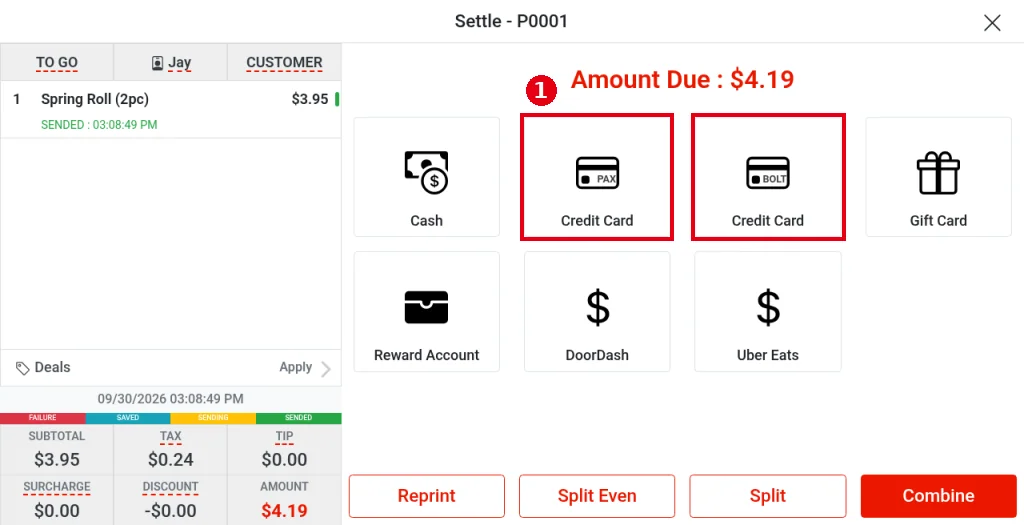
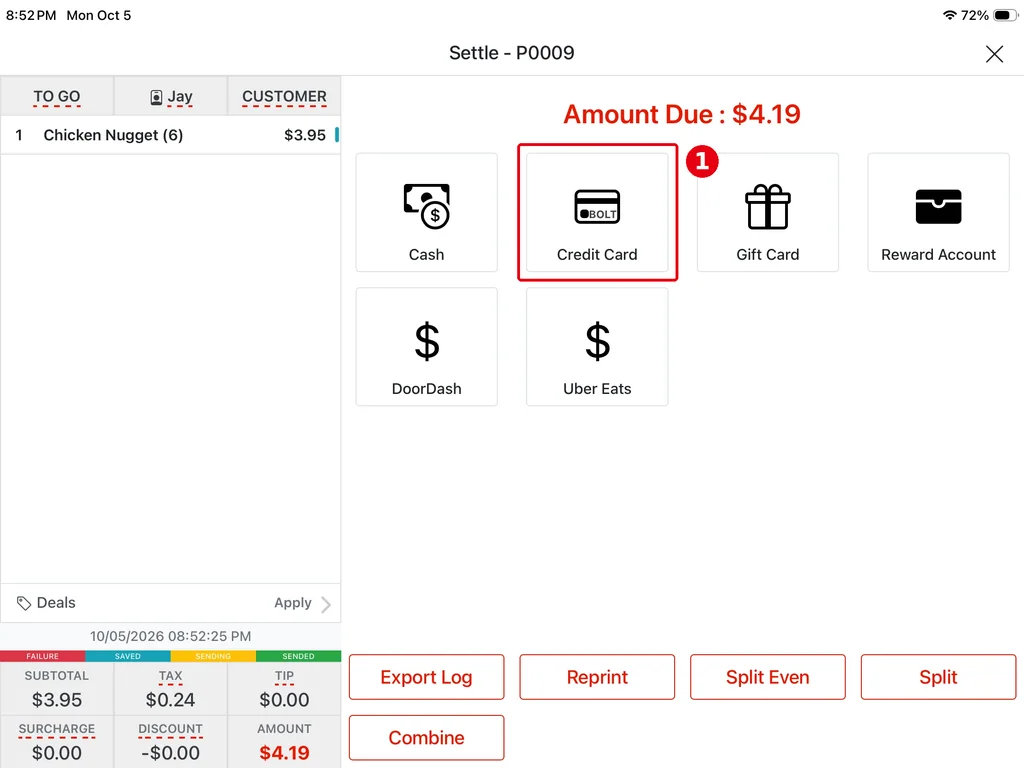
1. Open the order’s Settle screen (see 1.2.12) and tap ① Credit Card. There are two Credit Card buttons: the one whose icon says PAX is for PAX terminals, the one that says BOLT is for BOLT terminals.
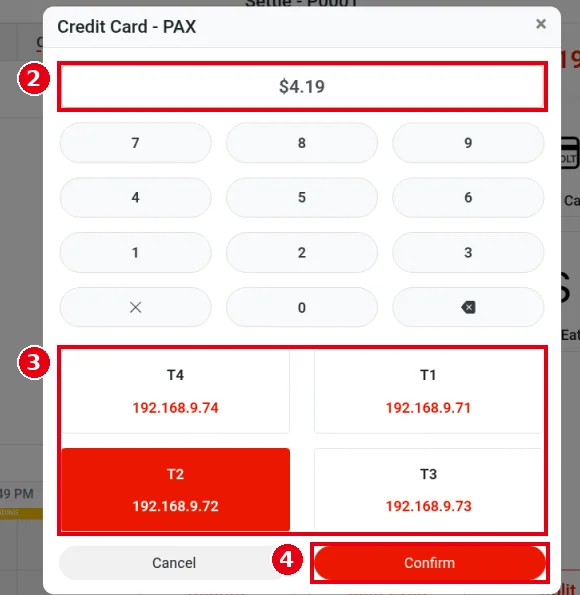
2. Using PAX as the example: the Credit Card – PAX window opens with ② the amount field set to the amount due (e.g. $4.19).
3. ③ Choose the terminal to use. Each terminal shows its name and IP address (e.g. T4 192.168.9.74, T2 192.168.9.72); the selected one turns red. With more terminals the list scrolls down.
4. Tap ④ Confirm to send the charge to the selected terminal. Tap Cancel to go back without charging.
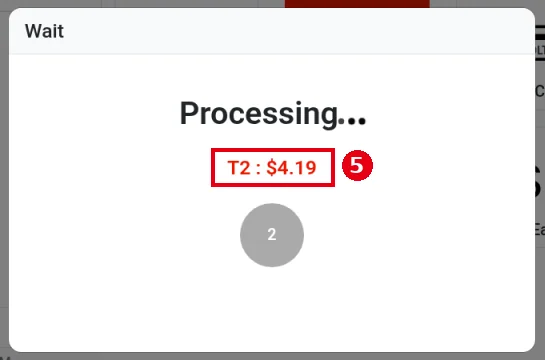
5. The POS shows a Wait window with Processing… and ⑤ the terminal and amount (e.g. T2 : $4.19). Ask the guest to swipe, insert or tap the card on the terminal. In our test the terminal showed no tip or signature step.
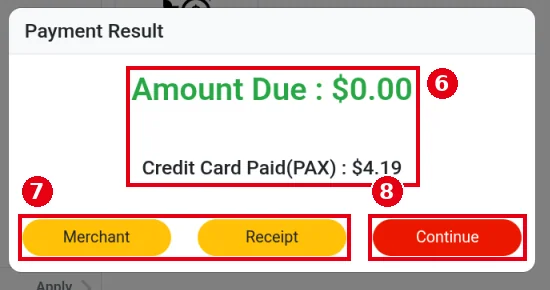
6. When the payment goes through, Payment Result opens: ⑥ Amount Due : $0.00 and the amount charged (e.g. Credit Card Paid(PAX) : $4.19). ⑦ Going by their names, Merchant and Receipt print the merchant copy and the customer receipt. Tap ⑧ Continue to close it (this example was a to-go order, so the POS went back to the home screen once it was paid).
Taking a payment with a Clover Go 3 / VP3350 reader #
Before you start: the system supports two card readers. Both connect directly to the POS device and don’t need the local service (see 1.1.2 How to find your way around the POS home screen). To connect one, see 3.4.3 How to connect a Clover Go 3 / VP3350 card reader.
– Clover Go 3: connects by Bluetooth. Works on Android and on iOS (iPhone / iPad).
– VP3350: connects by USB cable only, so it works only on Android devices with a USB port, not on iPhone / iPad. (Our VP3350 has no Bluetooth, and iPhone / iPad don’t support its USB connection.)
Latest Adoluna App needed: the Clover Go 3 works on Android and iOS (iPhone / iPad); the VP3350 works on Android only. To take payments with either reader you need the latest Adoluna App from the app store. The new version is waiting for app store approval and is coming soon; we’ll let you know when it’s available (2026-10-05).
The readers have no screen of their own: payment prompts show on the POS, and the POS plays the sounds and voice prompts. Where tip and signature show depends on whether this POS is bound to a customer display: if it is, they show on the customer display (see 1.3.10 How guests add a tip and sign on the customer display); if not, they show directly on the POS screen (see step 5 below).
1. On the Settle page, tap ① Credit Card (the icon says BOLT). Both readers are set up as the BOLT type in the Backoffice, so use the BOLT Credit Card button. To set up and connect a reader, see 3.4.3 How to connect a Clover Go 3 / VP3350 card reader.
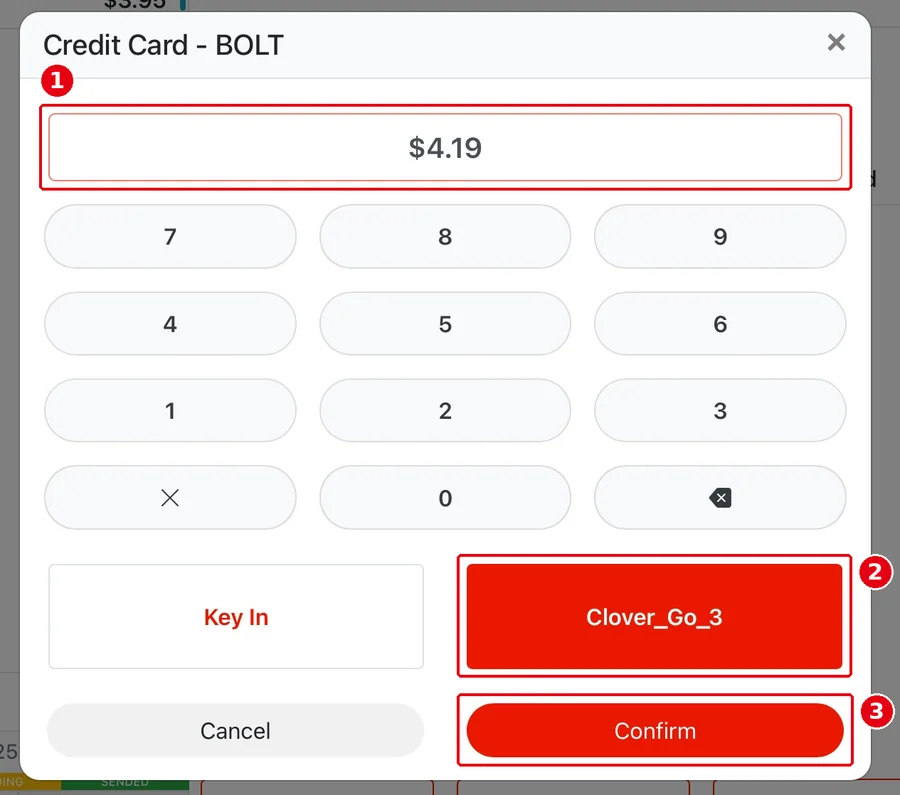
2. The Credit Card – BOLT window opens: ① the amount field is set to the amount due (e.g. $4.19); lower it to pay only part. ② Choose the card reader on this POS (e.g. Clover_Go_3; the selected one turns red). The button shows the terminal name set in the Backoffice; Key In is the Key-in terminal for typing in a card number (see 3.4.2 How to set up a Bolt terminal). Tap ③ Confirm to start the payment, or Cancel to go back without charging.
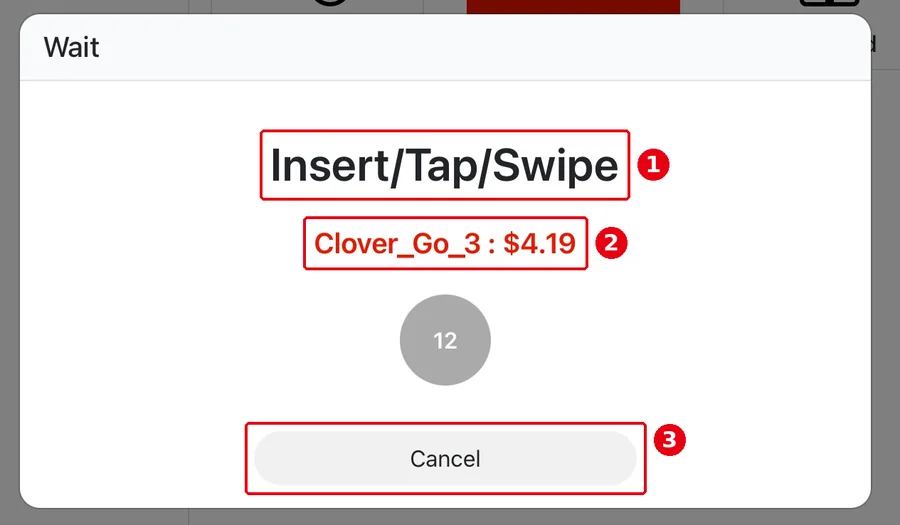
3. The POS shows a Wait window: ① Insert/Tap/Swipe and ② the reader and amount (e.g. Clover_Go_3 : $4.19). Ask the guest to tap (NFC) or insert (chip) the card on the reader. When the reader asks for chip or tap, don’t swipe (see row 1 of the error table below). To cancel, tap ③ Cancel.
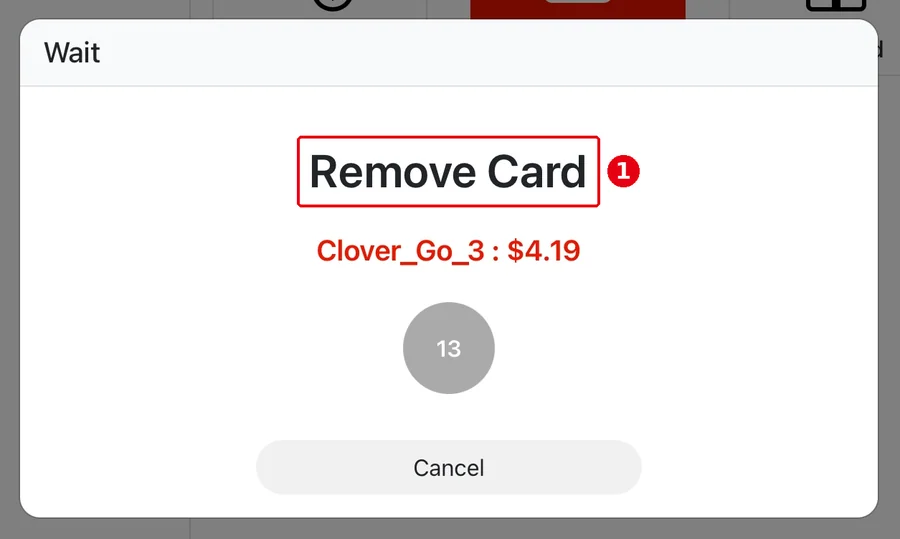
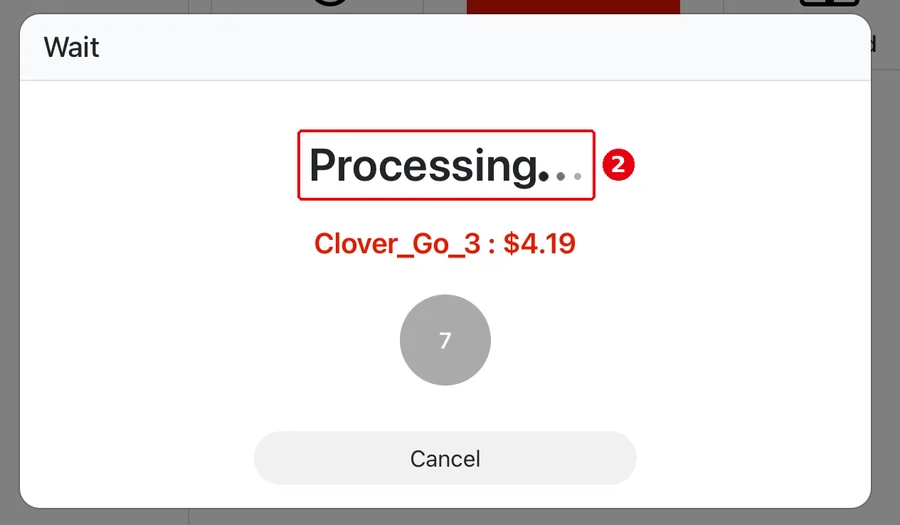
4. For an inserted card, the Clover Go 3 and VP3350 work the same way. Once the card is read, the POS shows ① Remove Card (the same on Android and iPad; the picture below is from an iPad) and plays the voice prompt “Please Remove Your Card!”. Ask the guest to remove the card. The prompt closes on its own, the payment is authorized only after that, and the screen shows ② Processing….
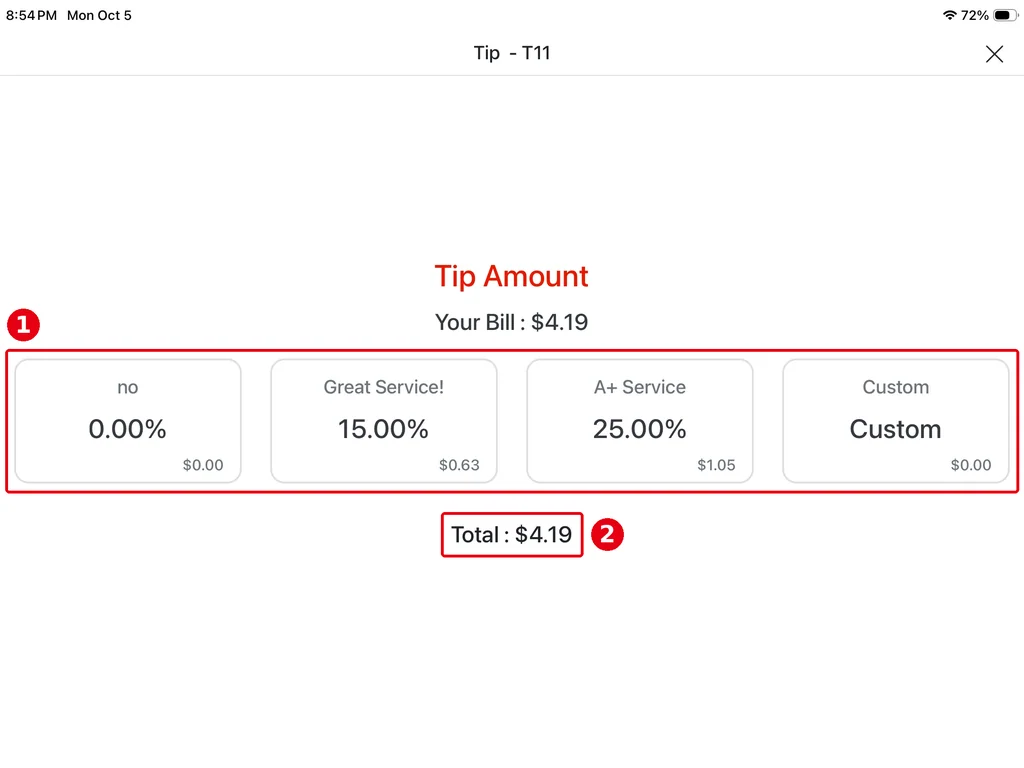
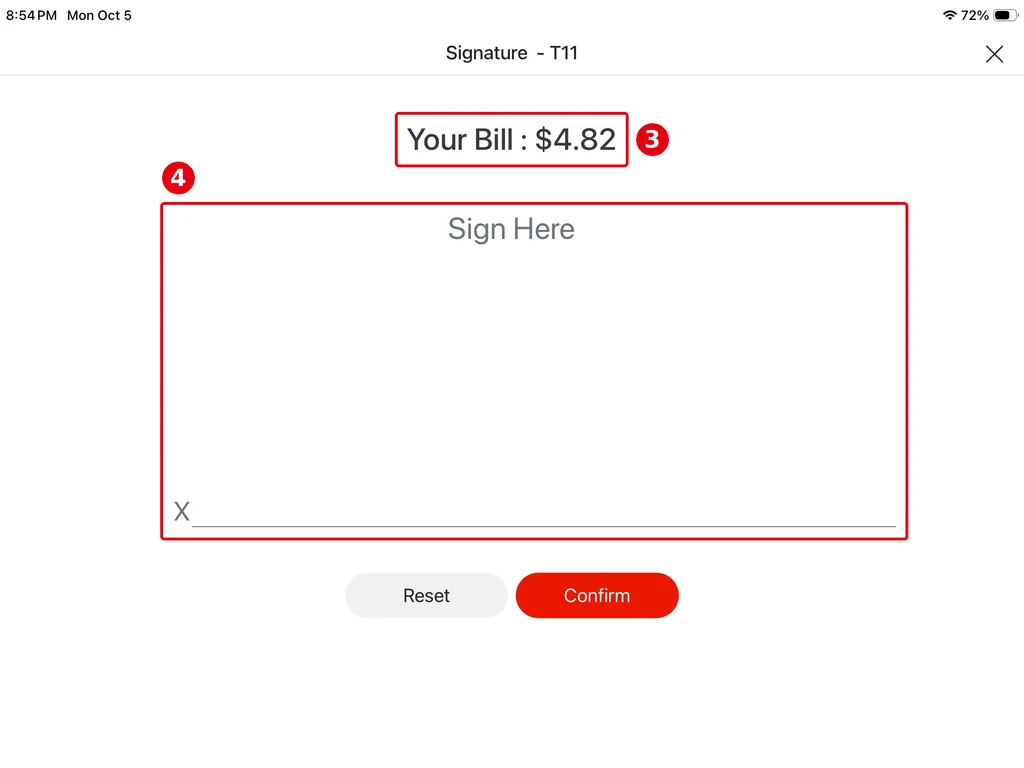
5. Tip and signature: these appear after Processing when Tip Selection on the POS and Require Signature on the POS are ticked in the Backoffice (see 3.4.3 How to connect a Clover Go 3 / VP3350 card reader). Where they show depends on whether this POS is bound to a customer display: with no customer display bound, they show directly on the POS screen (as in the screenshots below), so turn the POS toward the guest; with a customer display bound, they show on the customer display and the guest uses it there (see 1.3.10 How guests add a tip and sign on the customer display).
-
Tip Amount: the guest taps ① a tip option (e.g. no 0.00%, Great Service! 15.00%, A+ Service 25.00%, Custom for their own amount); ② Total below shows the total including the tip.
-
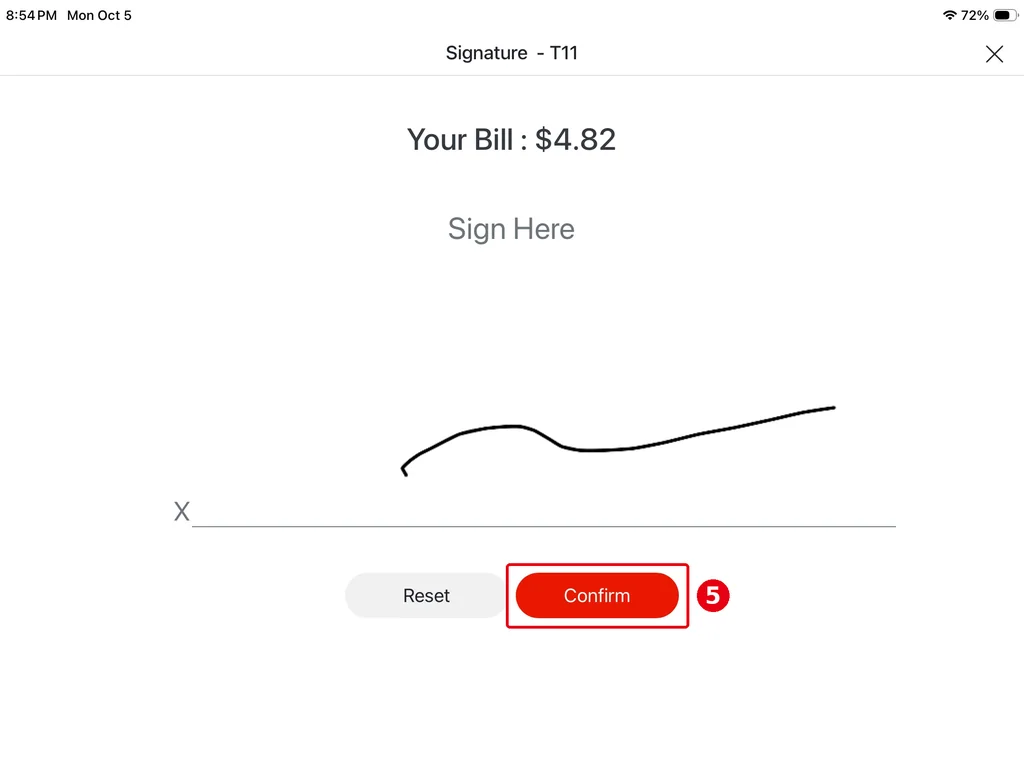
Signature: ③ Your Bill is the amount including the tip (e.g. $4.82 after a 15% tip). The guest signs in ④ the signature area (Sign Here), taps Reset to sign again if needed, and taps ⑤ Confirm when done.
6. When the result comes in, the POS plays a success or failure tone.
-
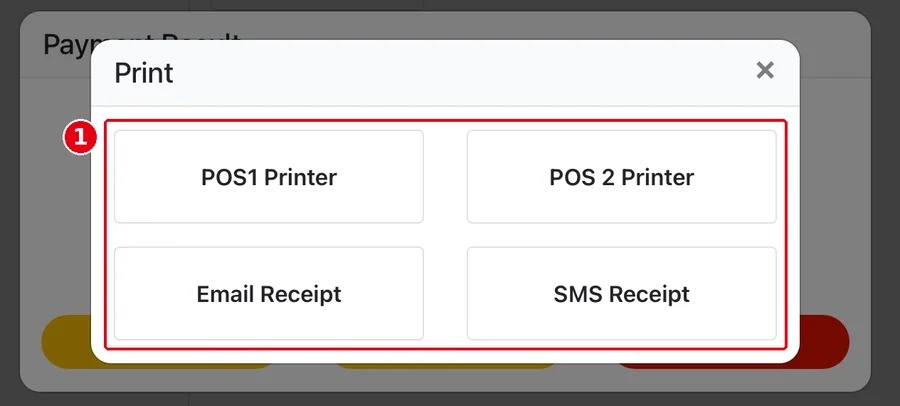
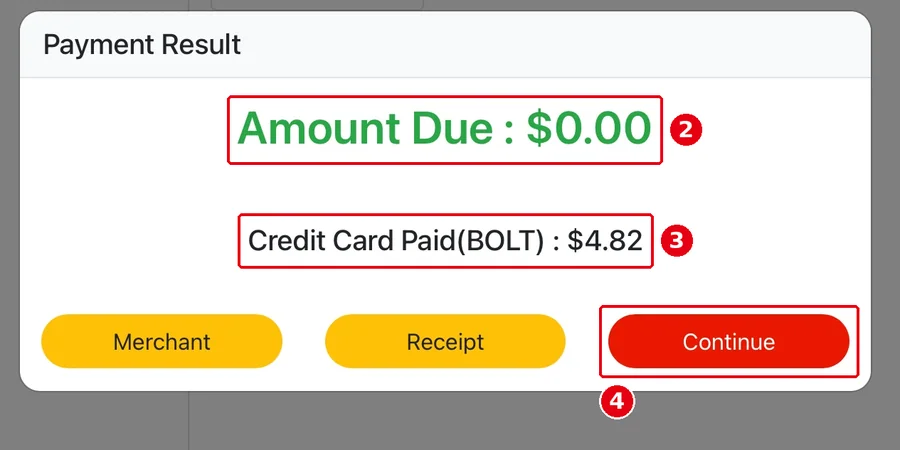
Success: if no printer is linked to this reader in the Backoffice (the terminal’s Printer setting, see 3.4.3 How to connect a Clover Go 3 / VP3350 card reader), a Print window opens first (on top of Payment Result) so you can choose a printer. ① Pick a printer for the receipt (e.g. POS1 Printer, POS 2 Printer), or send it by Email Receipt / SMS Receipt; tap × at the top right if you don’t need it. Then Payment Result shows ② Amount Due : $0.00 and ③ the amount charged, tip included (e.g. Credit Card Paid(BOLT) : $4.82). Merchant and Receipt work as for PAX (see PAX step 6 above); tap ④ Continue to close it.
-
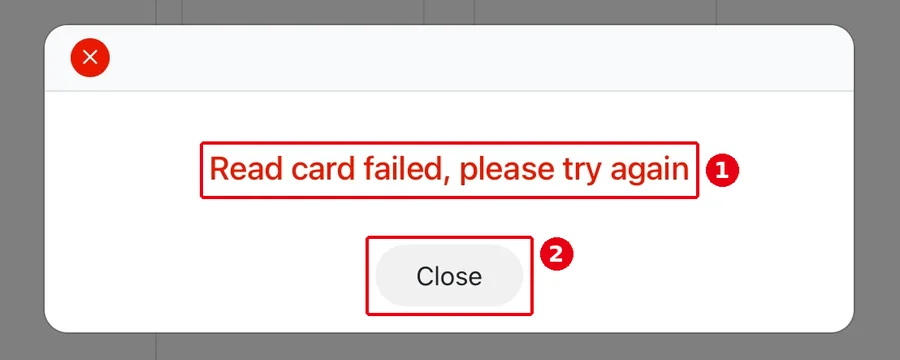
Failure: the screen shows a short reason (e.g. ① Read card failed, please try again). Tap ② Close to go back to Settle; the amount due is unchanged. Follow the error table below, then take the payment again.
-
If the card is still inserted at this point, about 0.5 s later the POS plays “Please Remove Your Card!” (“请取走您的卡” when the POS is in Chinese). It repeats every 5 seconds, up to 3 times, and stops as soon as the card comes out.
7. If staff cancel the payment (tap Cancel), there’s no tone and no voice prompt. With these readers Cancel is always shown (see 4.1.2 What to do when the card terminal doesn’t respond).
Sounds and voice prompts #
-
The POS plays all sounds, whichever reader you use, so every reader behaves the same way.
-
Order: success or failure tone → if the card is still in, the remove-card prompt about 0.5 s later → repeated every 5 seconds, up to 3 times → stops as soon as the card is removed.
-
The prompt follows the POS language (English / Chinese).
-
Staff cancel the payment: no sound.
-
The reader also beeps on its own (for example, the VP3350 beeps twice after a successful payment). This is normal and can’t be turned off, so you’ll hear the reader and then the POS.
-
The Remove Card prompt also shows on the POS screen (the voice prompt says “Please Remove Your Card!”). When the POS is muted, no sound plays, but the on-screen Remove Card prompt still appears. Make sure the POS device isn’t muted and the volume is up.
What the screen shows when a payment fails #
The screen shows a short message only. The full technical detail goes into the system log.
-
Use chip or tap: This card can’t be swiped. Ask the guest to insert or tap
-
Can’t read card. Try chip or tap: Ask the guest to insert or tap instead
-
Read card failed, please try again (see the screenshot in step 6 above): Tap Close, start the payment again, and ask the guest to insert or tap the card again
-
Can’t read this card. Try another: Ask the guest for another card
-
Card not read. Try again: Remove the card and insert it again; if it still fails, try another card or tap
-
Timed out. Insert again: Start the payment again and insert the card
-
Card declined: Ask the guest for another card or another payment method
-
Card type not accepted: Ask the guest for another card
-
Payment error. Try again: Make sure the guest wasn’t charged, then try again (see 4.1.1 Why was a card charged twice, and how do I fix it?)
-
Card reader not found: Clover Go 3: check the Bluetooth connection. VP3350: check the USB cable (see 3.4.3 How to connect a Clover Go 3 / VP3350 card reader, 4.1.2 What to do when the card terminal doesn’t respond)
-
Payment failed. Try again: Make sure the guest wasn’t charged, then try again; if it keeps failing, contact the tech team
Notes (card readers) #
-
Before you take the payment again, make sure the guest wasn’t charged, so they aren’t charged twice (see 4.1.1 Why was a card charged twice, and how do I fix it?).
-
The older VP3300 reader is still available for purchase, but not recommended. Some Mastercard / Discover cards fail on the VP3300, and this can’t be fixed. If that happens, switch to a Clover Go 3 or VP3350 (see 4.1.2 What to do when the card terminal doesn’t respond).
Notes / FAQ #
-
While a card payment is being requested, the order is locked.
-
A credit card can pay just part of the amount: lower the amount in the Credit Card – PAX window, tap Confirm, and pay the rest another way (see 1.3.5 How to take a partial or split-tender payment).
-
If an order is charged twice or overpaid by card, the system shows a notification (in the Order tab of the Notification Center, see 1.1.4).
-
PAX terminals connect over IP and need the local service online. When the local service is offline (home screen shows Local Service Offline), PAX terminals cannot be used; VP3350 and Clover Go 3 are not affected (see 1.1.2).
-
For the Clover Go 3 / VP3350 (BOLT) reader payment flow, see “Taking a payment with a Clover Go 3 / VP3350 reader” above; tip and signature can be turned on or off as the merchant needs (see 3.4.3 How to connect a Clover Go 3 / VP3350 card reader, 1.3.10 How guests add a tip and sign on the customer display).
-
Tapping the BOLT Credit Card button opens the Credit Card – BOLT window: as with PAX, check the amount, then choose the terminal or reader (e.g. Key In, Clover_Go_3) and tap Confirm (see step 2 of “Taking a payment with a Clover Go 3 / VP3350 reader” above).
-
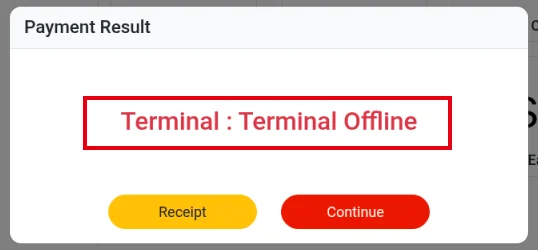
If the result says Terminal : Terminal Offline, the POS can’t reach the selected terminal. Check that the terminal is on and connected to the network, and that you picked the right terminal (see the picture below). Tap Continue to go back to Settle; the amount due is unchanged, so you can take the payment again.