
Purpose: Open or temporarily close the online store, set its online hours, special hours and closures, and choose whether guests can order ahead outside business hours. For: owners, managers.
Before you start: these hours only apply to the online store (“These are the hours your store is available on Adoluna”). The POS has no in-store business-hours setting, and doesn’t need one. The other online store settings (pick-up and delivery rules, auto-accept, etc.) are under Store Setting; see 2.9.2 How to set online pick-up and delivery rules and 2.9.3 How to set up auto-accept and new order notifications.
Steps #
1. In the Backoffice left menu, click Online Store > ① Store Availability:
-
② Online Store Picture: the store picture shown on the Adoluna Ordering Platform; click the plus sign to upload.
-
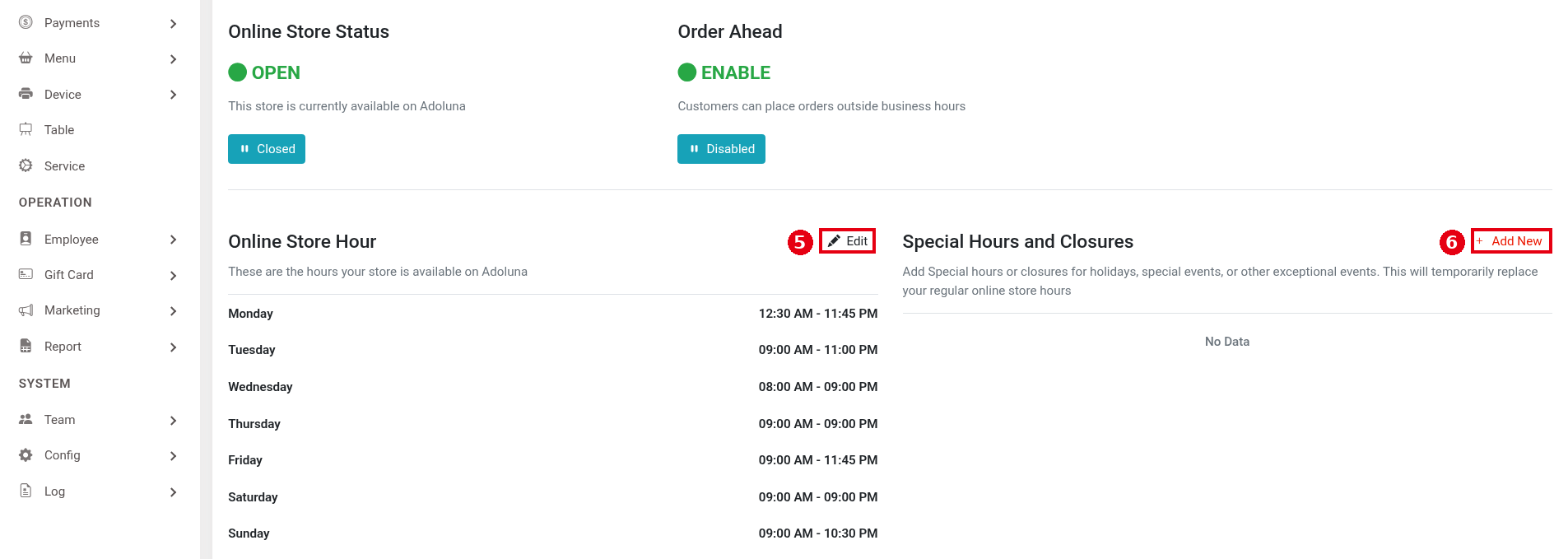
③ Online Store Status: the online store’s current status. The screenshot shows OPEN (“This store is currently available on Adoluna”); the Closed button below it closes the online store manually.
-
④ Order Ahead: the screenshot shows ENABLE (“Customers can place orders outside business hours”), meaning guests can order outside business hours and pick a pick-up time within business hours (official website docs, old version). The Disabled button below it turns ordering ahead off.
Closed and Disabled are toggle buttons: click once to turn off, click again to turn back on. A manually closed online store stays closed until you reopen it; it doesn’t reopen automatically at the next business hours.

2. Set the regular online hours: click ⑤ Edit next to Online Store Hour.
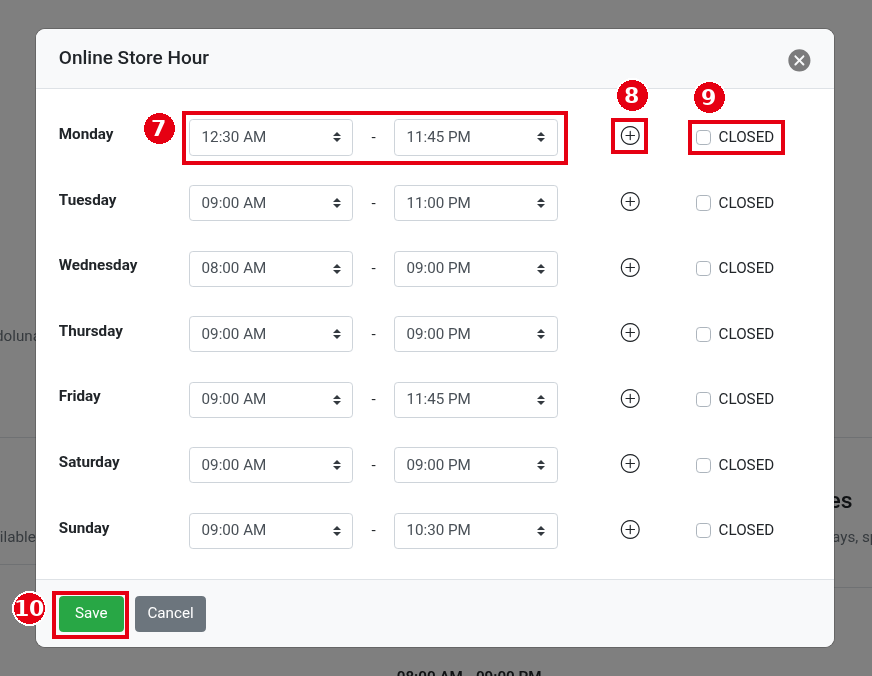
The Online Store Hour window opens:
-
⑦ The start and end time for each day, chosen from the dropdowns.
-
⑧ The ⊕ icon: adds a second time range for the same day (e.g. separate lunch and dinner hours).
-
⑨ CLOSED: tick it if the online store is closed that day.
-
⑩ Click Save (Cancel to discard).
3. Special hours for holidays or events, and temporary closures: click ⑥ + Add New next to Special Hours and Closures. Special hours temporarily replace the regular online hours (“This will temporarily replace your regular online store hours”). The demo store has no entries yet (No Data).
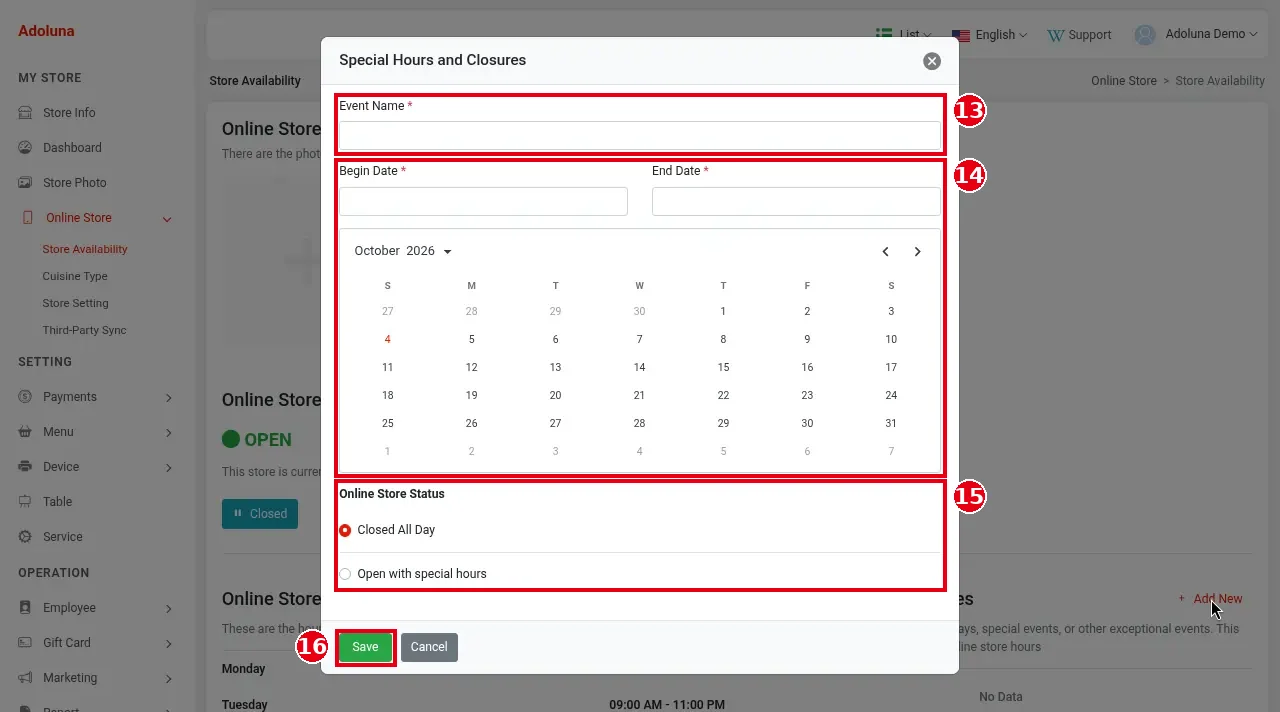
The Special Hours and Closures window opens:
– ⑬ Event Name*: a name (e.g. the holiday).
– ⑭ Begin Date* and End Date*: the start and end dates, picked from the calendar below.
– ⑮ Online Store Status: Closed All Day (selected by default) or Open with special hours.
– ⑯ Click Save (or Cancel).
4. (Optional) In the left menu, click ⑪ Cuisine Type and tick the store’s cuisine types under ⑫ Select Food Category (you can tick several). Cuisine types affect how the store is shown and found on the Adoluna online platform (official website docs, old version).

Notes / FAQ #
-
To stop taking online orders for a while (e.g. the kitchen is swamped), close the online store with the button under ③, and remember to reopen it afterwards.
-
For pick-up, delivery and payment settings for online orders, see 2.9.2 How to set online pick-up and delivery rules; for sending scheduled orders to the kitchen early, see 2.9.4 How to set the prep time for scheduled orders.


