
Purpose: Pay one order in several payments or with several payment types (e.g. part card, the rest cash). For: cashiers, servers.
Steps #
1. Open the order’s Settle screen (see 1.2.12; e.g. P0002, amount due $16.81).
2. Tap the first payment type and enter the amount for this payment (e.g. Credit Card (PAX), change the amount to $10.00, see 1.3.2), then tap Confirm.
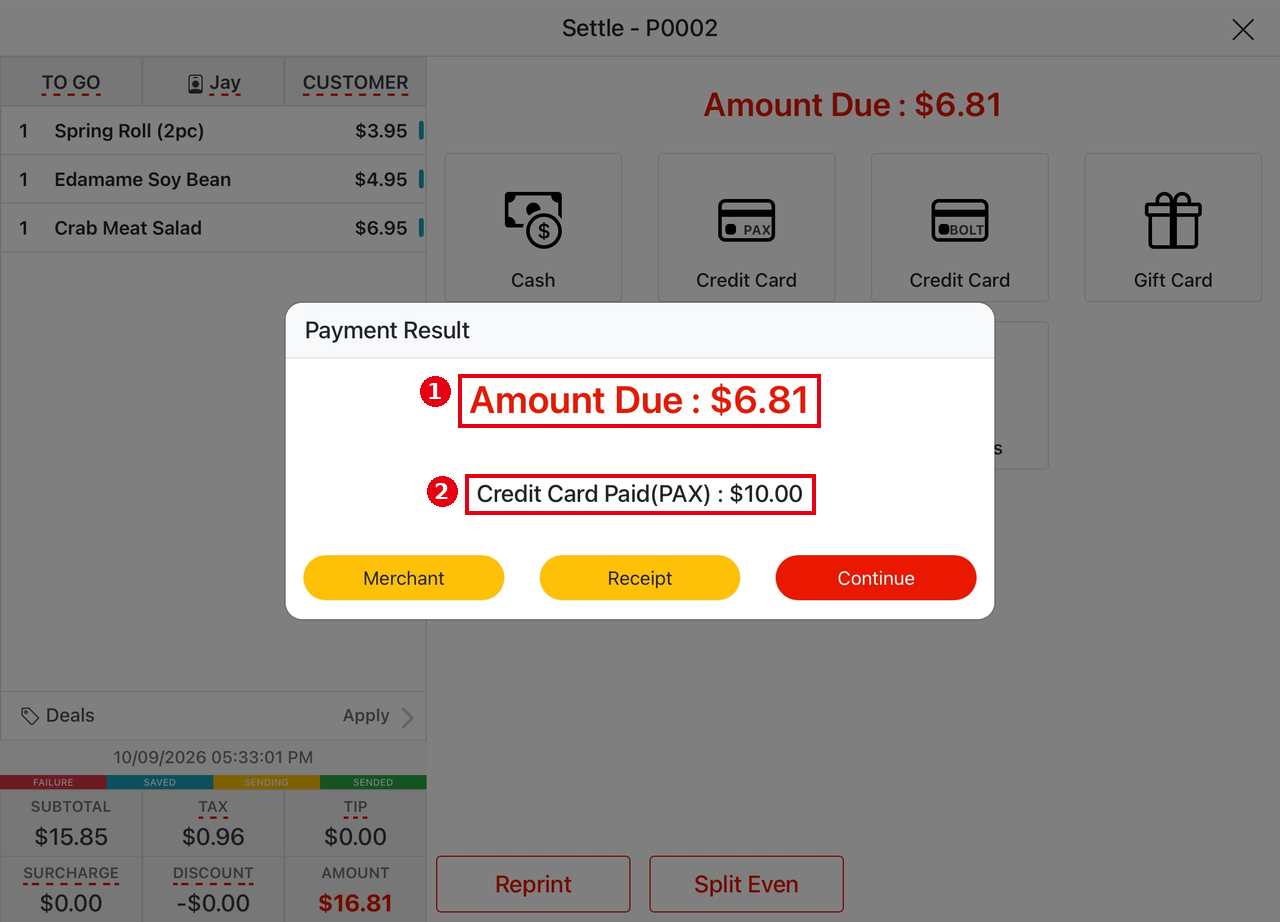
3. The order is still open: in Payment Result, ① Amount Due is the remaining balance (e.g. $6.81) and ② is this payment (e.g. Credit Card Paid(PAX) : $10.00). Tap Continue to return to the Settle screen, where Amount Due shows the remaining balance.
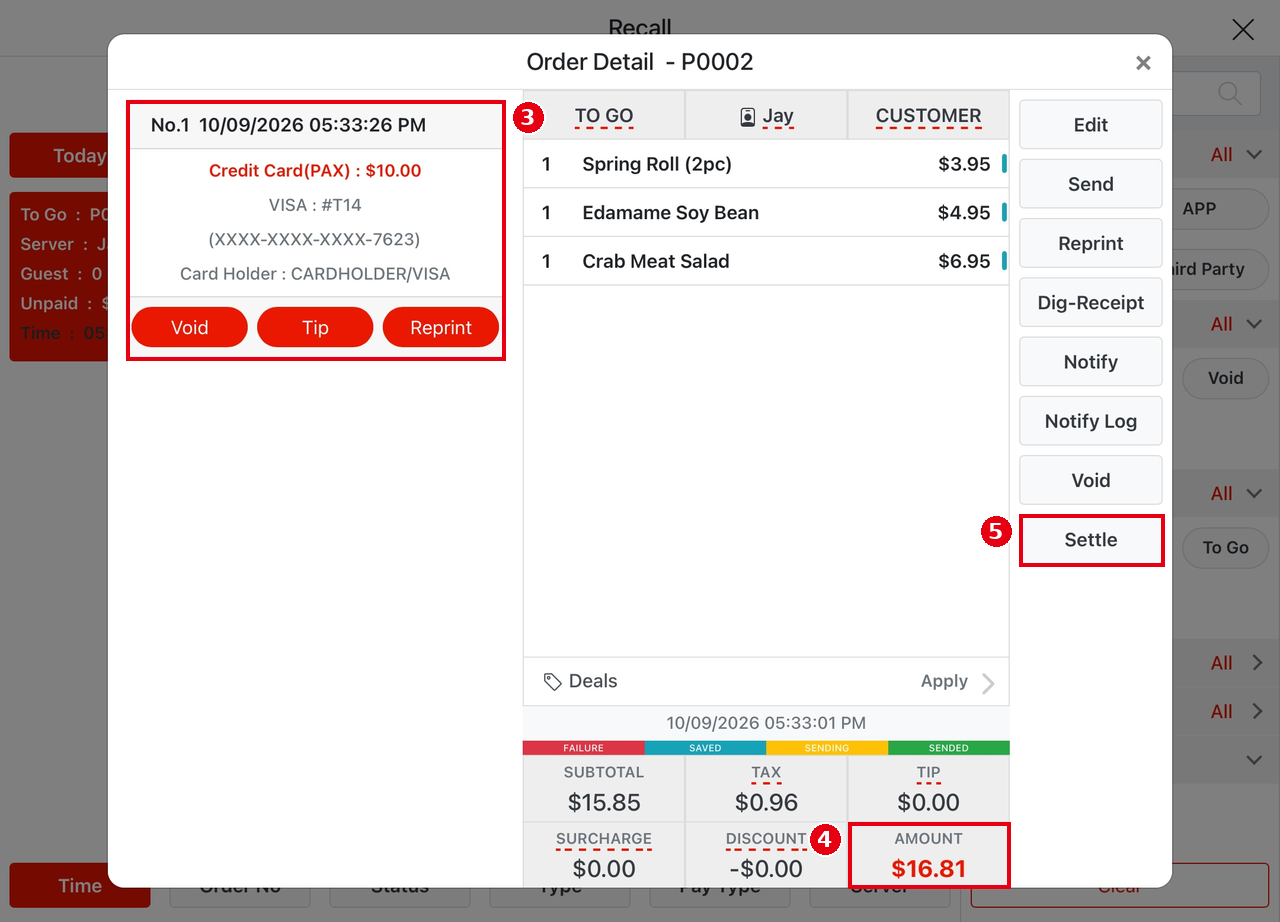
4. In Order Detail you now see ③ the payment on the left (e.g. No.1 … Credit Card(PAX) : $10.00), with Void below it to void that payment. ④ AMOUNT at the bottom of the ticket still shows the full order total (e.g. $16.81); it does not go down after a partial payment. Settle is still on the right.
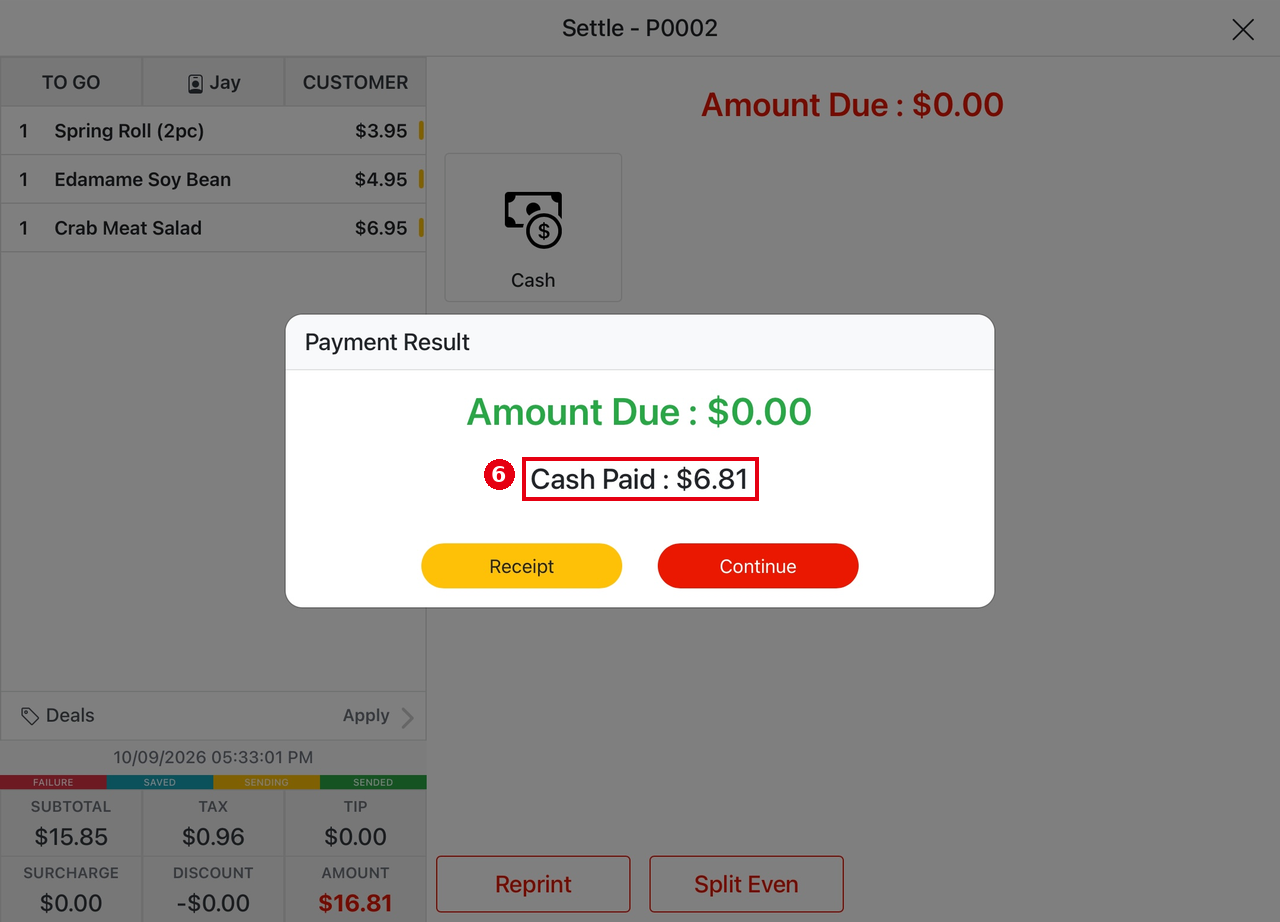
5. Tap ⑤ Settle and pay the rest with the second payment type (e.g. Cash; the first quick-amount button is the remaining balance, $6.81, see 1.3.1). Payment Result shows Amount Due : $0.00 and ⑥ the payment (e.g. Cash Paid : $6.81); the order is paid.
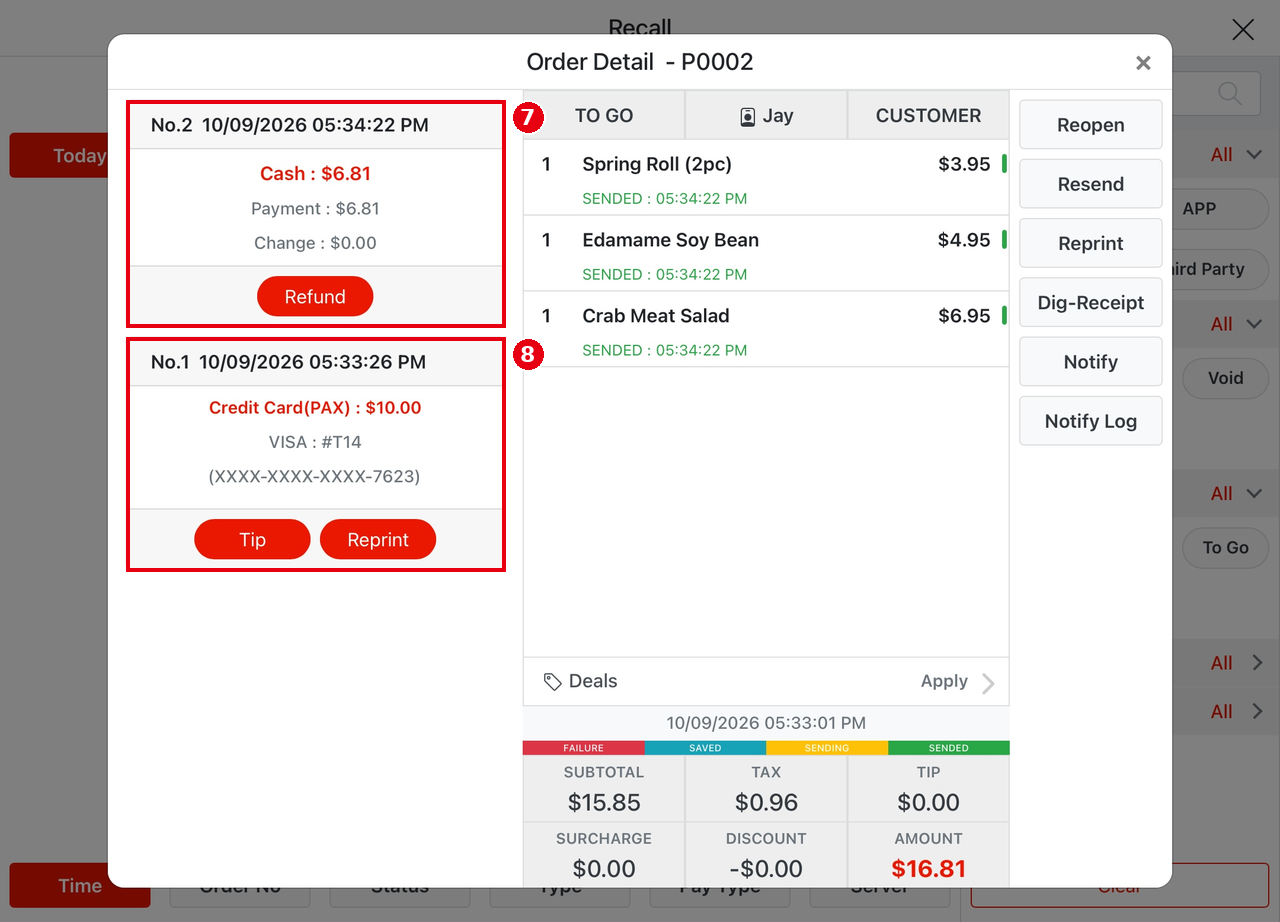
6. Once paid, Order Detail lists each payment as its own record on the left, newest on top: ⑦ No.2 Cash : $6.81 with Refund below it; ⑧ No.1 Credit Card(PAX) : $10.00 with Tip and Reprint below it.
Notes / FAQ #
-
Each payment is listed as its own record on the left of Order Detail (No.1, No.2…, newest on top); while the order is still open, each payment has Void below it. Cash payments have no batch step, so once the order is paid a cash payment shows Refund right away (a cash tip received after payment doesn’t need to be entered in the system). Before the batch, a credit card payment can still have a tip added (Tip) but can’t be refunded; Reprint prints the card transaction receipt. After the batch (see 1.6.3 How to close a credit card batch), tips can no longer be added, but the payment can be refunded (see 1.4.7).
-
The remaining balance is the Amount Due on the Settle screen; AMOUNT on the ticket is always the full order total.
-
Guests paying separately: split the order by item into separate orders (see 1.3.7), or take several payments on the same order as described here. Splitting evenly: see 1.3.6.
-
A credit card can pay just part of the amount: lower the amount in the Credit Card – PAX window, then tap Confirm (see 1.3.2 How to take a credit card payment).


