
Purpose: Find an order in Recall by date, order number, phone, status and more, then open Order Detail for further actions. For: servers, cashiers.
Steps #
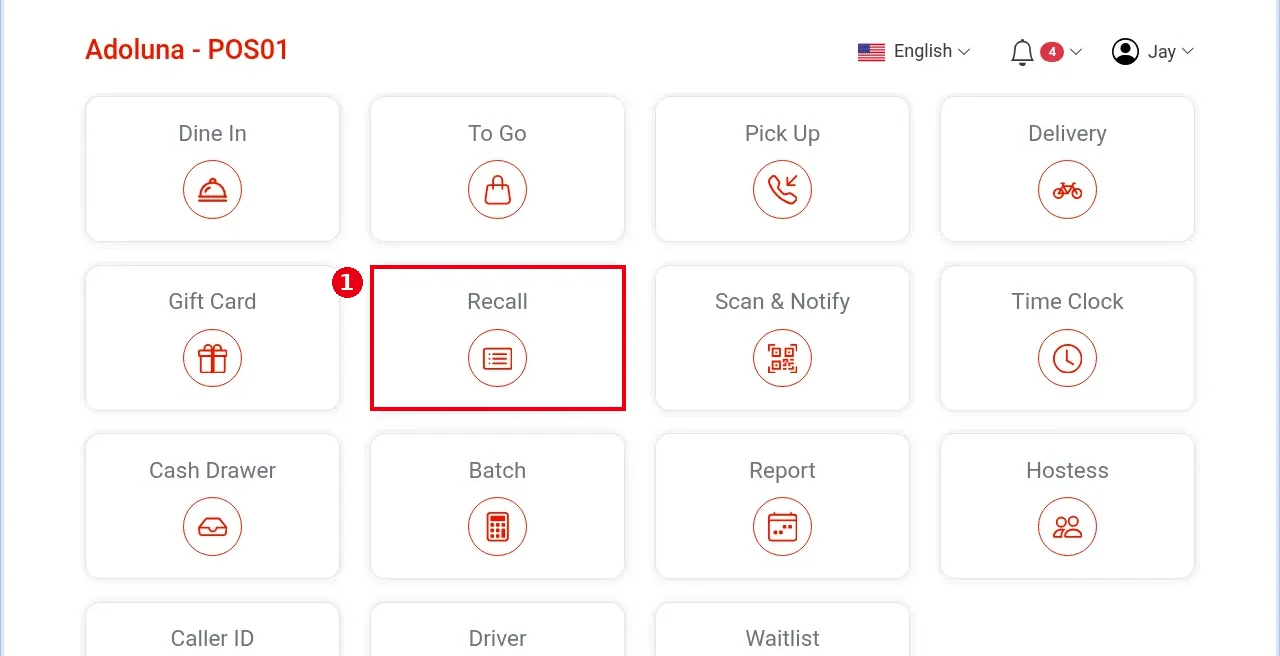
1. On the home screen, tap ① Recall (调单 in the Chinese UI).
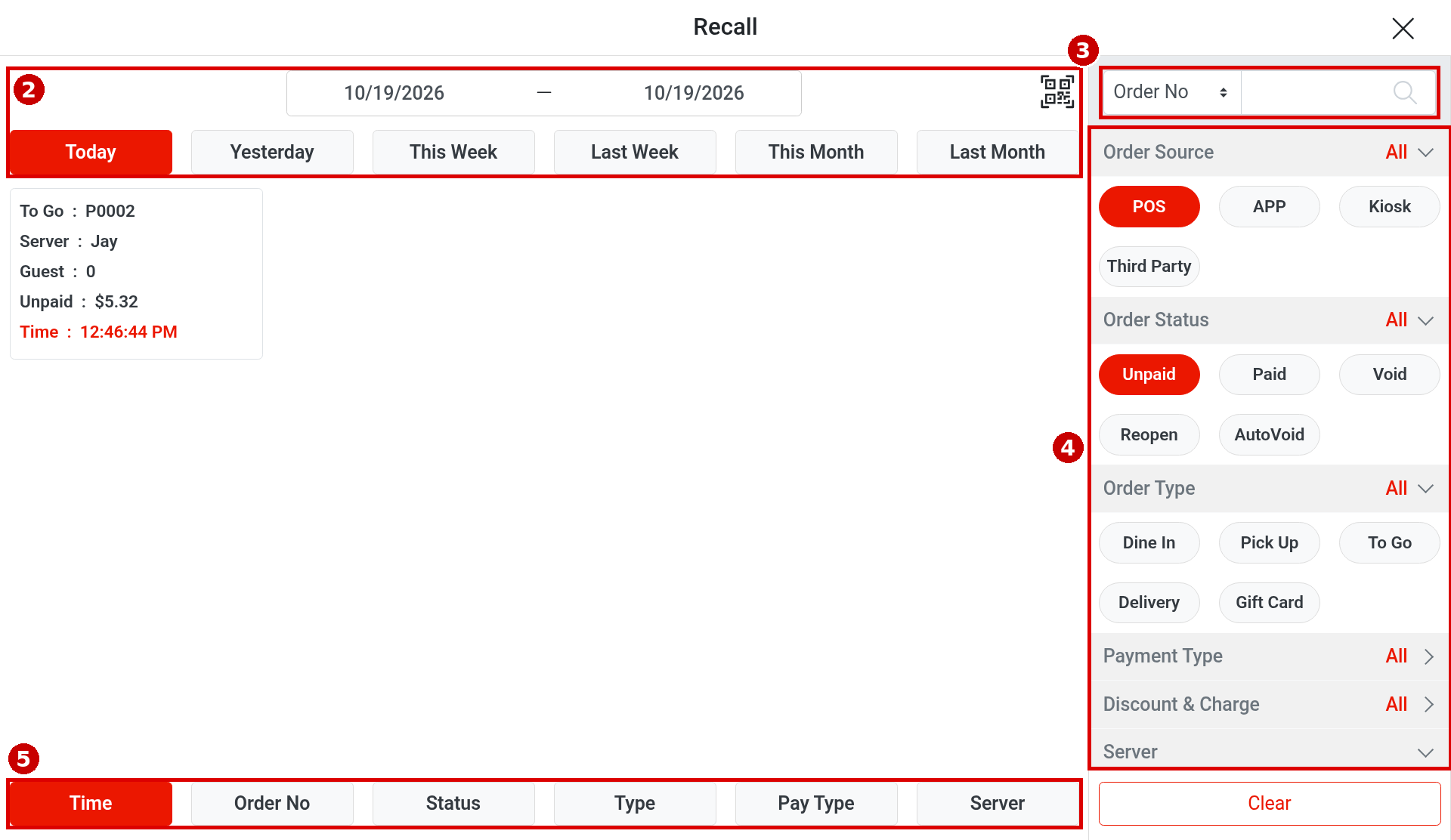
2. ② Pick the date: the date range is at the top (today by default, e.g. 09/28/2026 — 09/28/2026), with quick buttons Today, Yesterday, This Week, Last Week, This Month, Last Month below.
3. ③ Search: at the top right, first choose the search field in the drop-down (Order No, Phone, Table, Name, Third Party ID), then type.
4. ④ Filters (right side):
-
Order Source: POS, APP, Kiosk, Third Party
-
Order Status: Unpaid, Paid, Void, Reopen, AutoVoid
-
Order Type: Dine In, Pick Up, To Go, Delivery, Gift Card
-
Payment Type: Cash, PAX-Credit, BOLT-Credit, Gift Card, Member Card, DoorDash, Uber Eats
-
Discount & Charge, and a list of servers
-
Clear at the bottom resets the filters.
5. ⑤ Sort: buttons at the bottom Time (default), Order No, Status, Type, Pay Type, Server.
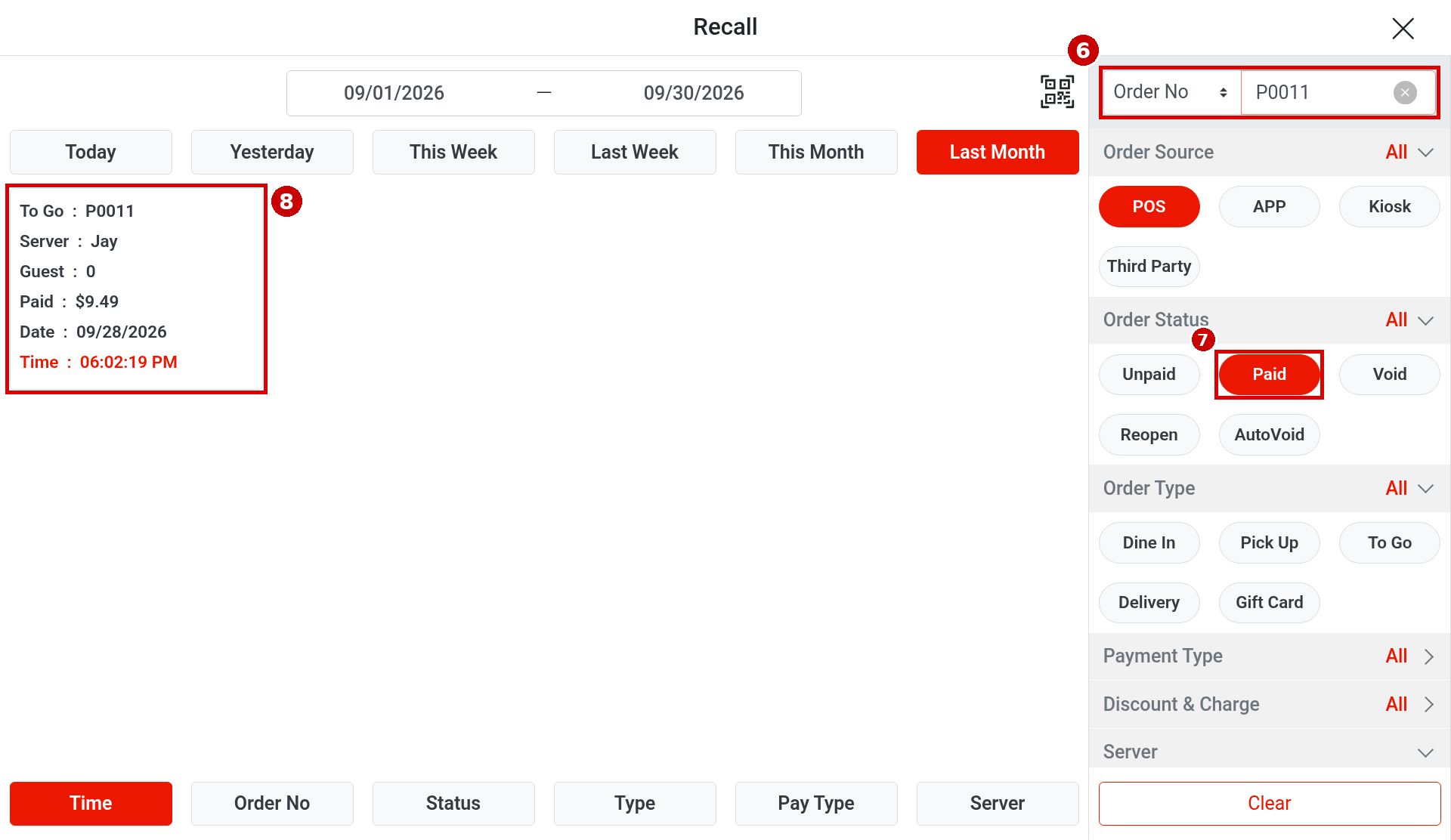
6. Example – find paid order P0011: ⑥ choose Order No, type P0011, and under ⑦ Order Status select Paid instead. The result card shows To Go : P0011, Paid : $9.49.
7. Tap ⑧ the order card to open Order Detail.
Notes / FAQ #
-
Recall opens with POS and Unpaid selected, so only unpaid POS orders are shown. To find a paid order you must select Paid, otherwise it is not found (NO DATA); for voided orders select Void.
-
The letter at the start of the order number shows where the order came from: P = POS orders entered by staff, K = Kiosk, A = Adoluna Online Order, T = third-party platforms. Order numbers restart from 1 every day, so pick the right date when looking for an older order.
-
Order cards show: order type and number, Server (with several servers, the count and the default server, e.g. (2) Jay, see 1.2.14), Table or Guest, the Unpaid / Paid amount, and Time (when the order was created).
-
The buttons on the right of Order Detail depend on the order status: unpaid orders have Edit, Send (Resend after sending), Reprint, Dig-Receipt, Void, Split, Combine, Settle; paid orders have Reopen, Resend, Reprint, Dig-Receipt; voided orders only Reprint and Dig-Receipt. In these examples, to-go, pick-up and delivery orders also have Notify and Notify Log (text the guest that the order is ready).
-
AutoVoid under Order Status: a Kiosk order must be saved before payment. If the guest’s payment fails and they leave, and no staff member opens and edits the order, the system voids it automatically after 30 minutes. Orders merged into another order with Combine also go to AutoVoid (see 1.3.8 How to combine orders, 4.6.4 Why can’t I find the original order after combining?).
-
Member Card under Payment Type is payment from the member account balance: guests can top up their member account and pay from its balance. On the Settle screen the payment button reads Reward Account.
-
The QR-code icon to the right of the date range opens a scan input box.


