
Purpose: Count the cash in the drawer at the end of a shift or the day and close the drawer (Cashier Out); the system works out any over/short. For: cashiers, managers. Hardware: cash drawer, receipt printer.
Steps #
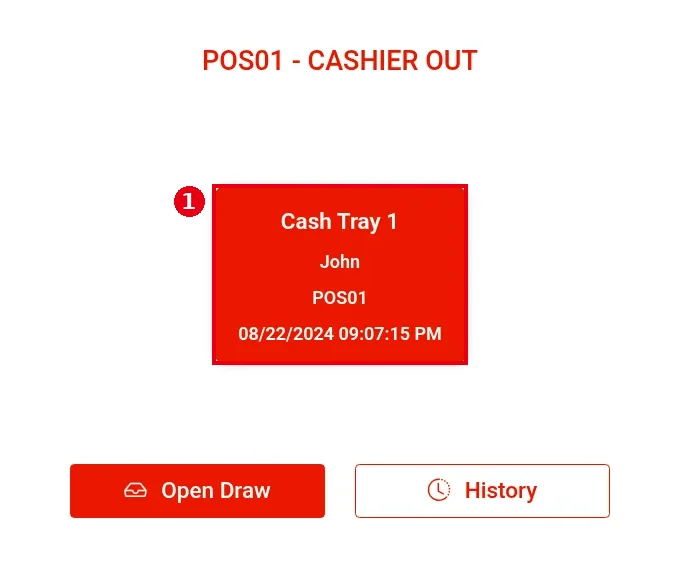
1. On the home screen tap Cash Drawer. When the heading is POS01 – CASHIER OUT, the drawer card shows the open drawer, who cashiered it in, the POS and the cashier-in time (e.g. Cash Tray 1 / John / POS01 / 08/22/2024 09:07:15 PM, a drawer in the demo store left open since 2024). ① Tap the drawer card.
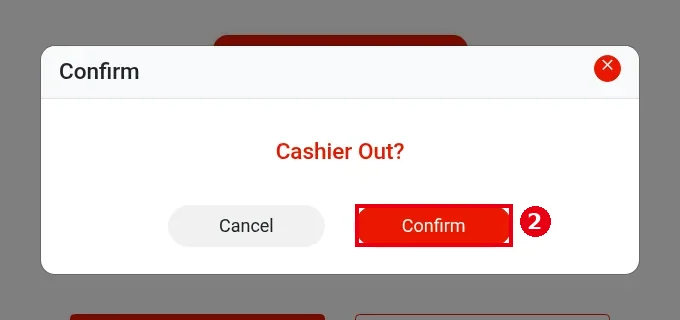
2. At Cashier Out?, tap ② Confirm.
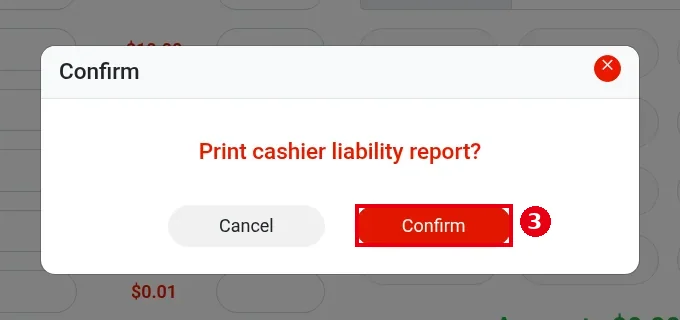
3. Print cashier liability report? appears. Tap ③ Confirm to print it on the receipt printer, or Cancel to skip printing and continue. This report lists the amounts the drawer should hold, for the employee to check; you then count and enter the actual amount.
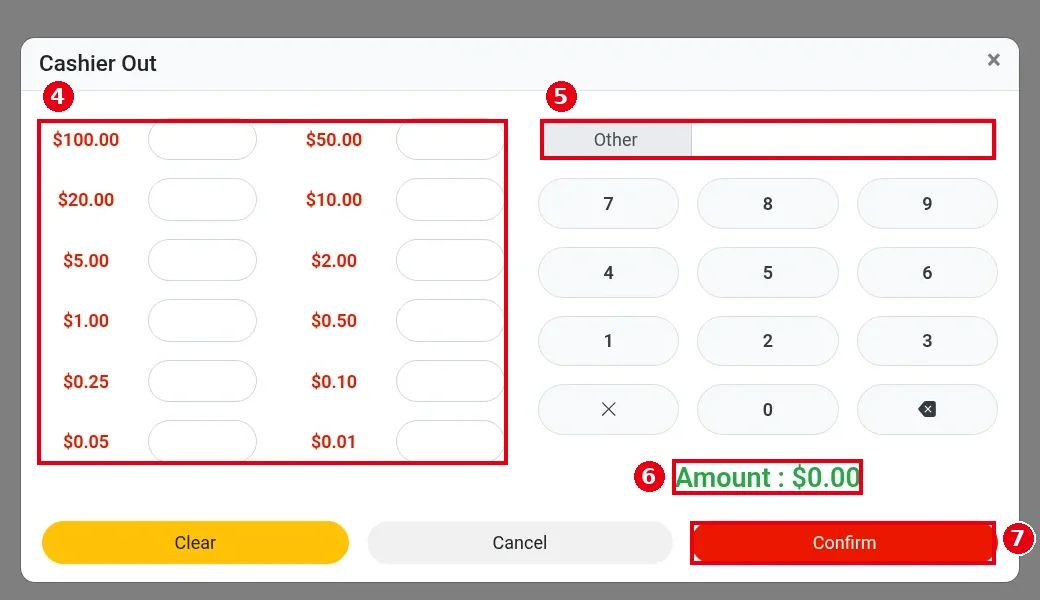
4. The Cashier Out count form opens. As at Cashier In, ④ enter the number of bills/coins per denomination on the left and ⑤ any other amount in Other at the top right (the keypad enters cents); ⑥ the green Amount shows the total (see steps 5–7 of 1.5.3 How to start a cash drawer (Cashier In)).
5. After counting all the cash in the drawer, tap ⑦ Confirm.
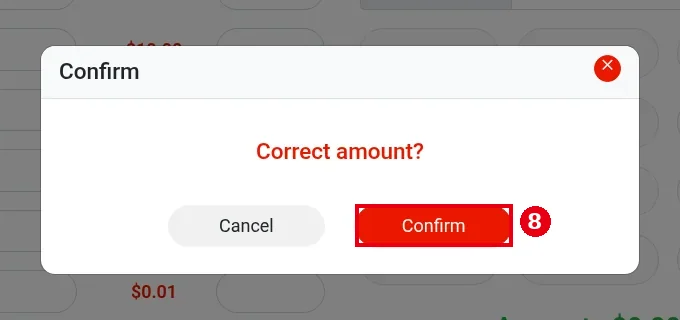
6. At Correct amount?, tap ⑧ Confirm.
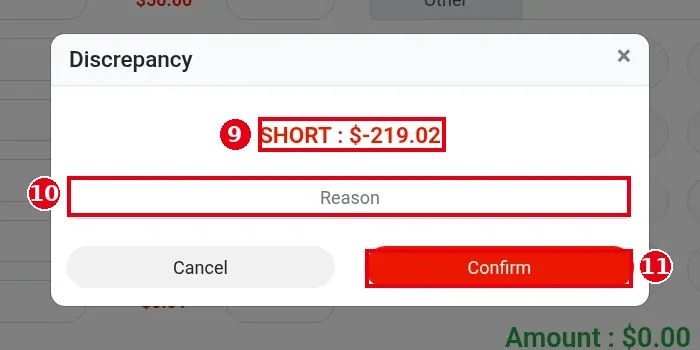
7. If the counted amount differs from what the system expects, Discrepancy opens ⑨ with the difference (e.g. with nothing entered it showed SHORT : $-219.02, i.e. $219.02 short) and asks for ⑩ a Reason. The reason is required. Enter it and tap ⑪ Confirm to finish, or Cancel to go back and recount. The discrepancy and reason can be reviewed later under Cash Drawer > History (see step 9).
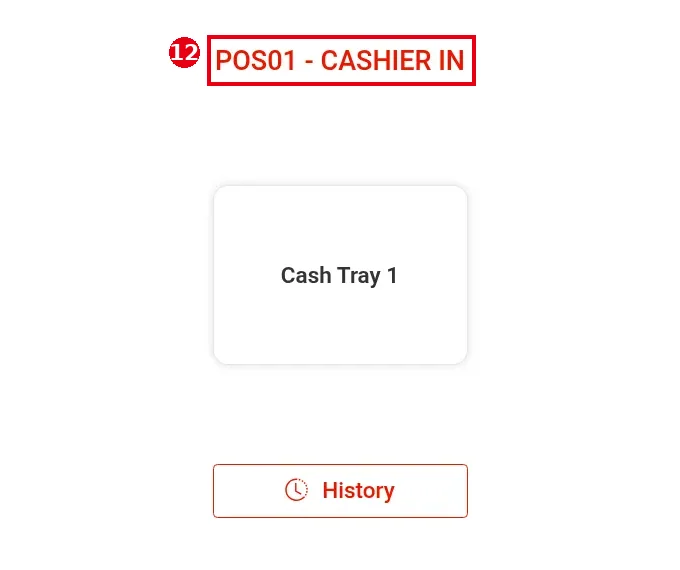
8. If the amount matches, no Discrepancy appears and the close-out finishes. ⑫ The heading changes back to POS01 – Cashier In and this POS can be cashiered in again (see 1.5.3 How to start a cash drawer (Cashier In)).
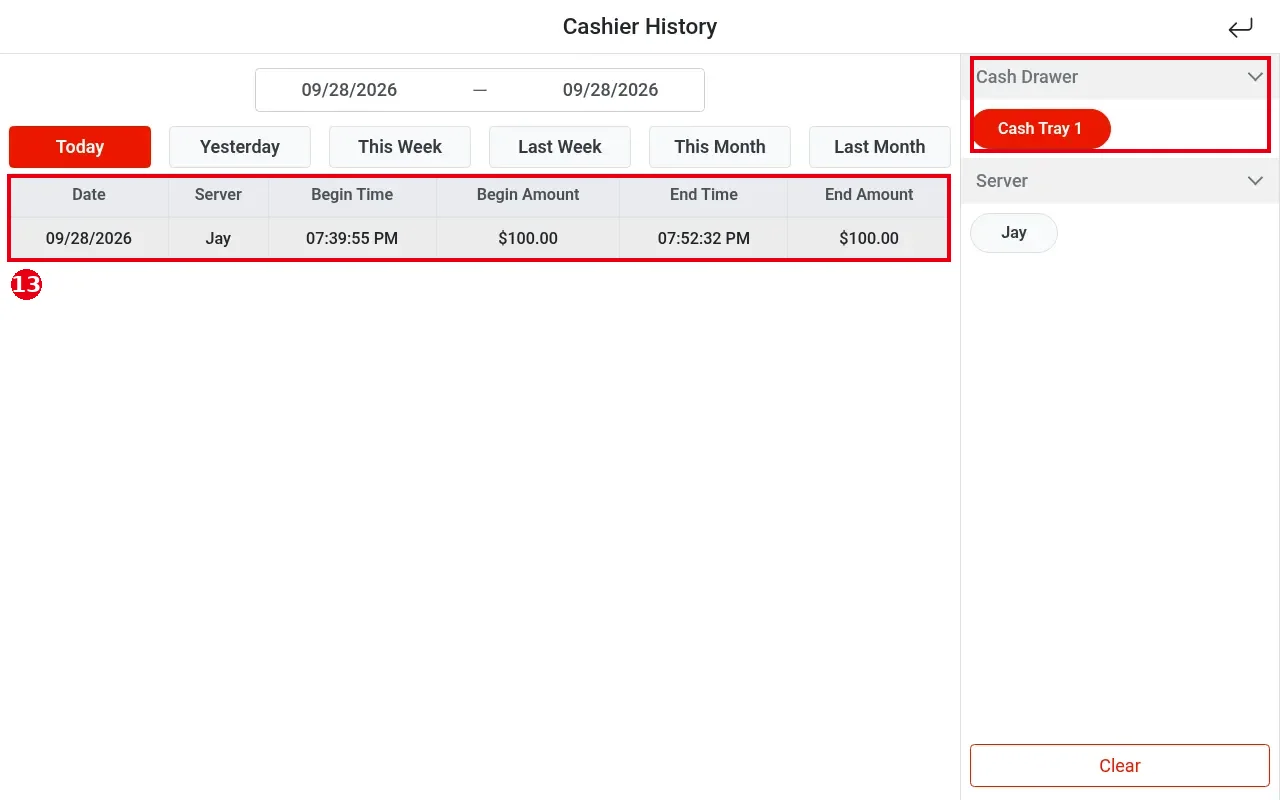
9. To review close-outs, tap History on the Cashier In/Out screen to open Cashier History. Columns: Date, Server, Begin Time (cashier in), Begin Amount, End Time (cashier out), End Amount (⑬ e.g. 09/28/2026 | Jay | 07:39:55 PM | $100.00 | 07:52:32 PM | $100.00). Filter by Cash Drawer and Server on the right.
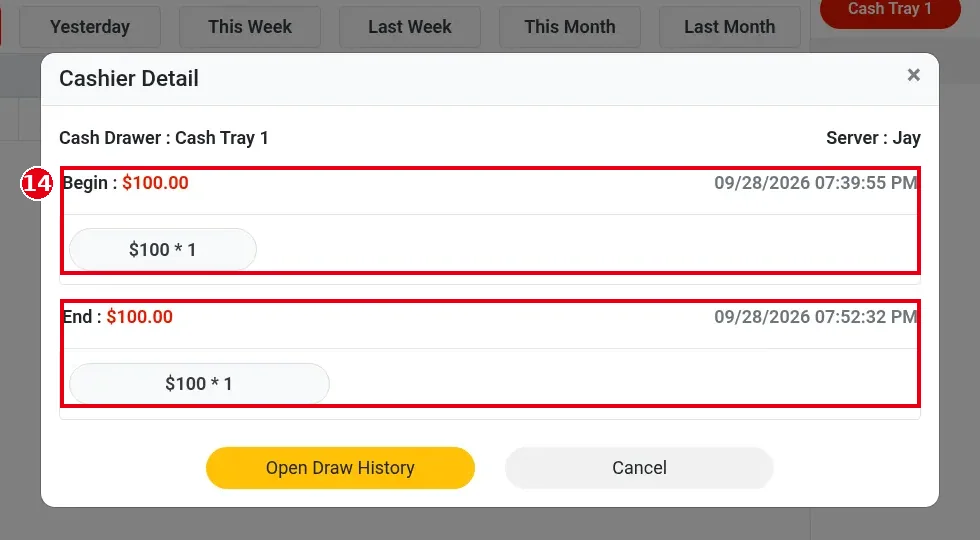
10. Tap a record to open Cashier Detail: the drawer, the employee, and ⑭ the amount, time and denomination breakdown of Begin and End (e.g. $100 * 1). Open Draw History shows no-sale drawer openings (see 1.5.5 How to open the cash drawer without a sale); Cancel closes it.
Notes / FAQ #
-
Expected amount = cashier-in amount + order payments taken during the session. The CASHIER CLOSING REPORT under the Cash Drawer report shows REGISTER START AMOUNT, TOTAL ORDER PAYMENTS and TOTAL MONEY EXPECTED; see 1.5.6 How to view, print or email POS reports.
-
You can close out a drawer that another employee cashiered in (e.g. Jay closed John‘s drawer).
-
A POS can be cashiered in again only after the close-out. Close out every day as part of the end-of-day routine (see 1.5.7 How to close out the day (end-of-day checklist)).
-
At cashier out, the POS first prints the amounts the drawer should hold for the employee to check (step 3), then asks for the actual amount. Only after the cashier-out process finishes does the report appear in Report (Cash Drawer > CASHIER CLOSING REPORT), and its content matches the cashier-out report (see 1.5.6 How to view, print or email POS reports).


