
Purpose: Set the message printed at the bottom of receipts (e.g. Thank You!), the tip guideline amounts, and other receipt print options such as QR codes. For: owners, managers.
Steps #
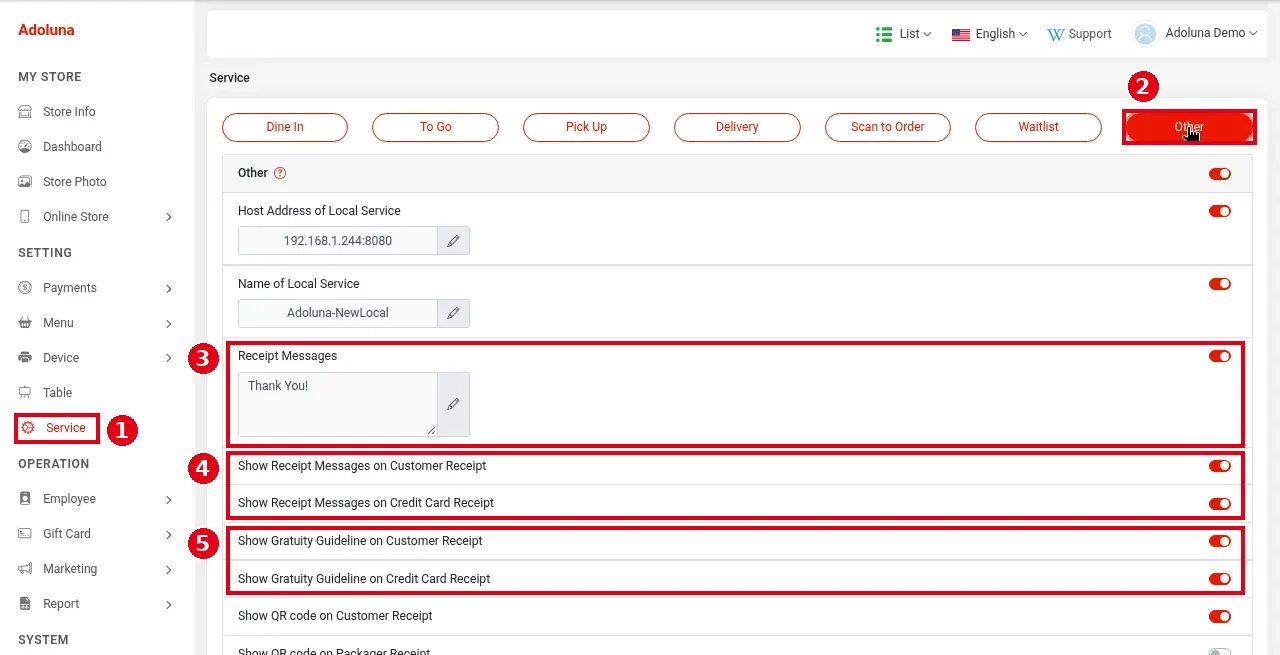
1. In the Backoffice left menu, click ① Service and choose the ② Other tab.
2. Receipt message and tip guideline:
-
③ Receipt Messages: turn on the switch on the right and click the pencil to edit the message (Thank You! in the screenshot).
-
④ Show Receipt Messages on Customer Receipt, Show Receipt Messages on Credit Card Receipt: whether the message prints at the bottom of the customer receipt and of the credit card slip.
-
⑤ Show Gratuity Guideline on Customer Receipt, Show Gratuity Guideline on Credit Card Receipt: whether a tip guideline prints at the bottom of the customer receipt and of the credit card slip. The amounts follow the tip options in Payments > Tip; each option needs Show On Receipt turned on (see 2.4.3 How to set up tip options, minimum tip and tip base).
Host Address of Local Service and Name of Local Service at the top are Local Service parameters used by the customer display (see 3.5.1 How to set up the customer display, 3.2.5 How to set up the Adoluna Local Server). Use the values from Adoluna Support and don’t change them yourself.
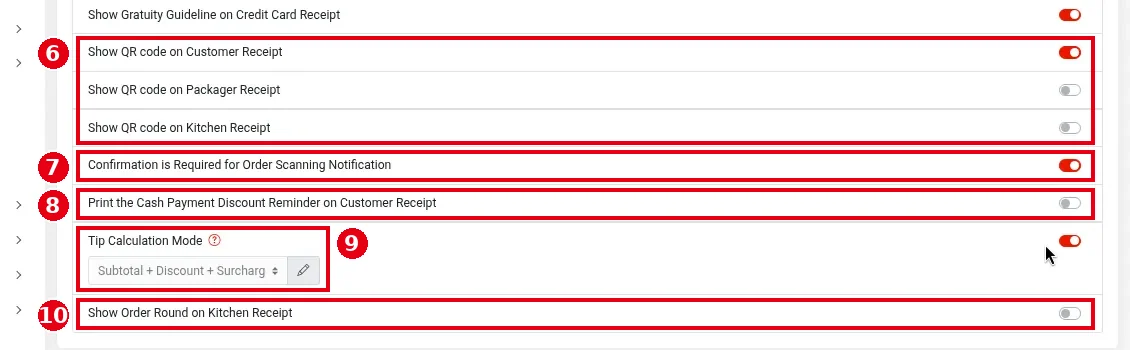
3. Scroll down for more print options:
-
⑥ Show QR code on Customer Receipt, Show QR code on Packager Receipt, Show QR code on Kitchen Receipt: print a QR code on the customer receipt, packager ticket or kitchen ticket. Scanning it finds the order in Recall, opens a table on the Kiosk (scanning the receipt QR code currently needs a barcode scanner connected and will later change to the device camera, see 1.8.4 How to open a table on the Kiosk by scanning a receipt QR code), and is used by Scan & Notify.
-
⑦ Confirmation is Required for Order Scanning Notification: when on, staff must confirm before the SMS is sent via Scan & Notify (see 1.12.2 How to use Scan & Notify).
-
⑧ Print the Cash Payment Discount Reminder on Customer Receipt: see 2.2.4 How to turn on the cash payment discount.
-
⑨ Tip Calculation Mode: the tip base, see 2.4.3 How to set up tip options, minimum tip and tip base.
-
⑩ Show Order Round on Kitchen Receipt: see 2.5.6 How to show order rounds on kitchen tickets.
-
Print Void Ticket to Kitchen (not shown in the screenshot): off by default. When on, voiding an item that has already been sent prints a VOID ticket on the kitchen printer the item was sent to (see 1.4.4 How to void an item).
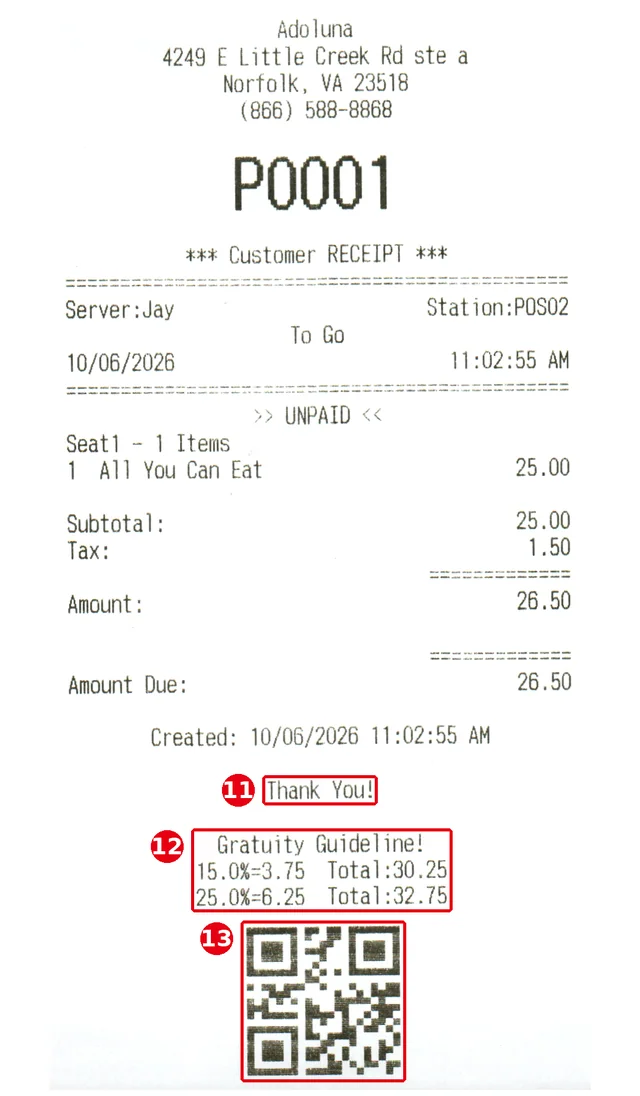
At the bottom of the printed customer receipt: ⑪ the receipt message (Thank You! in the photo); ⑫ the tip guideline Gratuity Guideline!, one line per tip option with the percentage, the tip amount and the total including the tip (e.g. 15.0%=3.75 Total:30.25); ⑬ the QR code (printed when ⑥ Show QR code on Customer Receipt is on).
Notes / FAQ #
-
After changing settings, place a test order and print a receipt to check (see 1.3.9 How to print or text a receipt, 3.6.2 How to run a go-live test (test orders, printing, cards, Batch)).


