
Purpose: Understand what the Adoluna Local Server does, connect it to the store network and check that the POS can reach it. For: Adoluna onboarding staff, store managers.
Background: The Local Server is installed and set up by an Adoluna technician; the merchant doesn’t install it. The VirtualBox VM is only a temporary stand-in: if the Local Server breaks, a technician remotes into the merchant’s own computer and installs the VM version there while Adoluna ships a new Local Server as soon as possible.
What the Local Server does #
-
The Local Server sits in the store; the POS reaches network printers and PAX terminals through it.
-
When it’s offline, printers and PAX terminals don’t work and the cash drawer won’t open (no cash payments); VP3350 (the older VP3300 is still available for purchase but not recommended) and Clover Go 3 readers connect directly to the POS device and aren’t affected (see 1.1.2 How to find your way around the POS home screen).
-
The Local Server, receipt printers and card terminals must be on the same network.
-
The Caller ID adapter plugs straight into the Local Server’s USB port (see 3.5.4 How to set up Caller ID).
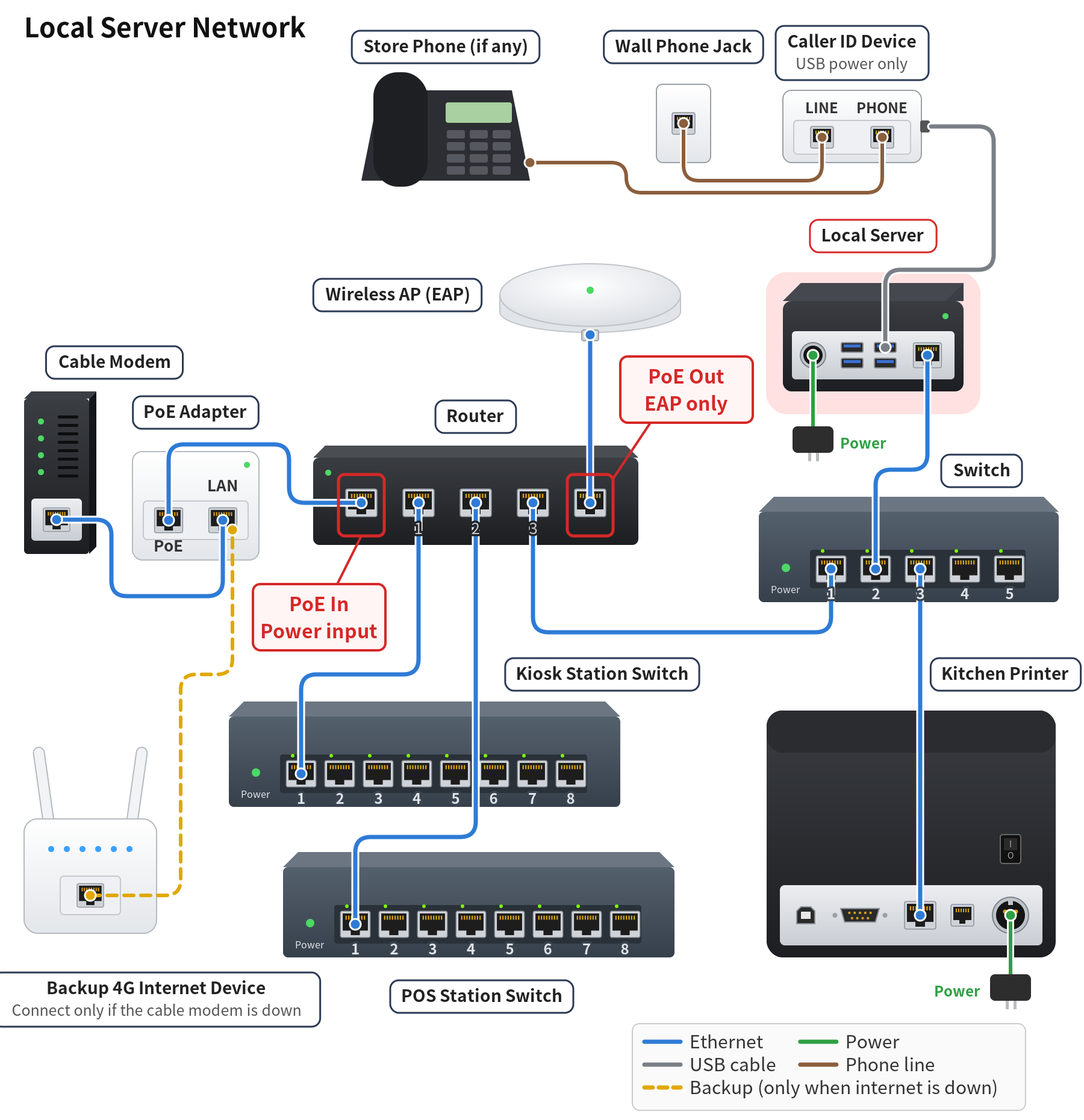
Figure: the Local Server in the network layout (top right, highlighted in red)
Steps #
1. An Adoluna technician connects the Local Server to the store switch (the same network as the printers and card terminals), plugs in the power and turns it on. Network layout: 3.1.2 How to set up the network and wire a POS station.
2. When the VM is used as a temporary stand-in (done remotely by an Adoluna technician): install VirtualBox on the merchant’s computer (32-bit computers aren’t supported), download the VM file (.ova) from the Adoluna POS Server (VirtualBox VM) folder (unzip with 7-Zip if needed), import it into VirtualBox, set the VM network to Bridged Adapter on the adapter connected to the router, and start it.
3. An Adoluna technician sets up the Local Server and links it to the store (updating the tomcat package, setting the hostname and fixed IP, and so on). The current Backoffice has no Local Server settings page; the old website docs’ IP Address and Port of Local Service and Name of Local Service under Backoffice Service > Other are no longer there (checked 2026-09-29).
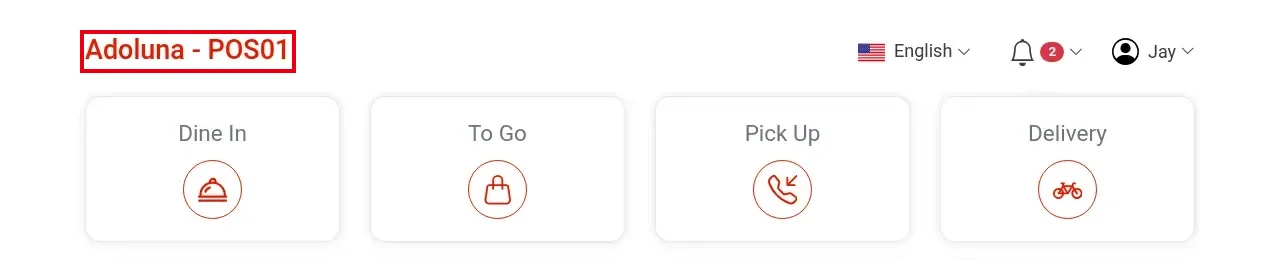
4. Check the connection: open the POS home screen. If there’s no red Local Service Offline at the top, the POS is connected (the header shows no status while online). You can also check the Local Server’s status in the Adoluna admin back end at manager.adoluna.com, or on the Local Server’s tomcat page IP:8080/warfolder/ (warfolder is the folder generated from the .war package, e.g. 192.168.9.9:8080/Adoluna/). Then print a test ticket to confirm printing works.
Notes #
-
Keep the Local Server on at all times, and set it to power on automatically after a power cut (in the BIOS). The computer needs at least 1GB of RAM; 2GB is recommended.
-
If the Local Server goes offline, see 4.4.1 What to do when the Local Server is offline.
-
The 2025-09-09 update rebuilt the Local Server and added real-time monitoring of its status and of the whole print flow (website release notes).


