
Purpose: When customers place pick-up or delivery orders in the Adoluna online store (web or the Adoluna App), view the order on the POS, accept or decline it, send it to the kitchen and take payment. For: front desk, cashiers, managers.
Before you start:
-
Online order numbers start with A. In Recall, set Order Source to APP to see only online orders (see 1.4.1 How to find an order in Recall).
-
Whether staff need to accept an order is set by the four auto-accept switches under Online Store > Store Setting in the Backoffice (paid / unpaid pick-up and delivery orders; see 2.9.3 How to set up auto-accept and new order notifications). When a switch is on, those orders go straight to the kitchen when they reach the POS; when it’s off, staff must accept them on the POS before the kitchen gets them.
-
New order alerts: each new online order pops up on the POS for 5 seconds and then goes to the Order tab of the Notification Center (see 1.1.4 How to check the Notification Center). The Backoffice can also send new-order texts and emails and print the guest receipt automatically (see 2.9.3 How to set up auto-accept and new order notifications).
-
Scheduled orders with a pick-up time are sent to the kitchen ahead of time according to Order Prepare Time (see 2.9.4 How to set the prep time for scheduled orders). Scheduled orders that staff accept are also sent according to Order Prepare Time after accepting.
-
For DoorDash, Uber Eats and other third-party orders, see 1.9.3 How to handle third-party delivery orders (Deliverect).
Steps #
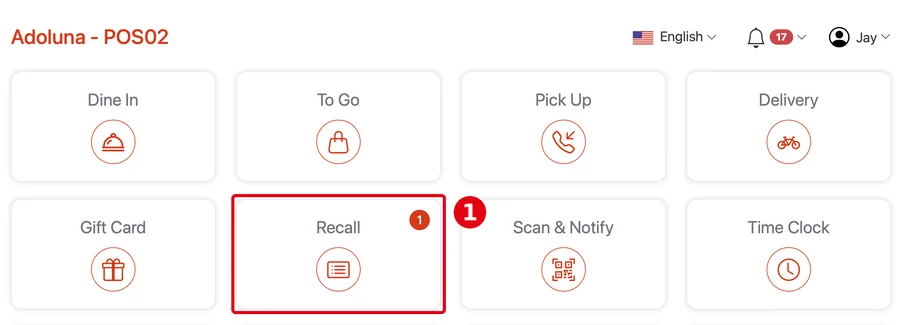
1. When a new order comes in, the ① Recall button on the home screen shows a red number (e.g. 1). Tap Recall.
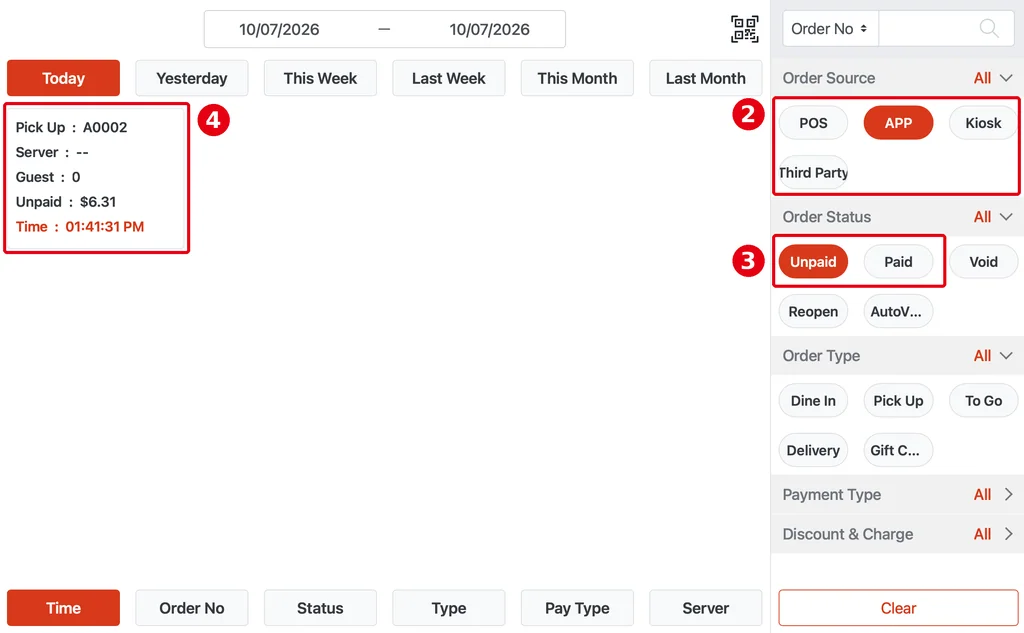
On the right, choose APP under ② Order Source, and Unpaid or Paid under ③ Order Status as needed (Recall opens with only POS and Unpaid selected; see 1.4.1 How to find an order in Recall). Orders waiting to be accepted show under Unpaid or Paid depending on whether they’re paid. ④ The order card has no “waiting” mark; open the order to see Accept and Decline.
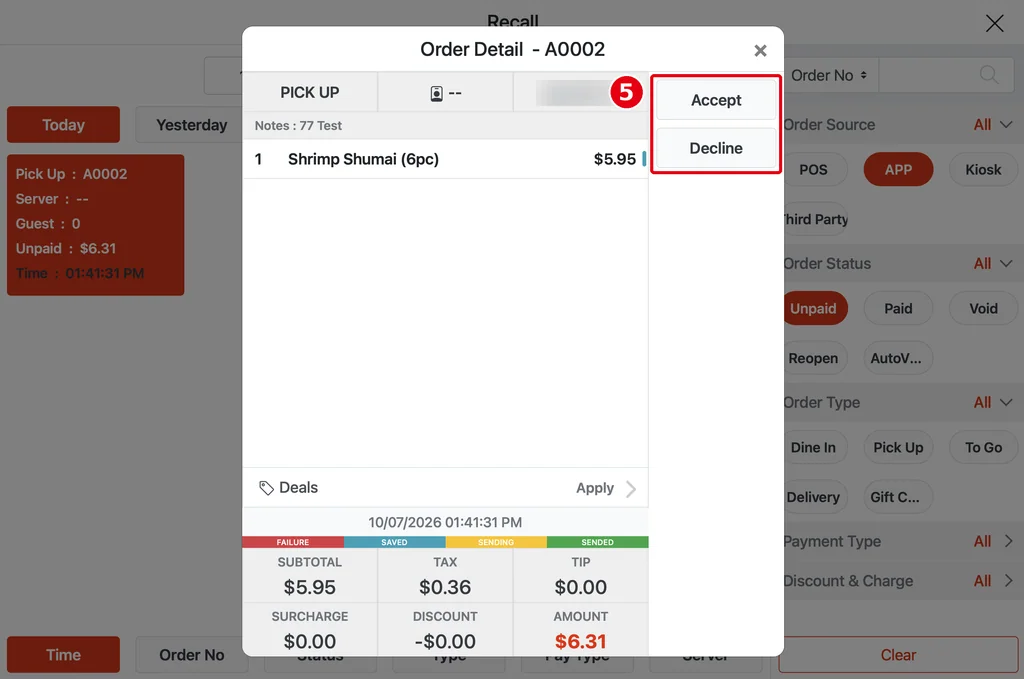
2. Tap the order card to open Order Detail, and check the items, the order type (pick-up / delivery), the pick-up or delivery time, and the customer’s name, phone and address.
3. For orders without auto-accept, Order Detail shows ⑤ Accept and Decline on the right.
-
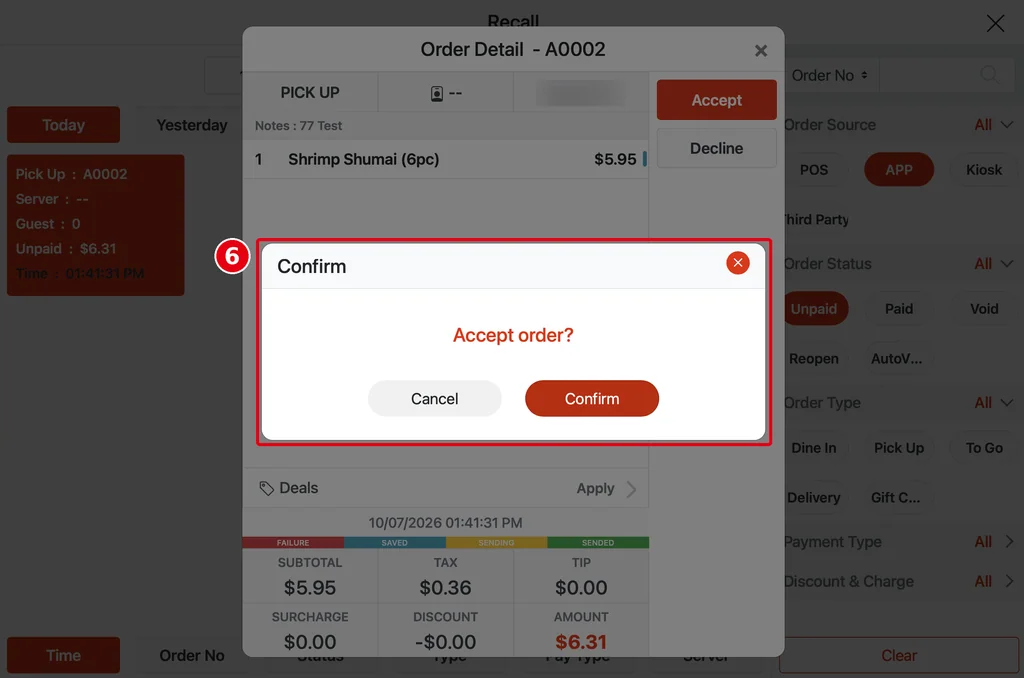
Tap Accept; ⑥ Accept order? opens; tap Confirm to accept. The order is sent to the kitchen right away.
-
To refuse the order tap Decline; Decline order? opens; confirm to decline. The customer is notified. If the customer already paid online, the payment isn’t refunded automatically; void the payment by hand (see 1.4.6 How to void a paid order).
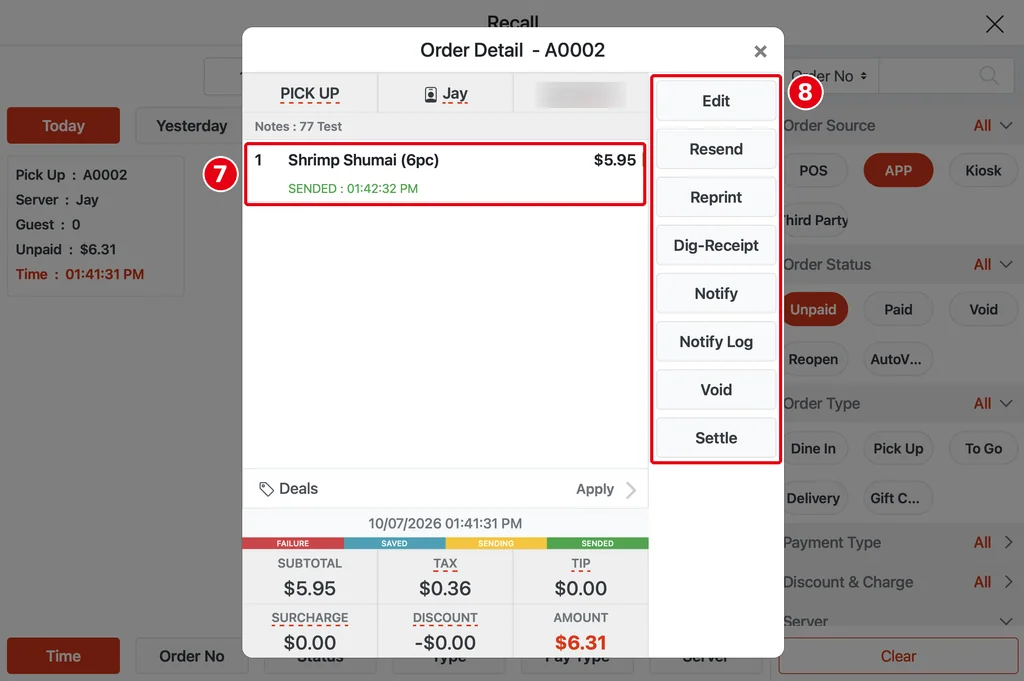
4. Once accepted, ⑦ the items show SENDED and the send time, and the order’s server becomes the employee who accepted it (e.g. Jay). ⑧ The buttons on the right change to the normal order buttons; handle it like any other order: Edit to change it, Resend to send it to the kitchen again, Reprint to print again (see 1.4.2 How to resend or reprint an order). Pick-up and delivery orders also have Notify and Notify Log to text the customer that the order is ready (see 1.4.1 How to find an order in Recall). To assign a driver see 1.10.1 How to assign a driver to a delivery order; to mark it delivered see 1.10.2 How to mark a delivery as arrived.
5. Payment: orders the customer paid online are Paid, so there’s nothing to collect. Orders where the customer chose Payment at Store or Payment on Delivery are Unpaid (see 2.9.2 How to set online pick-up and delivery rules) and stay Unpaid after accepting; tap Settle when the customer pays (see 1.3.1 How to take a cash payment, 1.3.2 How to take a credit card payment). When an employee completes the payment for an online order, the order is assigned to that employee (release notes, 2026-01-09). Kiosk orders (including Scan to Order) work the same way: the Server column shows — at first, and the order is assigned to the employee once they edit and save it.
Notes / FAQ #
-
Without auto-accept, someone must watch the POS for new online orders and accept them promptly, or the kitchen won’t get them (see 2.9.3 How to set up auto-accept and new order notifications).
-
With auto-accept on for unpaid (UnSettled) orders, the kitchen starts cooking before the customer has paid.
-
To stop taking online orders for a while (e.g. the kitchen is too busy), close the online store in the Backoffice, and remember to reopen it (see 2.9.1 How to set online store availability and hours).
-
If the store’s internet is down, orders are already in our system as soon as customers place them. When the connection is back, resend them to the kitchen from Recall (see 1.4.2 How to resend or reprint an order) or void them (see 1.4.5 How to void an unpaid order, 1.4.6 How to void a paid order).
-
If an online order doesn’t reach the POS, see 4.6.1 What to do when an online or third-party order doesn’t reach the POS.


