
Purpose: Check a gift card’s balance, expiry, status and transaction history at the POS. For: cashiers, servers, managers.
Steps #
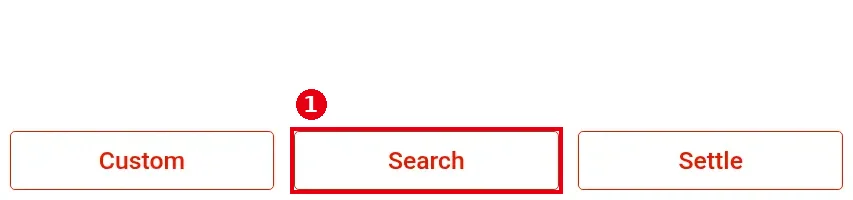
1. On the home screen tap Gift Card, then tap ① Search at the bottom.
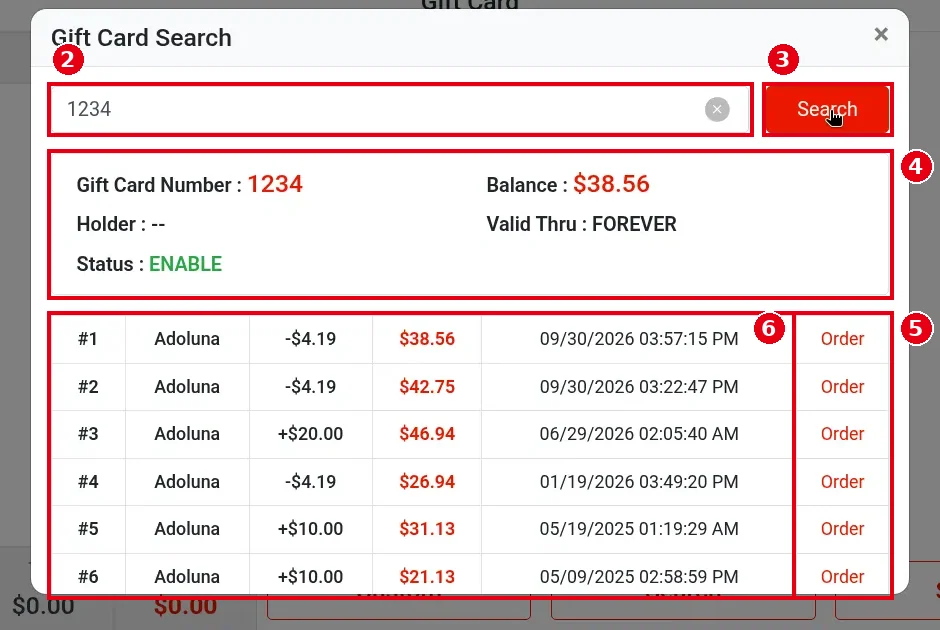
2. In the Gift Card Search window, swipe or type the card number in box ② (e.g. 1234) and tap ③ Search.
3. ④ shows the card details: Gift Card Number, Balance (e.g. $38.56), Holder, Valid Thru (e.g. FOREVER) and Status (e.g. ENABLE).
4. ⑤ below is the transaction history, newest first: number, who did it, amount (+ for a sale or reload, – for spending), balance after the transaction, and time. Tap ⑥ Order to open the related order.
Notes / FAQ #
-
The balance also shows when a customer pays (see 1.3.3 How to pay with a gift card), and the receipt shows Gift Card Balance.
-
If the card number isn’t found, check the number; a new card must be sold first (see 1.11.1 How to sell a gift card) or imported in the Backoffice (see 2.10.3 How to import PIN gift cards).
-
A frozen card can’t be used (freezing is done in the Backoffice, see 2.10.2 How to view, export and freeze gift card records).
-
Checking gift cards needs the View Gift Card permission (set in the position, see 2.8.1 How to create positions and set permissions).


