
Purpose: Refresh or restart the POS when the screen is stuck, data hasn’t updated, or the Local Server has just come back. For: all staff.
Refresh (employee logged in) #
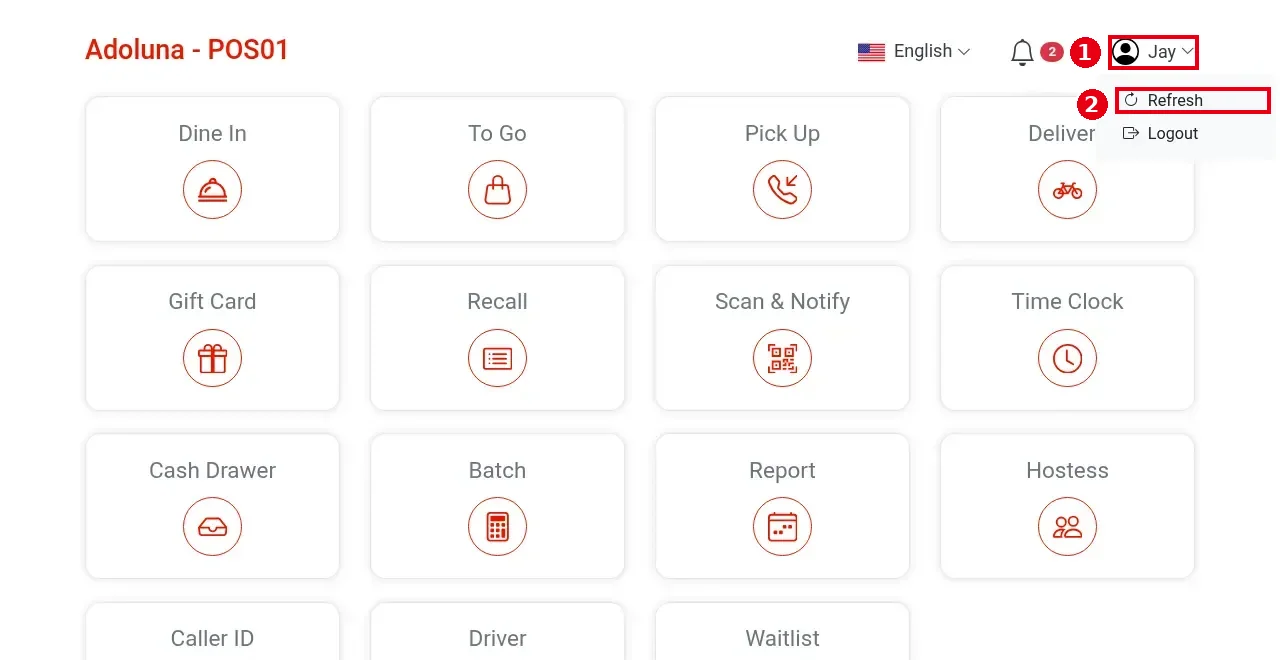
1. Tap the employee name at the top right ①.
2. Tap ② Refresh. The POS reloads.
Refresh (no one logged in) #
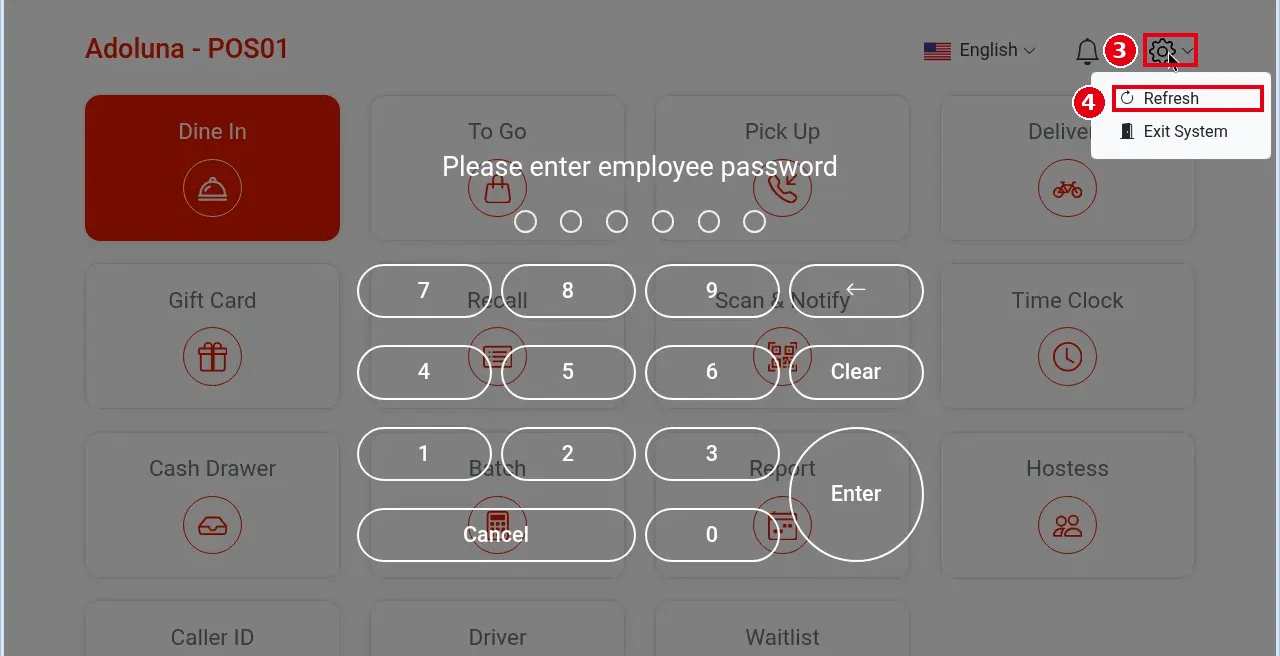
1. Tap the gear icon at the top right ③.
2. Tap ④ Refresh.
Restart the POS #
If a refresh doesn’t fix it, close Adoluna POS completely and open it again:
-
iPad / iPhone / Android: on newer devices without a Home button, swipe up from the bottom to open recent apps, swipe Adoluna POS away, then open it again.
-
Windows / Linux: if the POS is fullscreen, press F11 first to exit fullscreen, then close the window and open it again.
-
Mac: close the Adoluna POS window, then open it again.
-
Browser: close the pos.adoluna.com tab and open it again, or use the browser’s reload button.
You don’t need to bind again after a restart.
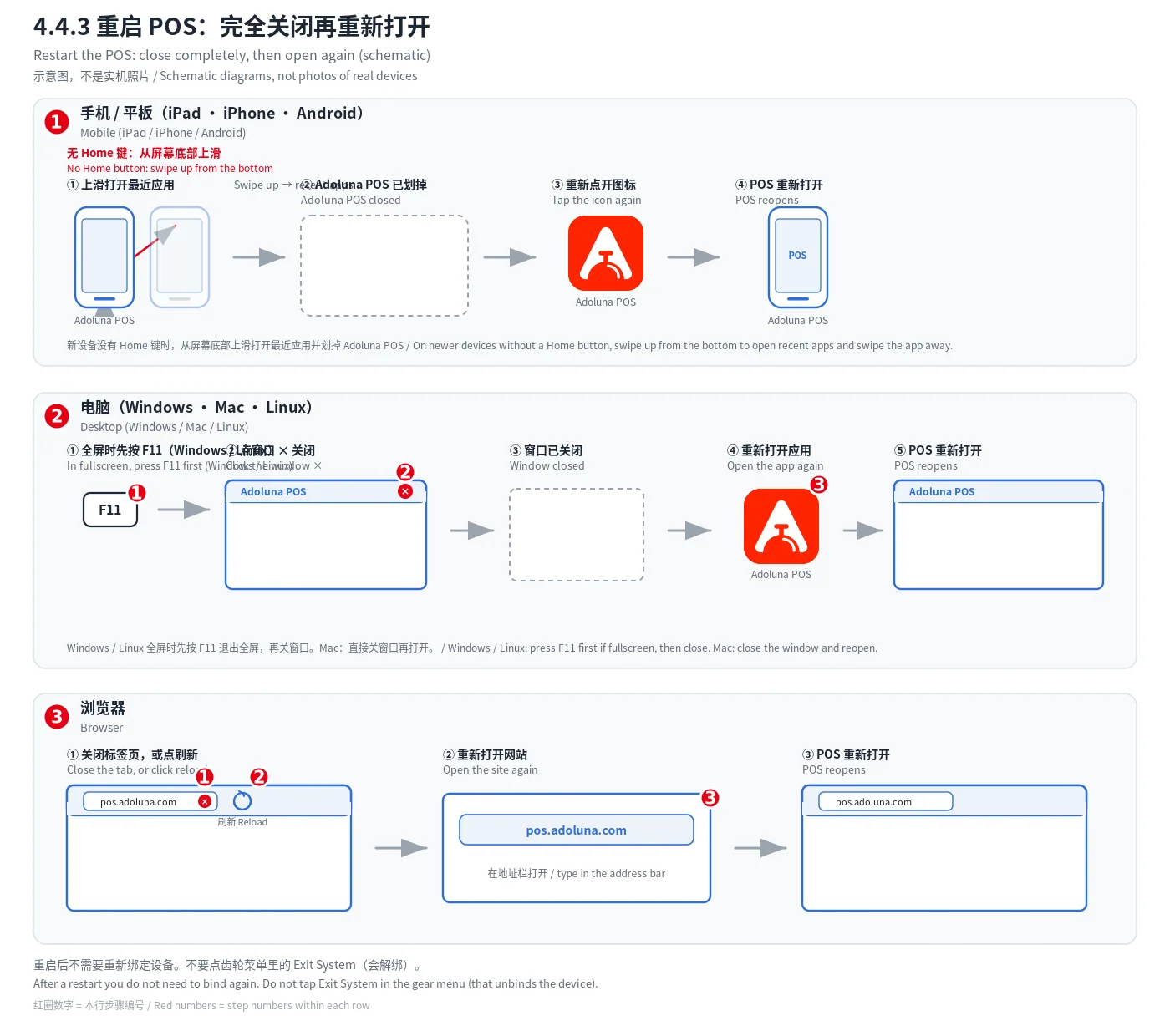
Figure: schematic of fully closing and reopening Adoluna POS on each platform (not photos of real devices). Red numbers are the step numbers within each row.
When to refresh #
-
After the Local Server restarts: wait about 3 minutes, then refresh (see 4.4.1 What to do when the Local Server is offline).
-
When the screen is stuck, buttons don’t respond or data hasn’t updated.
-
After changing the menu or device settings in the Backoffice: a Refresh usually isn’t needed, because the menu loads each time you enter ordering, but refreshing is still recommended.
-
After Adoluna releases a new version: for most releases a refresh is all you need (see 3.2.1 How to install Adoluna POS on each platform).
Notes #
-
Don’t tap Exit System in the gear menu: it unbinds this device and you’d have to bind it again (see 3.2.4 How to unbind or replace a device).
-
Employees don’t need to re-enter their passcode after Refresh.


