
Purpose: Move some items of an order into a new order so they can be paid separately (Split). For: servers, cashiers.
Steps #
1. Open the order’s Order Detail (tap the table on the table map, or find the order in Recall) and tap Split. The Settle screen also has Split at the bottom.
2. The Split – P0010 window opens: items are listed by seat on the left (with Hide price zero items ticked, $0 items are hidden); the order card is on the right (e.g. P0010 $9.49). ① Tick the items to move out (e.g. Spring Roll (2pc)).
3. Tap ② Move To.
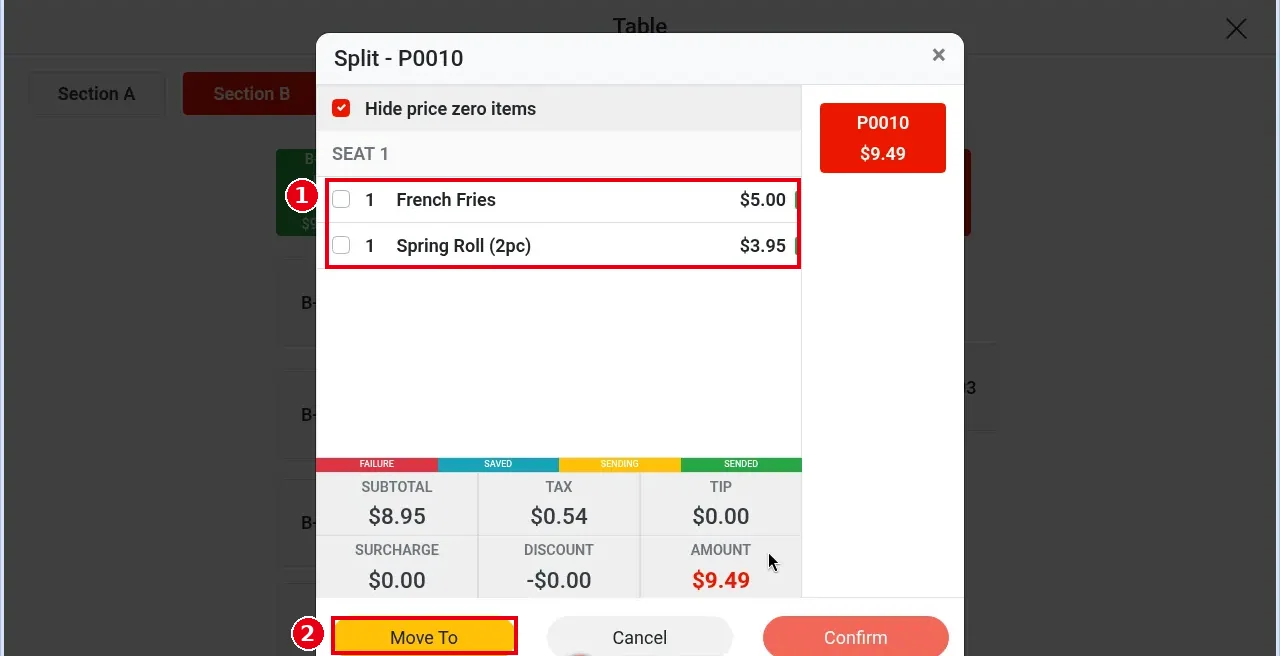
4. ③ A new split card appears on the right (e.g. (1) P0010 $4.19), and the original card now shows the amount of the remaining items (e.g. P0010 $5.30). To split into more orders, repeat steps 2–4.
5. Tap ④ Confirm; Split orders? appears – confirm the split.
6. Next, Print all split orders? asks whether to print all the split orders.
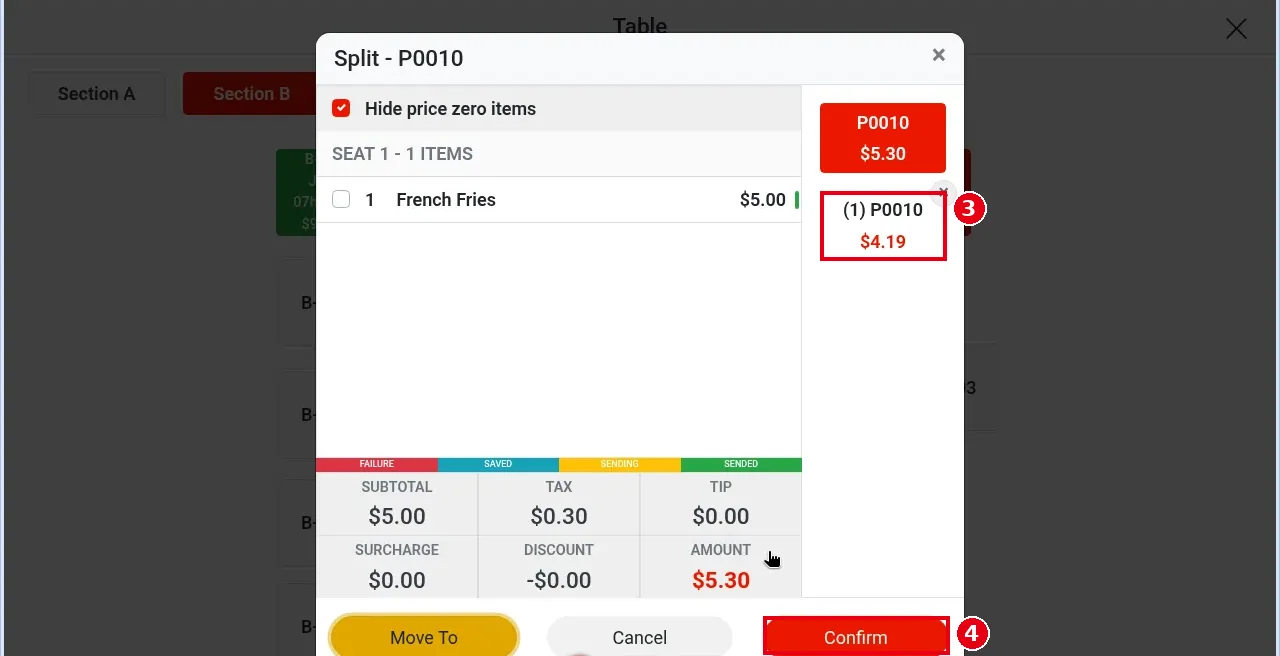
7. After the split, Recall shows the orders as P0010-1 (e.g. $5.30, the items left on the original order) and P0010-2 (e.g. $4.19, the items moved out). Settle each one separately (see 1.3.1).
Notes / FAQ #
-
The split orders stay on the same table (e.g. both show B-05 – 2P).
-
When you split an order shared by several servers, the new orders keep all of the original order’s servers (see 1.2.14 How to share an order among multiple servers) (updated 2026-10-05).
-
Order Detail of a split order has an extra Reprint Split button to reprint the split order.
-
To cancel, tap Cancel before step 5.
-
To merge several orders into one, see 1.3.8.


