
Purpose: Create forced modifier templates (e.g. sauce, noodle base, sugar level). Once attached to an item, the guest must choose by the template’s rules when ordering it; you can also set default choices. For: owners, managers, Adoluna onboarding staff.
Before you start: forced modifiers are templates, and one template can be attached to many items. According to the release notes (2025), forced modifiers with a minimum above 0 can have default choices; these are ticked automatically when ordering on the POS, Kiosk and App, and the guest can still change them. For how they look on the POS (REQUIRED, default choices pre-selected), see 1.2.6 How to add modifiers and custom modifiers.
Steps #
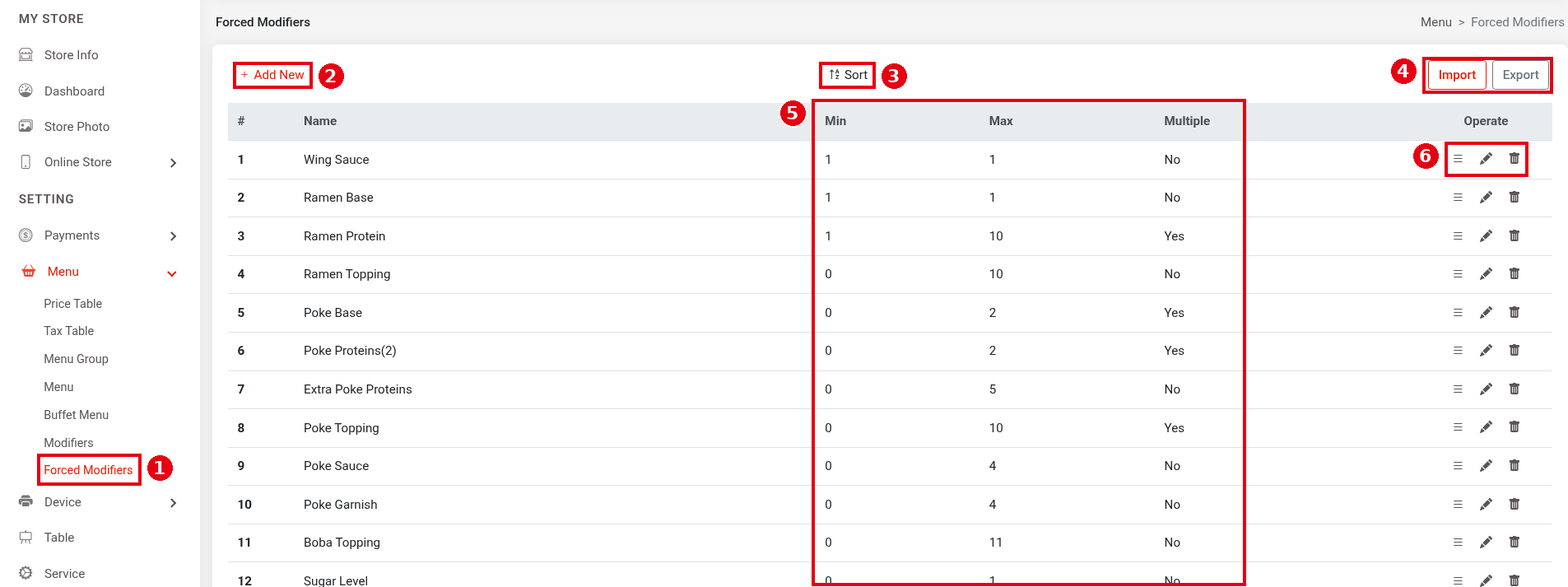
1. In the Backoffice left menu, click Menu > ① Forced Modifiers to open the template list. ② + Add New adds a template, ③ ⇅ Sort sorts them alphabetically, and ④ Import / Export import and export with Excel (not recommended for merchants for now; see 2.3.12 How to import and export the menu with Excel). The ⑤ Min, Max and Multiple columns show each template’s rules (e.g. Wing Sauce 1 / 1 / No, Ramen Protein 1 / 10 / Yes, Ramen Topping 0 / 10 / No). Under ⑥ Operate: ≡ to drag and reorder, the pencil to edit and the bin to delete.
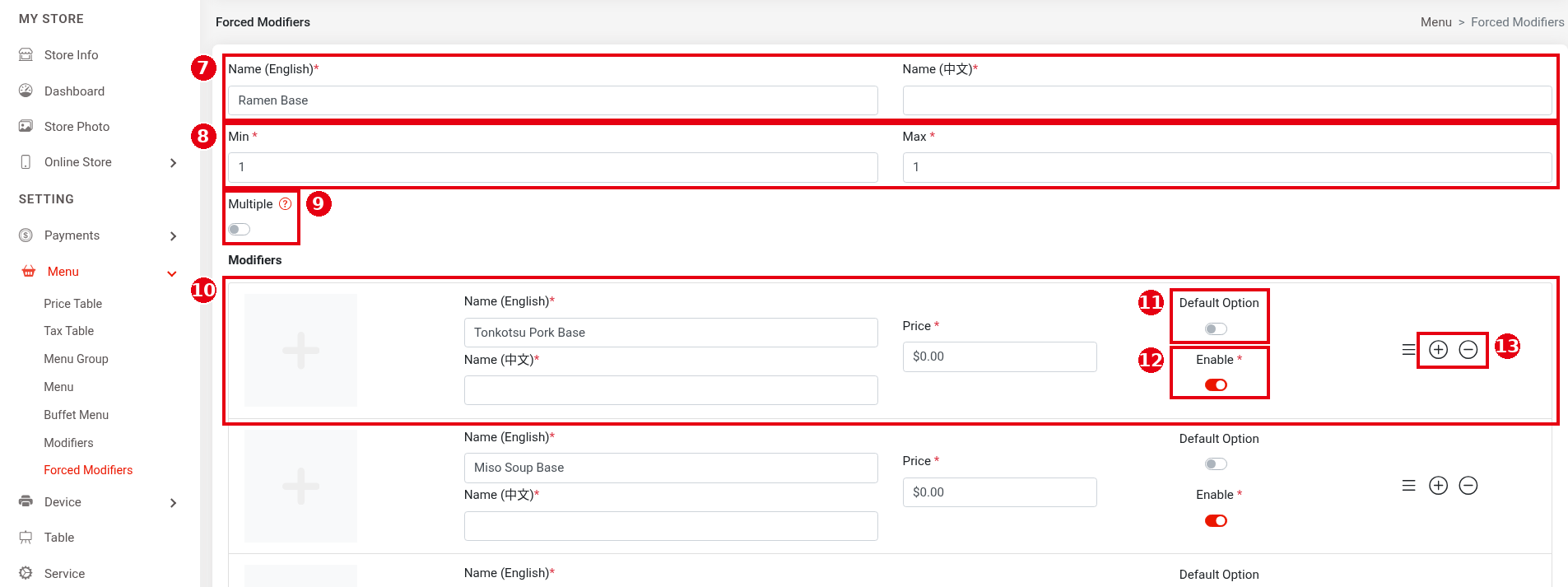
2. Fill in the template (the screenshot shows Wing Sauce, Chinese name 鸡翅酱料):
-
⑦ Name (English), Name (中文): the template name (required).
-
⑧ Min, Max: according to the website docs, the minimum and maximum number of choices.
-
⑨ Multiple: according to the website docs, whether the same choice can be picked more than once.
-
⑩ Modifiers: the list of choices, one per row. Each row can have a picture and takes Name (English), Name (中文) and Price (required).
-
⑪ Default Option: makes the choice a default (e.g. Soy Garlic is on).
-
⑫ Enable: turns the choice on.
-
⑬ Icons on the right of each row: ≡ to drag and reorder, ⊕ to add a row, ⊖ to delete the row.
When done, click Save at the bottom of the form (the bottom of the form isn’t in the screenshot).
3. Attach it to an item: open the item’s edit page (see 2.3.5 How to add menu items) and, under Forced Modifiers, click ⑭ + Attach Forced Modifier.

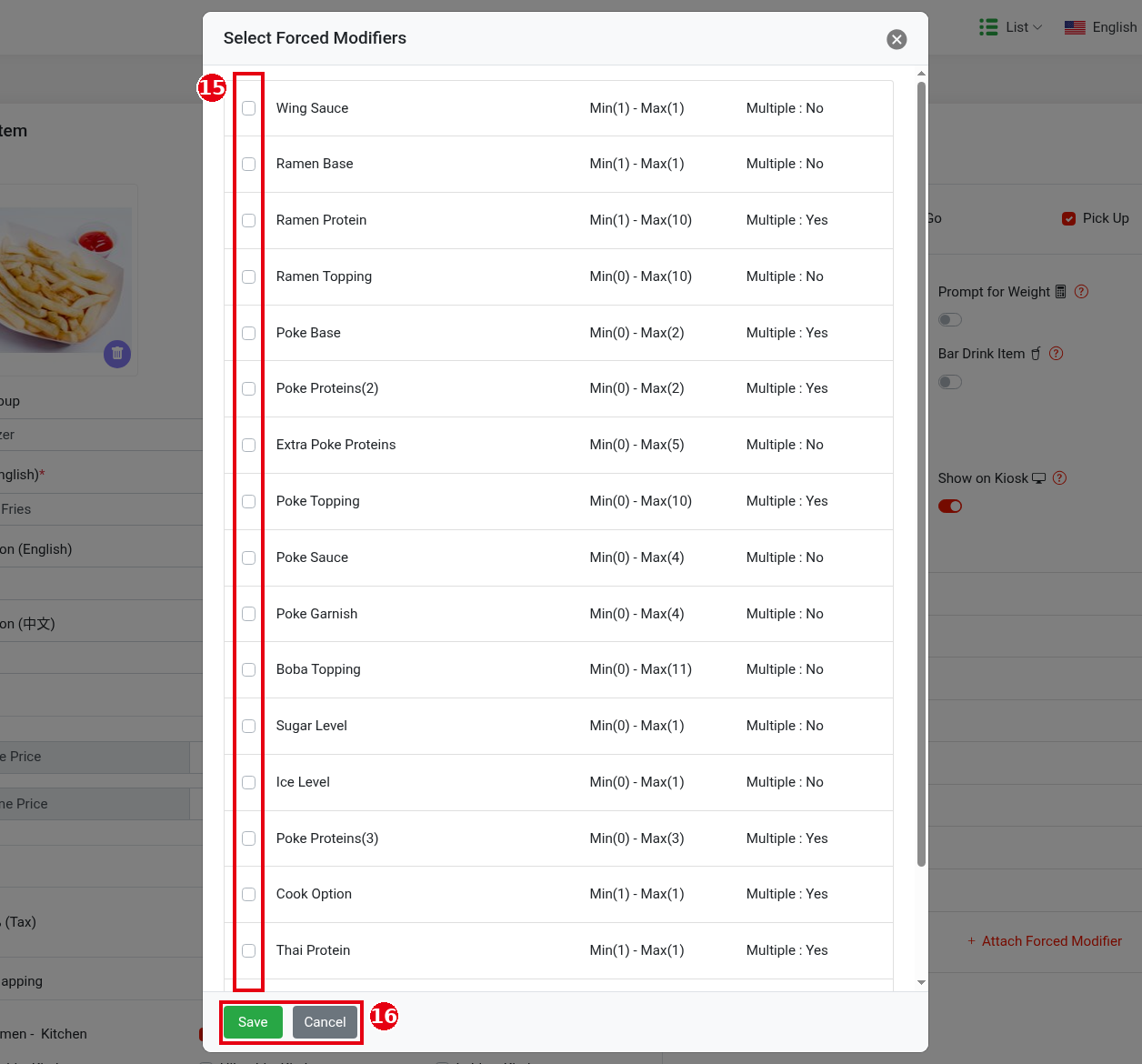
4. “Select Forced Modifiers” opens, showing Min(…) – Max(…) and Multiple next to each template. ⑮ Tick the templates to attach, ⑯ click Save, then save the item.
Notes / FAQ #
-
Min 0 means the choice is optional; with Min above 0, the guest must pick at least that many before the item can be added.
-
According to the release notes, you can set as many default choices as the minimum (e.g. 3 defaults when the minimum is 3). The number of defaults can’t exceed Max. A template with Min 0 can also have defaults.
-
Choices priced $0.00 show (f) (free) on the POS (see 1.2.6 How to add modifiers and custom modifiers).
-
You can also add a template directly with + Add New next to Forced Modifiers in the item form.


