
Purpose: Set a discount price on an item so the ordering screens show both the original and the discount price. For: owners, managers.
Before you start: according to the release notes (2025-09), the discount price is set in the item’s price row on its edit page. Both prices are shown, with the original struck through (e.g. $4.00 crossed out and $2.00 shown). A discount price of $0.00 makes the item free; click the X icon to remove the discount price. Discount prices are set per price table (see 2.3.1 How to set up price tables). For a server changing one item’s price on the POS, see 1.2.7 How to change an item’s quantity, price, discount or charge; for whole-order discounts, see 2.4.1 How to set up discounts.
Steps #
1. In Menu > Menu, click the pencil icon on the item card. Under Price, find the row for the price table you want (e.g. Store Price, Online Price) and enter the discount price in ① Discount Price. To offer it in only one channel, fill in only that price table’s row.
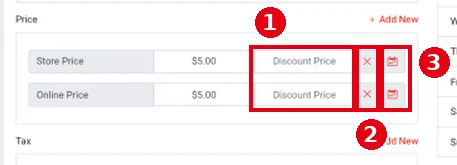
2. To remove the discount price, click ② × on that row.
3. ③ The calendar icon: sets specific times on each day, Monday to Sunday, when the discount price applies (a time-based special price).
4. Click Save at the bottom of the form to save the item.
Notes / FAQ #
-
A discount price of $0.00 makes the item free. To stop a discount, clear it with × rather than entering 0. If an item unexpectedly shows $0.00, see 4.3.1 Why do item prices show $0.00?.
-
Buffet menus also have a discount price (Discount Price); see 2.3.13 How to set up an All You Can Eat (buffet) menu.


