
Purpose: Set the tip percentages guests can choose, the minimum tip for each option, and which amount tips are calculated on. For: owners, managers.
Before you start: for guests choosing a tip on the customer display, see 1.3.10 How guests add a tip and sign on the customer display; for servers adding a tip on the POS, see 1.2.10 How to add an order-level discount, charge or tip; for adjusting credit card tips in bulk, see 1.6.1 How to add credit card tips in bulk. According to the release notes (2025-03), when the calculated tip is below the minimum tip, the minimum is used instead, and the tip base can be Order Total (the default), Subtotal or Subtotal + Discount + Surcharge (written as “Subtotal – Discount + Surcharge” in the release notes). The minimum tip is set on each tip option, and the tip base under Service > Other; Store Info has no tip settings.
Steps #
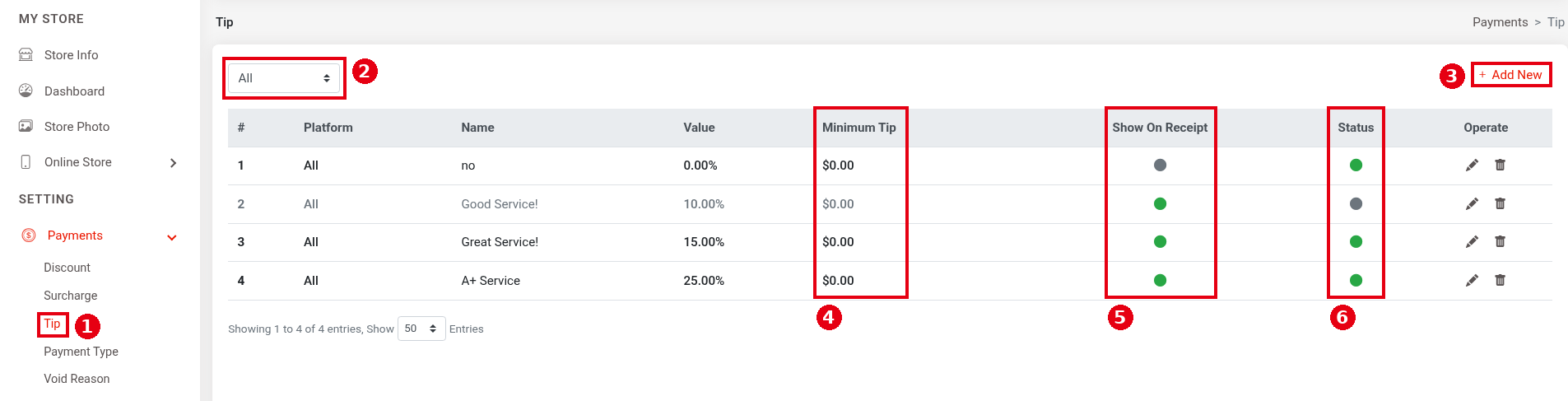
1. In the Backoffice left menu, click Payments > ① Tip. ② The dropdown at the top left filters by platform (All, APP, KIOSK, POS, Scan To Order, Screen). The list’s columns are Platform, Name, Value, Minimum Tip, Show On Receipt, Status and Operate. The demo store has no (0.00%), Good Service! (10.00%, disabled, so the whole row is grey), Great Service! (15.00%) and A+ Service (25.00%). ④ Minimum Tip is the minimum tip; a green dot under ⑤ Show On Receipt or ⑥ Status means it’s on. Click ③ + Add New to add a tip option.
2. Fill in the form:
-
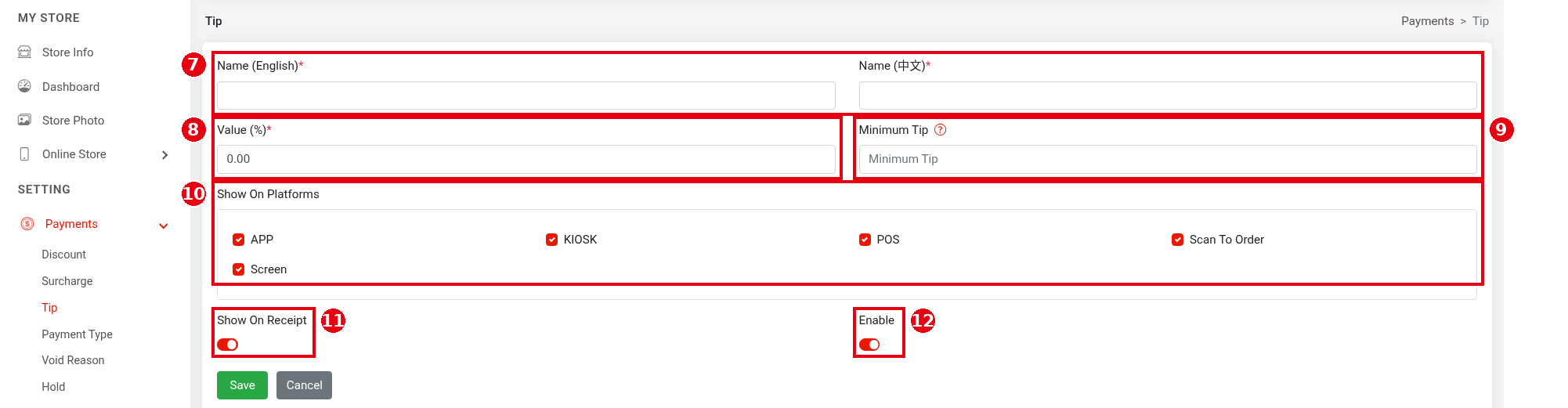
⑦ Name (English), Name (中文): the option name (required).
-
⑧ Value (%): the tip percentage (required).
-
⑨ Minimum Tip: the minimum tip amount for this option, with an ⓘ help icon. Leave it blank for no minimum.
-
⑩ Show On Platforms: tick where this option shows: APP, KIOSK, POS, Scan To Order and Screen; all ticked for a new option. Screen is the customer display and APP is online ordering.
-
⑪ Show On Receipt: on by default; controls whether this option appears in the tip guide on receipts.
-
⑫ Enable: turns the option on.
Then click Save.
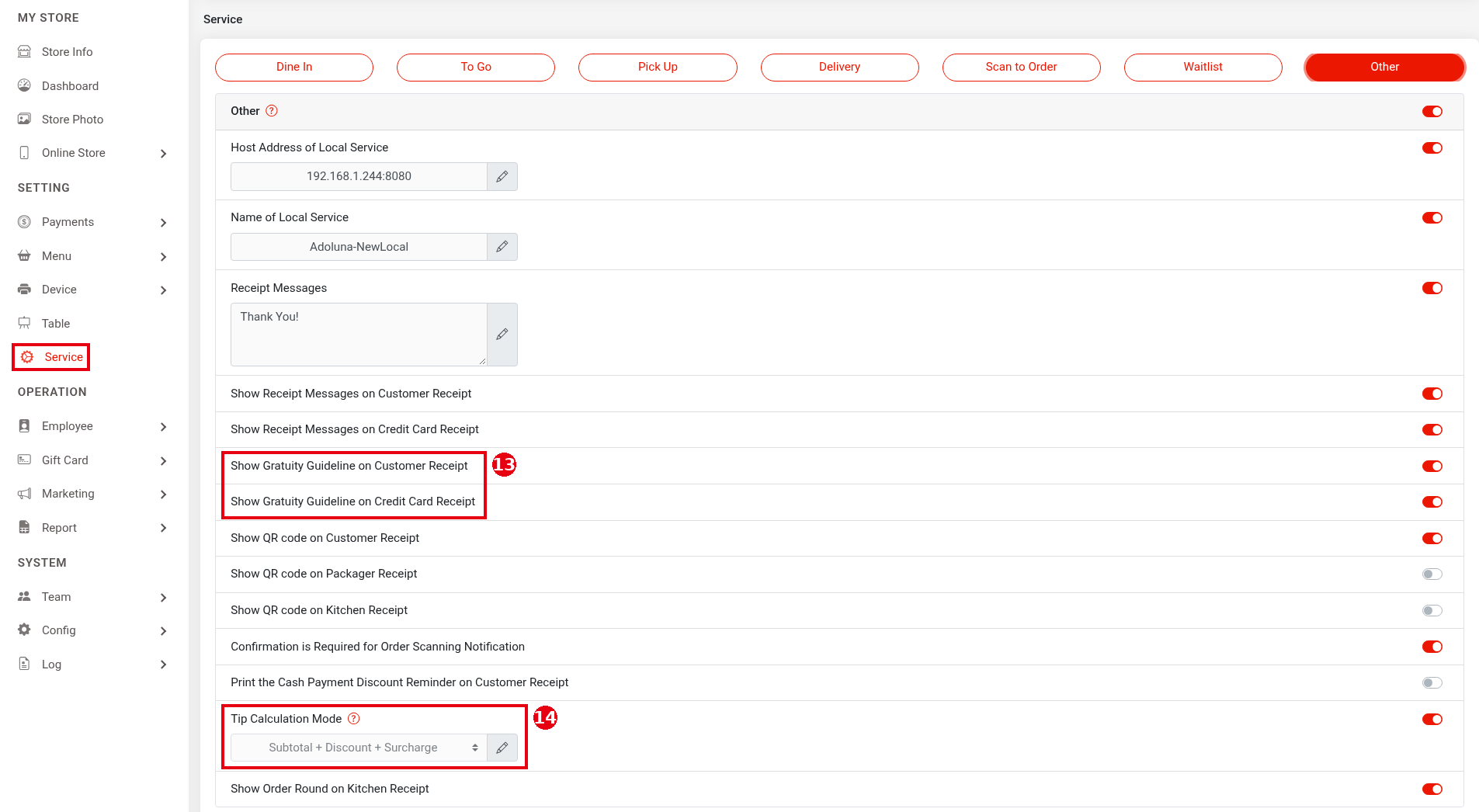
3. Set the tip base: in the Backoffice left menu, click Service, pick the Other tab, scroll down to ⑭ Tip Calculation Mode (with an ⓘ help icon), turn on the switch on the right, and click the pencil icon to choose Order Total, Subtotal or Subtotal + Discount + Surcharge (Subtotal + Discount + Surcharge in the screenshot). On the same page, ⑬ Show Gratuity Guideline on Customer Receipt and Show Gratuity Guideline on Credit Card Receipt control whether a tip guide prints on customer receipts and credit card receipts. When the Tip Calculation Mode switch is off, tips are calculated on Order Total.
Notes / FAQ #
-
According to the release notes, on the Kiosk and customer display the guest chooses a tip before paying.
-
To stop showing an option, turn off its Enable (the row turns grey in the list) instead of deleting it.
-
For discounts and surcharges, see 2.4.1 How to set up discounts and 2.4.2 How to set up surcharges.


