
Purpose: Take cash from the guest, give change and close the order. For: cashiers, servers.
Steps #
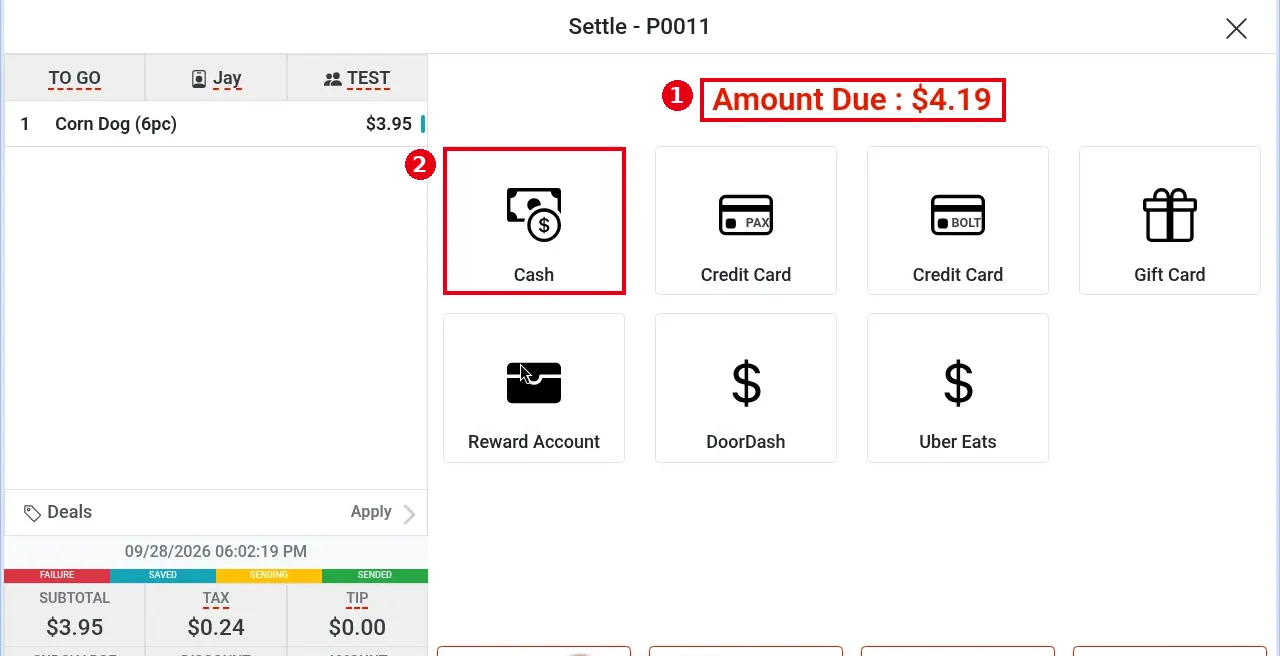
1. Open the order’s Settle screen (tap Settle in Order Detail or on the order screen, see 1.2.12). The red ① Amount Due at the top is the balance (e.g. $4.19).
2. Tap ② Cash.
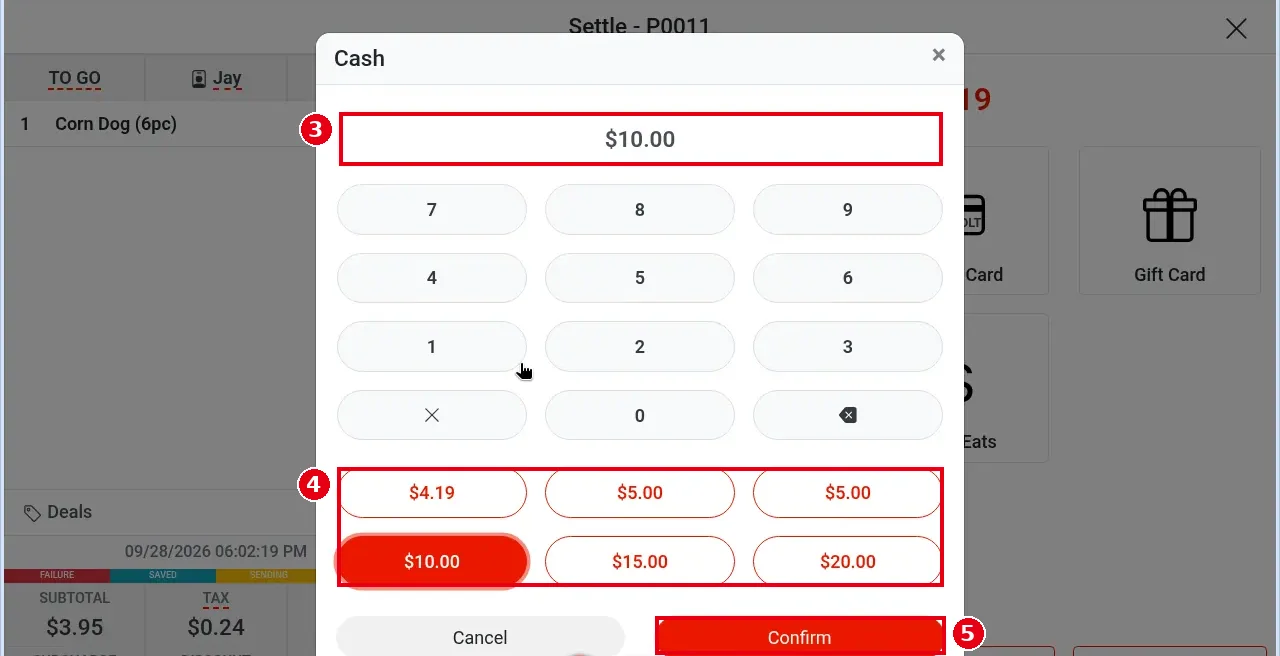
3. The Cash keypad opens. Enter ③ the amount the guest handed you. The keypad enters cents: pressing 5 alone shows $0.05; for $10.00 press 1, 0, 0, 0.
4. Or tap one of the ④ quick-amount buttons below (e.g. $4.19 (same as the amount due), $5.00, $10.00, $15.00, $20.00).
5. Tap ⑤ Confirm (Cancel to go back).
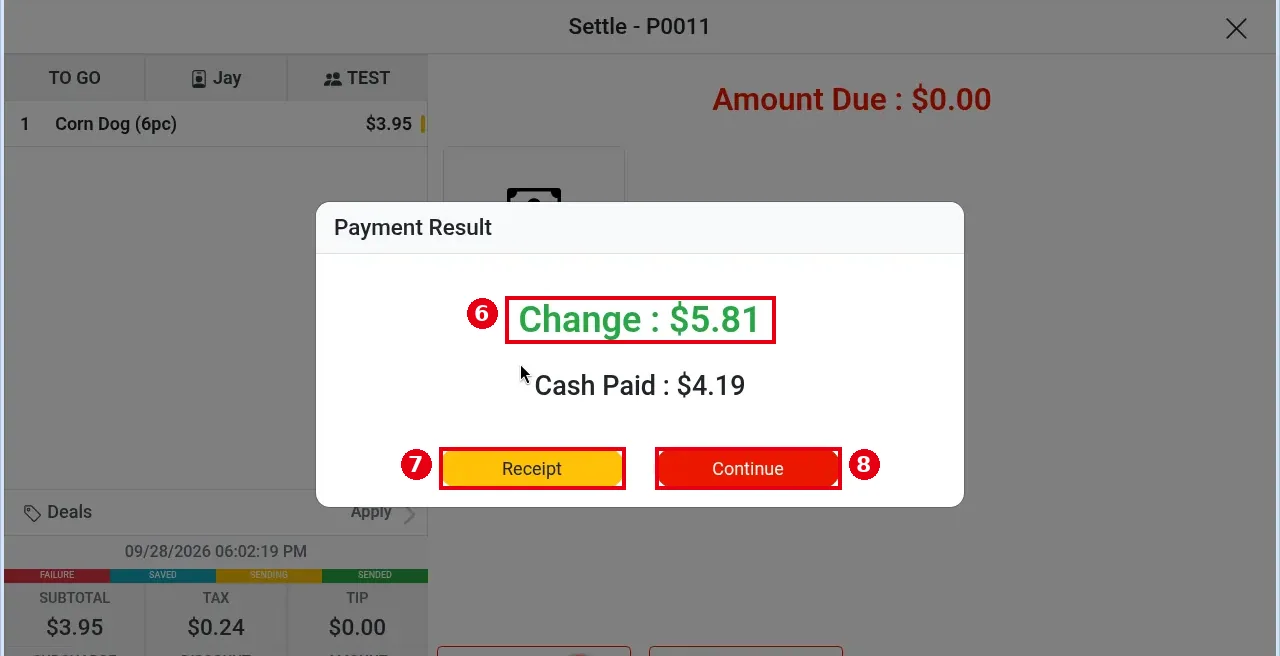
6. Payment Result opens: the green ⑥ Change is the change to give back (e.g. $5.81); Cash Paid below is the cash amount recorded for this payment (e.g. $4.19).
7. Tap ⑦ Receipt to print the customer receipt (see 1.3.9 How to print or text a receipt), or tap ⑧ Continue to close the window. Whether Receipt prints automatically can be set in the back office (see 3.3.4 How to set up automatic printing of checks, receipts and packager tickets).
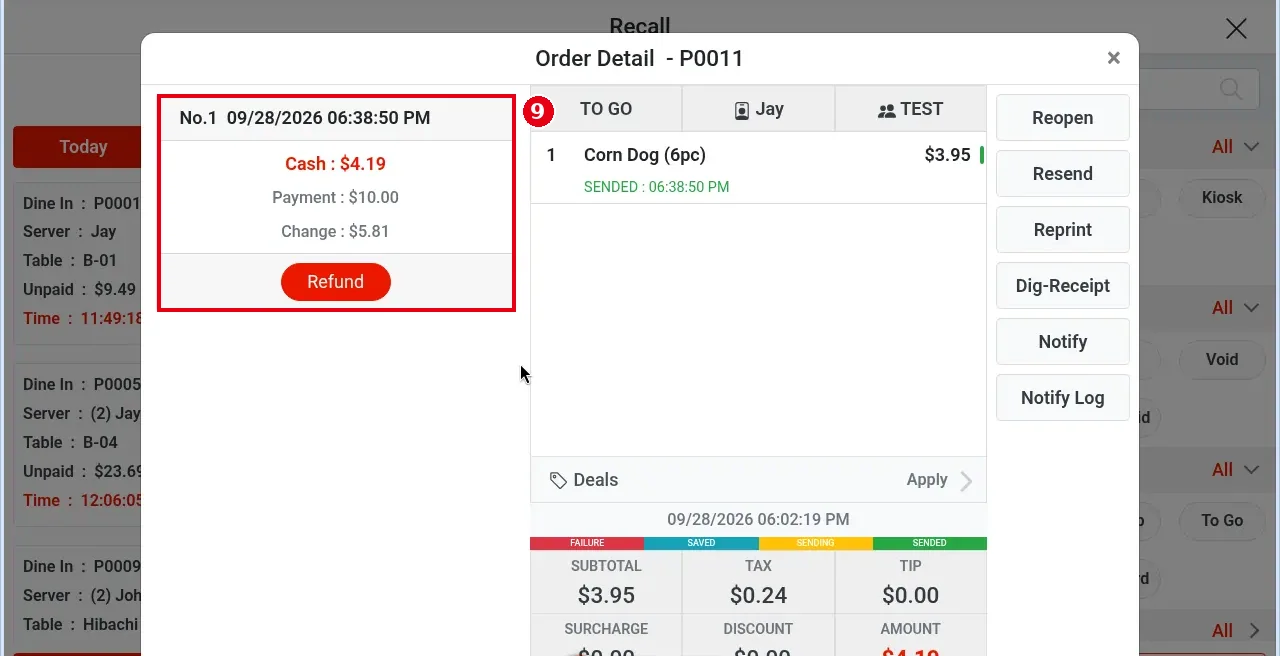
8. After payment you can find the order in Recall by selecting Paid (see 1.4.1). The left side of Order Detail shows the ⑨ payment record: number and time (e.g. No.1 09/28/2026 06:38:50 PM), Cash : $4.19, Payment : $10.00 (amount handed over), Change : $5.81, with a Refund button below (refunds: see 1.4.7).
Notes / FAQ #
-
If the guest pays only part in cash and the rest another way, see 1.3.5.
-
If the restaurant has turned on a cash payment discount in the back office, the Cash button on the Settle screen shows the discounted amount (see 1.2.12). The tip portion is not included when the cash payment discount is calculated. The demo store has it off, so the button shows just Cash.
-
Customer receipts and packing receipts show Amount Due and Change; Change appears only when there is change.
-
Once a dine-in order is paid, it is no longer tied to the table.
-
When a server takes payment for a Kiosk or online order, the order is assigned to that employee.
-
The cash drawer opens automatically after a cash payment only once an employee has done Cashier In on this device, which binds the drawer to it (see 1.5.3 How to start a cash drawer (Cashier In)).


