
Purpose: Review past batches (count, amount, time and result per terminal). For: managers, cashiers.
Steps #
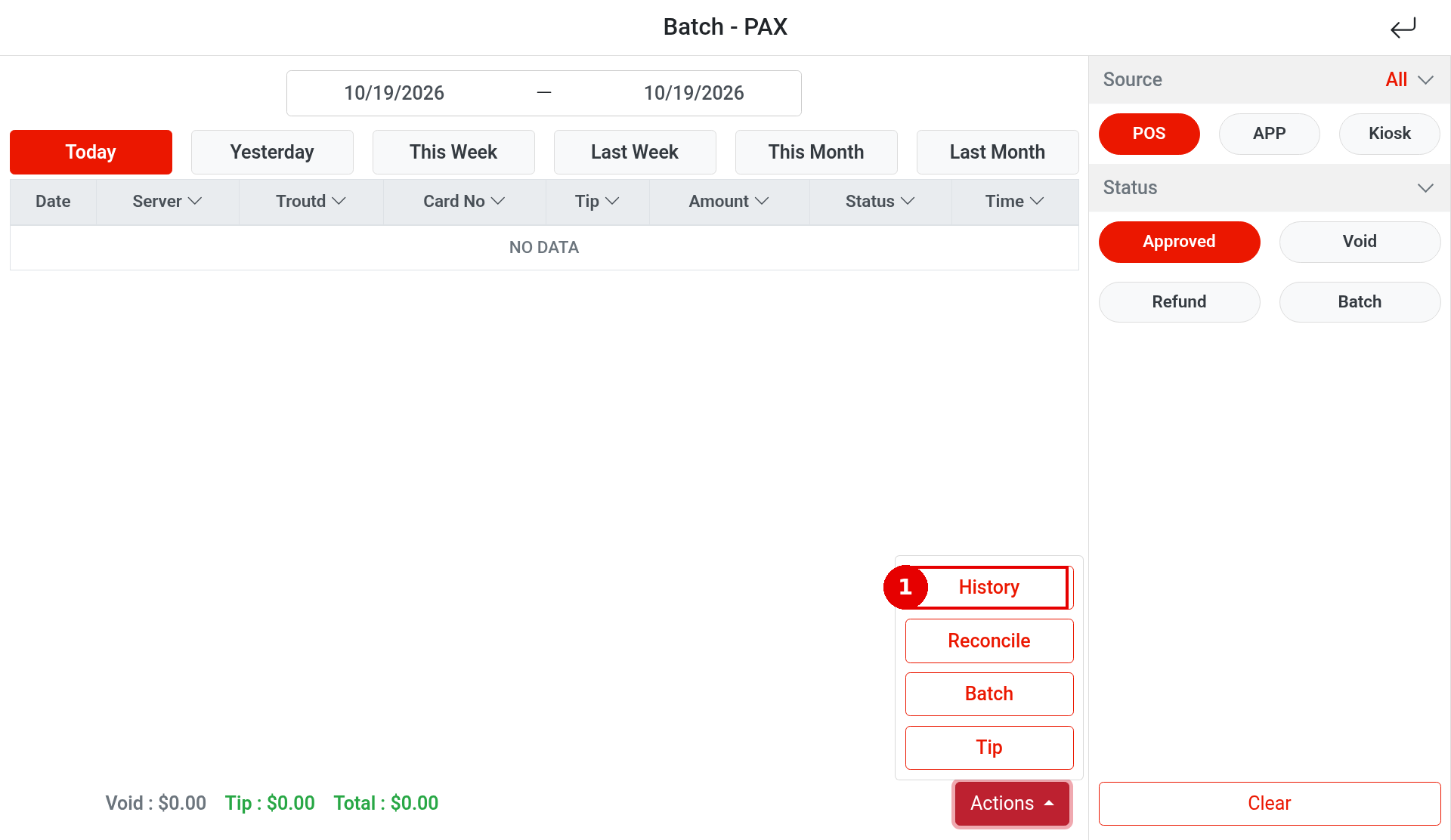
1. On the home screen tap Batch, choose Batch – PAX, then tap Actions > History at the bottom right.
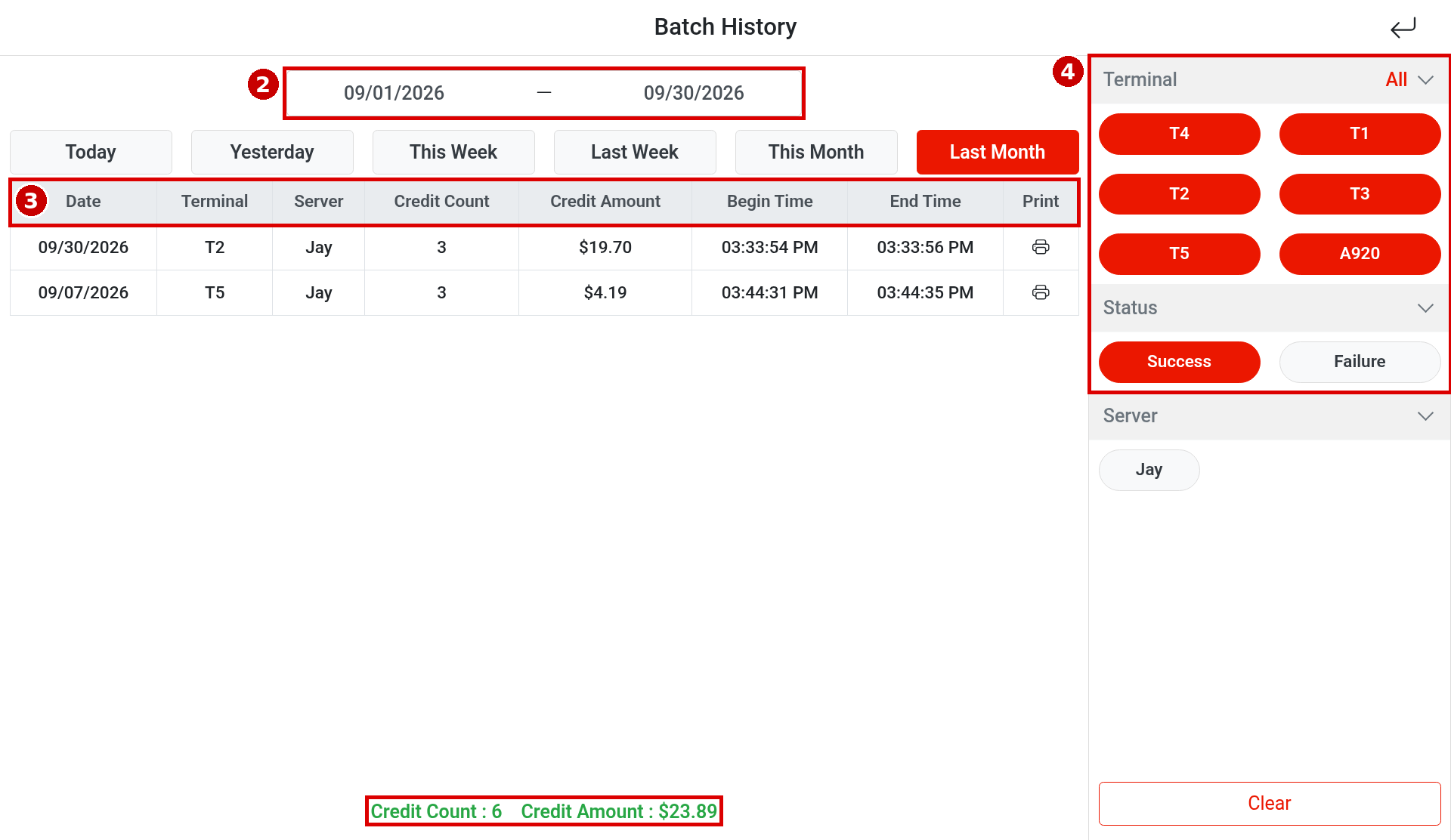
2. Batch History opens. Pick a date range at the top, or tap Today, Yesterday, This Week, Last Week, This Month, Last Month.
3. Columns: Date, Terminal, Server (who closed the batch), Credit Count, Credit Amount, Begin Time, End Time (batch start and end), Print. Totals are shown at the bottom of the list: Credit Count and Credit Amount.
4. Filters on the right: Terminal (all selected by default, e.g. T4, T1, T2, T3, T5, A920); Status can be Success (default) or Failure. Choose Failure to see failed batches.
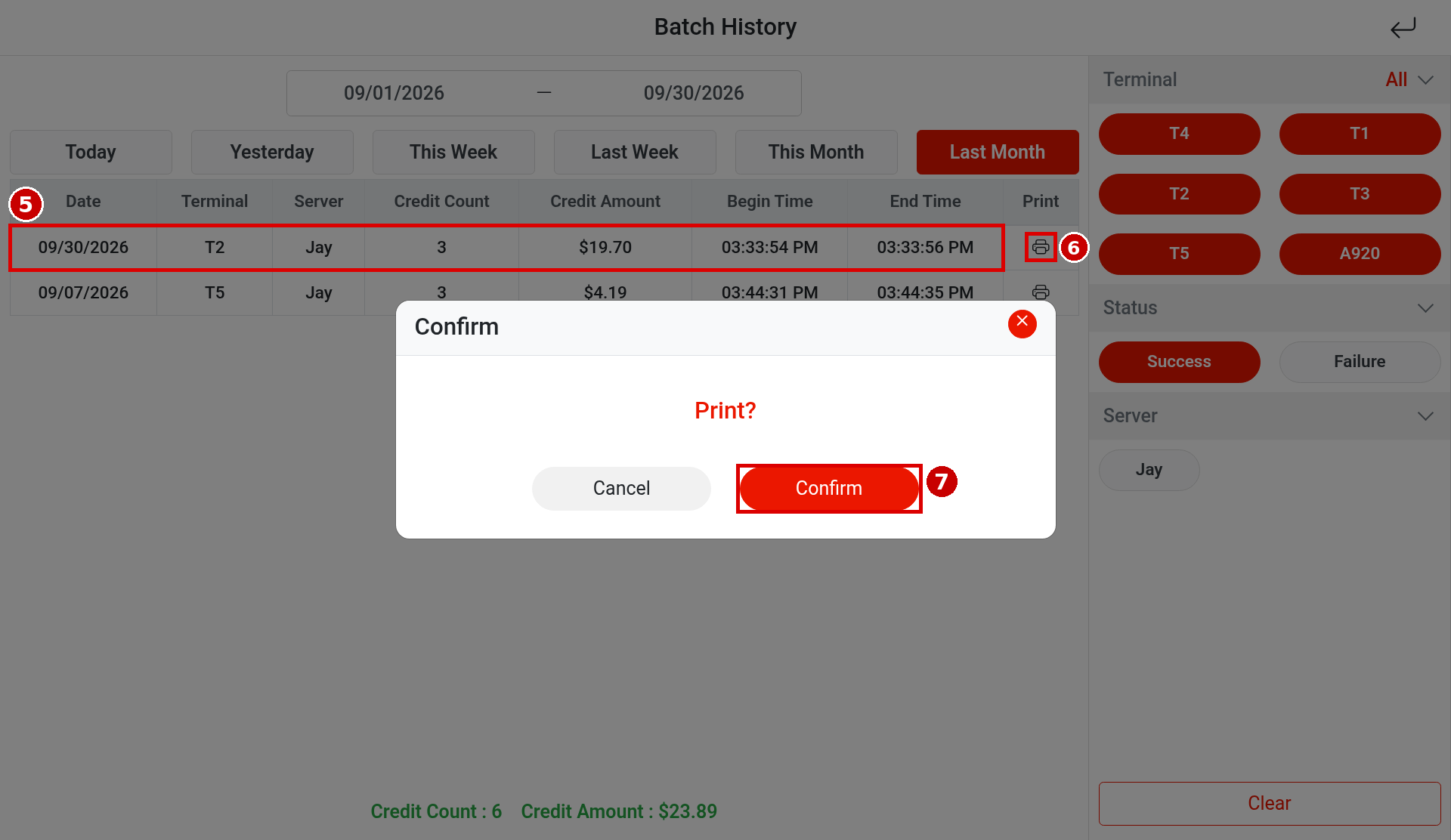
5. Each batch is one row (⑤ e.g. 09/30/2026, T2, Jay, 3, $19.70, 03:33:54 PM, 03:33:56 PM). Tap the printer icon in that row’s ⑥ Print column; Confirm (Print?) appears. Tap ⑦ Confirm to print that batch record (Cancel to go back).
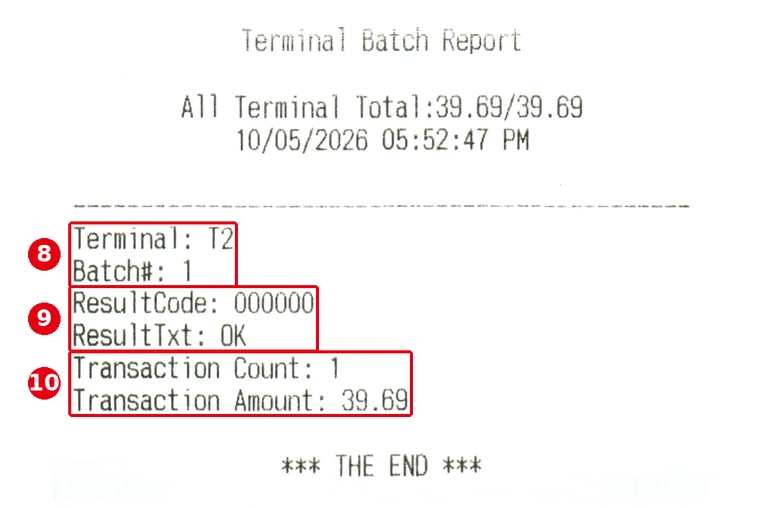
The printout has the same format as the batch receipt printed when you close a batch (Terminal Batch Report, see 1.6.3 How to close a credit card batch): ⑧ Terminal and Batch# (the batch number); ⑨ ResultCode and ResultTxt (the result; 000000 and OK on success); ⑩ Transaction Count and Transaction Amount (the number and amount of transactions batched on that terminal).
Notes / FAQ #
-
For a failed batch, see 4.1.3 What to do when a batch fails or doesn’t reconcile.


