
Purpose: When several servers work one table, put all of them on the same order. For: servers, managers.
Steps #
1. Open the order (table map → Order Detail → Edit) and tap the server name in the middle of the header (e.g. Jay).
2. In the Server window tick Enable Multi-Server.
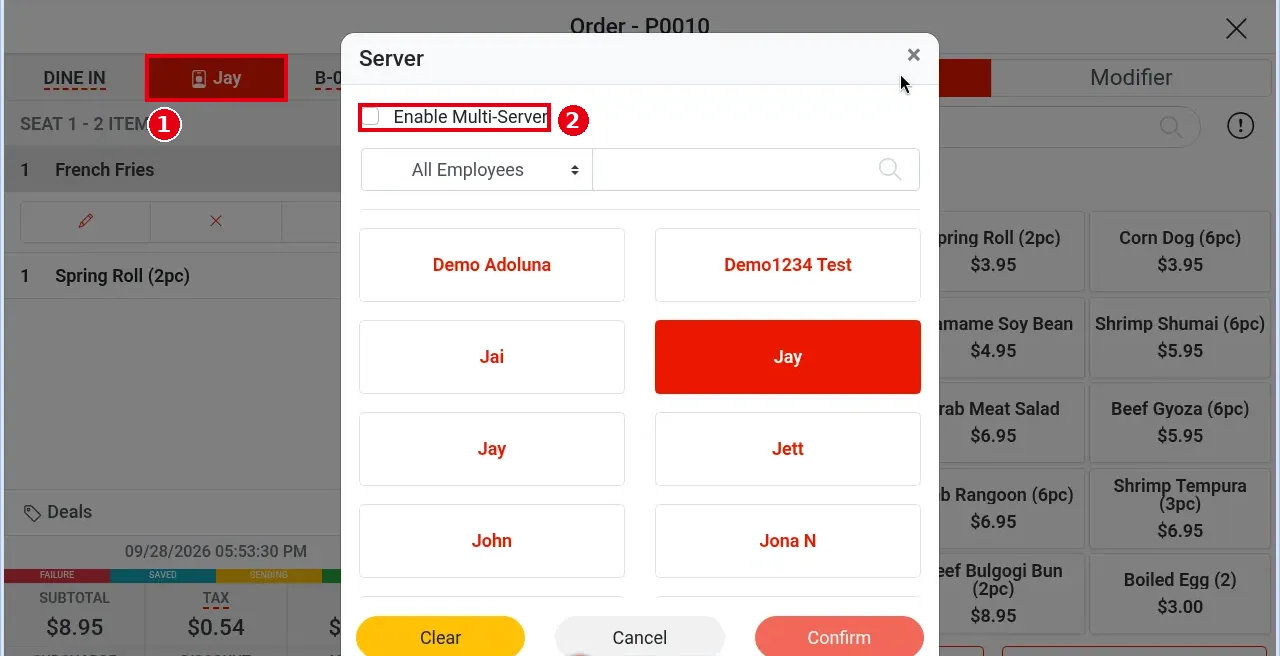
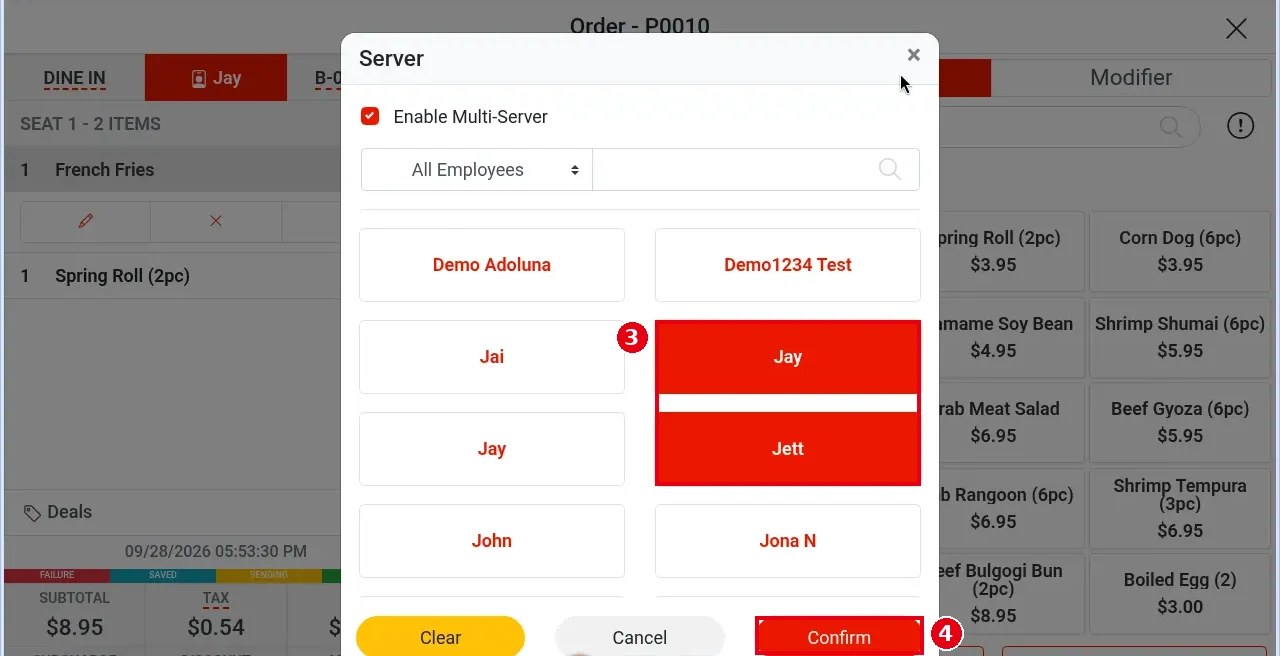
3. Tap each server to add; you can pick several and selected ones turn red (e.g. Jay and Jett).
4. Tap Confirm (Clear clears the selection).
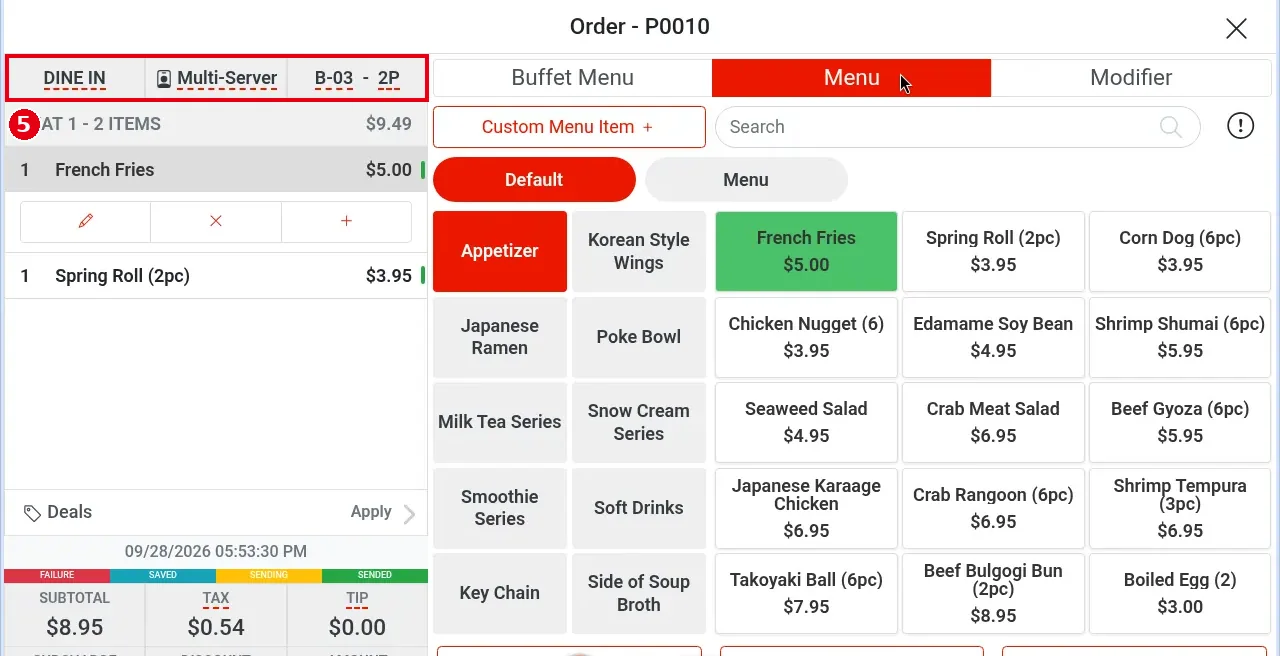
5. The server cell now shows Multi-Server. You must tap Save to save the order, or the server change is lost.
Notes / FAQ #
-
Rule: you must tap Save; if you exit without it, the server change is lost (see 1.2.13).
-
Default server and other servers: the server who created the order is the default server; servers added later are sub servers. Every order must have one default server.
-
A multi-server order can be changed back to a single server (updated 2026-10-05); tap Save afterwards as usual.
-
How multi-server orders show:
-
The table map shows the default server’s name (which is why the table still showed only Jay after saving).
-
Recall shows the number of servers plus the default server’s name, e.g. (2) Jay.
-
In the server report, a multi-server order shows as order number*S + number of servers, e.g. P0004*S2; the printed server report shows it the same way (updated 2026-10-05).
-
-
The order’s sales, tips and Tip Pooling are split evenly by the number of servers, in both the POS reports and the back-office (Company) reports (updated 2026-10-05).
-
When a multi-server order is split, the new orders keep all of the original order’s servers (see 1.3.7 How to split a check by item) (updated 2026-10-05).
-
Several servers can edit the same order at the same time; changes sync in real time.
-
Whether turning on Enable Multi-Server needs manager approval depends on each employee’s permissions, which are set per employee in the back office employee screen. If an employee doesn’t have the permission, a manager-approval prompt appears and a manager enters their own passcode (for the manager password prompt see 1.2.7). For example, the demo store’s regular employee was asked for the manager password as soon as they tapped the server name in the header; once a manager had entered it and the Server window was open, ticking Enable Multi-Server asked for nothing more.


