
Purpose: Install Adoluna POS on iPad / iPhone / Mac, Android, Windows or Linux, or open it in a web browser. For: Adoluna onboarding staff, store managers.
All downloads are also on the website downloads page: adolunapos.com/support/downloads.
iPad, iPhone, Mac #
1. Search the App Store for Adoluna POS, or open App Store – Adoluna POS.
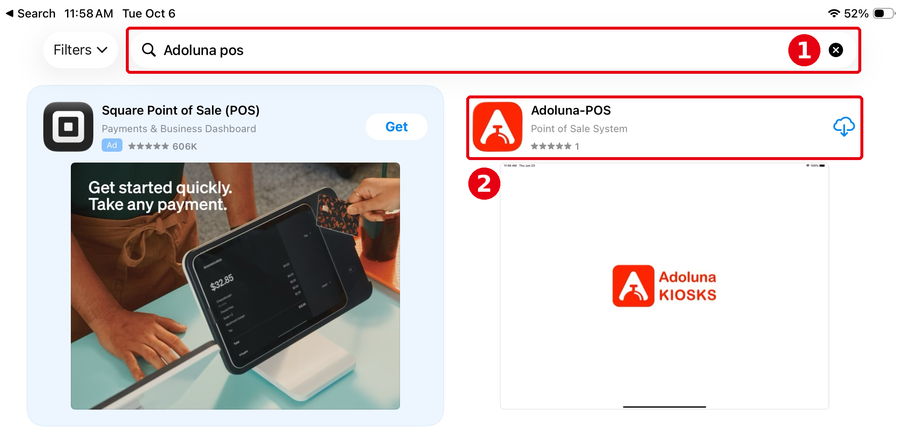
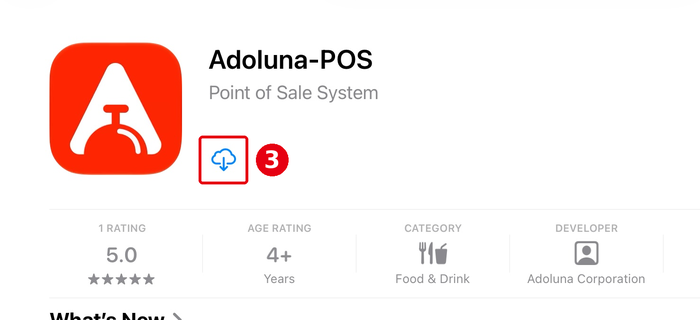
Figure: App Store search and get (① search; ② result; ③ Get / cloud download).
2. Tap ③ Get (or the cloud download icon) to install. A Mac needs Apple silicon (M series).
Android #
Option 1 (recommended): Google Play. Open Google Play – Adoluna POS and install. The Google Play app updates automatically.
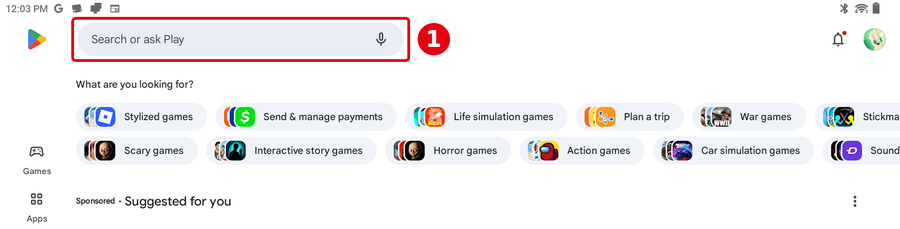
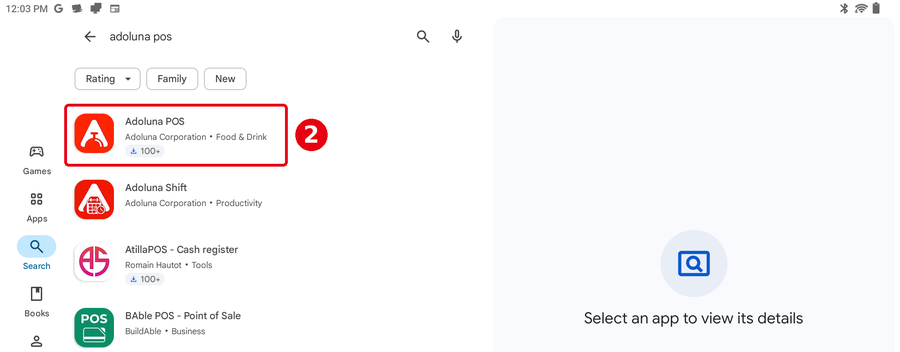
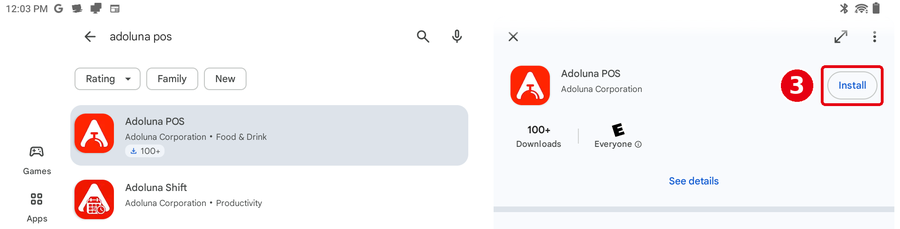
Figure: Google Play install (① search; ② choose Adoluna POS; ③ Install).
Option 2: download the APK
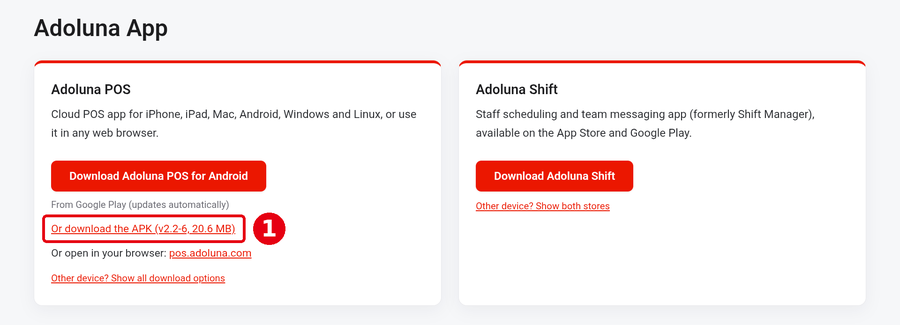
1. On the device, download the APK (on the downloads page tap “Or download the APK”).
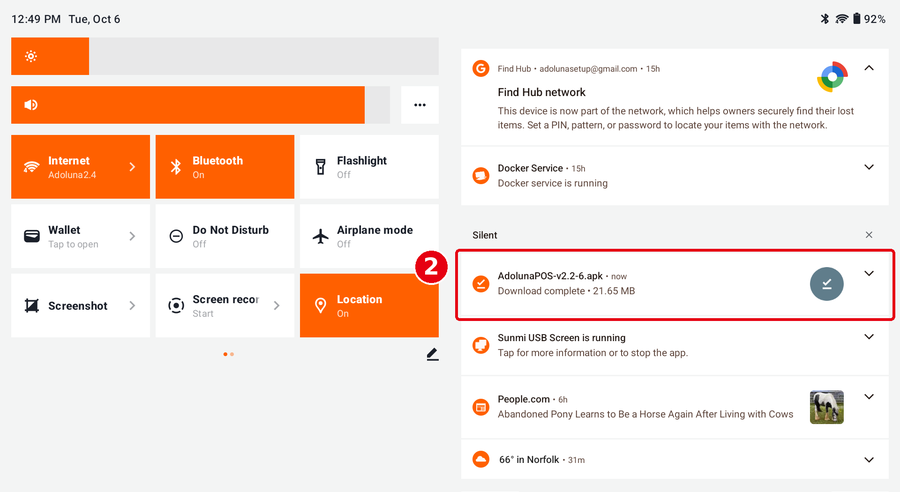
2. When the download finishes, tap the APK in the notification shade to start installing.
3. If prompted, turn on “Install unknown apps” for this source in Settings, then tap Back. Then tap ③ Install. If Google Play Protect appears, you can choose ④ Install without scanning (or Scan app first). When done, tap ⑤ Open.
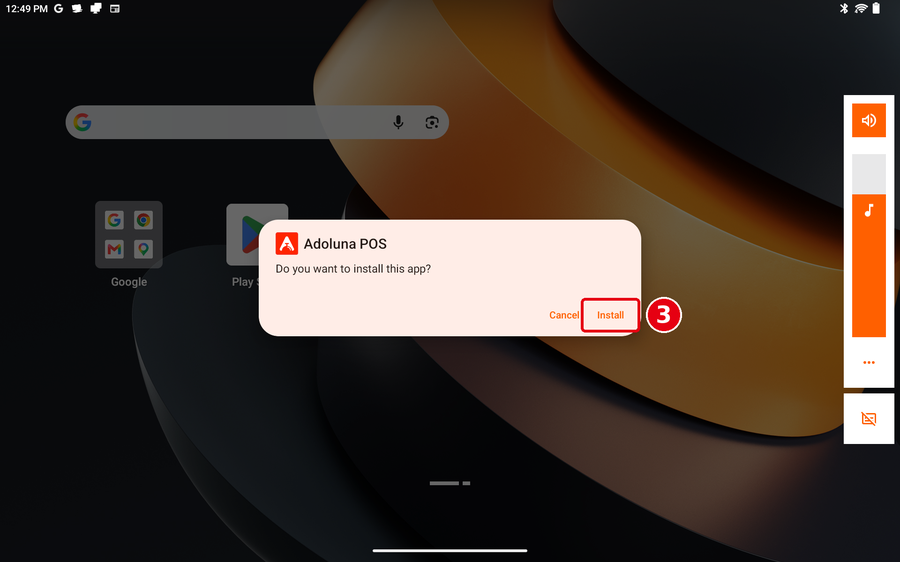
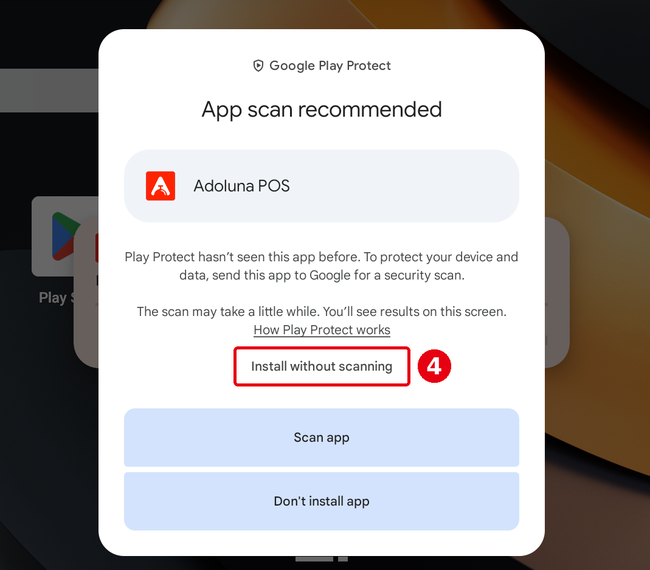
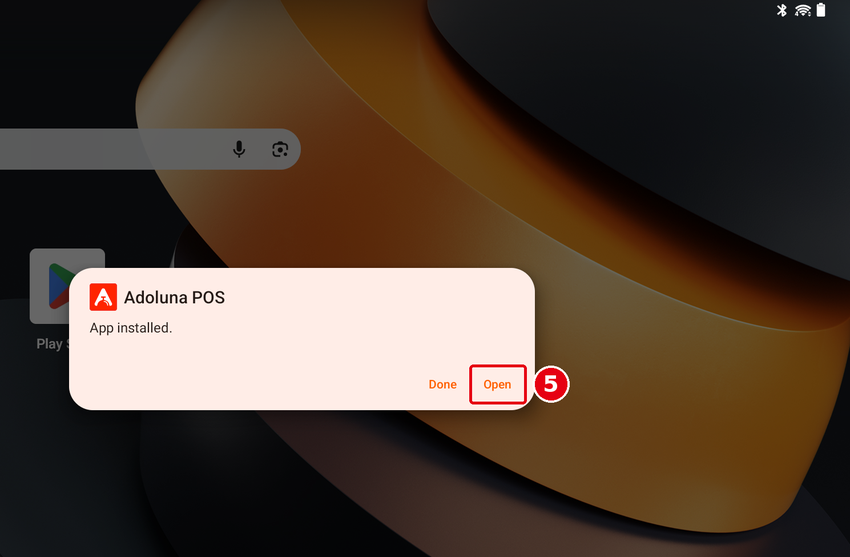
Figure: APK install (① download APK; ② tap the finished download; ③ Install; ④ Play Protect may show Install without scanning; ⑤ Open).
Windows PC #
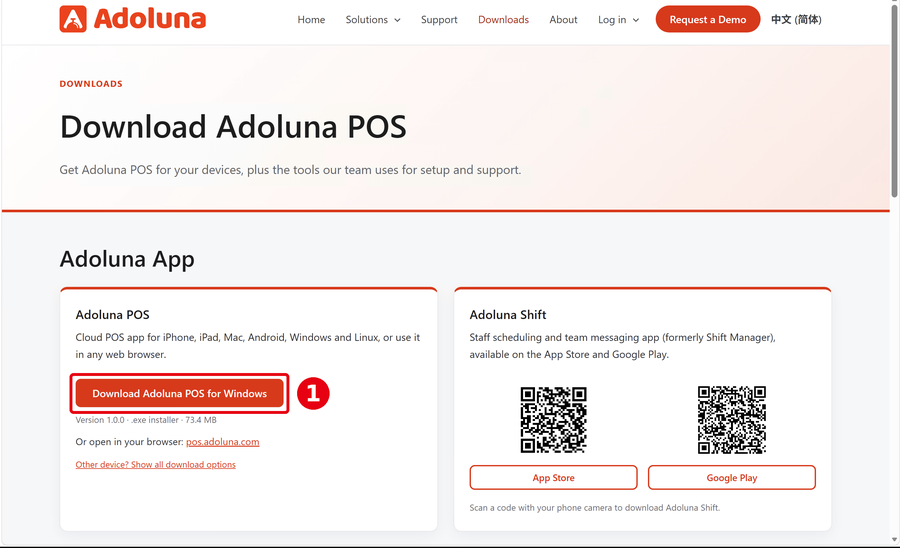
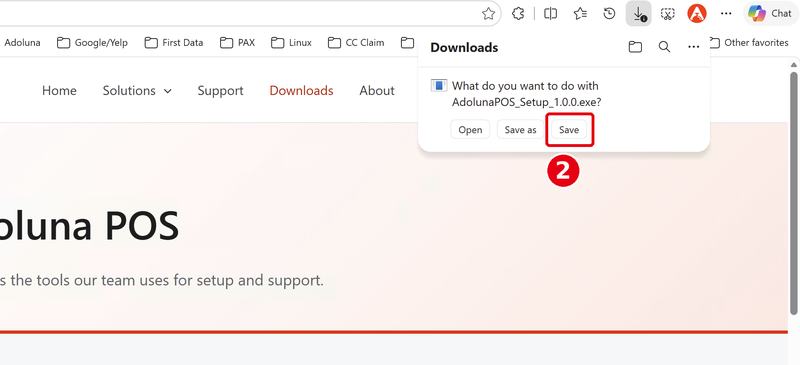
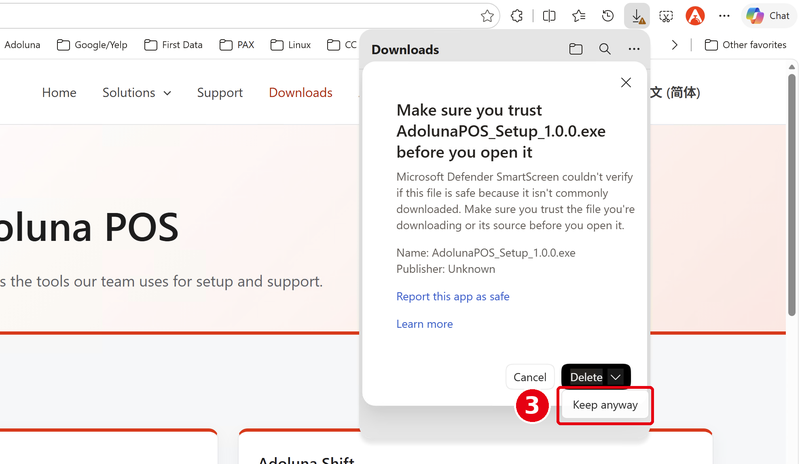
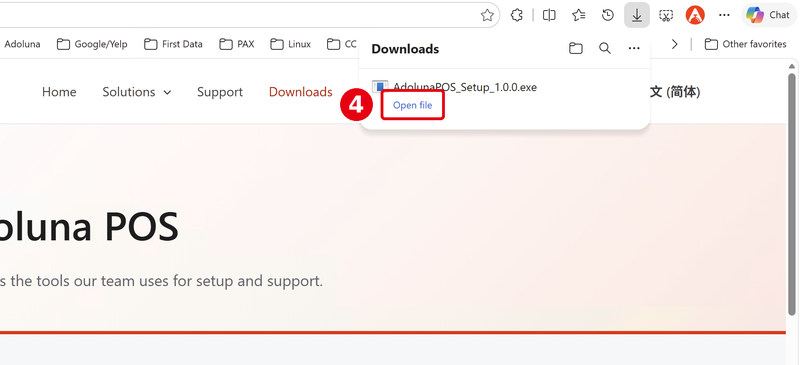
1. On the downloads page tap “Download Adoluna POS for Windows” for AdolunaPOS_Setup_1.0.0.exe. The browser may ask you to ② Save; if SmartScreen appears, open the arrow next to Delete and choose ③ Keep anyway, then ④ Open file.
2. Run the installer: ⑤ UAC Yes; ⑥ choose the folder and tap Install; ⑦ tap Finish when done (optional: Run Adoluna POS).
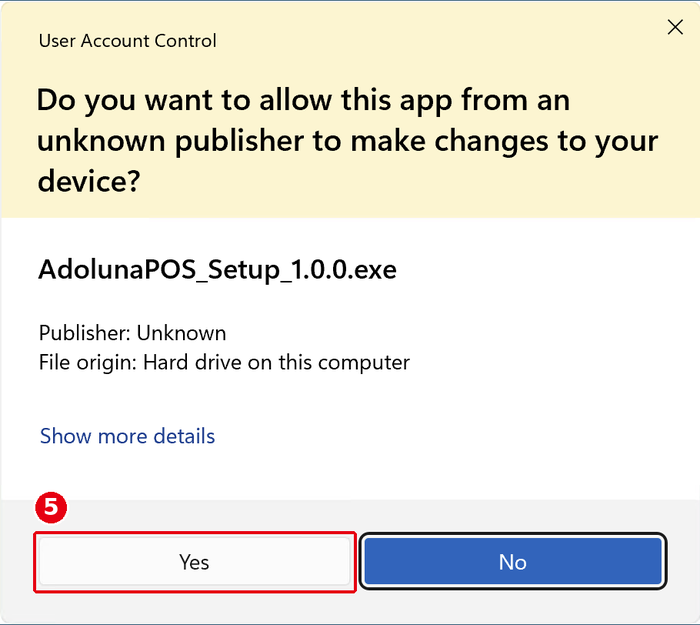
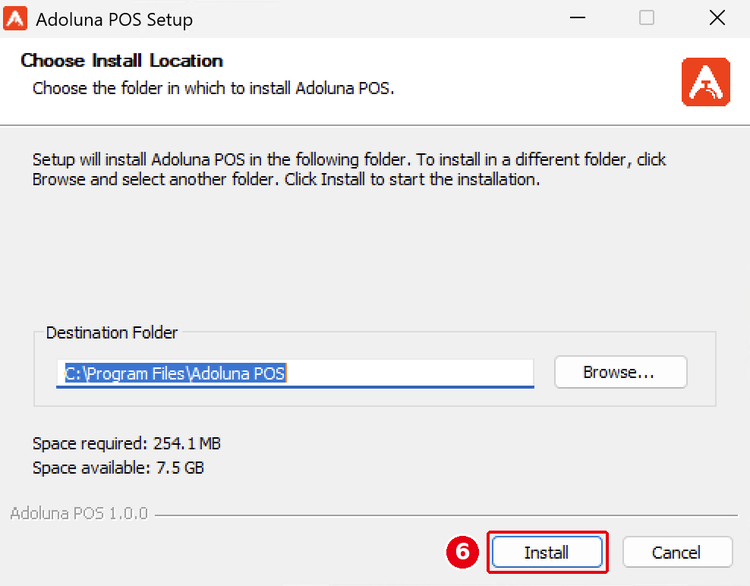
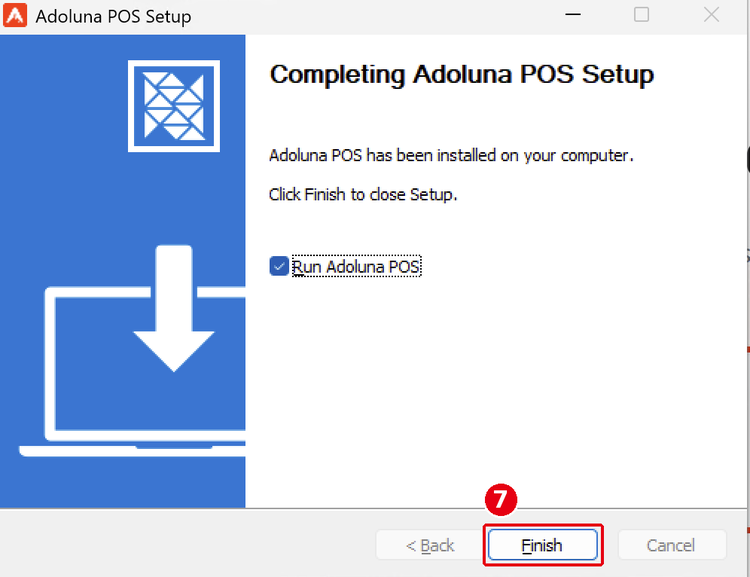
Figure: Windows install (① download; ② Save; ③ SmartScreen Keep anyway; ④ Open file; ⑤ UAC Yes; ⑥ installer Install; ⑦ Finish).
Linux PC (Debian / Ubuntu) #
1. Download adoluna-pos_1.0.0_amd64.deb.
2. Double-click the file to install.
Web browser (no install) #
Open pos.adoluna.com in any major browser.
After installing #
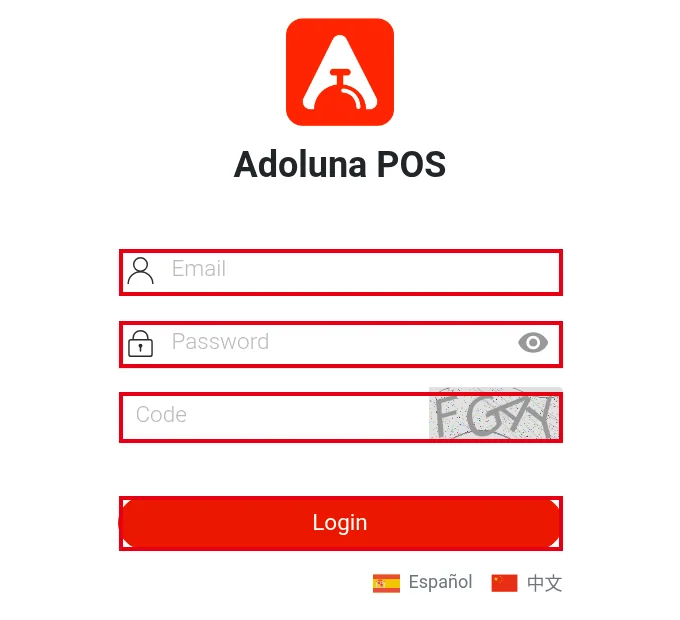
Open Adoluna POS. You’ll see the login screen below; then bind the device as in 3.2.3 How to bind a device.
Notes / FAQ #
-
The Windows, Linux and APK versions don’t update automatically. Adoluna POS is an H5 (web) system, so for most releases you only need to refresh the POS home screen (Refresh, see 4.4.3 How to refresh or restart the POS).
-
The browser and app versions have basically no differences.
-
Remote support tools (DWService, MeshCentral) are in 3.6.4 How to install remote support tools.


