Purpose: Take an order for a walk-in to-go guest. For: servers, cashiers.
Steps #
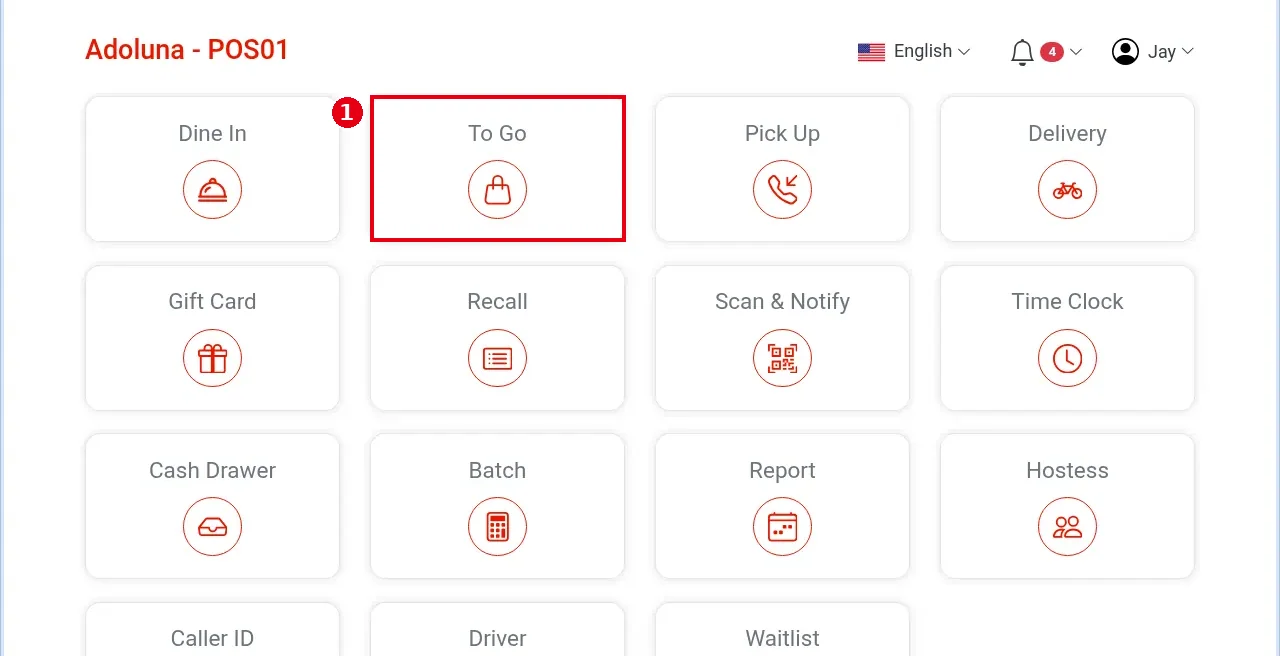
1. On the home screen tap To Go.
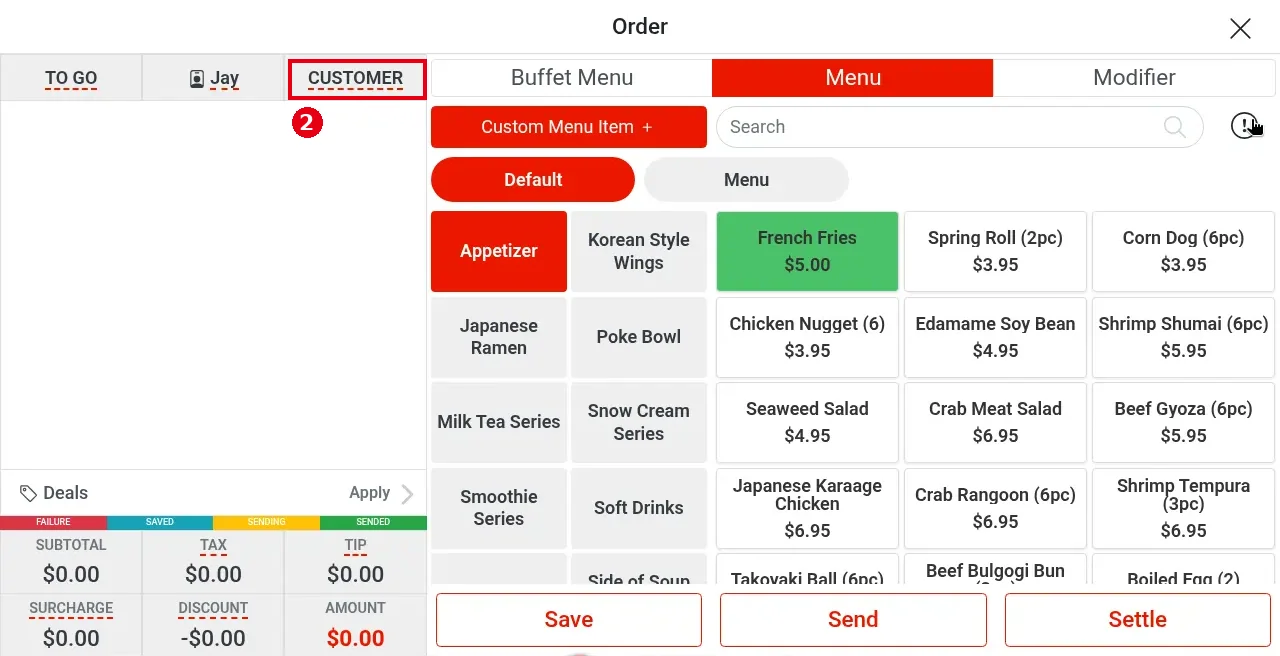
2. The order screen opens directly. The header shows TO GO, the server and CUSTOMER. To record the guest, tap CUSTOMER.
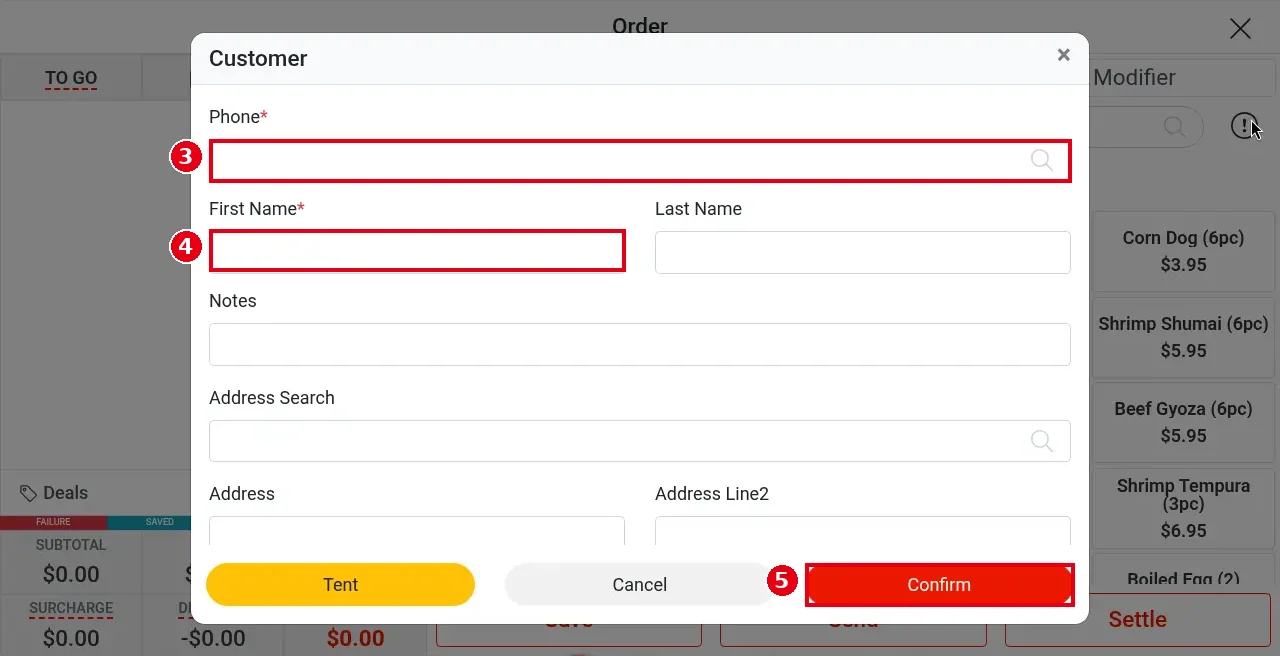
3. In the Customer window enter Phone* (required).
4. Enter First Name* (required). Last Name, Notes, Address Search, Address, Address Line2 etc. are optional.
5. Tap Confirm. CUSTOMER in the header changes to the guest’s name.
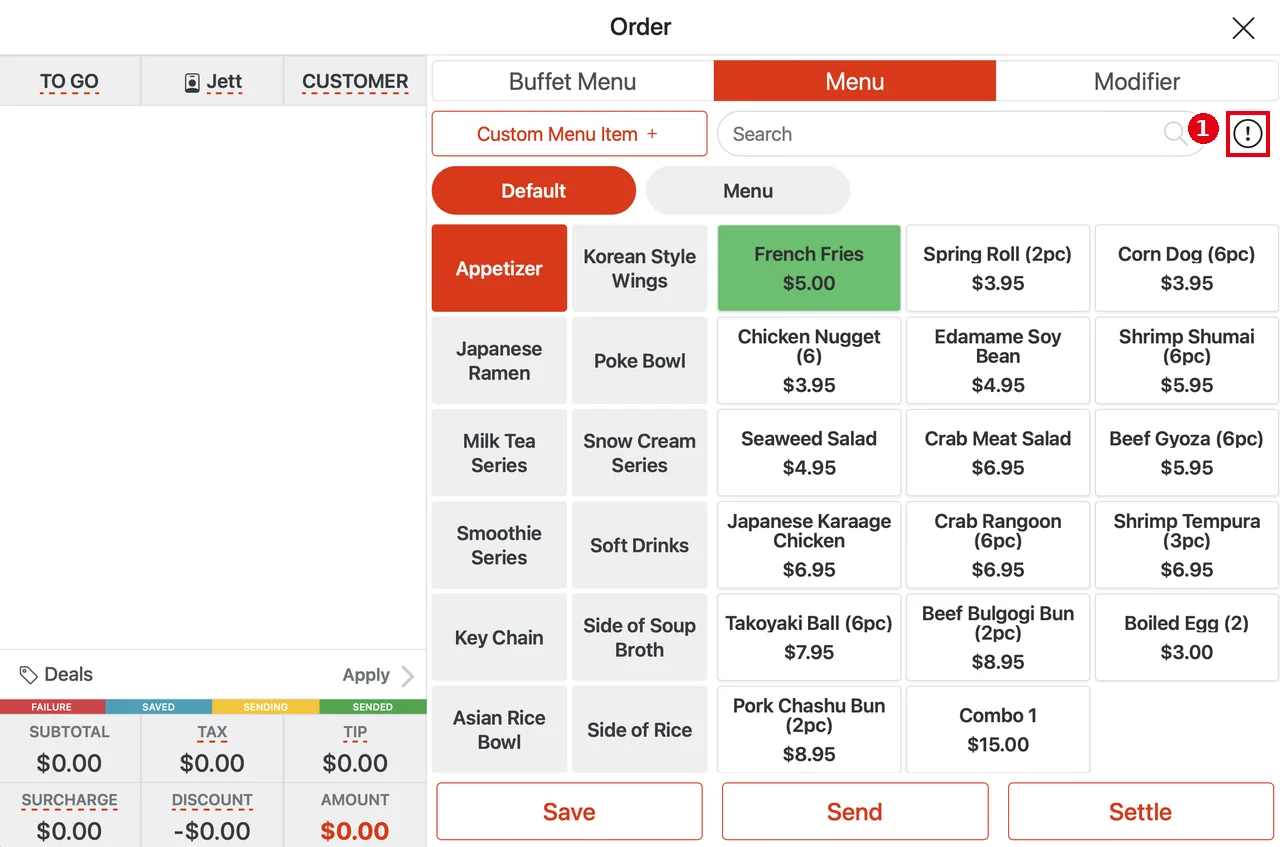
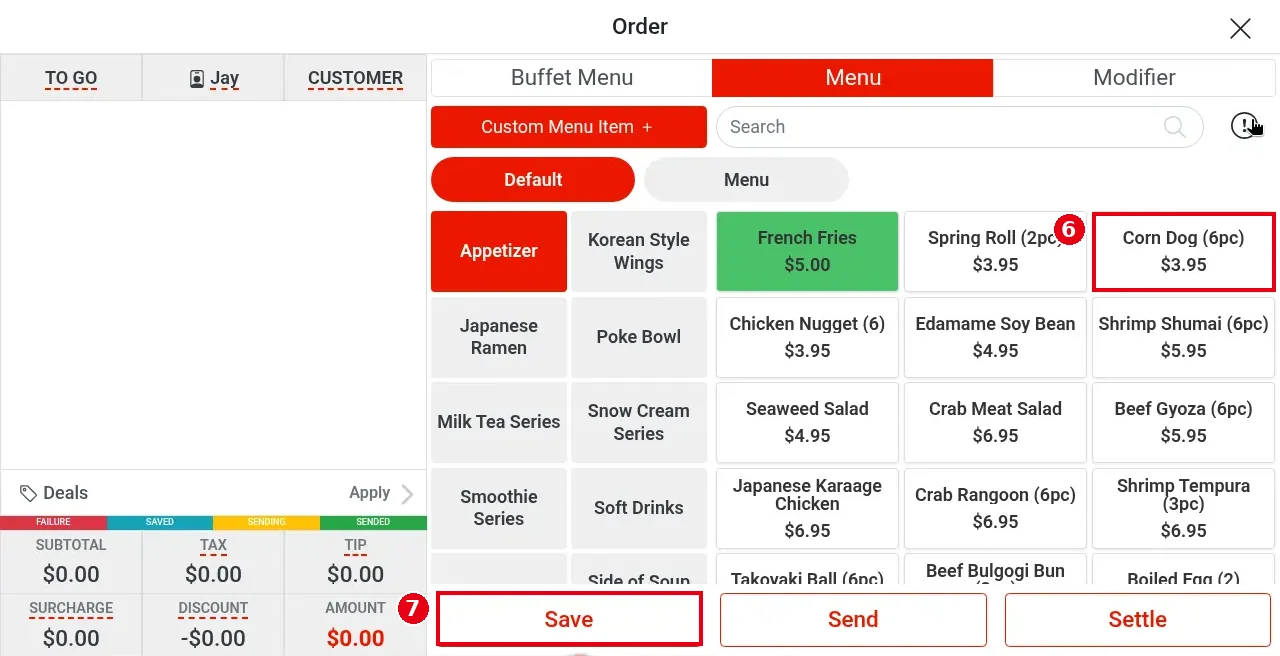
6. Tap items on the Menu tab (e.g. Corn Dog (6pc)).
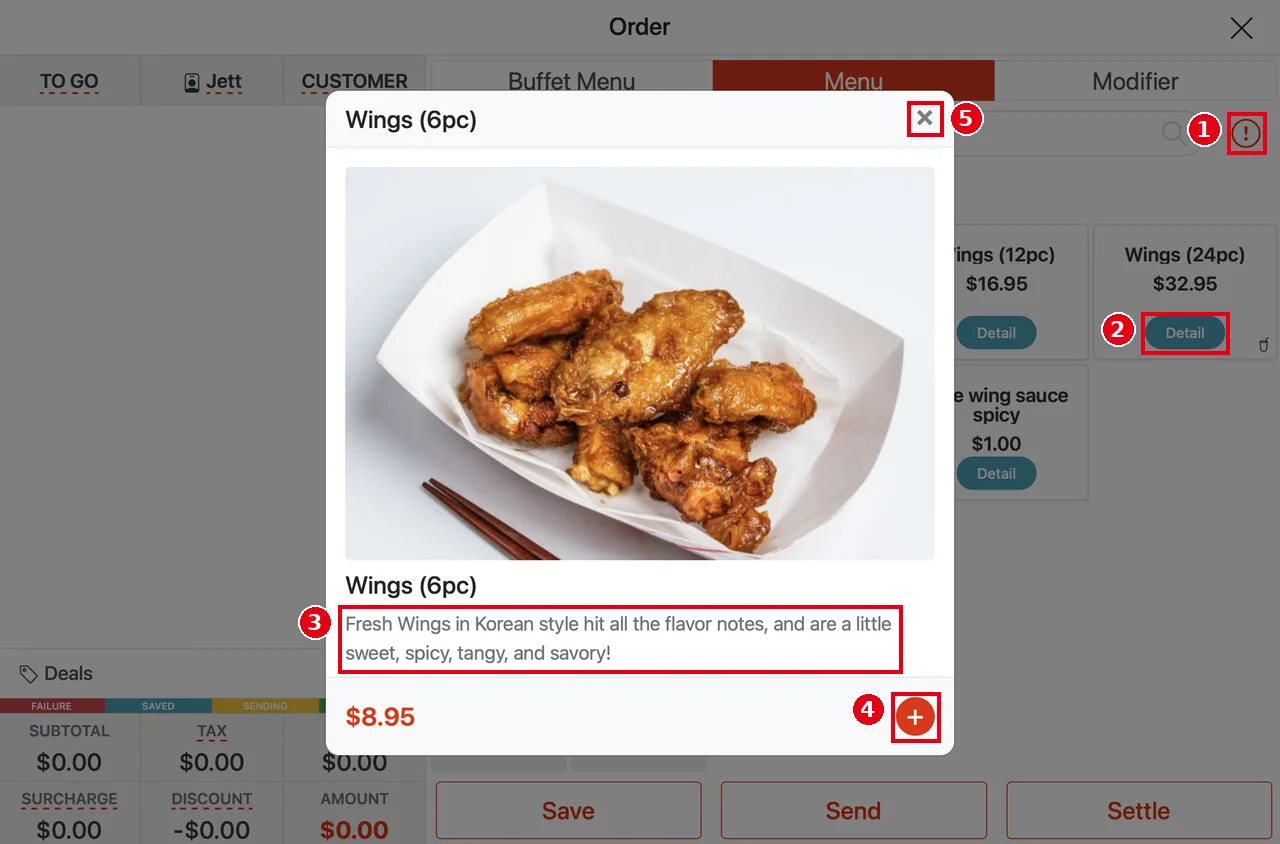
View dish photos and details (updated 2026-10-05): Tapping a dish tile still adds it to the order, as before. To see a dish’s photo and description first, tap the ① i icon to the right of the Search bar (it turns red when on); a ② Detail button appears on each dish tile. Tap Detail to open the dish window with a large photo, the name, ③ the dish description (shown only when one has been entered for the item in the Backoffice) and the price. Tap the red ④ + to add the dish to the order, or ⑤ × to close the window.
7. Tap Save (or Send to fire to the kitchen).
Notes / FAQ #
-
A customer is not required for To Go: the order screen opens right away and CUSTOMER can stay empty.
-
The Customer window has a yellow Tent button (on To Go and Pick Up, not on Delivery). When an order needs a customer name, the system also requires a phone number; if the guest has no phone or won’t give one, tap Tent to enter just a name for calling out the order.
-
In the Chinese UI To Go reads “外带”.
-
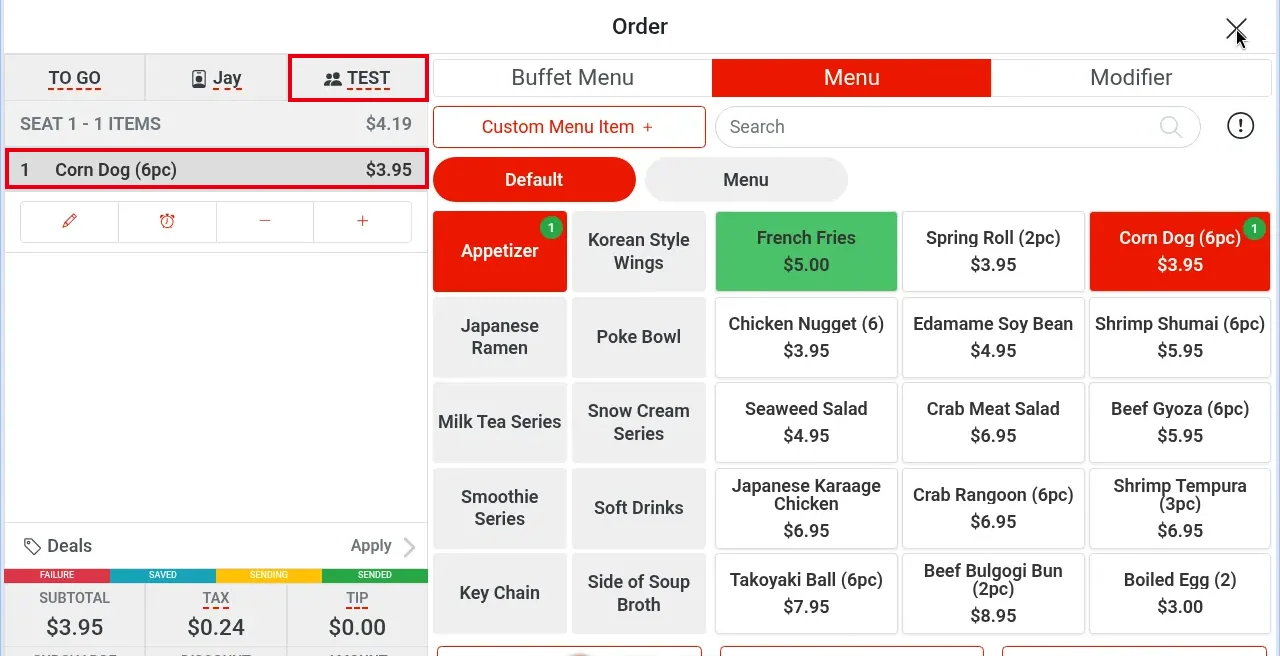
A to-go order after adding items (example: customer TEST, Corn Dog (6pc); the third header cell shows the customer name; tap Save to save):