
Purpose: After guests order by scanning the table’s QR code with their own phones (Scan to Order), staff view the order on the POS, add items and settle. For: servers, cashiers, managers.
Before you start:
-
With Scan to Order, guests scan the QR code on their table with their own phone and order on it. This is a different feature from scanning a receipt QR code at the store’s Kiosk to open a table (see 1.8.4 How to open a table on the Kiosk by scanning a receipt QR code).
-
Backoffice setup: see 2.6.2 How to set up Scan to Order. Ordering Method is Single Mode (each guest at the table scans and orders separately), Group Mode (the table shares one order, synced live) or Buffet Mode (buffet). Settling Method is Pay Immediate (guests pay on their phones when they order), Pay Afterward (guests pay on their phones at the end of the meal) or Pay with Server (the server settles).
-
Which items show on Scan to Order follows each item’s Show on Kiosk switch (see 2.3.8 How to schedule items and choose where they appear, 4.3.2 Why isn’t an item showing on the Kiosk or online?).
-
With Order Security Code on, guests must enter a code the restaurant gives them to order. The code is set under Service > Scan to Order in the Backoffice (see 2.6.2 How to set up Scan to Order); how to give it to guests is up to the restaurant.
Steps #
1. What the guest does on their phone (the screenshots show a mode with the Submit button):
-
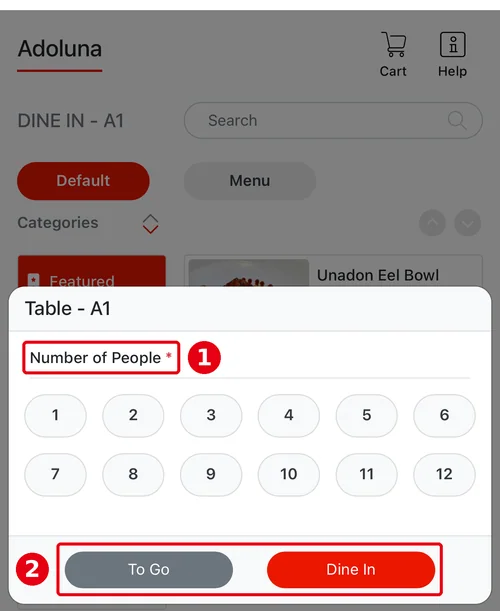
The guest scans the QR code on the table and the ordering page opens in the phone’s browser with a table window (e.g. Table – A1). They choose ① Number of People, then tap ② Dine In (or To Go).
-
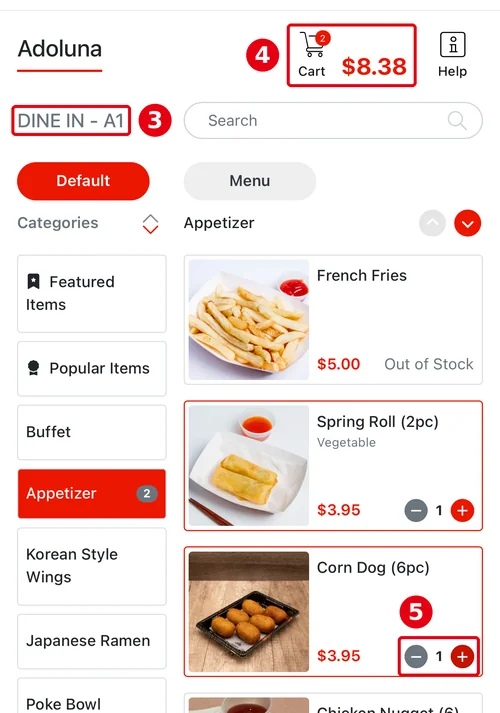
③ The order type and table show at the top (e.g. DINE IN – A1). ④ Cart shows the item count and total; the guest taps ⑤ + to add items.
-
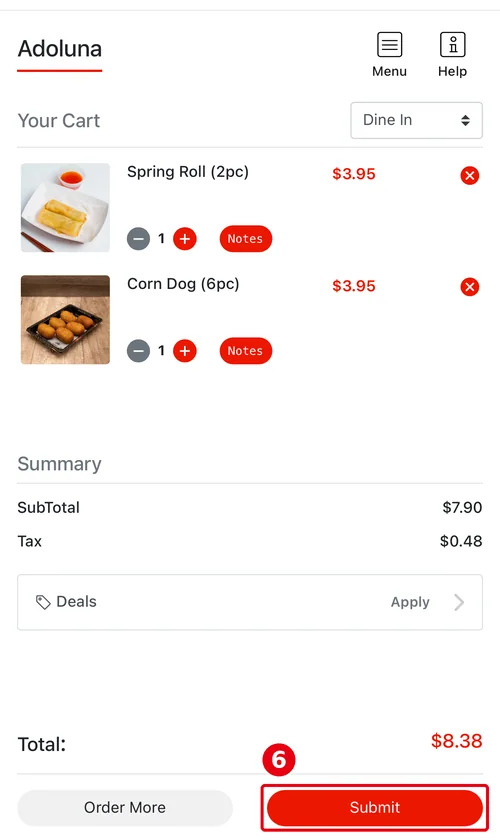
Tapping Cart opens Your Cart; the guest checks it and taps ⑥ Submit (with Pay Immediate there’s no Submit, only Checkout; see step 5).
-
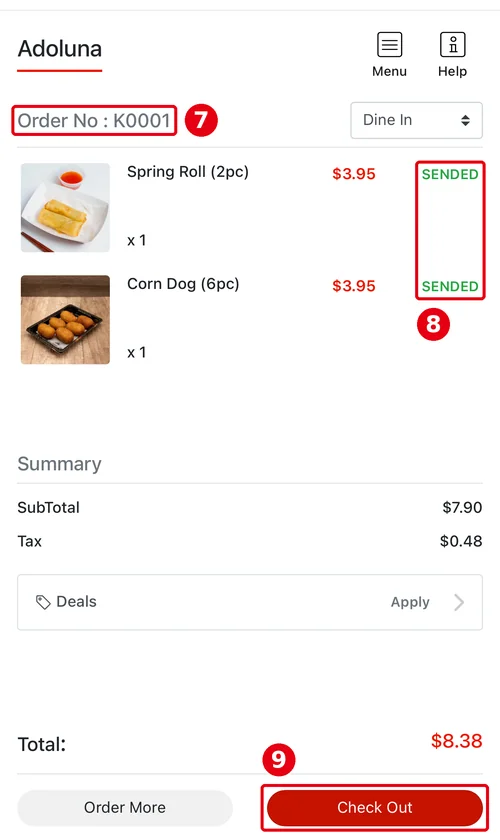
After submitting, the phone shows ⑦ the order number (e.g. K0001) and ⑧ SENDED (sent to the kitchen) next to the items. The guest can tap Order More to add more, and ⑨ Check Out when finished.
2. The order reaches the POS. Scan to Order is part of the Kiosk, so these orders are handled as Kiosk orders (numbers start with K) and staff don’t need to accept them.
3. In Recall, set ⑫ Order Source to Kiosk and find ⑬ the order (e.g. Dine In : K0001, with Server showing — and Table showing the table and party size, e.g. A1 – 2P; see 1.4.1 How to find an order in Recall), then open Order Detail to check the items: ⑭ the top shows the order type, server (—) and table, and ⑮ the items already show SENDED and the send time.
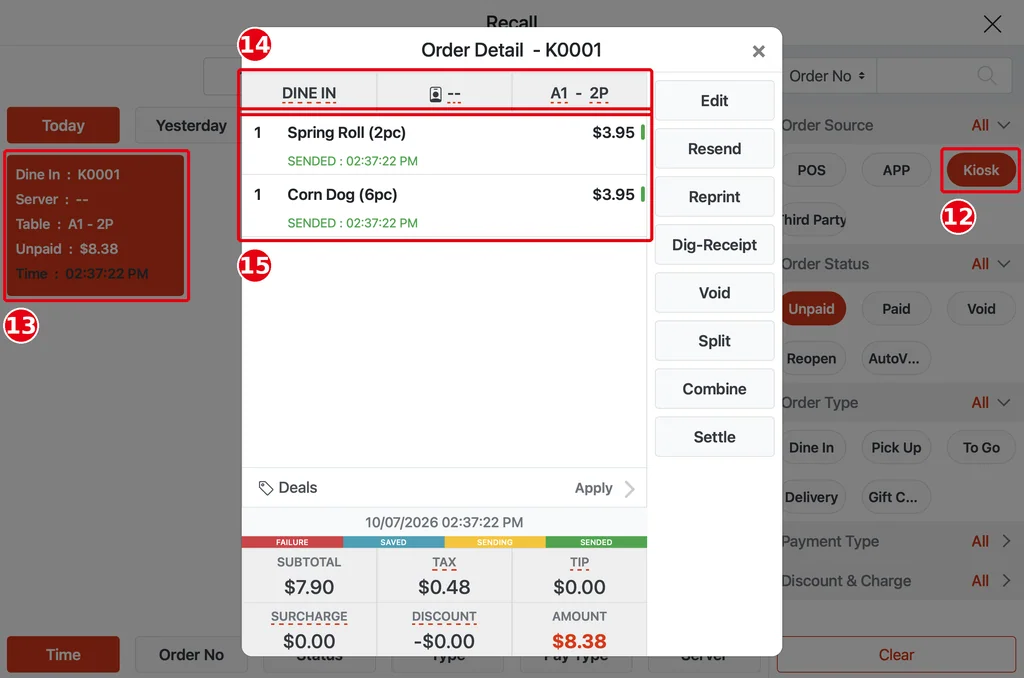
4. Staff can also change scan orders: if guests want to add or change items, tap Edit and change the order on the POS (see 1.2.12 How to save, send and settle an order).
5. Handle it according to the settling method:
-
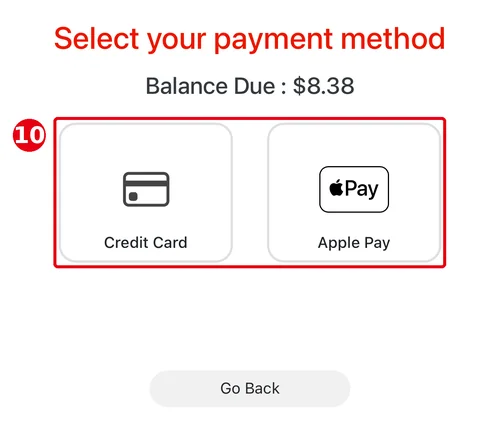
Pay Immediate: there’s no Submit button on the guest’s phone, only Checkout. The guest taps Checkout and pays on ⑩ the payment-method screen (the same as Pay Afterward); the order is sent to the kitchen automatically once they pay.
-
Pay Afterward: the button on the guest’s phone is Submit, and the order is sent to the kitchen as soon as it’s submitted. At the end of the meal guests tap Check Out and ⑩ choose a payment method on their phone (e.g. Credit Card, Apple Pay); staff don’t collect payment.
-
Pay with Server: the button on the guest’s phone is Submit, and the order is sent to the kitchen as soon as it’s submitted. When guests tap Check Out, the phone shows ⑪ Please Pay To The Cashier. The server taps Settle on the POS (see 1.3.1 How to take a cash payment, 1.3.2 How to take a credit card payment).
-
Buffet Mode (only with Pay with Server): the server first starts a buffet table on the POS (see 1.8.5 How to start an All You Can Eat (buffet) table); guests scan and go straight into buffet ordering, and the server settles at the end (see 1.8.6 How to settle an All You Can Eat (buffet) table).

Notes / FAQ #
-
In Single Mode each guest at the table orders separately, so one table can have several orders, each paid separately. Guests can’t combine them themselves; if they want to pay together, staff combine the orders (see 1.3.8 How to combine orders).
-
QR codes are downloaded per table; a code on the wrong table sends orders to the wrong table number, so label each code with its table when printing (see 2.6.2 How to set up Scan to Order).
-
If an item doesn’t show on Scan to Order, check it as in 4.3.2 Why isn’t an item showing on the Kiosk or online?.


