
Purpose: Create whole-order discount options (e.g. 10% Off) for servers to choose when discounting an order on the POS (see 1.2.10 How to add an order-level discount, charge or tip). For: owners, managers.
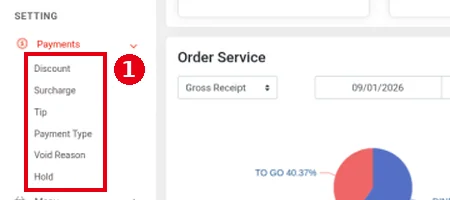
Before you start: under Payments in the Backoffice left menu there are six items: Discount, Surcharge, Tip, Payment Type, Void Reason and Hold, covered in 2.4.1–2.4.6. For a server changing one item’s price or discount, see 1.2.7 How to change an item’s quantity, price, discount or charge; for item discount prices, see 2.3.10 How to set a discount price on an item.
Steps #
1. In the Backoffice left menu, click Payments to expand ① its submenu, and click Discount.
2. The discount list’s columns are Name, Value, Include Bar Drink, Status and Operate; the demo store has 10% Off (-10.00%). A grey ③ Include Bar Drink means it’s off; a green dot under ④ Status means the discount is enabled; under ⑤ Operate, ≡ drags to reorder, the pencil edits and the bin deletes. Click ② + Add New to add a discount.

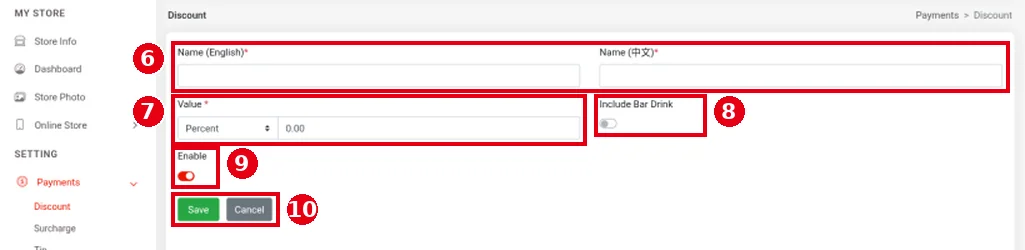
3. Fill in the form:
-
⑥ Name (English), Name (中文): the discount name (required), shown as the discount button on the POS.
-
⑦ Value: choose Percent or Cash (a fixed amount) in the dropdown on the left and enter the value on the right (0.00 by default).
-
⑧ Include Bar Drink: off by default. When on, the discount also applies to items marked Bar Drink Item (bar drinks; see 2.3.5 How to add menu items).
-
⑨ Enable: turns the discount on.
-
⑩ Click Save to save or Cancel to cancel.
4. Whether tax is calculated before or after the discount: check ⑪ Tax Calculation in Store Info (After Tax in the screenshot) and click Edit to change it. The on-screen explanation: Before Tax applies the discount or charge first and then calculates tax; After Tax calculates tax on the amount before the discount or charge. For a worked example, see 2.2.2 How to choose the tax calculation method; for the other Store Info settings, see 2.2.1 How to set up store info.

Notes / FAQ #
-
Tax Calculation also applies to surcharges (see 2.4.2 How to set up surcharges).
-
Whether discounts count toward the tip base depends on Tip Calculation Mode (see 2.4.3 How to set up tip options, minimum tip and tip base).
-
The item form’s Discount Item switch sets whether the item can be discounted (see 2.3.5 How to add menu items).


