
Purpose: Set the hold times servers can choose when delaying items from going to the kitchen (e.g. 3, 10, 20 or 30 minutes). For: owners, managers.
Before you start: according to the website docs, a hold delays sending items to the kitchen by a number of minutes. For holding items on the POS, see 1.2.9 How to hold items before sending to the kitchen: besides the times set here, the POS also offers CUSTOM and NO HOLD.
Steps #
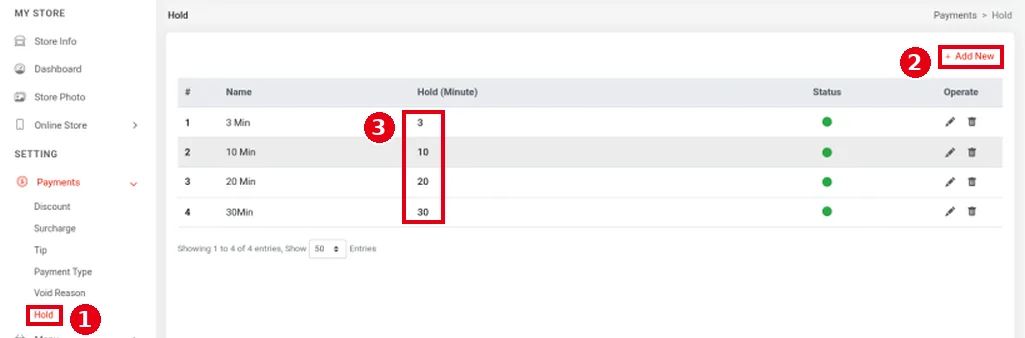
1. In the Backoffice left menu, click Payments > ① Hold. The list’s columns are #, Name, ③ Hold (Minute), Status and Operate; the demo store has 3 Min (3), 10 Min (10), 20 Min (20) and 30Min (30). Click ② + Add New to add a hold time.
2. Fill in the form:
-
④ Name (English), Name (中文): the name (required).
-
⑤ Hold (Minute): the number of minutes to hold (required); 0 by default.
-
⑥ Enable: turns the option on.
-
⑦ Click Save to save or Cancel to cancel.

Notes / FAQ #
-
The POS hold-time buttons show the Hold (Minute) value followed by “mins” (e.g. 3 shows as 3 mins), not the Name (see 1.2.9 How to hold items before sending to the kitchen).


