
Purpose: Set up a caller ID device so the POS shows the caller’s number and customer details when someone phones the store, making phone orders easier. For: Adoluna onboarding staff, store managers. Hardware: a caller ID device (any USB 2.0 56K fax modem) on the store phone line.
The caller ID device can be any USB 2.0 56K fax modem. It plugs straight into the Local Server’s USB port, so it can be set up on its own, independent of printers and terminals (setup order: 3.0.1 Onboarding checklist for a new store).
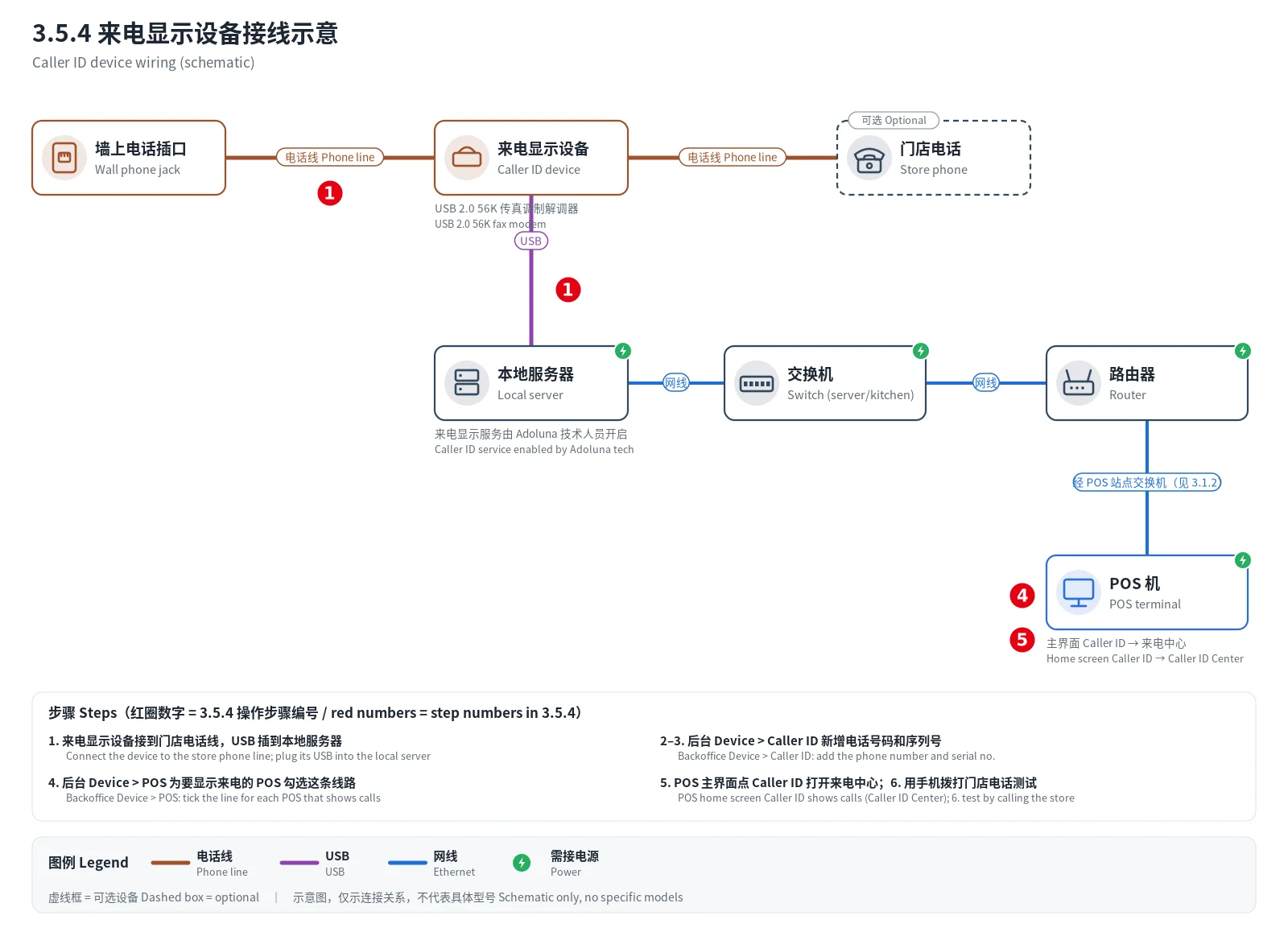
Figure: caller ID device wiring diagram (drawn 2026-10-05). The red numbers match steps 1, 4 and 5 below; dashed boxes are optional devices.
Steps #
1. Connect the phone line from the wall jack to the caller ID device; the store phone (if any) plugs straight into the device’s phone port, no splitter needed. Plug the device’s USB cable into the Local Server’s USB port; the device is powered by USB only, so it needs no separate power supply. An Adoluna technician turns on the Caller ID service on the Local Server.
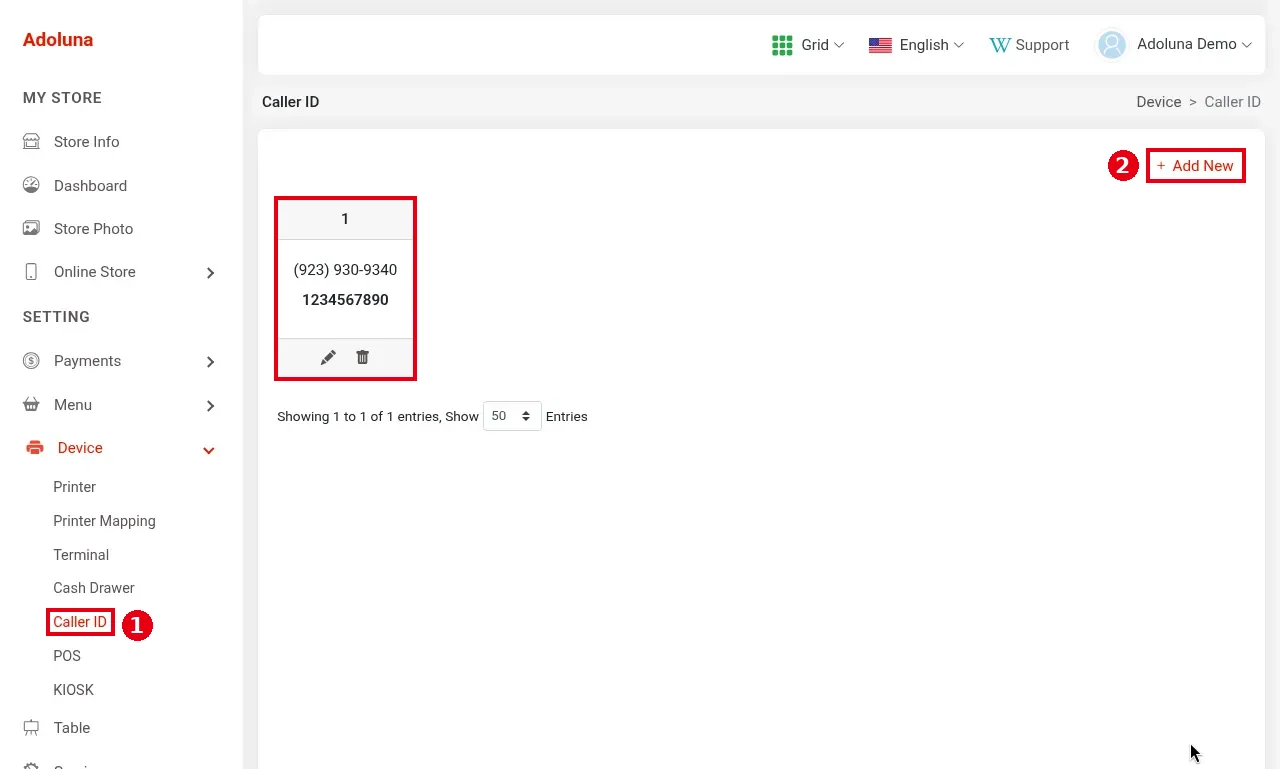
2. In the Backoffice left menu, click Device > ① Caller ID. Each card shows the phone number and serial number (“(923) 930-9340 / 1234567890” in the screenshot). Click ② + Add New.
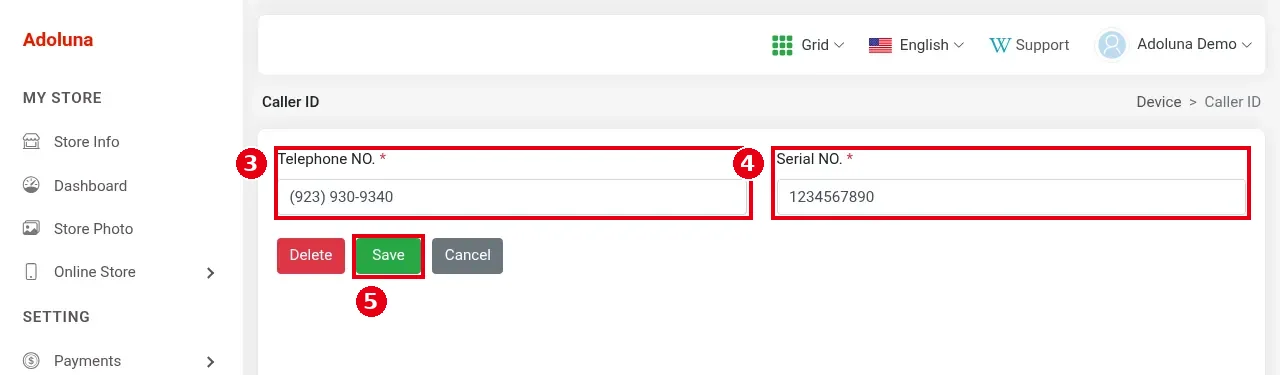
3. Enter ③ Telephone NO. (required, the store phone number) and ④ Serial NO. (required, the caller ID device’s serial number, found on the back of the device; you can also make one up as long as it isn’t duplicated), and click ⑤ Save.
4. In the Backoffice, open the POS that should show calls under Device > POS and ⑥ tick the phone line under Telephone (see 3.2.2 How to create POS and Kiosk devices in the Backoffice). The ⑦ Default switch currently has no effect. One line can be ticked on several POS at once, and calls then show on all of them.

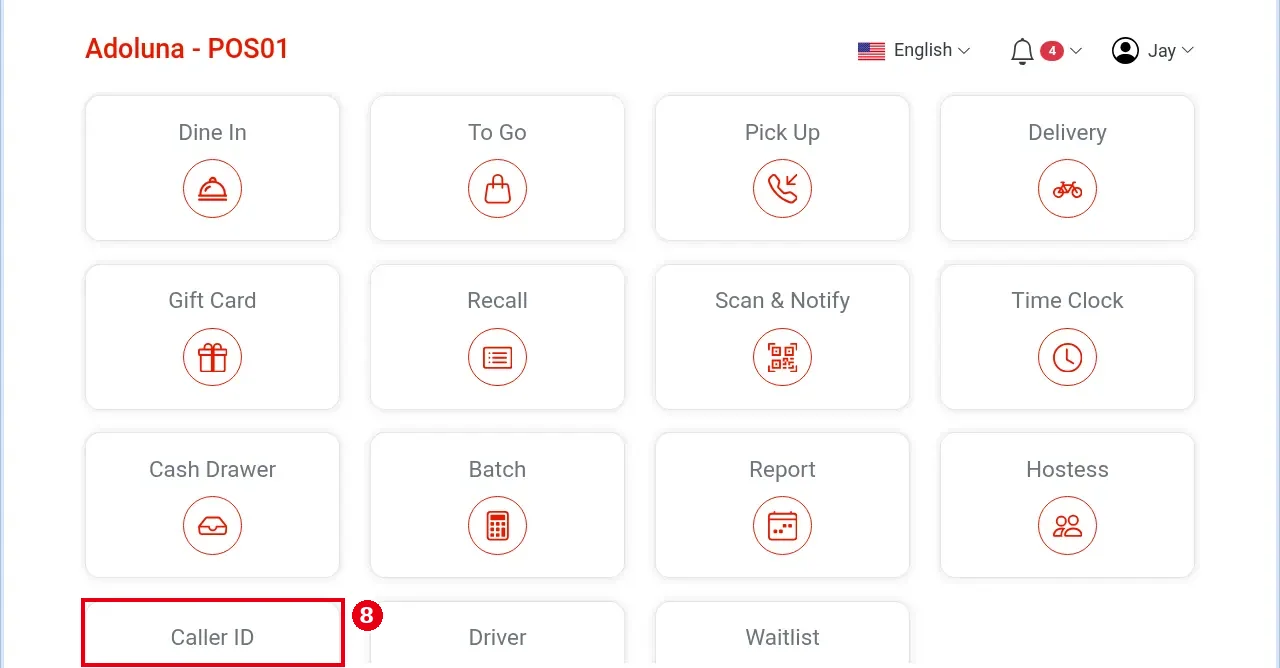
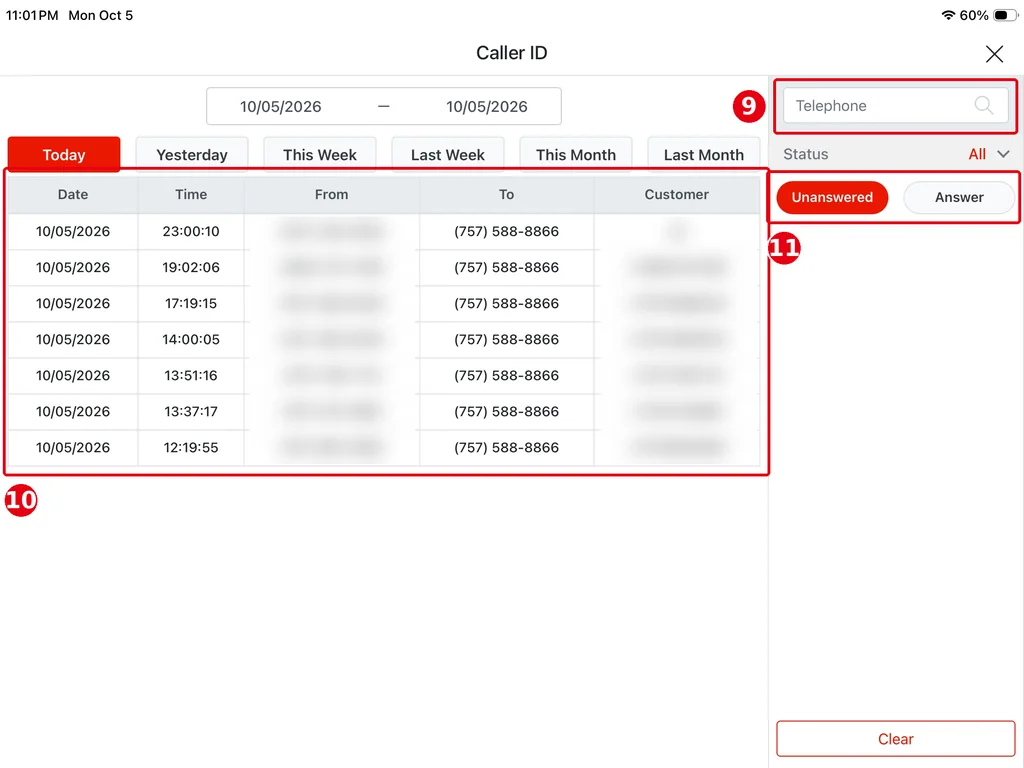
5. On the POS home screen, tap ⑧ Caller ID to open the call log (the Caller ID Center; callers’ numbers are blurred in the screenshot):
-
⑨ Telephone: search by phone number.
-
⑩ Call list: Date, Time, From (caller), To (store number), Customer. Pick dates at the top.
-
⑪ Status: Unanswered, Answer.
6. Test: call the store from a mobile phone and check that the number appears in the POS call log.
Notes / FAQ #
-
For taking an order from a call, see 1.12.1 How to use Caller ID to take phone orders; for phone pickup orders, see 1.2.3 How to take a phone pick-up order.


