
Purpose: Change an ordered item’s quantity or price, or add an item-level discount or charge. For: servers, cashiers.
Steps #
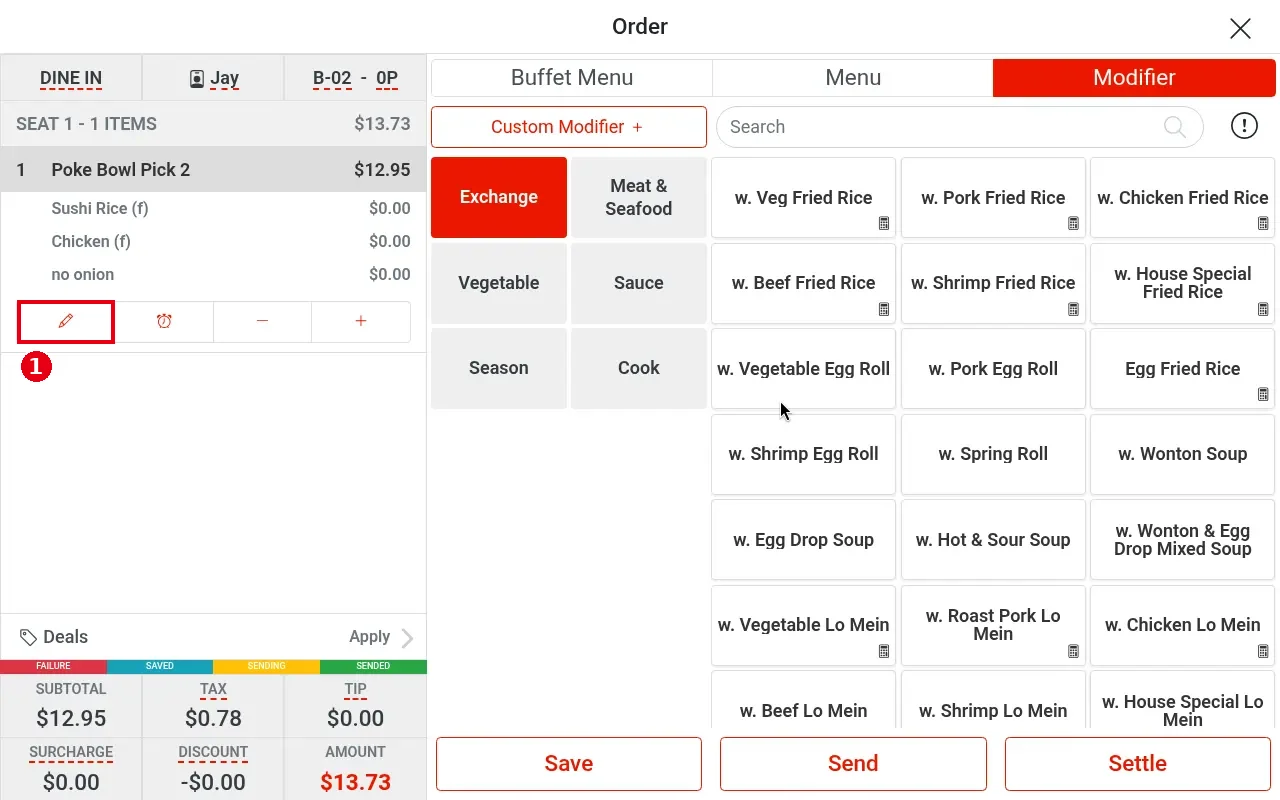
1. Tap the item in the ticket on the left. A button row appears: pencil (edit), clock (Hold, see 1.2.9), −, +. For quantity only, just tap − / +; for price or discount, tap the pencil.
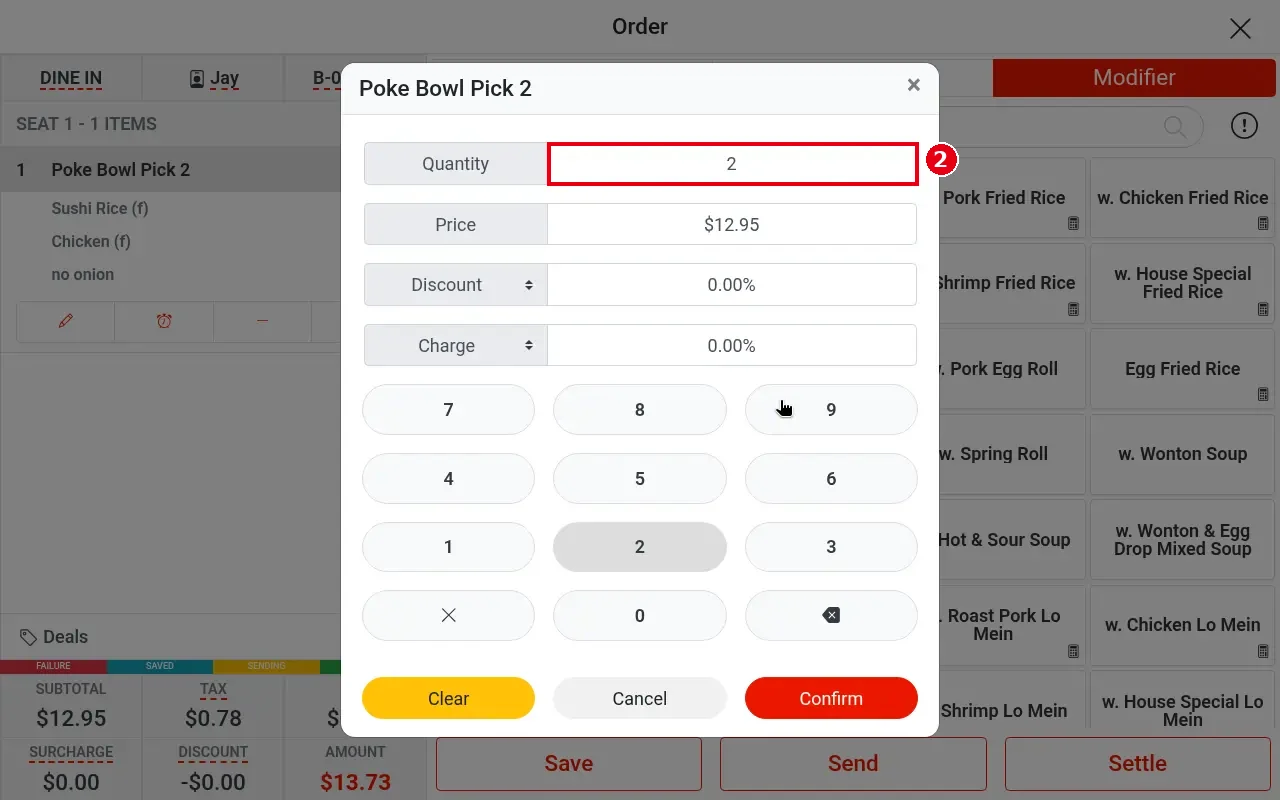
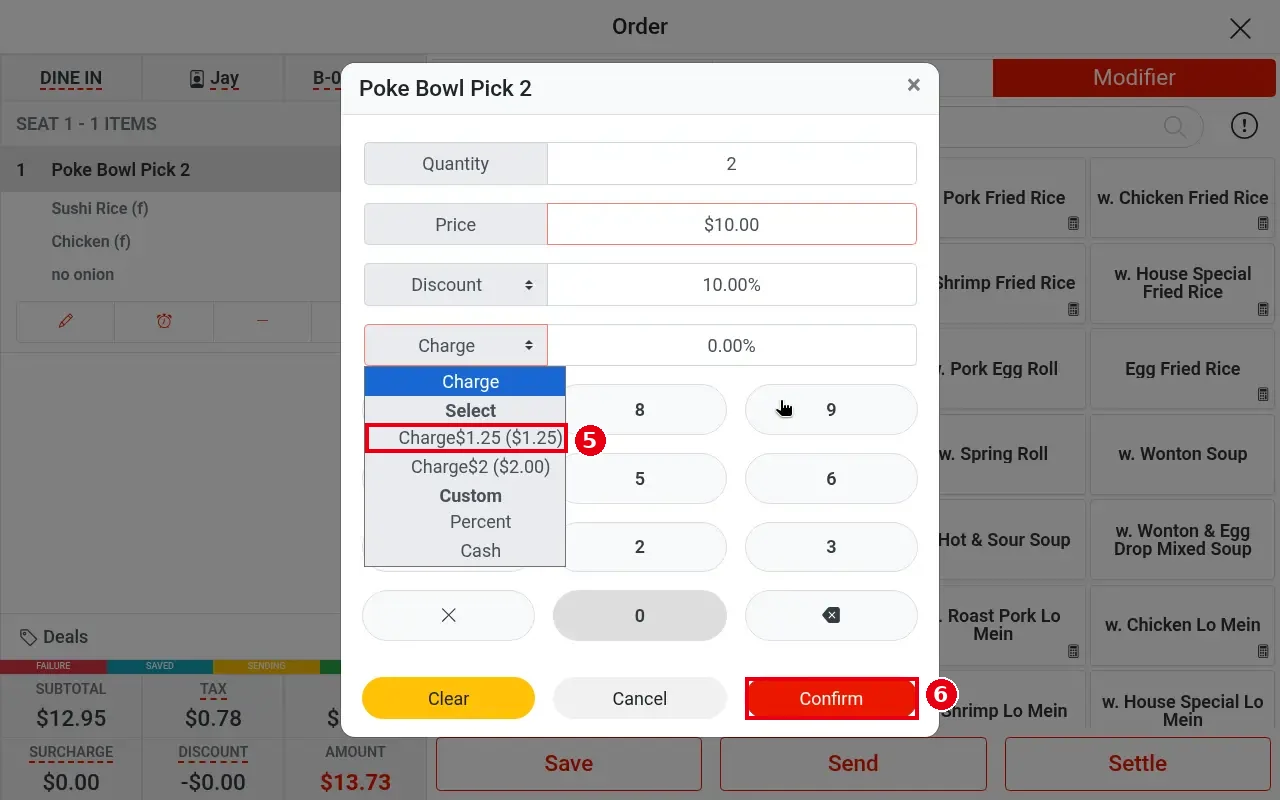
2. In the edit window enter the new Quantity (e.g. 2).
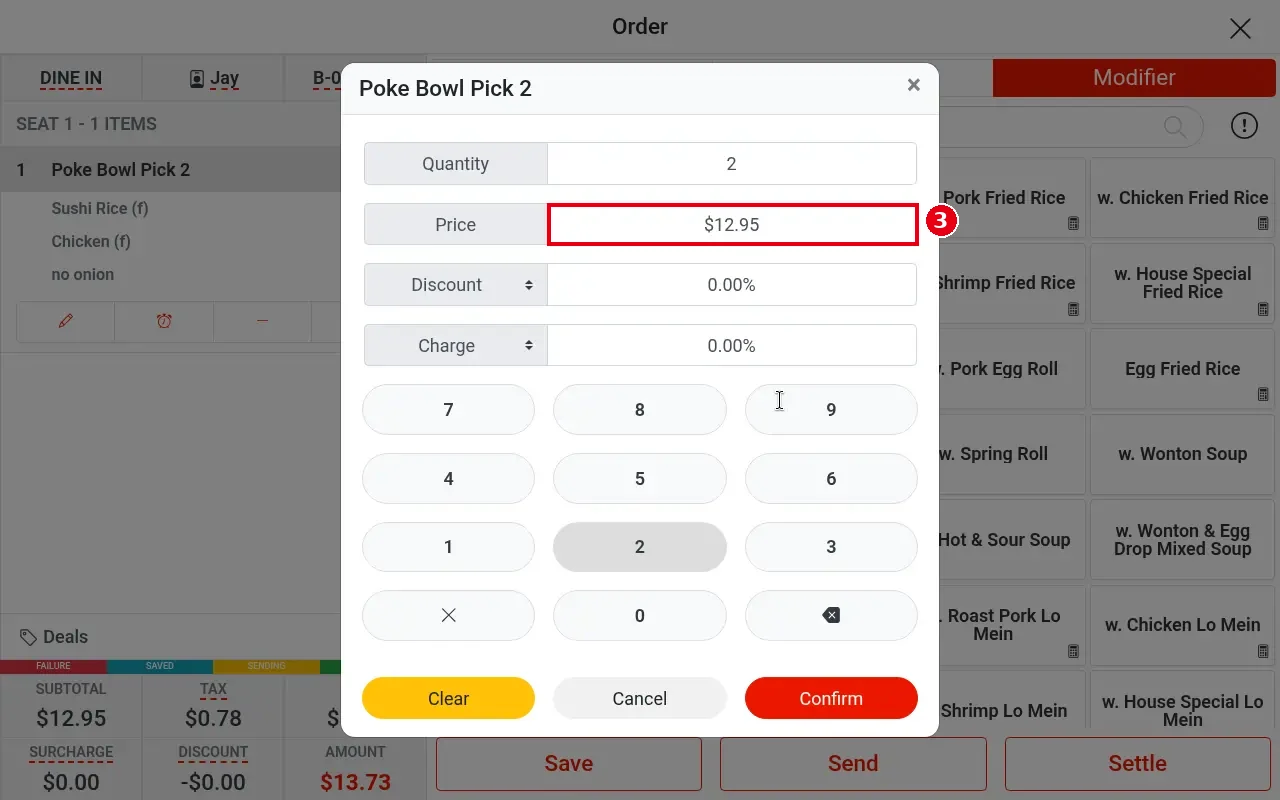
3. Tap Price and type the new unit price. Price is entered in cents, e.g. 1, 0, 0, 0 gives $10.00.
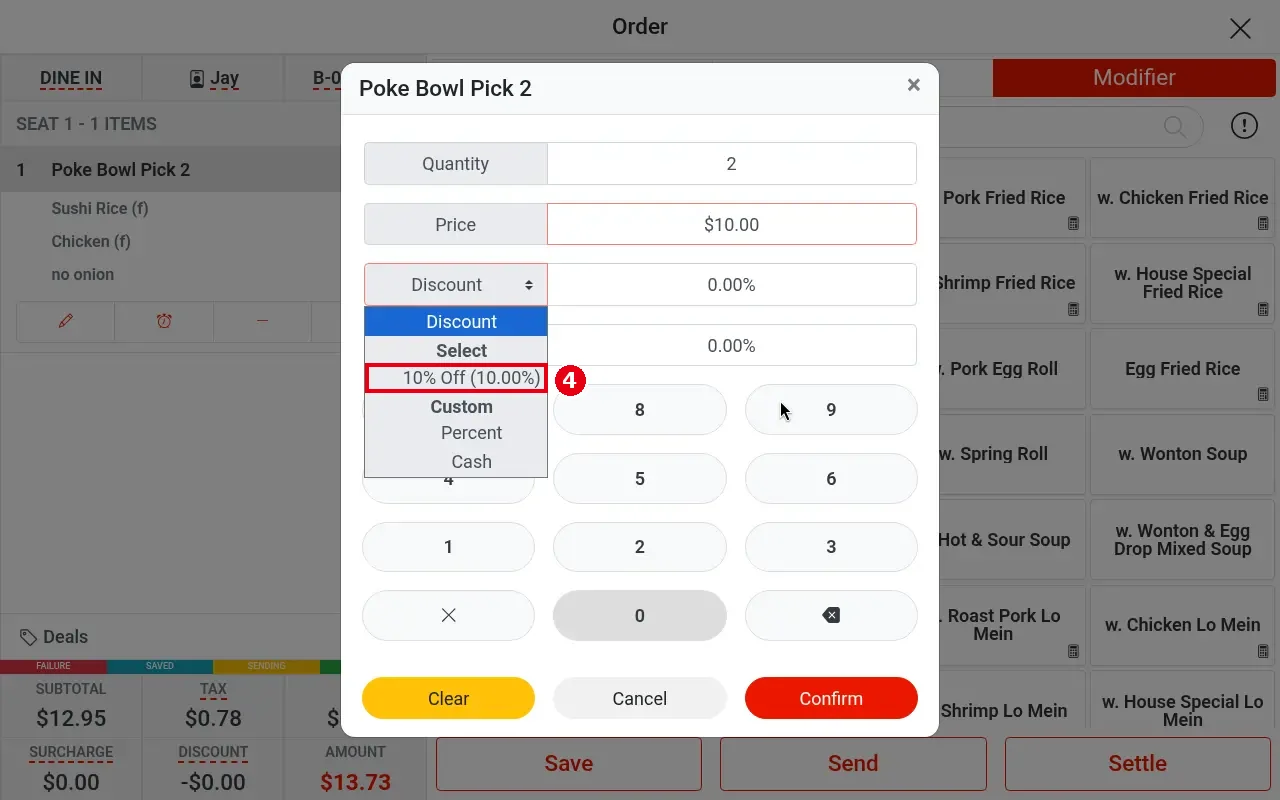
4. Item discount: open the Discount drop-down and pick a preset (e.g. 10% Off (10.00%)), or under Custom choose Percent or Cash and type the value.
5. Item charge: open the Charge drop-down and pick a preset (e.g. Charge$1.25 ($1.25), Charge$2 ($2.00)), or under Custom choose Percent / Cash.
6. Tap Confirm (Clear resets, Cancel cancels).
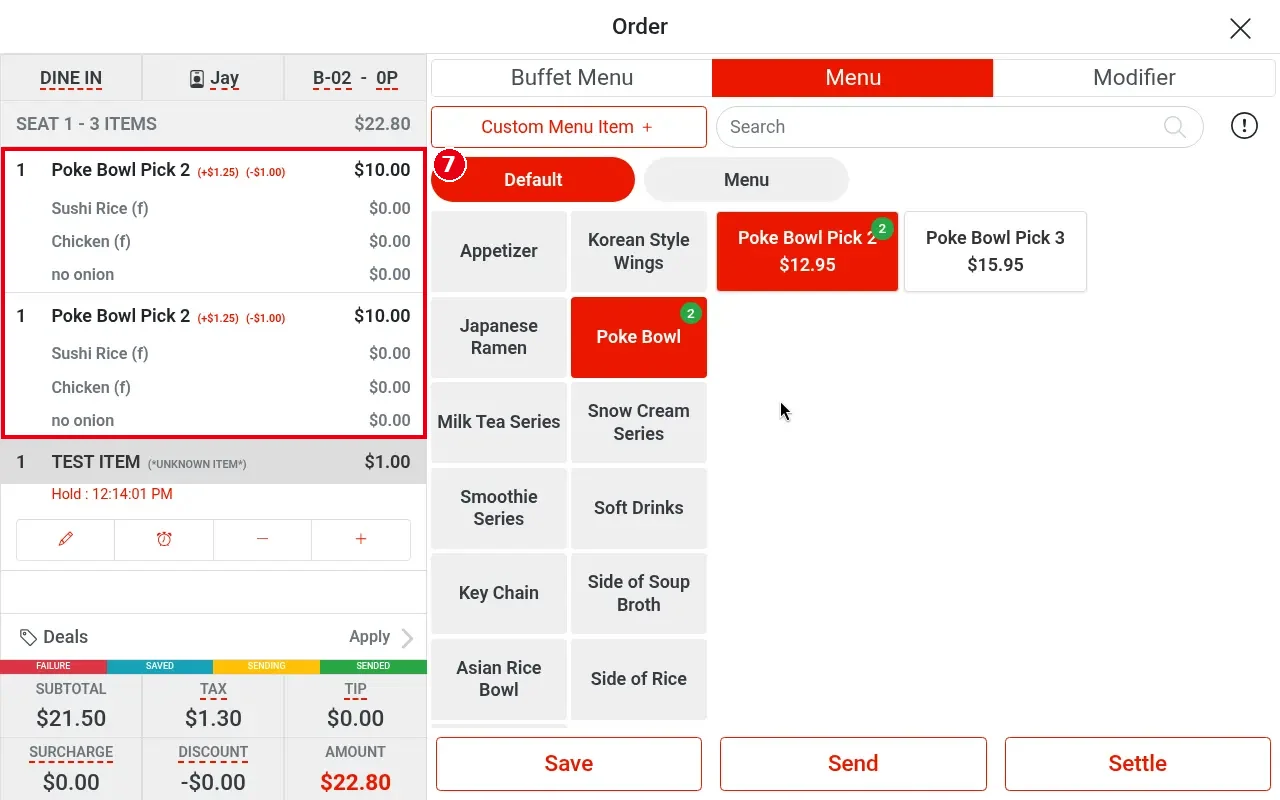
7. The item shows the new price, with the charge and discount after its name (e.g. Poke Bowl Pick 2 (+$1.25) (-$1.00) $10.00).
Notes / FAQ #
-
One line or several for the same item: an item with modifiers (forced or regular) always shows each portion as a separate line. An item without modifiers merges into the existing line before the order is saved, and shows as a separate new line after the order has been saved and sent (each sent item’s sent-to-kitchen time is shown in Order Detail, see 1.2.12). In this example Poke Bowl Pick 2 is an item with modifier groups (modifiers were picked), so quantity 2 shows as two lines of quantity 1 (each with (+$1.25) (-$1.00)).
-
An item discount only changes that item’s price; it is NOT an order discount. To discount the whole order, tap DISCOUNT at the bottom of the order screen (see 1.2.10). Reports count only order discounts as discounts.
-
The 10% item discount uses the new price: $10.00 × 10% = -$1.00.
-
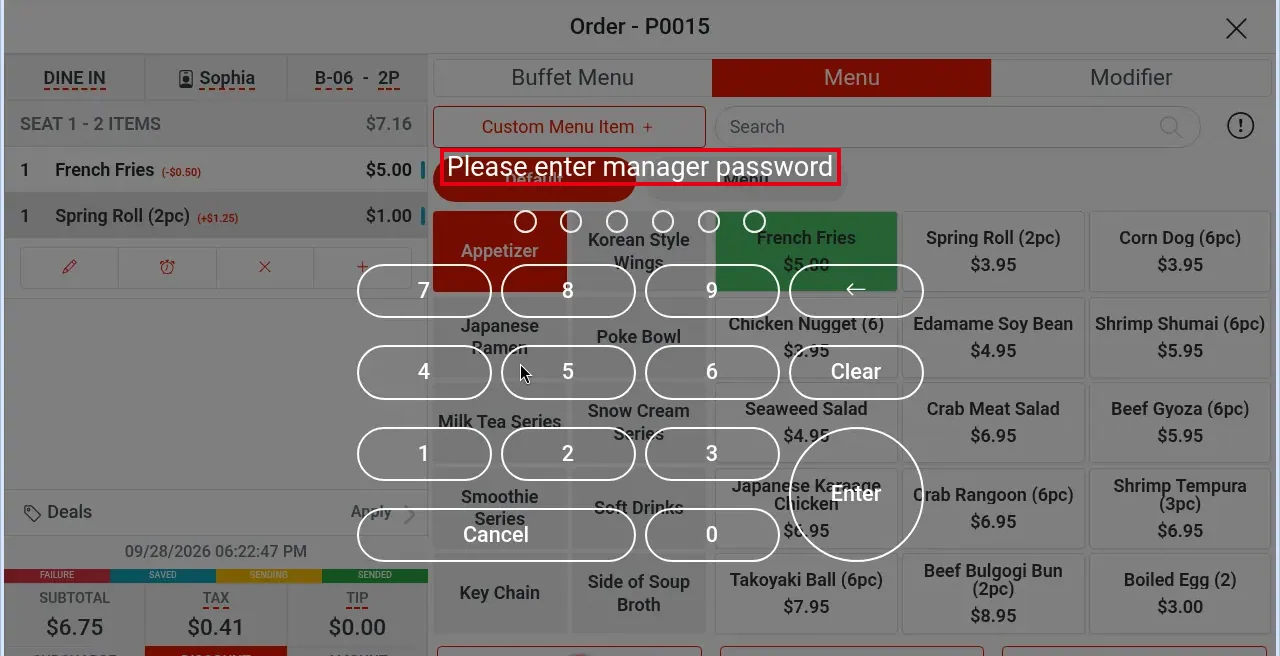
Whether price changes, item discounts and item charges need manager approval depends on each employee’s permissions, which are set per employee in the back office employee screen. If an employee doesn’t have the permission, a manager-approval prompt appears and a manager enters their own passcode. For example, with the demo store’s regular employee account, order discount, surcharge, tip, tax exempt, changing the order type, server or table, and voiding a sent item all asked for the manager password (Please enter manager password), while item discount, item price change and item charge did not. The step screenshots here were taken with the highest-permission employee account, so no manager approval appears in them. The manager password prompt looks like this:
-
Preset discounts and charges are set in the back office under Payments > Discount / Surcharge (see 2.4.1 How to set up discounts, 2.4.2 How to set up surcharges).


