
Purpose: Delay some items before they go to the kitchen (e.g. fire mains after the appetizers). For: servers.
Steps #
1. Select the item in the ticket and tap the clock icon (Hold) below it.
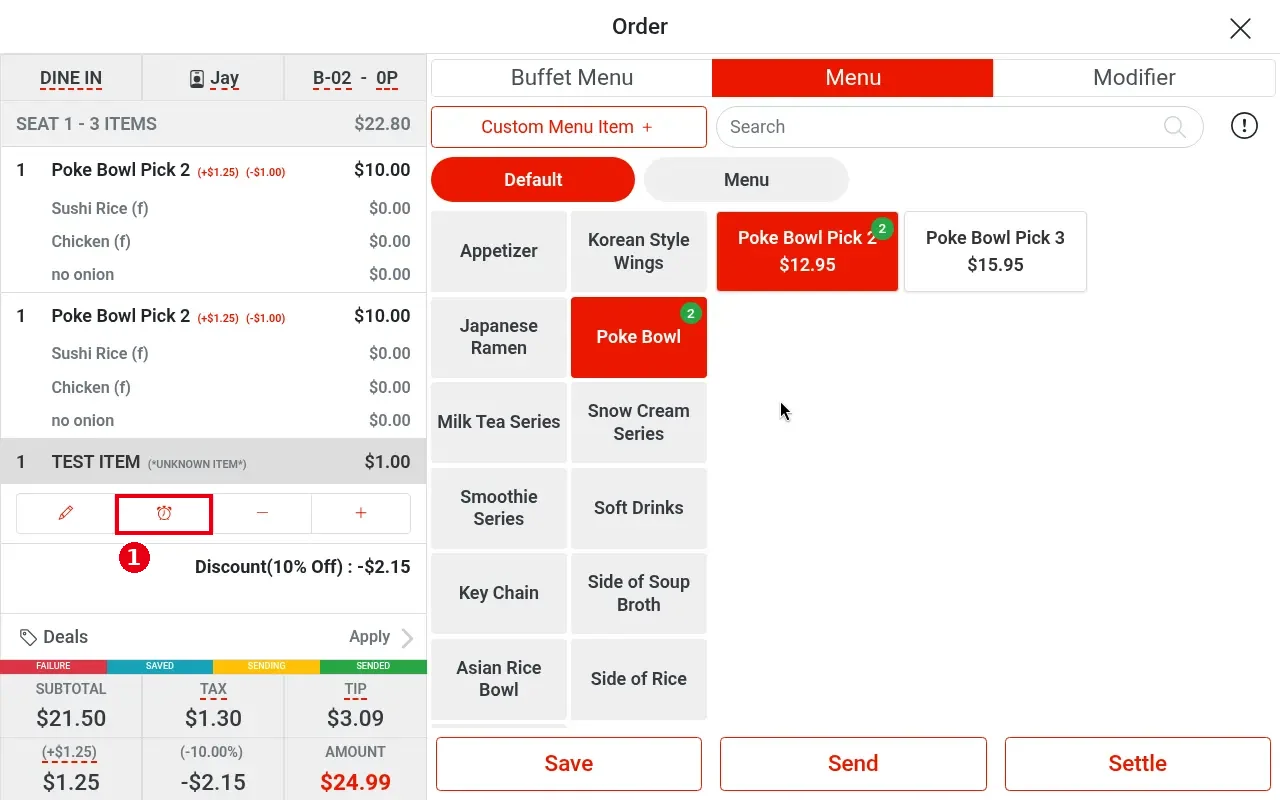
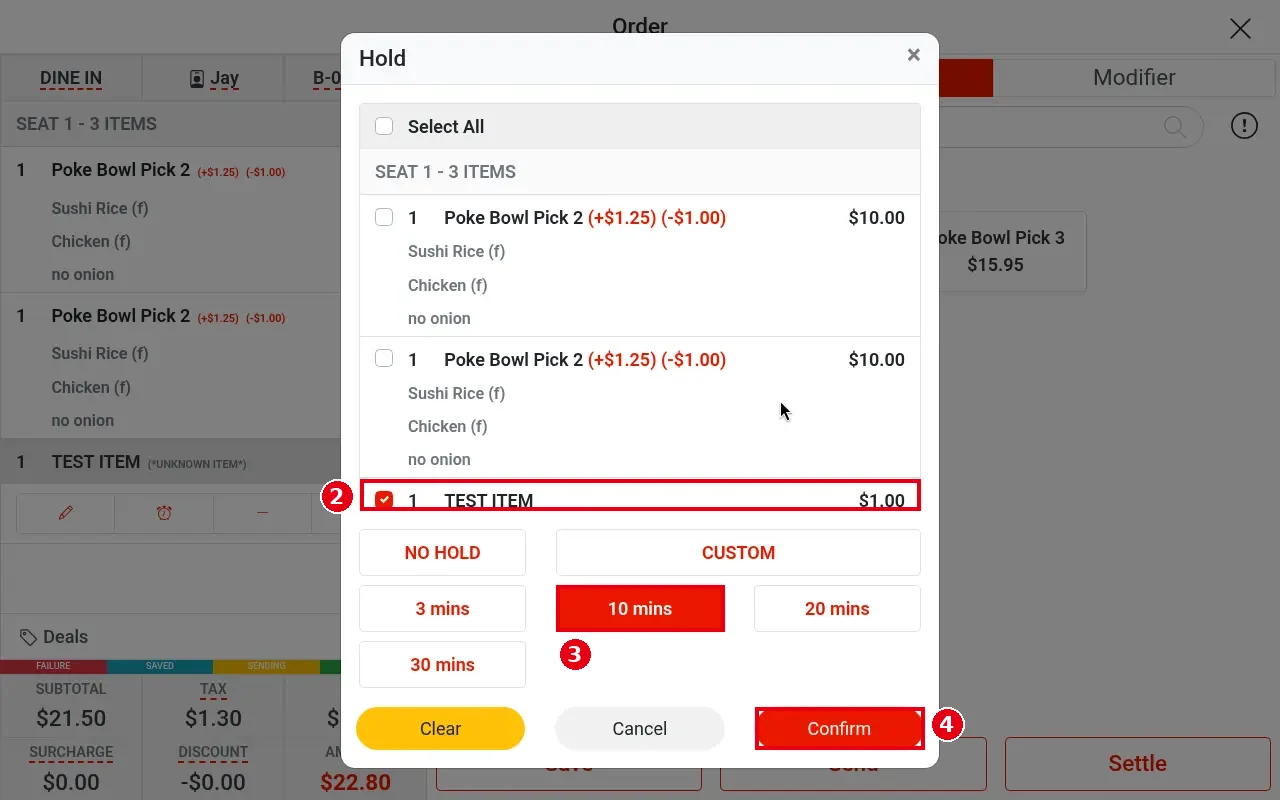
2. In the Hold window tick the items to hold (e.g. TEST ITEM), or tick Select All.
3. Choose how long: 3 mins, 10 mins, 20 mins, 30 mins, or CUSTOM.
4. Tap Confirm.
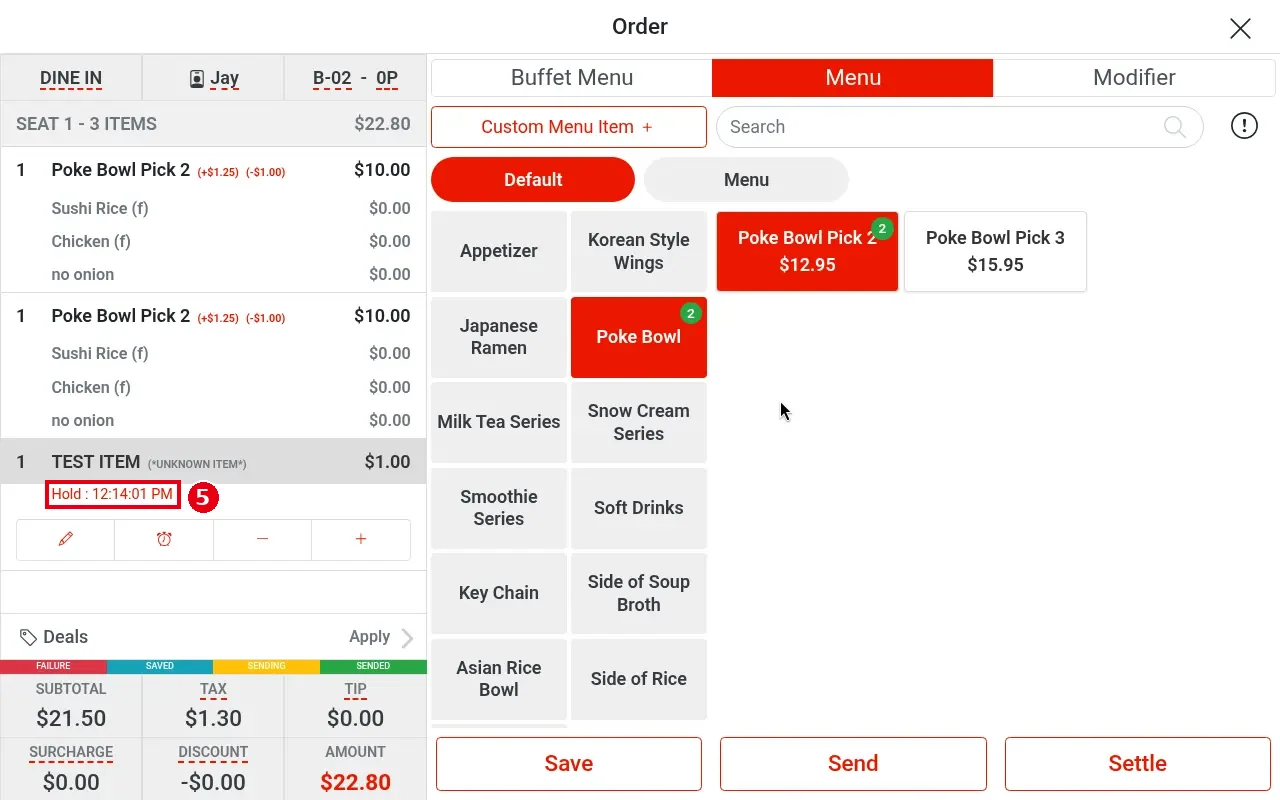
5. The item shows red text Hold : 12:14:01 PM – it is held until that time.
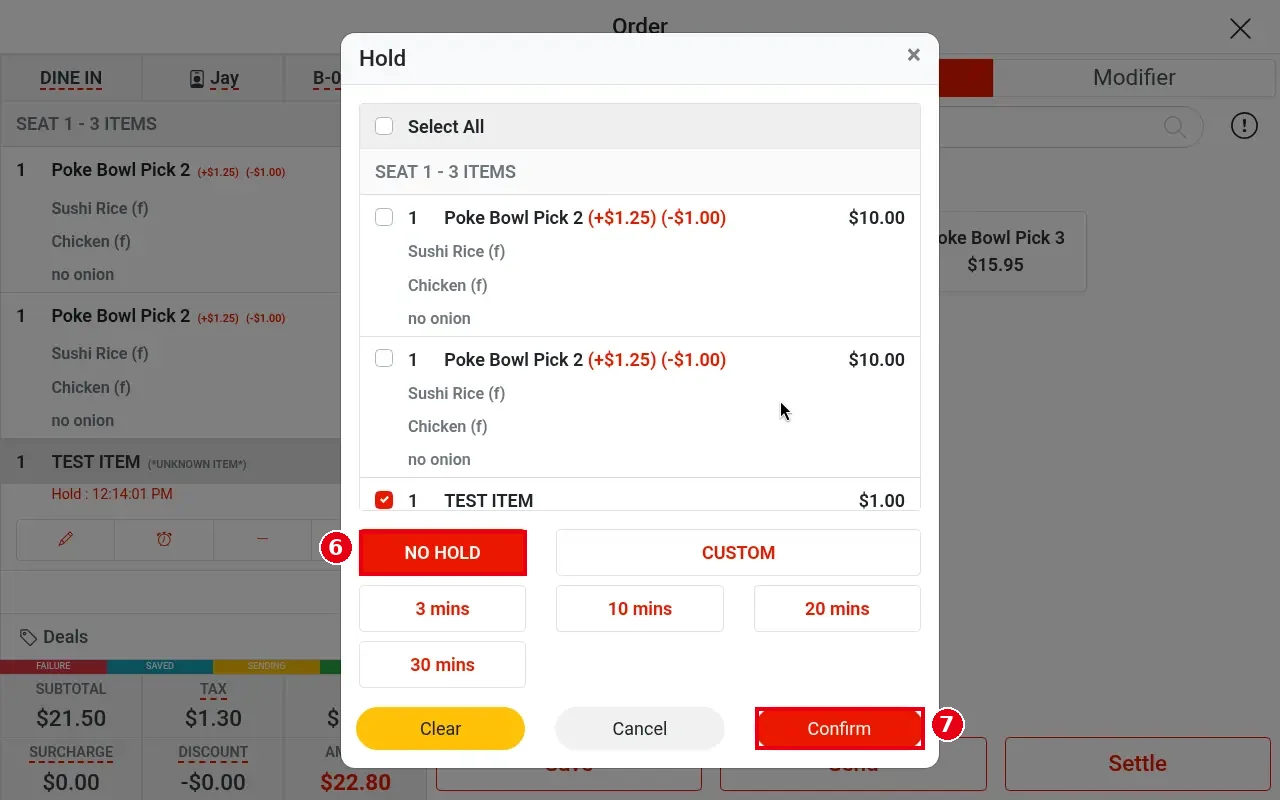
6. To release the hold: open Hold again, tick the item and choose NO HOLD.
7. Tap Confirm.
Notes / FAQ #
-
The time after Hold : is the clock time the hold ends, not minutes remaining (e.g. choosing 10 mins at about 12:04 shows 12:14:01 PM).
-
The duration options are set in the back office under Payments > Hold (see 2.4.6 How to set up hold times).
-
When the hold time is reached, the system sends the held items to the kitchen automatically – you don’t need to tap Send again.


