
Purpose: When an order is ready, scan the QR code on the order and the system texts the guest to come and pick it up. For: front counter and expo staff.
Before you start:
-
The order must have a printed or displayed QR code, and the POS needs a USB barcode scanner. A USB scanner works on iOS (if the device has a USB port), Android, Windows and Linux. The QR code on receipts is turned on in the Backoffice under Service > Other, with three switches: Show QR code on customer receipt, Show QR code on packager receipt and Show QR code on kitchen receipt.
-
The order must have the guest’s phone number (e.g. a pick-up order, see 1.2.3 How to take a phone pick-up order). Orders without a phone number don’t get a text.
-
Sending texts uses SMS credits (SMS Credit). On the demo store, the Scan & Notify and Waitlist screens both showed SMS Credit 76, so they appear to share the same credits. Waitlist text content is set in the Backoffice under Service > Waitlist (Ready Notification – SMS, Ready Notification – Voice, Waitlist Confirmation SMS). The Scan & Notify text is fixed and can’t be edited.
Steps #
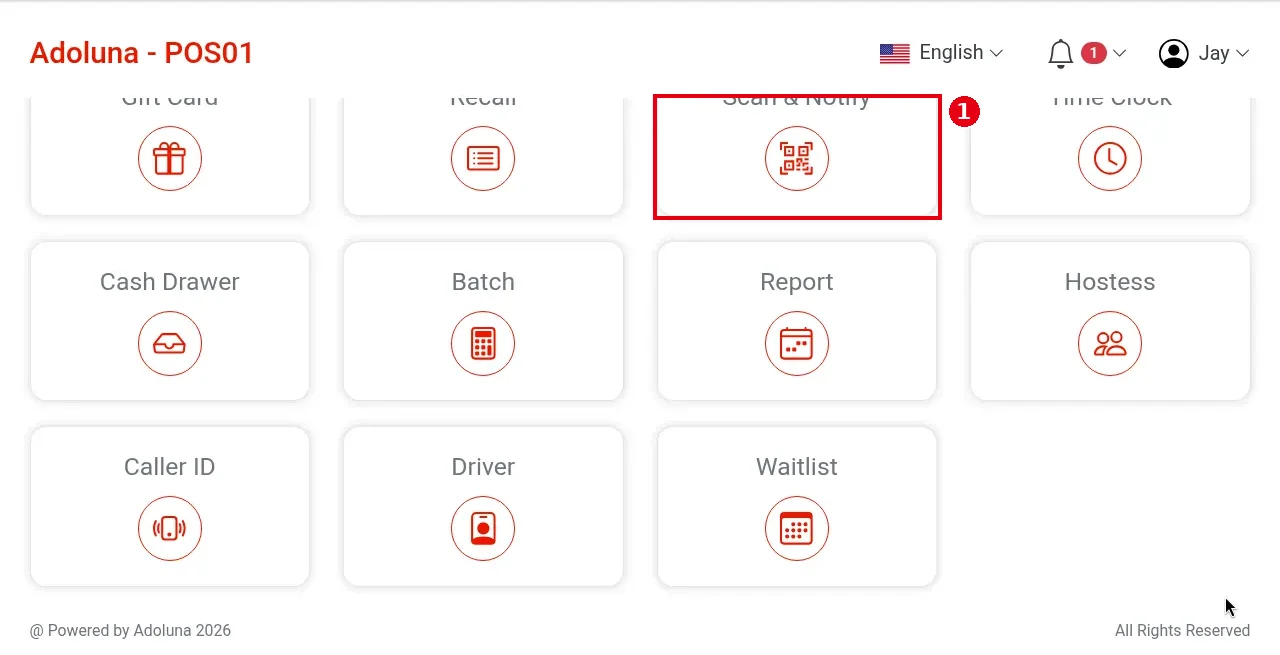
1. On the POS home screen tap ① Scan & Notify.
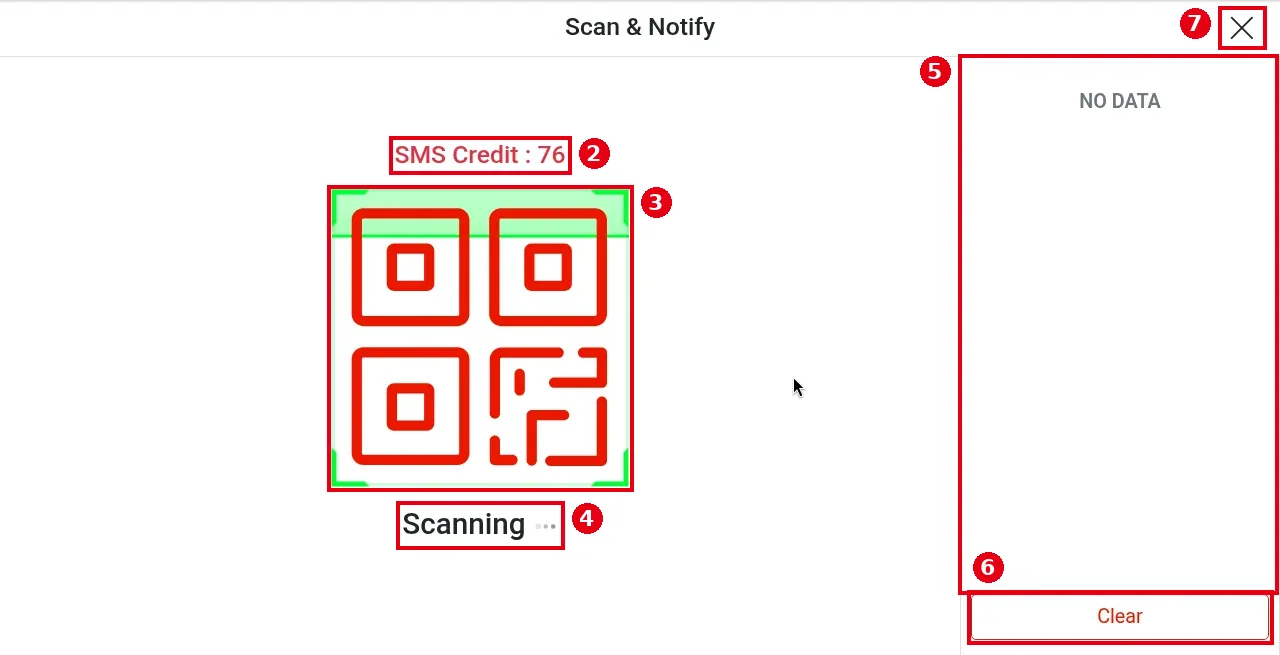
2. The Scan & Notify screen opens: ② SMS Credit shows the credits left (76 in the screenshot); the scan area ③ and ④ Scanning … mean it’s waiting for a scan.
3. Scan the QR code on the order. The system texts the order’s phone number that the order is ready, and the list ⑤ on the right shows the text records (no records yet in the screenshot, so it shows NO DATA). You can scan several orders in a row (official release notes: continuous SMS notifications are supported).
4. Tap ⑥ Clear to clear the list on the right; tap ⑦ X at the top right to close the screen.
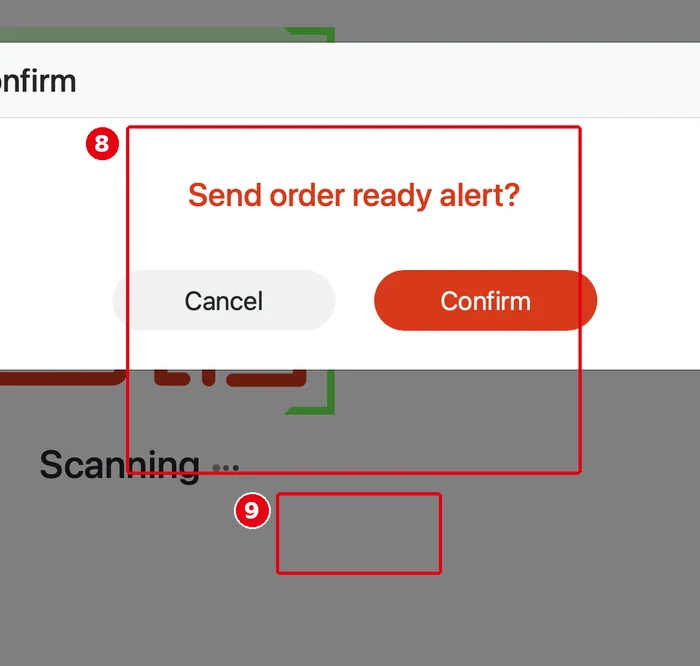
After a scan, Confirm (Send order ready alert?) appears; tap ⑧ Confirm to send (⑨ Cancel to go back).
When it sends, list ⑤ on the right shows a text record (e.g. order number and time).

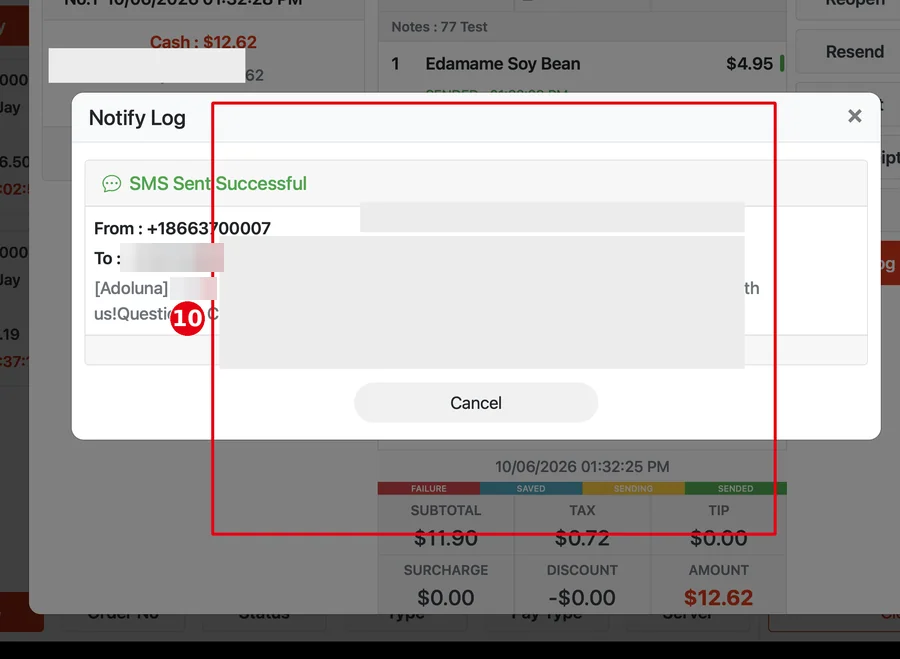
You can also open the order in Recall and tap Notify Log to see ⑩ the send result (SMS Sent Successful).
Notes / FAQ #
-
A guest who replies STOP is unsubscribed, and later texts fail. The system shows “This number is unsubscribed from text updates. Reply START to (866) 370-0007 to resume.” The guest must reply START to (866) 370-0007 to receive texts again (same as waitlist texts, see 1.7.3 How to notify a waiting party that their table is ready).
-
Texts can’t be sent once the credits run out: if you try, the POS shows Insufficient SMS balance. Contact Adoluna to buy more SMS credits.
-
Scan & Notify is separate from the waitlist “table is ready” text; for waitlist notifications see 1.7.3 How to notify a waiting party that their table is ready.


