
Purpose: When an item prints at the wrong kitchen (or at every kitchen), find out why and fix it. For: managers, Adoluna onboarding staff.
Common causes and fixes #
1. The item has the wrong printer mapping: open the item’s edit page and check its Printer Mapping (see step 5 of 3.3.3 How to set up printer mapping and route items to kitchen printers). A category’s Default Printer Mapping applies only to items created in that category afterwards; changing it doesn’t update existing items, so fix those one by one.
2. The mapping is linked to the wrong printer: open the mapping under Device > Printer Mapping and check ① Type and ② Printer.
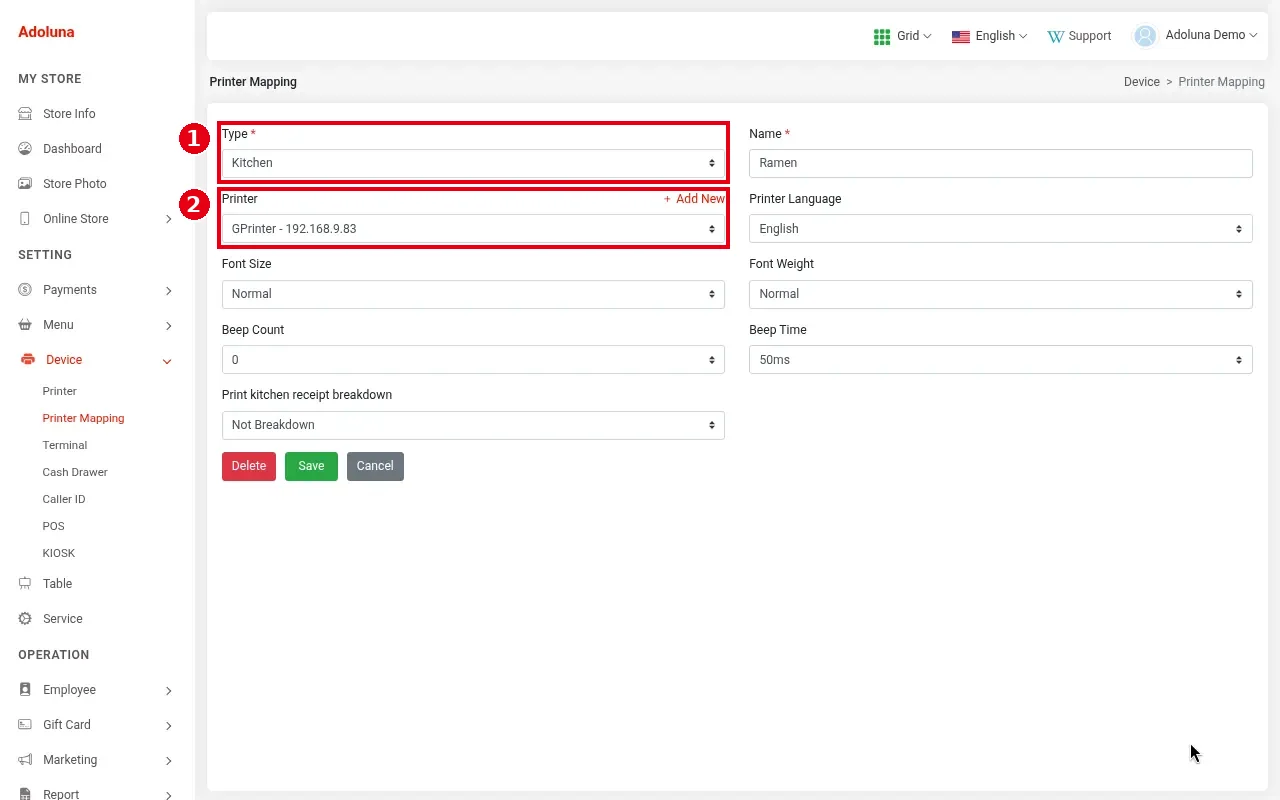
3. Two printers swapped or changed IPs: for example, after a power cut a printer got a new IP, so the IP in the Backoffice now points to another printer. Print a config page on each printer (see 3.3.2 How to print a config page and change a printer’s IP) and compare each IP with Device > Printer in the Backoffice (see 3.3.1 How to add a printer).
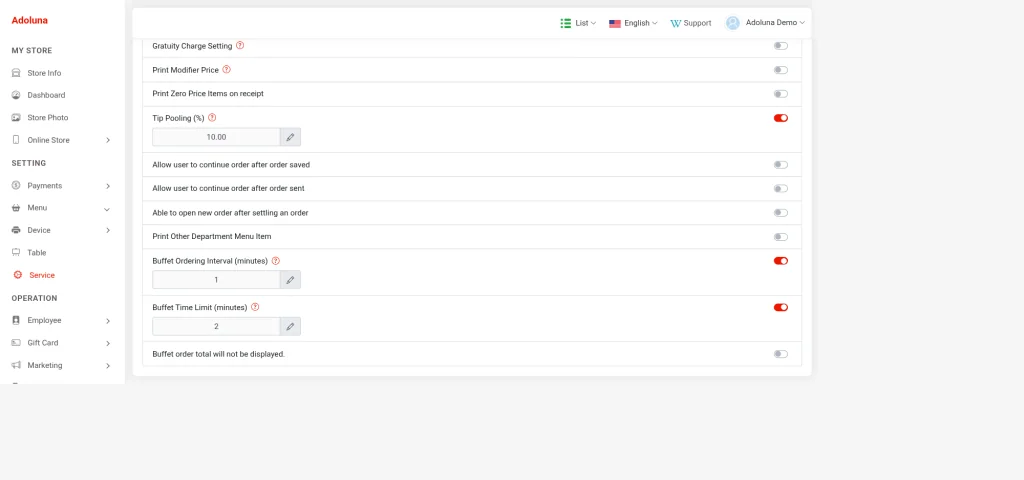
4. Every kitchen prints other departments’ items: Print Other Department Menu Item is set under each Service (order type) in Service. According to the website docs, when it’s on, every kitchen printer also prints items from other departments. If you don’t need it, turn it off in each Service. The switch is under Service > Dine In in the Backoffice, between Able to open new order after settling an order and the Buffet settings (off in the demo store).
5. After fixing, send a test order to check (see 3.6.2 How to run a go-live test (test orders, printing, cards, Batch)). Resend wrongly printed orders from Recall if needed (see 1.4.2 How to resend or reprint an order).
Notes / FAQ #
-
Choosing the printer mapping when you create each item avoids most of these problems (see 3.6.1 How to build a new menu from scratch (setup order)).
-
Excel menu import isn’t recommended for merchants for now (see 2.3.12 How to import and export the menu with Excel). Items that were already imported from Excel have no printer mapping, so set it for each one in the Backoffice.


