
Purpose: When a red Local Service Offline shows at the top of the POS home screen, bring the Local Server back and know what’s affected while it’s down (printing, cash and cards) and what happens when the store’s internet is down. For: all staff, managers.
How to tell #
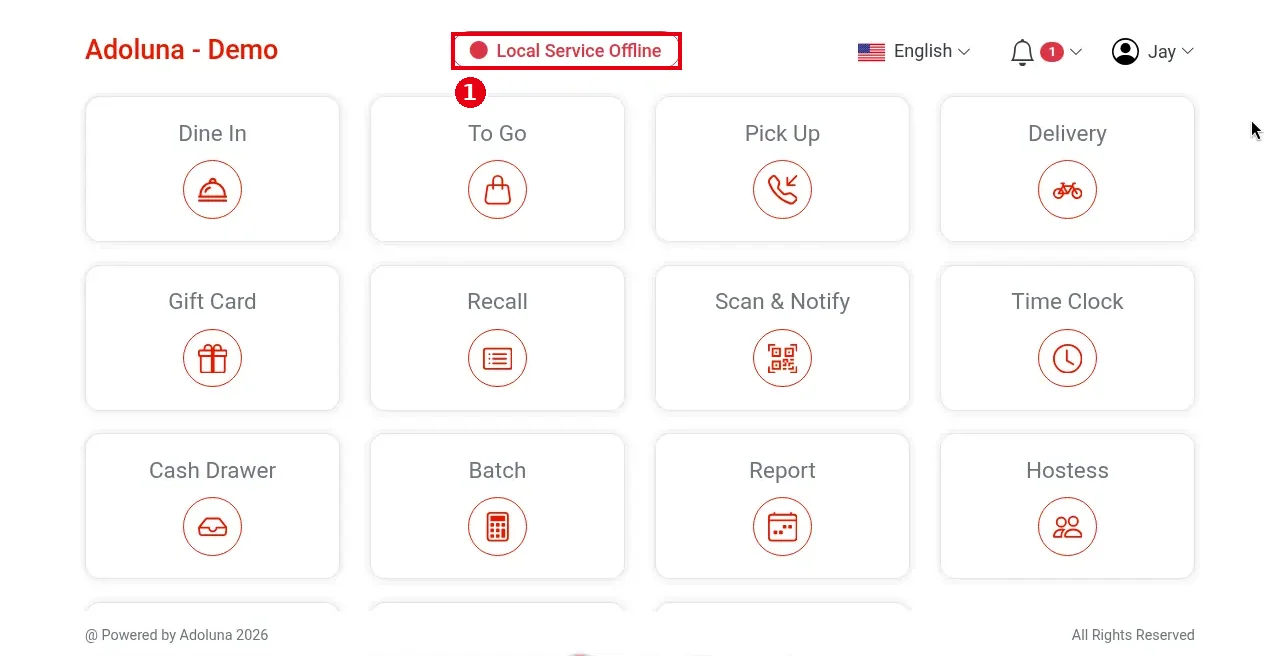
1. A red ① Local Service Offline at the top centre of the home screen means this POS can’t reach the store’s Local Server. Nothing shows while it’s online.
2. You’ll also see printers not printing, the cash drawer not opening (no cash payments) and PAX terminals not working. VP3350, VP3300 and Clover Go 3 readers connect directly to the POS device and aren’t affected.
Steps #
1. Check that the Local Server’s power and network cables are plugged in.
2. If both are fine, power-cycle the Local Server.
3. Wait about 3 minutes, then tap the employee name at the top right of the POS and tap Refresh (see 4.4.3 How to refresh or restart the POS).
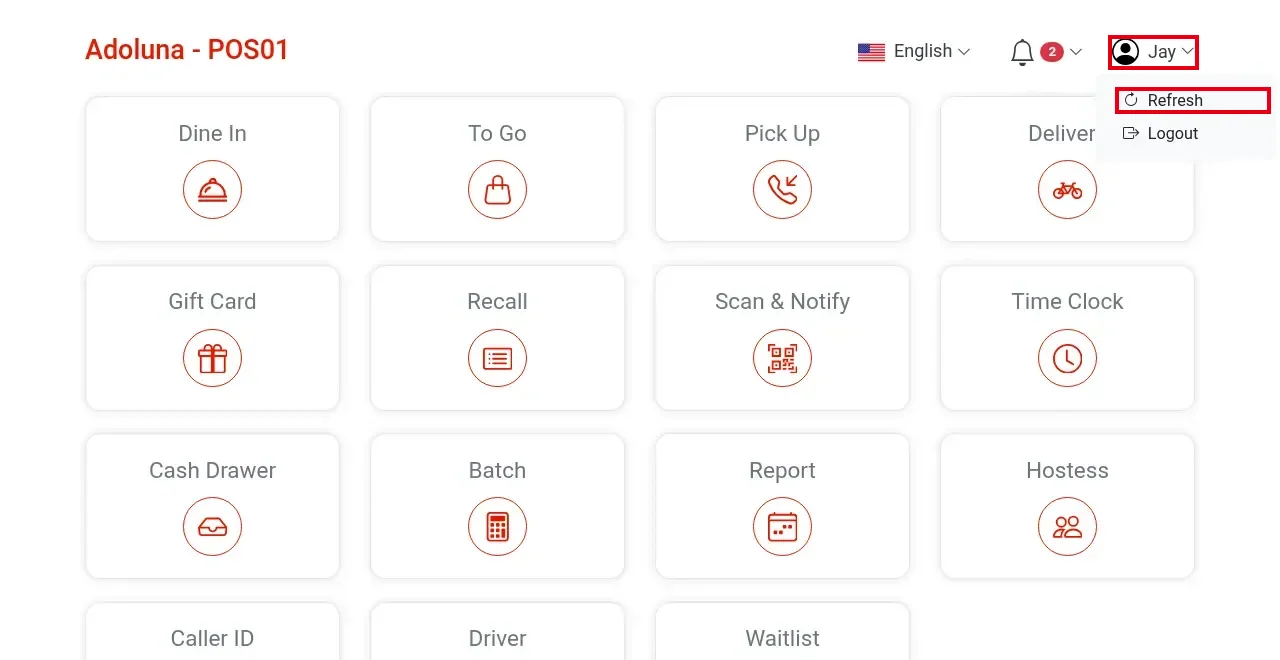
4. If it still shows Local Service Offline, contact the technical team: +1 (866) 588-8868, support@adoluna.com.
Store staff only need to watch for Local Service Offline on the POS. The Adoluna technical team can check the Local Server’s status remotely in the Adoluna admin back end; if it needs setting up again or replacing, an Adoluna technician handles it (see 3.2.5 How to set up the Adoluna Local Server).
While it’s offline #
-
Printing: failures show in the Notification Center (see 1.1.4 How to check the Notification Center). While the Local Server is offline, retries follow the printer timeout set in the Backoffice. If the Local Server comes back within 30 minutes, kitchen tickets reprint automatically; after 30 minutes use Resend. Customer receipts and other receipts never reprint automatically; use Reprint (see 1.4.2 How to resend or reprint an order).
-
Cards: PAX terminals don’t work. With a VP3350 / VP3300 / Clover Go 3 reader you can keep taking cards. With only PAX terminals, you can use Bolt Key In on the POS to key in the card (the POS needs internet; Key-in terminal: 3.4.2 How to set up a Bolt terminal).
-
Cash: the cash drawer won’t open, so you can’t take cash.
When the store’s internet is down #
-
Adoluna POS is cloud-based and needs the internet even to take orders. When the store’s internet is down, the whole POS stops working: you can’t take orders; the cloud can’t reach the Local Server, so printers don’t print and the cash drawer won’t open (no cash payments); card payments, online orders and third-party orders all stop too.
-
Keep the router online at all times; the recommended router can use a phone hotspot as a backup connection (see 3.1.2 How to set up the network and wire a POS station).
-
If Local Service Offline still shows after the internet is back, follow the steps above.
Notes #
-
Prevention: keep the Local Server on at all times and keep its cable separate from other devices; setup and network requirements are in 3.2.5 How to set up the Adoluna Local Server.


