
Purpose: Explain where sales and tax from third-party platforms such as DoorDash and Uber Eats show up in Backoffice and POS reports. For: owners, managers.
Explanation #
Third-party platform orders reach the POS through Deliverect (see 2.9.5 How to set up third-party delivery sync (Deliverect)). According to the Adoluna website, third-party sales appear on the Dashboard and in the Daily Summary, and third-party tax is shown separately, one line per platform, in the Sales section of the POS Settlement report (see below).
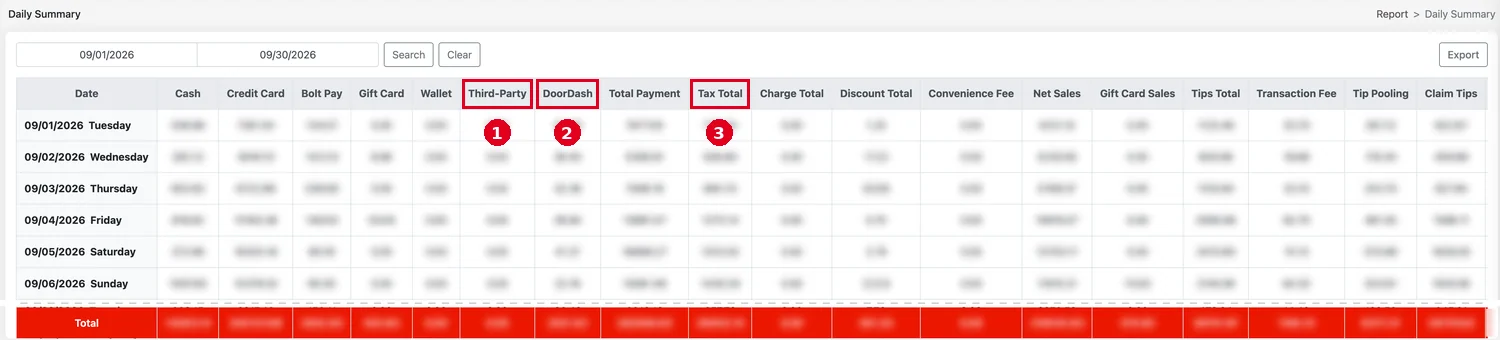
Backoffice Daily Summary (Report > Daily Summary, see 2.11.2 How to run the Daily Summary report) has these columns related to third parties: ① Third-Party is orders that came in through Deliverect, and their tax is included in ③ Tax Total; ② DoorDash is not orders that came in through Deliverect: it’s a custom payment type the store created in the Backoffice (see 2.4.4 How to add a custom payment type), which staff tender by hand on the POS (see 1.3.4 How to settle with a custom payment type). The custom payment type columns depend on which payment types the store has created (for example, there may also be Uber Eats). The picture below shows a store’s first 6 days and the Total row at the bottom (the days in between are left out and the amounts are blurred).
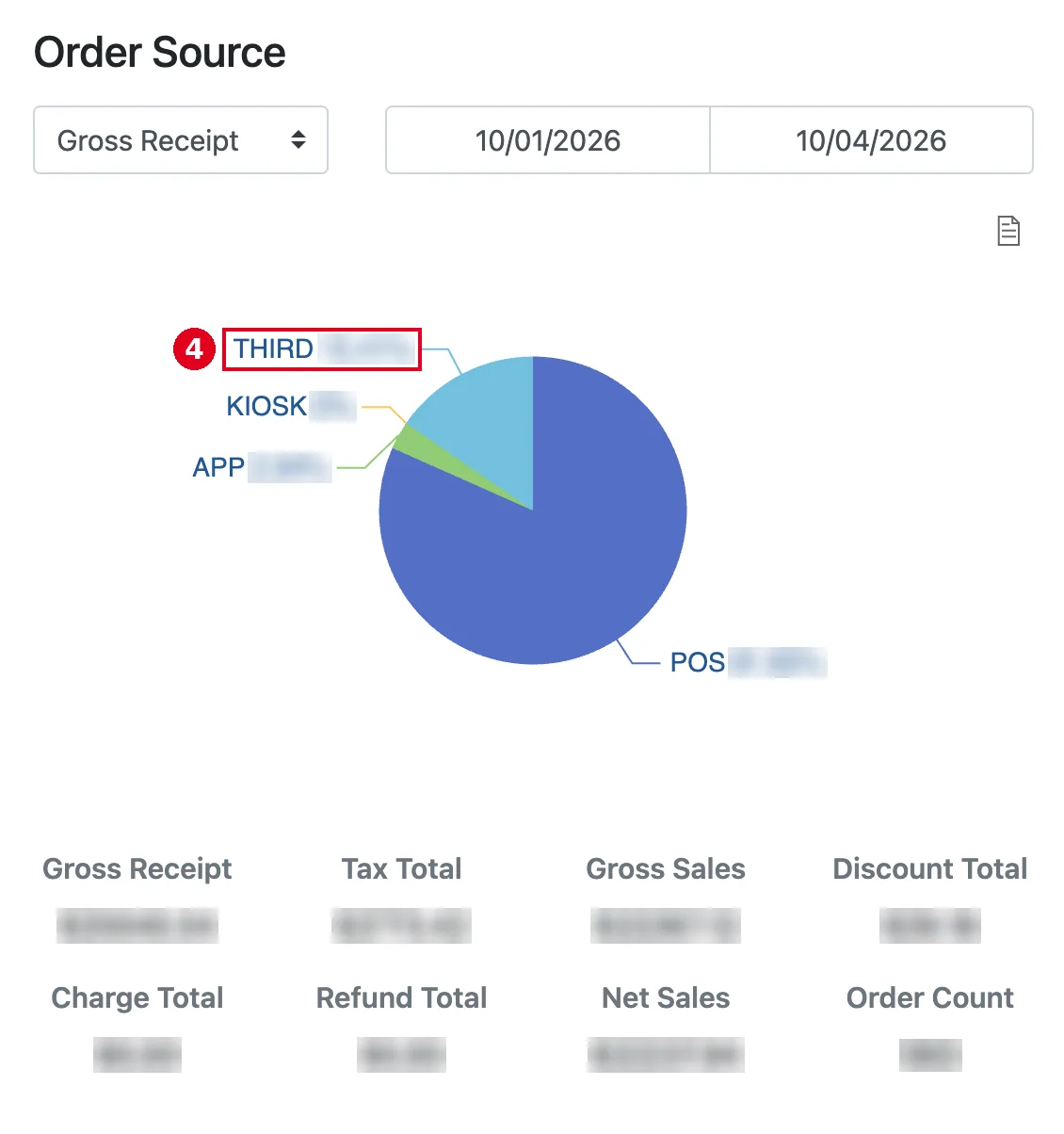
Backoffice Dashboard (see 2.11.1 How to read the Dashboard). The two pictures below show a store’s data with third-party platform orders (amounts, percentages and order counts are blurred). ④ THIRD in the Order Source chart is third-party platform orders. Tax Total under the chart is a single figure that includes third-party platform tax (Gross Receipt − Tax Total = Gross Sales); unlike the POS daily report, it isn’t split into one line per platform.
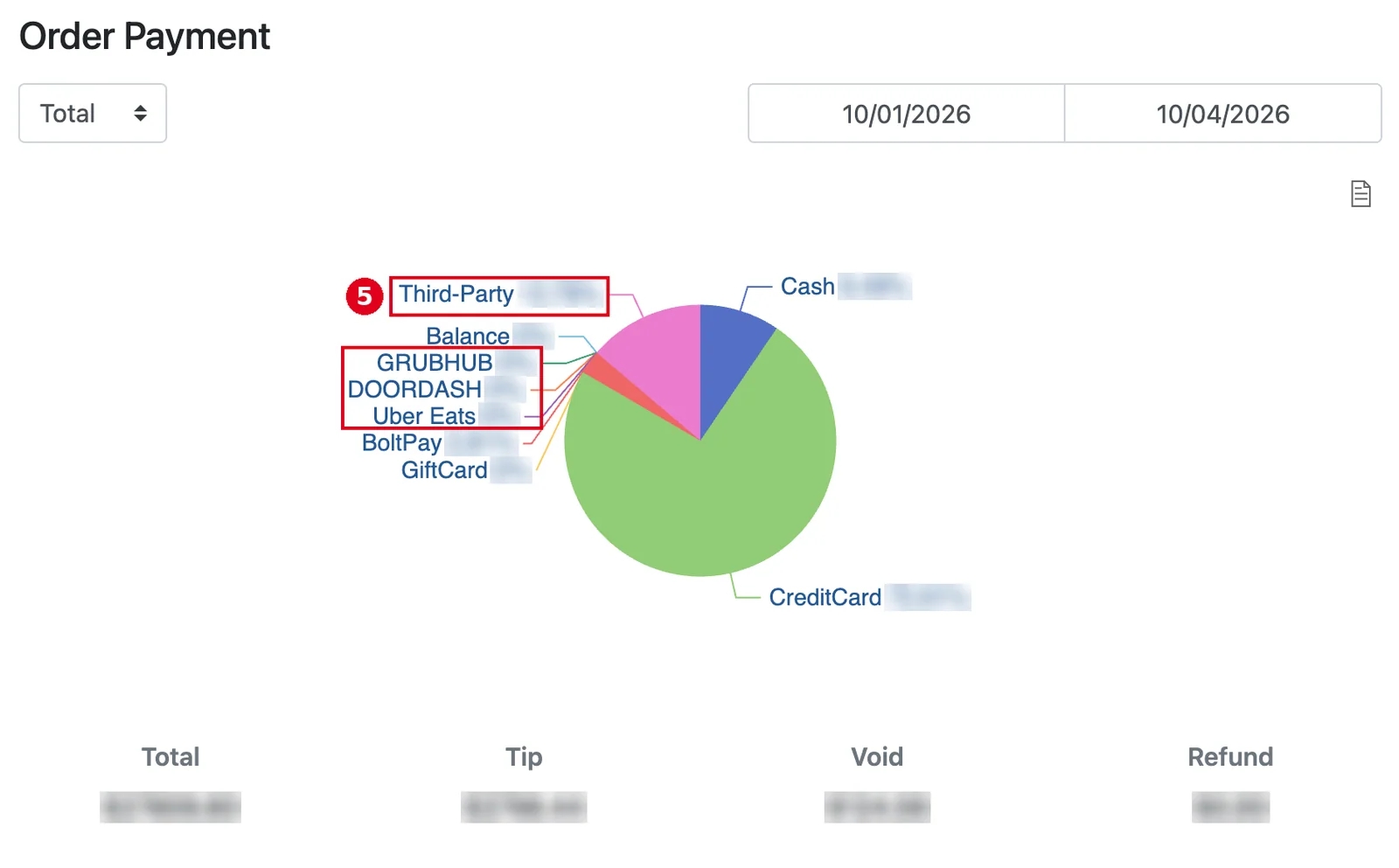
In the payment type chart (Order Payment), ⑤ Third-Party is orders that came in through Deliverect; GRUBHUB, DOORDASH and Uber Eats in the red box are custom payment types the store created, which staff tender by hand on the POS.
POS daily report (Report > Settlement, see 1.5.6 How to view, print or email POS reports): third-party platform orders are paid orders and are counted in sales; Gross Receipt includes their amounts. In the Sales section, below Tax (the store’s own tax), each third-party platform’s tax has its own line, named with the platform plus (T), e.g. UBEREATS(T), GRUBHUB(T), DOORDASH(T), all negative. Gross Sales = Gross Receipt − Tax − each platform’s (T) tax.
Example (made-up figures, discount after tax): in-store orders with a subtotal of 100, tax 8.00 and a discount of 5; an Uber Eats order through Deliverect with a subtotal of 40 and tax 3.20; a DoorDash order with a subtotal of 20 and tax 1.60. The Sales section shows:
Sales
     Gross Receipt:   172.80
               Tax:    -8.00
       UBEREATS(T):    -3.20
       DOORDASH(T):    -1.60
                    ========
       Gross Sales:   160.00
    Discount Total:    -5.00
   Subcharge Total:     0.00
      Refund Total:     0.00
                    ========
         Net Sales:   155.00
Gross Sales = 172.80 − 8.00 − 3.20 − 1.60 = 160.00; Net Sales = 160.00 − 5.00 = 155.00, i.e. the three subtotals 100 + 40 + 20 minus the discount of 5.
-
In Payment Summary, orders that came in through Deliverect are in the Third-Party block. Third-Party payments can carry tips: these count in Tips Total but not in Transaction Fee (Transaction Fee only uses the tips under Credit Card and Bolt Pay).
-
A custom payment type can have the same name as a platform (e.g. DOORDASH). In Payment Summary, DOORDASH is a payment tendered by hand, while the DOORDASH(T) tax line comes from DoorDash platform orders received through Deliverect; both can appear on the same report.
Notes / FAQ #
-
Third-party orders are paid on the platform; for the platform’s commission and payouts, go by the platform’s statement.
-
Refunds on custom payment types such as DoorDash and Uber Eats are only recorded on the POS; the actual refund has to be handled on the platform (see 1.4.7 How to refund an order).


