
Purpose: Freeze or delete an employee who is off for a while or has left, so they can’t sign in to the POS, and restore them when needed. For: owners, managers.
Steps #
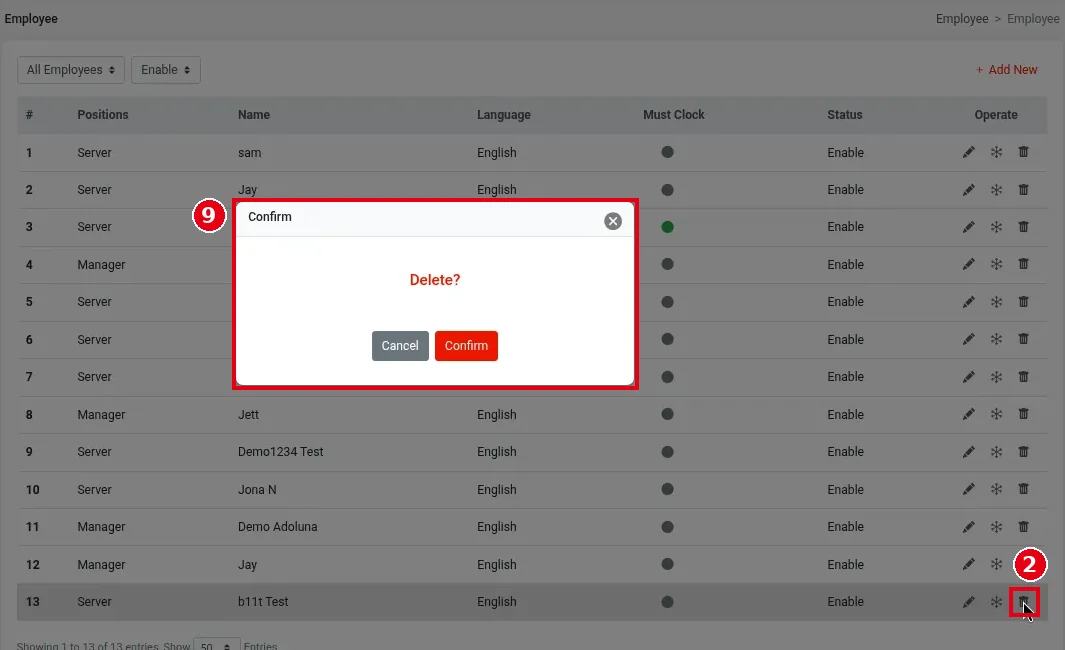
1. In the Backoffice left menu, click Employee > Employee. In the employee’s Operate column: ① ❄ freezes, ② the bin deletes (the pencil edits).

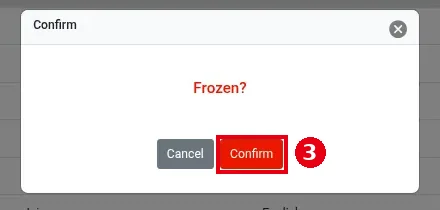
2. To freeze, click ❄. In the Confirm dialog Frozen?, click ③ Confirm (or Cancel).
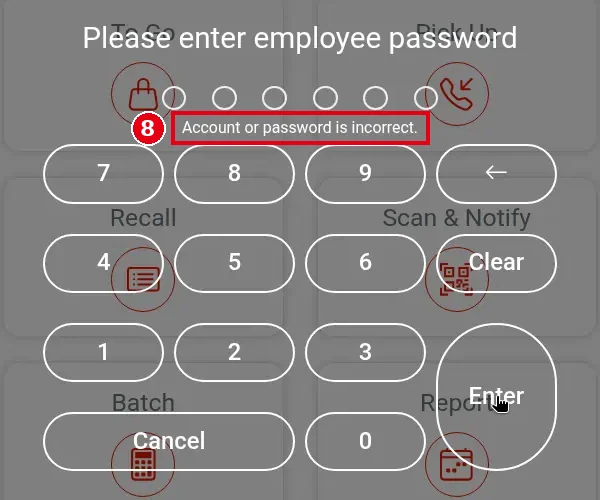
Once frozen, the employee’s passcode is refused on the POS with ⑧ Account or password is incorrect..
To delete, click the ② bin. In the ⑨ Delete? dialog, click Confirm (or Cancel).
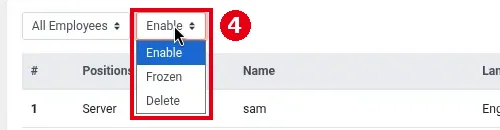
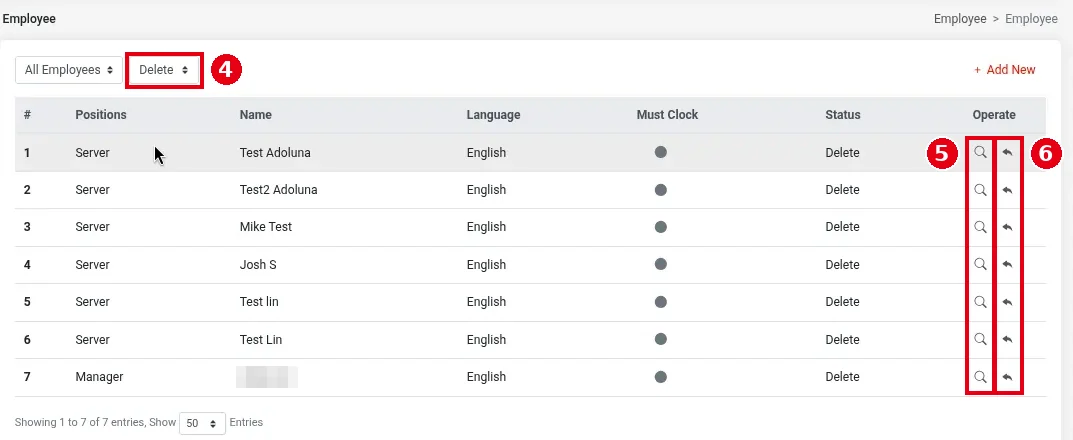
3. To see frozen or deleted employees, use the ④ status filter at the top of the list: Enable (active), Frozen and Delete. Enable is shown by default.
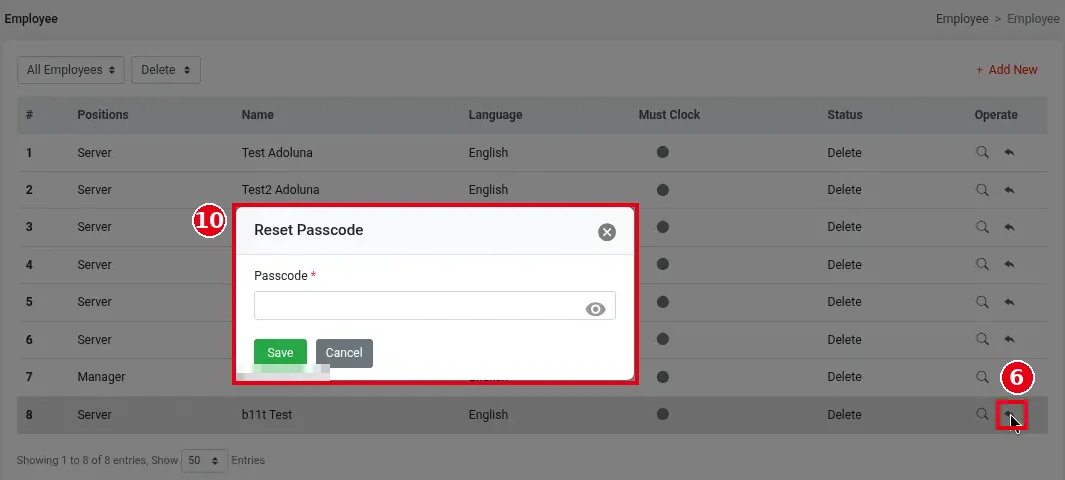
4. To restore a deleted employee, choose Delete in ④ to list deleted employees. The Operate column has ⑤ a magnifier, View, and ⑥ a curved arrow, Regain. Click ⑥ Regain; the ⑩ Reset Passcode window opens. Enter a new passcode in Passcode* and click Save (or Cancel). Deleting released the old passcode, so a restored deleted employee always needs a new one.
5. To restore (unfreeze) a frozen employee, choose Frozen in ④. The Operate column again has ⑤ View and ⑥ Regain.
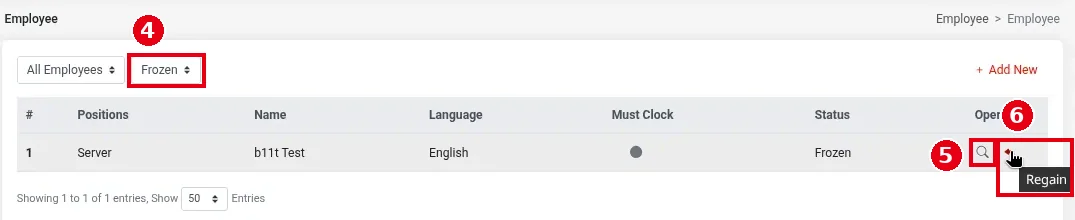
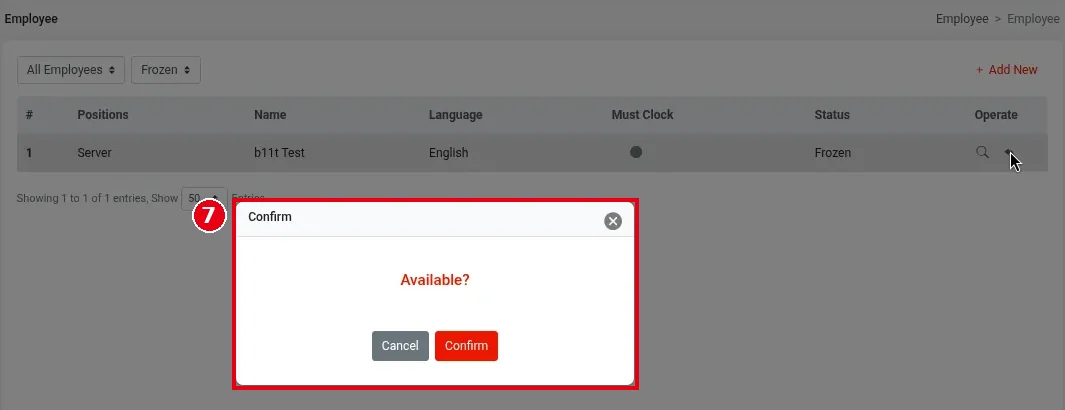
Click ⑥ Regain; in the ⑦ Available? dialog, click Confirm. The employee goes back to Enable with the same passcode, so no new passcode is needed; their old passcode works on the POS again (it shows Welcome …).
Notes / FAQ #
-
Freezing vs deleting: either way the employee can no longer use the system, and their time card and order records stay available. Freezing keeps the employee’s passcode; deleting releases it, so the passcode can be given to another employee. Freeze employees who are off for a while (e.g. on leave); delete those who have left.
-
If the employee also has a Backoffice account, delete it under Team > Administrator too (see 2.1.3 How to manage Backoffice users (Team)).
-
Before freezing or deleting, make sure they have no open orders (see 1.4.1 How to find an order in Recall) and have checked out their cash drawer (see 1.5.4 How to close out a cash drawer (Cashier Out)).


