
Purpose: What to do when a batch fails or reconciliation doesn’t match. For: managers, cashiers.
Reconciliation mismatch #
By default the batch reconciles first (Bypass Reconciling unchecked in the Batch window). If the terminal transactions and the POS card payments don’t match, fix the mismatch first, then close the batch:
1. In Batch > Batch – PAX > Actions > Reconcile, pick the terminal and see which transactions don’t match (see 1.6.2 How to reconcile card transactions before batching). On a row where both sides have a transaction but they don’t match, tap Sync: the terminal’s record wins, and it changes the payment record on the POS order.
2. A transaction on the terminal but not in the POS: void it on the terminal, or match it to the corresponding POS order (in the reconciliation result tap Void, or tap Select Order, pick the order and tap Sync).
3. A transaction in the POS but not on the terminal: void that payment record on the POS order (tap Void in the reconciliation result, or see step 3 of 1.4.6 How to void a paid order); the order goes back to unpaid, so take the payment again.
4. If an order was charged twice, follow 4.1.1 Why was a card charged twice, and how do I fix it?.
5. When done, close the batch again (see 1.6.3 How to close a credit card batch).
Skipping reconciliation (Bypass Reconciling) #
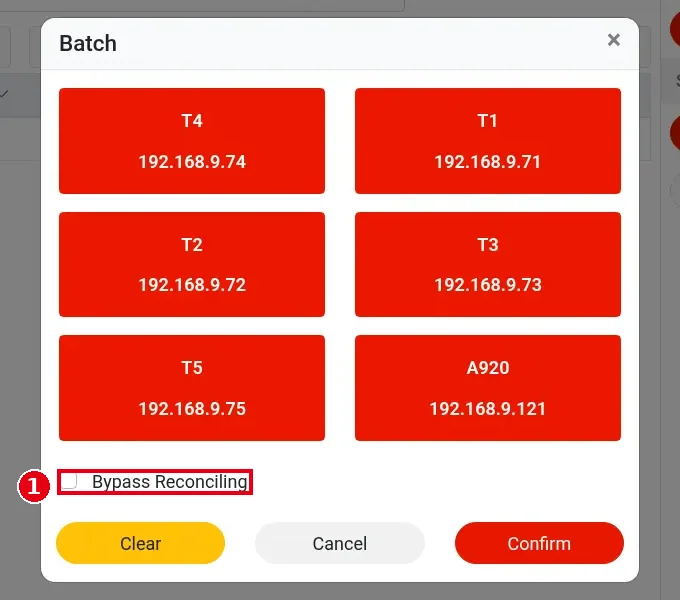
Checking Bypass Reconciling in the Batch window skips reconciliation and forces the batch. Use it only in this case: an old terminal broke so it couldn’t batch, and after a new terminal was swapped in there are reconciliation problems. Anyone with Batch permission can check it.
Failed batch #
1. In Actions > History, set Status to Failure to see which terminal failed (see 1.6.4 How to view batch history).
2. Check that the terminal is on and connected, and that the local service is online (see 4.1.2 What to do when the card terminal doesn’t respond).
3. In the Batch window select only the failed terminal and close the batch again.
4. If it still fails, contact the technical team: +1 (866) 588-8868, support@adoluna.com (see 4.2.1 What to do when a printer isn’t printing).
Notes / FAQ #
-
When a batch fails, the screen shows the reason and the POS you’re using prints it (see step 6 of 1.6.3 How to close a credit card batch).
-
Retrying after a failed batch is safe and doesn’t settle twice.


