
Purpose: What to check when a customer says they placed an online order (Adoluna online store / App) or a third-party order (DoorDash, Uber Eats and others, via Deliverect) but you can’t find it on the POS or the kitchen didn’t get it. For: managers, front desk.
First, look in Recall #
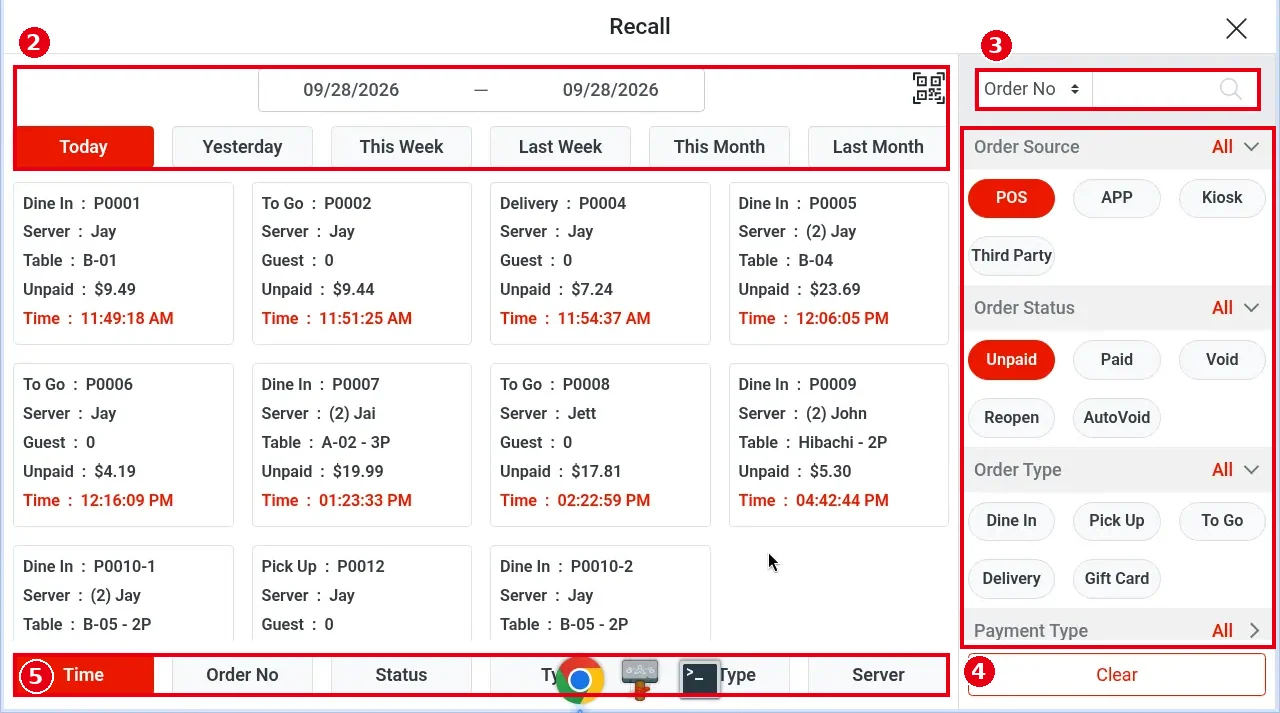
Many orders that “didn’t come in” are already on the POS but hidden by the filters. Recall opens with only POS and Unpaid selected in ④, so it shows only unpaid POS orders (see 1.4.1 How to find an order in Recall):
1. On the home screen tap Recall and check the date first (order numbers restart from 1 every day).
2. Under ④ Order Source choose APP (Adoluna online orders, numbers starting with A) or Third Party (third-party orders, numbers starting with T). Under Order Status look at both Unpaid and Paid (orders paid online and third-party orders are paid orders).
3. Search with ③: the search field can be Phone (the customer’s phone) or Name, and for third-party orders Third Party ID (the platform’s order number).
Adoluna online orders #
1. The order is on the POS but the kitchen didn’t get it:
-
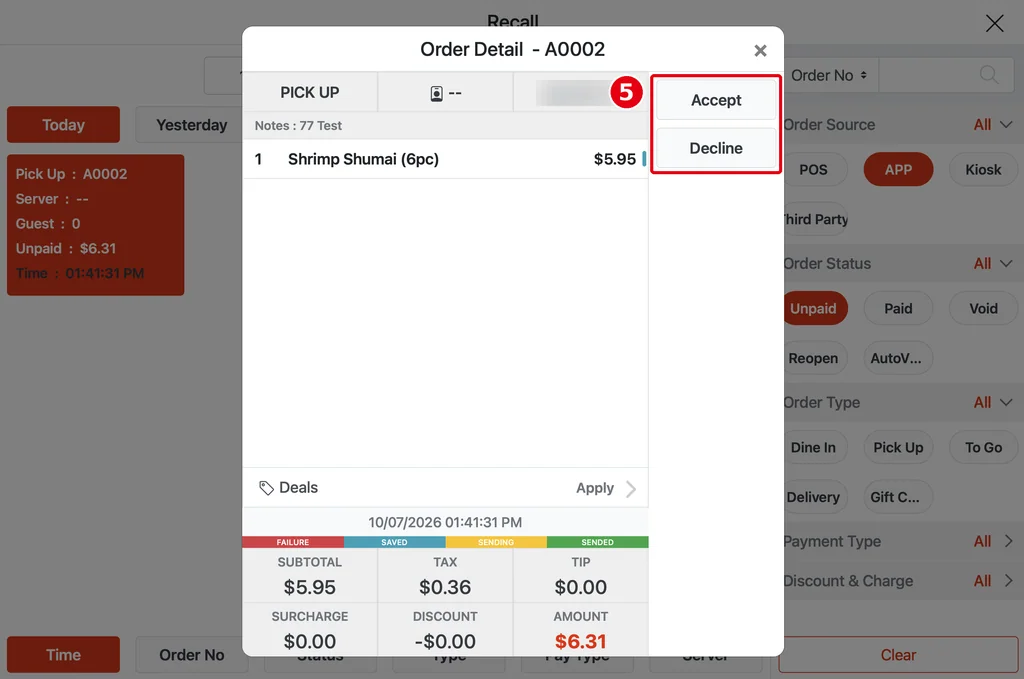
If auto-accept is off for this kind of order in the Backoffice, staff must tap ⑤ Accept on the right of Order Detail before the kitchen gets it (see 1.9.1 How to receive and handle online and app orders on the POS, 2.9.3 How to set up auto-accept and new order notifications). The order card has no “waiting” mark; open the order to see it.
-
A scheduled order with a pick-up time isn’t sent until the time set by Order Prepare Time (see 2.9.4 How to set the prep time for scheduled orders).
-
If it was sent but didn’t print, follow the printer troubleshooting (see 4.2.1 What to do when a printer isn’t printing, 4.4.1 What to do when the Local Server is offline).
2. It’s not on the POS at all and the customer can’t order: in the Backoffice check Online Store > Store Availability: whether the online store was closed by hand (Closed), whether it’s within online hours, whether there are special hours or closures, and whether Order Ahead is on (see 2.9.1 How to set online store availability and hours). For the pick-up / delivery switches and delivery zone see 2.9.2 How to set online pick-up and delivery rules; for items not showing online see 4.3.2 Why isn’t an item showing on the Kiosk or online?.
3. No alert for new orders: a new order pops up on the POS for 5 seconds and then goes to the Order tab of the Notification Center (see 1.1.4 How to check the Notification Center). For text or email alerts, turn on new order notifications in the Backoffice (see 2.9.3 How to set up auto-accept and new order notifications).
Third-party orders (Deliverect) #
1. All third-party orders are accepted automatically and sent to the kitchen; staff don’t accept them (see 2.9.3 How to set up auto-accept and new order notifications). If the POS shows Third-party order #… acceptance failed. Please confirm acceptance on the third-party platform, accept the order by hand in that platform’s merchant app (see 1.9.3 How to handle third-party delivery orders (Deliverect)).
2. Deliverect pulls the platform menus from our system; sync records are under Third-Party Sync (see 2.9.5 How to set up third-party delivery sync (Deliverect)). If orders fail on the platform, or the store has just been connected to Deliverect, contact Adoluna to check the Deliverect link.
3. When a third-party order doesn’t reach the POS, check what went wrong on the Deliverect platform: every merchant has a Deliverect login and can sign in to look. If the order has been waiting a while, accept and prepare it on the third-party platform’s tablet first so the customer isn’t kept waiting.
Store internet #
When the store’s internet is down (see 4.4.1 What to do when the Local Server is offline), online and third-party orders are already in our system as soon as customers place them. When the connection is back, refresh the POS first (see 4.4.3 How to refresh or restart the POS), then find those orders in Recall and resend them to the kitchen (see 1.4.2 How to resend or reprint an order) or void them (see 1.4.5 How to void an unpaid order, 1.4.6 How to void a paid order).
Still not working #
Contact Adoluna support: phone +1 (866) 588-8868, email support@adoluna.com. Have the order time, the customer’s phone and the platform order number ready.
Notes / FAQ #
-
To stop taking online orders for a while, close the online store with Closed under Online Store Status. It stays closed until you tap it again to reopen (see 2.9.1 How to set online store availability and hours).


